
Follow below steps to configure navigation link item to open in a new tab:
1. Go to your SharePoint site and click on Edit link at the bottom of the vertical navigation (or to the right of the horizontal navigation).
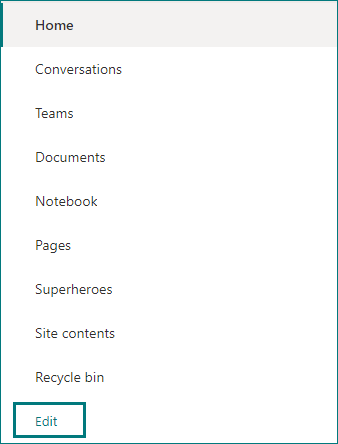
Vertical navigation in SharePoint team site
2. Hover in between the existing navigation links in the menu where you want to add a new link and select + icon.
3. On the Add a link dialog box, choose Link under Choose an option dropdown and enter web address & display name for the navigation link.
4. You can see the new Open in a new tab option at the bottom of Add a link dialog box. Select the Open in a new tab checkbox to open the navigation link in a new browser tab.
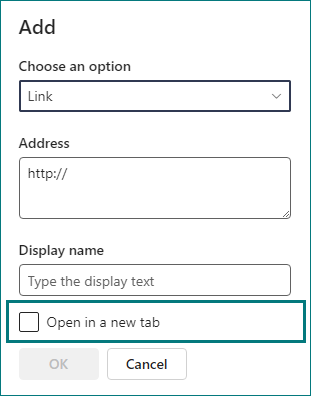
SharePoint – Configure Navigation Links to Open in a New Tab
5. Click OK on Add a link dialog box and then Save the navigation settings. Now, when you click on the newly added navigation link item, it will open the associated web address in a new browser tab.
