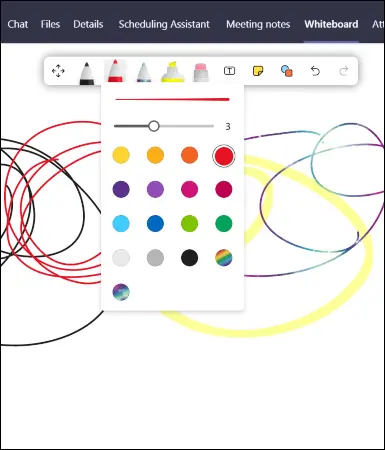
Microsoft Team's Whiteboard feature is a very intuitive way of presenting information to colleagues. Using a digital pen and sketchpad, you can explain concepts of all types in an easy-to-understand format.
What Is the Microsoft Team's Whiteboard?
Similar to the Microsoft Whiteboard app, Microsoft Team's Whiteboard feature allows users to sketch and brainstorm ideas onto a freeform digital canvas during conferences. It uses a standard classroom whiteboard format, stored in the cloud and accessible by anyone you invite to a Microsoft Teams meeting.
Using Whiteboard in a Group Meeting:
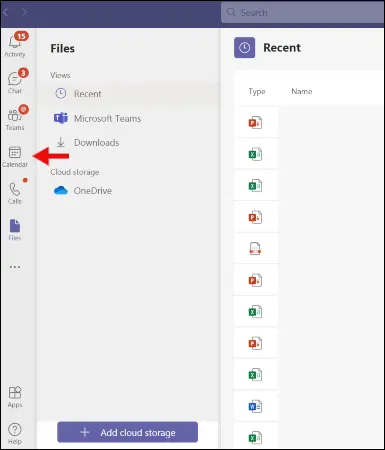
To access Microsoft Team's whiteboard, open the app, navigate to the left-side navigation menu, and click on the "Calendar" icon.
From there, start a new meeting by clicking on the "+ New Meeting" button in the upper right corner. On the following page, enter all meeting details and click on "Save."
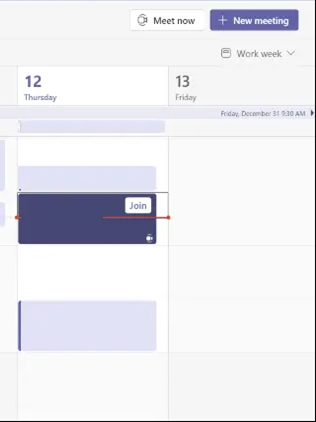
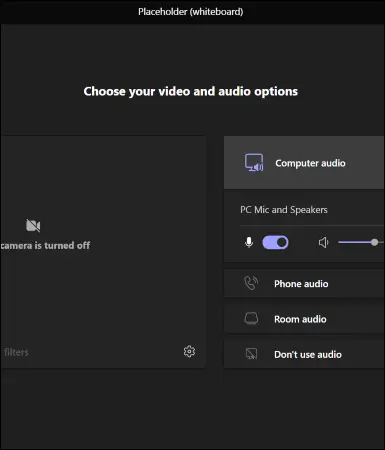
Once the meeting starts, you will be prompted to Join. Click on "Join," set your camera and computer/phone audio settings and click on "Join Now."
Once the meeting is launched, click on the "Share Tray" icon, wait for the "Share Content" pop-up window to load. Scroll down slightly and click on "Microsoft Whiteboard" to start the whiteboarding session. You will have the option to present the whiteboard (sole editing rights) or collaborate, where everyone can edit in real-time.
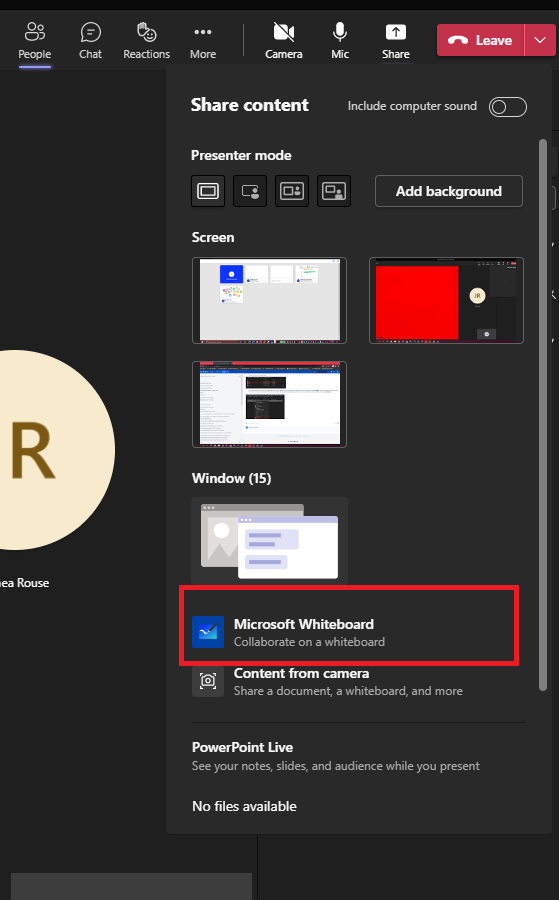
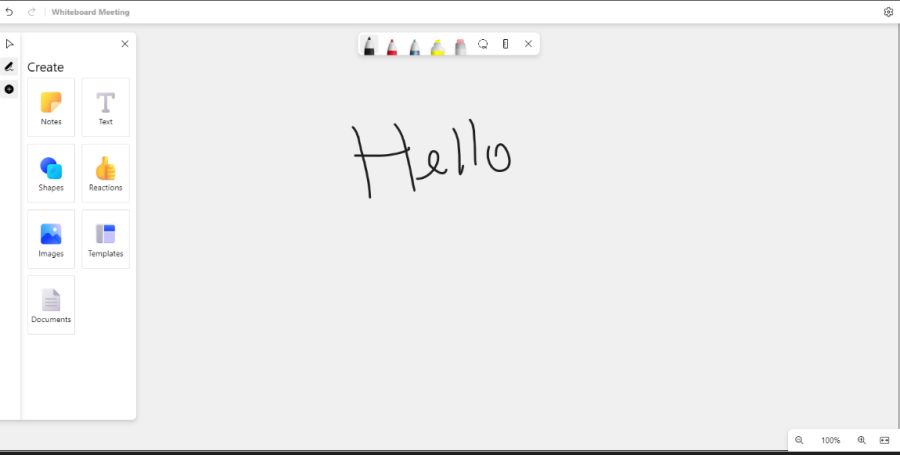
After a brief loading progress bar, a large white drawing pad will appear. Click anywhere on the white drawing pad to access the writing toolbar. The writing toolbar includes pens of varying thickness, an eraser, a sticky note, a shape/line tool, and a text box. Whiteboard share tray on Microsoft teams
How Do I Draw on a Microsoft Teams Whiteboard?
To start drawing on your whiteboard, click on any of the writing utensils in the toolbar, press your cursor, and drag and drop anywhere on the screen to draw, sketch, or type out ideas. You also have the option to use a text box to type out ideas. You can pan and zoom your whiteboard in, out, to the left, or to the right to maximize your drawing space and draw attention to key ideas.