Enable and configure versioning in a list or library
-
Open the list or library that you want to enable versioning.
-
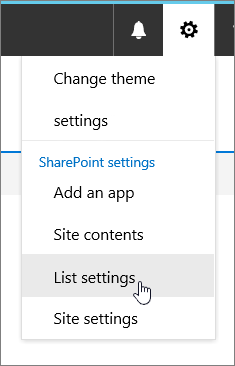
Select Settings, and then select List Settings or Library Settings.
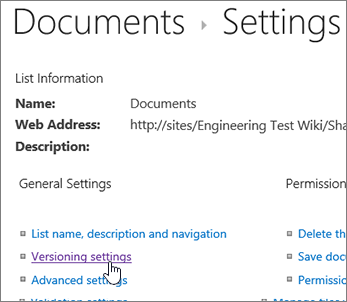
On the Settings page, select Versioning settings.
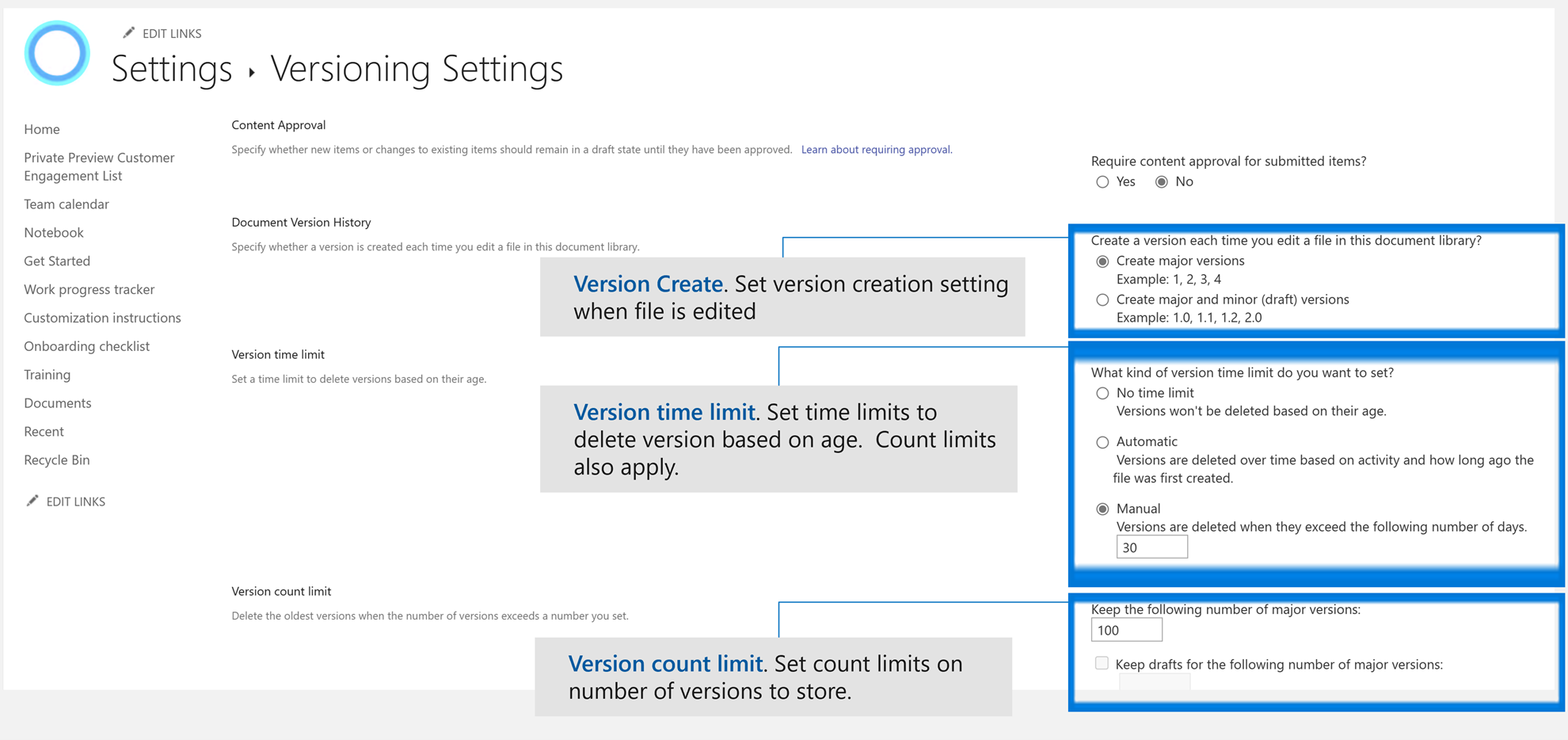
From the Version settings page, you have the following settings available:
-
For a Document library:
-
Require content approval for submitted items.
-
Create a version each time you edit a file in this document library using either major versions only, or major and minor versions.
-
Limit the number of versions and drafts to retain.
-
Set time limits to delete versions based on age. Note: When version time limits are set, versions are deleted after exceeding either the set number of major versions or after the set period of time. Take an example of a library configured to store 500 major versions with a 365-day expiration. No more than 500 versions will be stored and any version older than 365 days will also be deleted.
-
-
-
For a List:
-
Require content approval for submitted items.
-
Create a version each time you edit an item in the list.
-
Limit the number of versions and drafts to retain.
-
Set who can see draft items in the list.
-
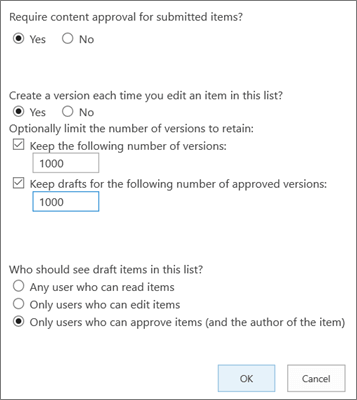
Select OK.
To view, restore, or delete an earlier version in a list or library
-
Open the list or library with the item or document that you want to view history.
-
Next to the item for which you want to view history, select the ... (ellipses).
-
Select Version history.
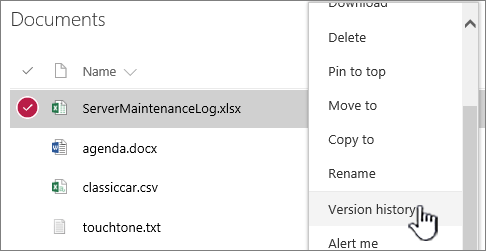
If you don't see Version history, select More, and then select Version history.
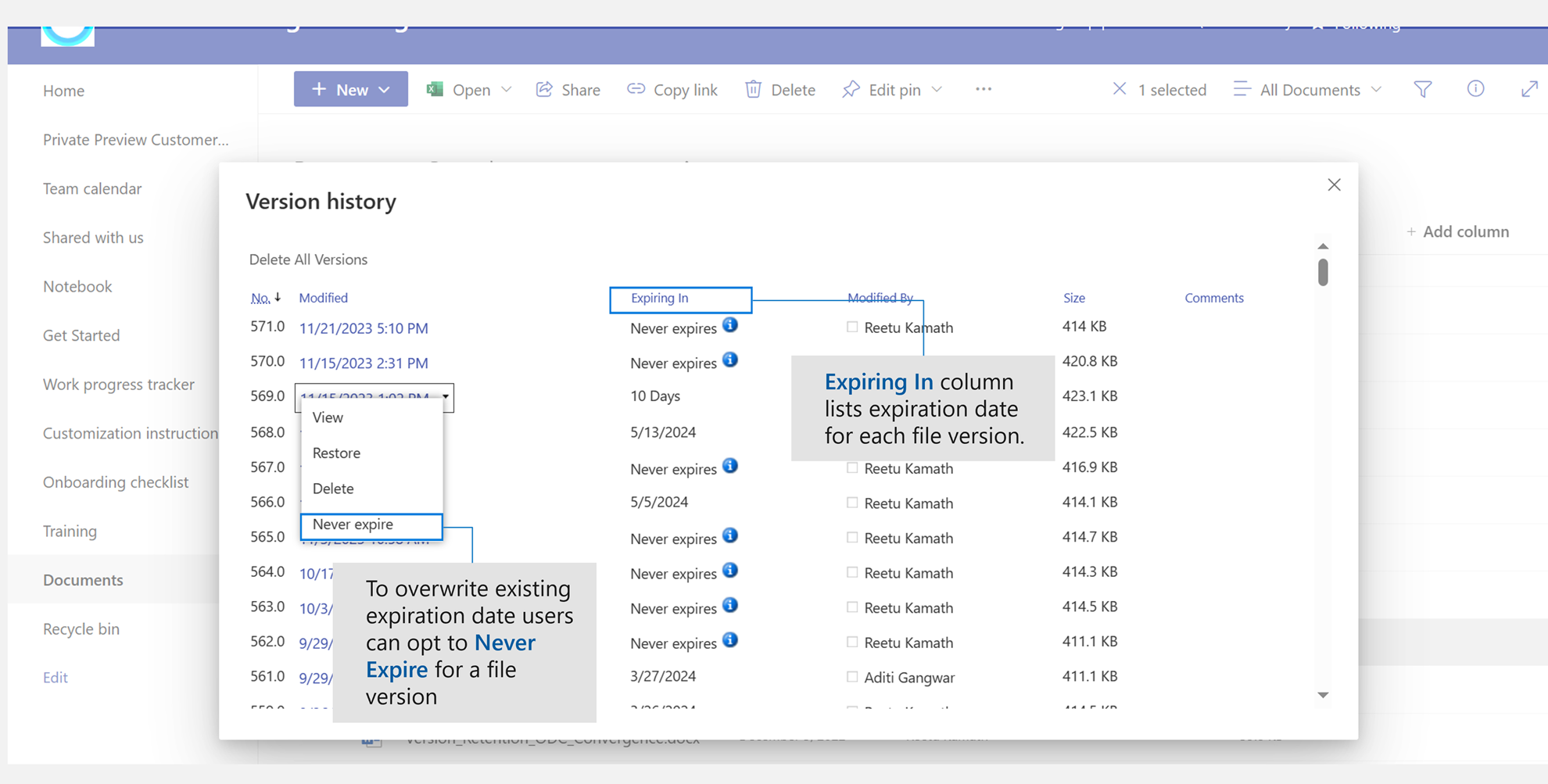
In the Version history dialog, view the date a version will expire.
Note:
-
The expiration date on versions is determined by the version time limit applied on a library and the version creation date. The Modified date is when the contents of the file were changed which can be different from the version creation date.
-
Versions set to ‘Never Expire’ can be manually deleted or automatically deleted if version limits set for the file are exceeded.
In the menu, you can do the following.
-
View the current document. A dialog box appears where you can restore or delete a previous version, as well as see the current approval status. You can also edit the current version from this dialog box.
-
Restore the document. A dialog box appears prompting if you want to make it the currently approved document. It will add it as a new version.
-
Delete the document. A dialog box appears prompting if you're sure you want to send the item to the Recycle Bin.
-
Never Expire: Overwrite expiration on expiring versions to Never Expire.
-
Reject this version. Only appears on approved documents, rather than Delete.
When you're done, in the upper right corner, select X.
