Microsoft Teams User's Guide2020

- Activity is where you will see notifications, replies, and mentions.
- Chat is where you can chat with one person or multiple people.
- Teams are topic based discussions. In this section, you can chat with a group. For example, if you wanted to send a message to your entire department on a specific topic, you can do that in this section.
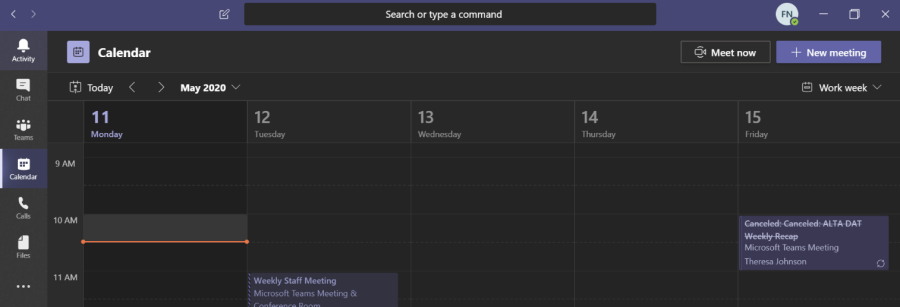
- Calendar can look into your Outlook calendar and provides a view into your
calendar. Additionally, you can also create new meeting or join a meeting from your Microsoft Teams calendar.
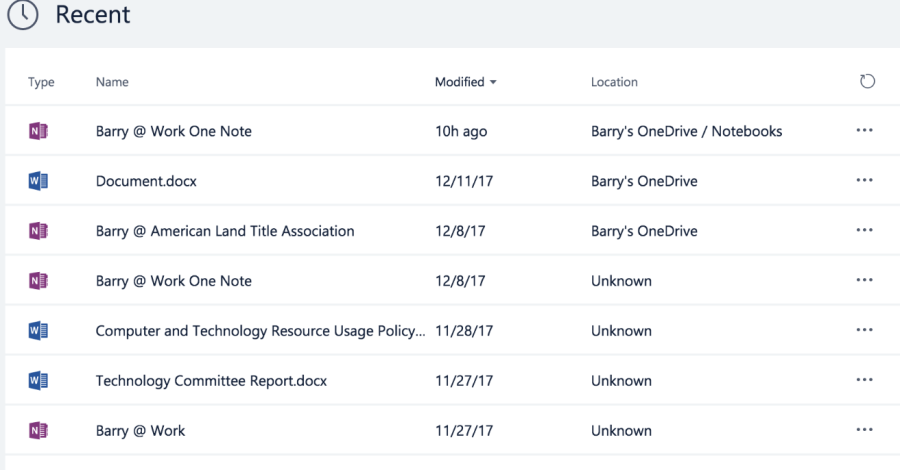
- Files is where any documents that have been share with you through teams resides. If you shared a Word document with another staff member, that document will appear in both individual's Files section. It also allows you to view files in your OneDrive or approved cloud storage services.
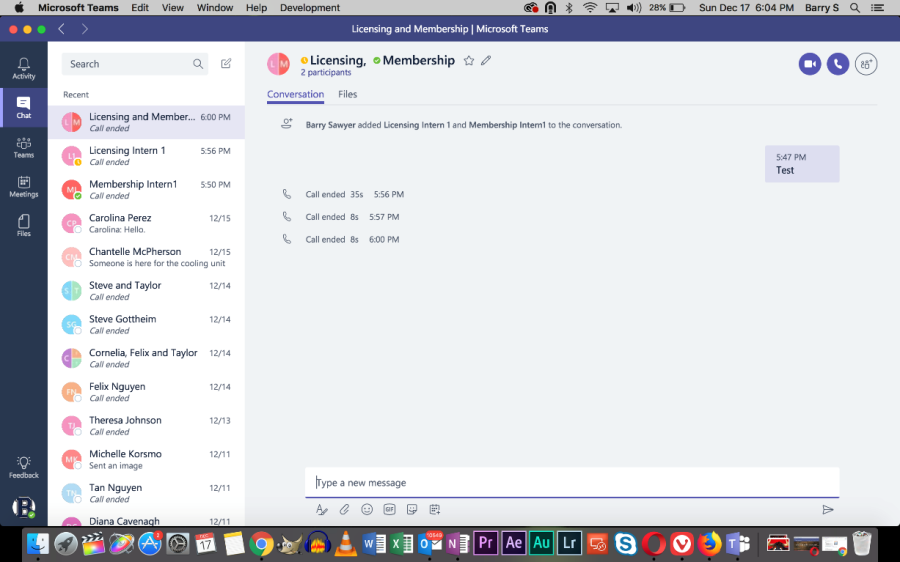
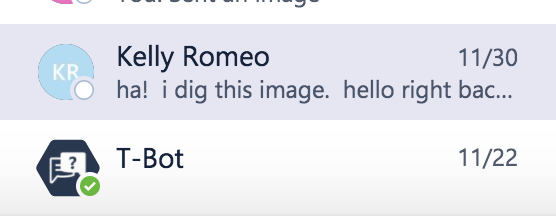
In the Chat section is where you can send a private message directly to a staff member. You can also send messages to multiple staff members. You can see a staff member's status. In the Search field, you can search through chat messages, team messages, files, and find a staff member or team by typing the name.

When you search, the filtered results show will in either the Messages, People, or Files tab. This depends on the criteria. If you search for a staff member's name that you haven't communicated with yet through Microsoft Teams, make sure you select the "People" tab.
Next to the Search field, there is a New Chat icon. This is where you can message person directly or message group of people. In the To field, you can search for a staff member's name. When finished searching, select the name and hit Enter. You can continue searching or typing more names. Make sure you hit Enter after each individual. When chatting with a person or group, the main chat window is divided into several sections.
- The Conversations window is where the message history is located for the person or group you are communicating with.
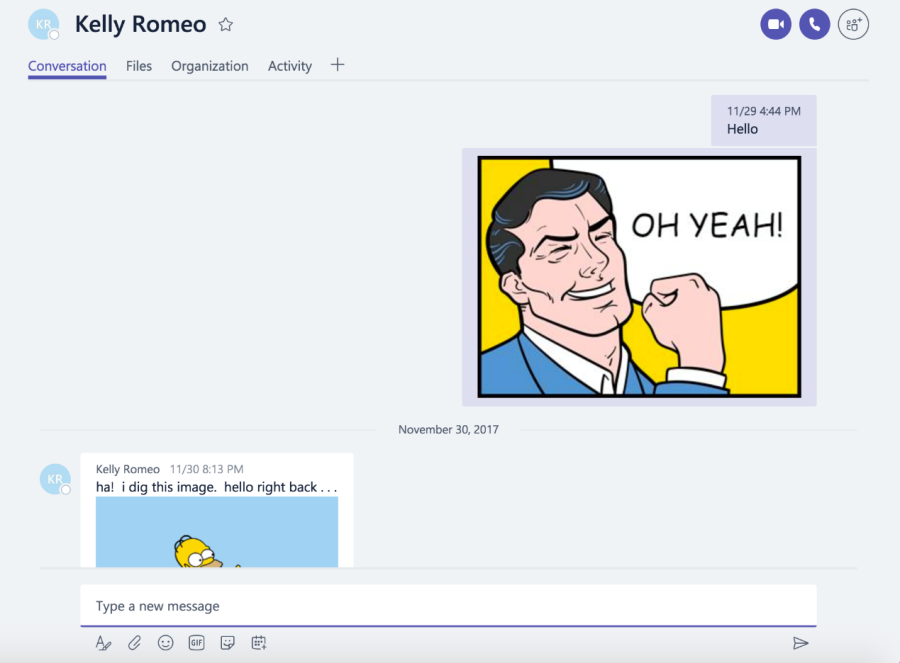
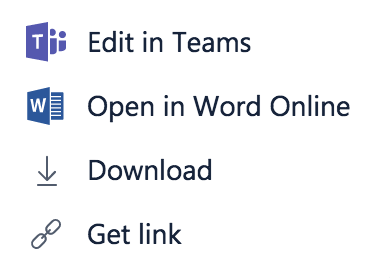
- The Files tab is where any files you have shared with the person or group can be found. This uses Microsoft OneDrive or any approved cloud-based storage service. You can also drag and drop files into the message composition window. Once a file is uploaded, you can co-edit a document either through Teams, Word/ Excel Online, download the document, or send the link to document.
- Organization will be an ALTA organization chart for the person or group you are communicating with. Currently, you will see an error "Organization view does not exist for this user". This feature is currently disabled. It will work as intended in January 2018.
- Activity shows any connections you and the staff member have through Microsoft Teams.
- The + symbol allows for specific tabs to be added within the chat window.
At the bottom of the chat window and in the message composition field, you can type in a new message. When you hit Enter, the message is sent. If you need to enter a hard return or paragraph break, hit SHIFT+ Enter. At the bottom of the message composition field, you have options to:
- Add formatting to the text you are entering.
- Add Files to the messages. This uses OneDrive, any approved cloud storage
- Add an emoji to the message
- Add a work-safe animated GIF from the website Giphy
- Add a sticker. The sticker has editable fields check the text attached to it.
- Ability to schedule a meeting. This meeting will link to your Outlook calendar and will show up as a standard meeting or appointment.

In the top right-hand corner of the chat window, you have the option to do a video call if your device has a camera. You can also do an audio only call. You can also do a screen sharing with the other participants. Lastly, you can add another staff member to the chat.
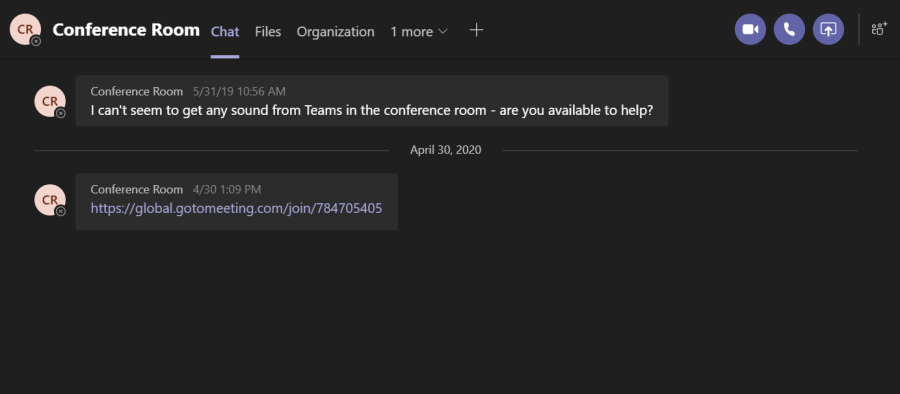
The Teams section is a targeted discussion and use for communicating with a specific group. Teams can be open or private. A public team will appear to all staff members and will be visible in the Teams pane. A private team is not visible to the entire staff and will not appear to in the Teams pane. A staff member must be invited to a private team by the Team's owner. The owner can manage aspects of the team. After they are added, it will be visible to them. Any staff member can create a team and can add people to it. Some basic Teams have been added based on the department. Within a team are Channels. Channels are discussion topics. When chatting with a Team, the main team window is divided into several sections.
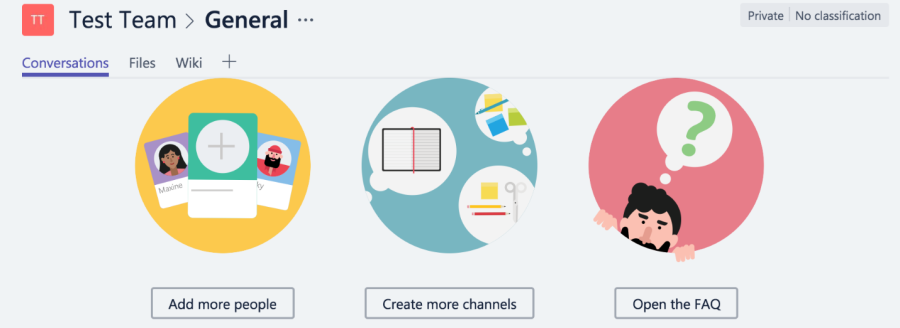
- Conversations are where the main text-based chat appears. As with the basic chat window, you have options to format text, add files, send emojis, send GIFs, add stickers, and do a video/ audio chat called Meet Now. This will instantly start a video or audio conference with the group based off your device's capabilities.

- The Files section are any files that have been shared within the Team. Once a file is uploaded, you can co-edit a document either through Teams, Word/ Excel Online, download the document, or send the link to document.
- Wiki is where you can put frequently asked questions or pertinent information to the group.
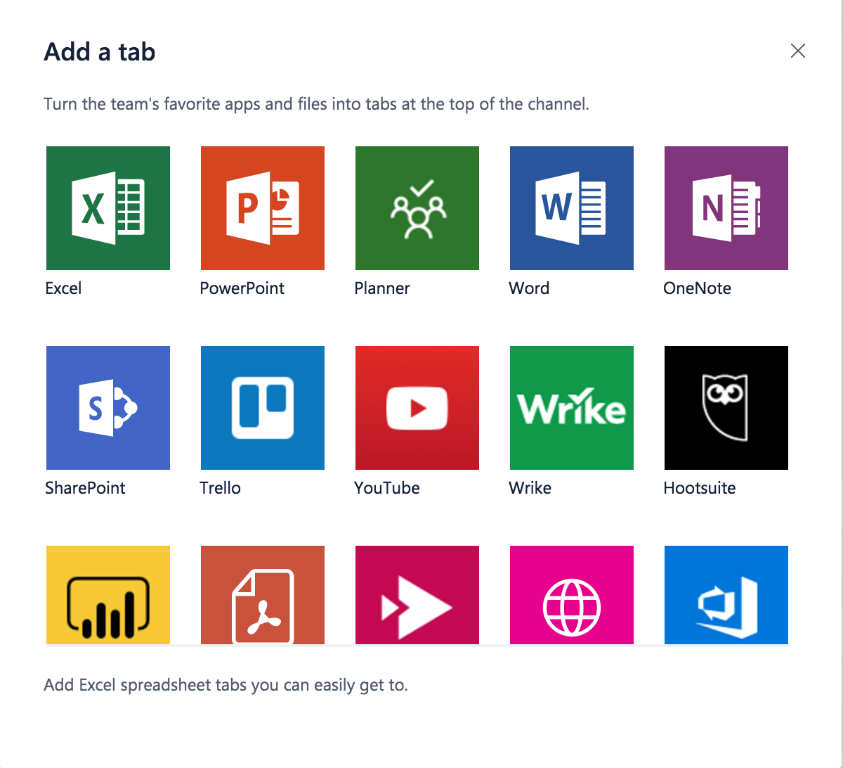
- The + symbol allows you create a tab that connects to Microsoft or other third-party services. For example, you can do group project tracking with Microsoft Planner or a third-party service called Wrike. Some of the third-party services require an additional signup or login. Some services are free, and others are paid.

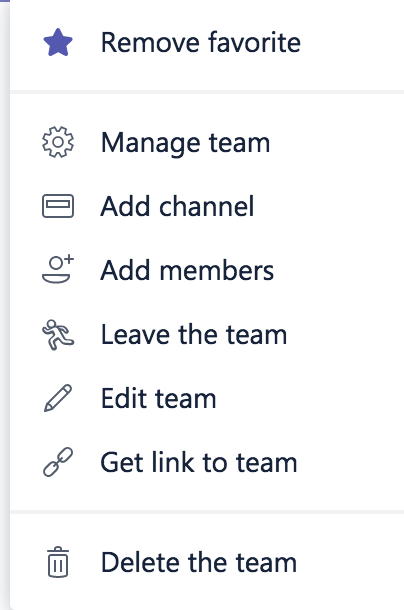
If you are the Owner, you can manage the Team by opening the hamburger menu (…). The options available are:
- Manage Team. You can be adding or remove Team members, edit the different channels within the Team, and you can edit different settings for the Team.
- Add Channel. This allows you to create a new channel.
- Add Members. The simplest way to add members to the Team. You can also do this under Manage Team.
- Leave the Team. If you wish to no longer participate in the team, you can remove yourself from the team. If you are the only owner of a team and wish to leave, you must promote another staff member to owner.
- Edit Team. This will allow you to change the Team's name, description, and privacy. Changing the privacy will allow you to make it public or private to ALTA staff.
- Get Link to Team. You can send a link to join the team to another staff member.
Channels have a limited number of manageable options. You can access these options by opening the hamburger menu (…). Some of these options will vary by channel. You can:
- Edit this Channel. You can change the channel's name.
- Connectors. This allows you to manage the options of some of the third-party services. You can see what accounts you have, change the credentials, and configure the options for those services.
- Get Email Address. This will provide you with an email address to send comments to a Team Channel.
- Get Link to this Channel. You can send a link to join the team to another staff member.
- Delete this Channel. You can remove the channel if you are the owner.
- Follow this Channel. This should be reserved for the most important channels. It will send you notifications for all activity in a channel. If you do not want to be inundated with message notification, leave the options as it.
The next section is Meetings. This feature is currently disabled. It will work as intended in January 2018. This will allow you to view your Outlook calendar, schedule meetings from inside of Teams, see when staff members are free with the scheduling assistant, and arrange video or audio calls for future meetings.
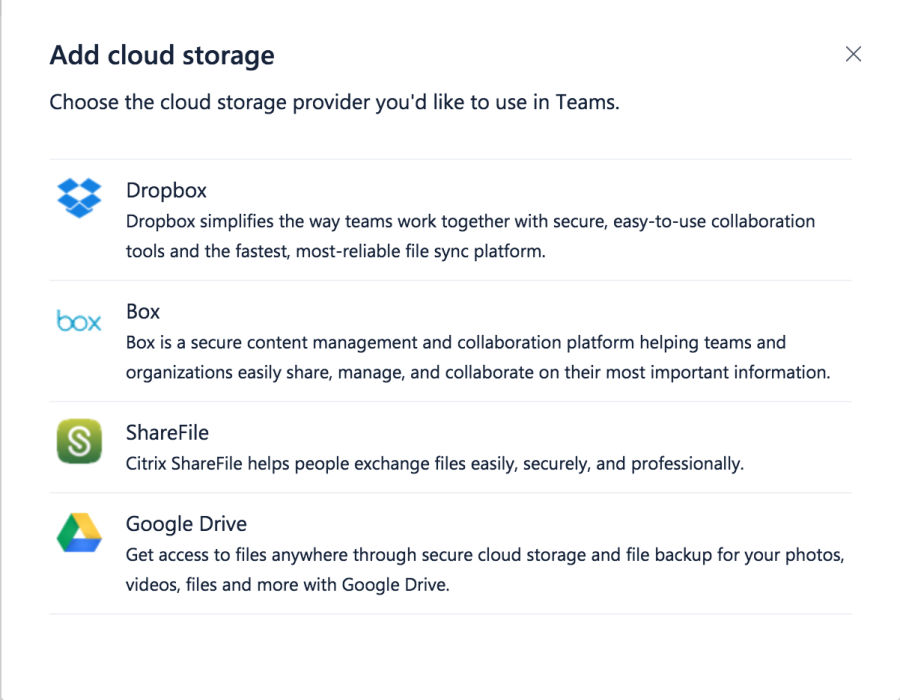
The Files sections allows you to see any files that you have shared or have been shared with you through Microsoft Teams. With Office 365, each staff member has a 1TB OneDrive for Business. When a document is shared or collaborated through Microsoft Teams, it will upload to OneDrive by default. You also have the option of linking Dropbox, Box.com, Sharefile, or Google Drive accounts to Teams. Therefore, you can upload and share files from those services through Teams.
Video and Audio Calling
Teams has video and audio calling built on the Skype foundation. Audio calling is essentially the same as video calling, but with the camera disabled. You can do either one through the Chat section or the Teams section. The Chat section can handle multiple video or audio participants. It will only send a video request to those you have initiated the video chat with. The Teams section will send the video request to those only in the team.
Adding Other Staff Members to a Video or Audio Calling
From the Chat Section
You can launch a video or audio call from a private chat by clicking the Camera or Telephone handset icons in the top corner of the chat window. This will automatically start the video or audio call on your end and alert the other party that a call has started. The other party has the option to accept or reject the request. They can also send a text reply. If they accept it, they are added to the call. If they reject it, it will show to the initiator that the request was declined.
Note: If you have already started a 1 to 1 video chat through Teams from the Chat section, you cannot add another person to the call. Therefore, you cannot add a third person to the video call. If you have at least three people total, you can add a fourth. This is a design decision by Microsoft to prevent a user from unwittingly adding another party. If you have already started a 1 to 1 video chat and want to add a third person, you must end the call, add the other person from the "Add People" button, and restart the video call.
From the Team Section
You can launch a video or audio call from the Teams section by clicking the camera icon at the bottom of the chat window. The icon is called Meet Now.

When you click the Meet Now icon, you have the option of naming the call. You are shown your video feed and have the option of disabling the video. You can also schedule a meeting. When you are ready to start the video call, click the Meet Now button. This will automatically start the video or audio call on your end only. It does not alert anyone to the video call until you add participants. In the side window, you have the option to Invite someone. It will show you as currently being in the meeting. You can type another staff member's name. and hit enter.
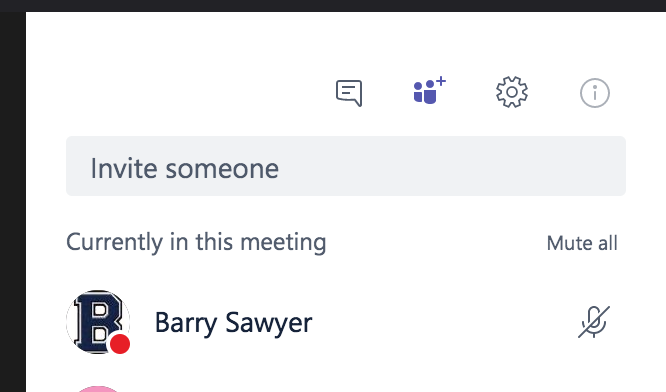
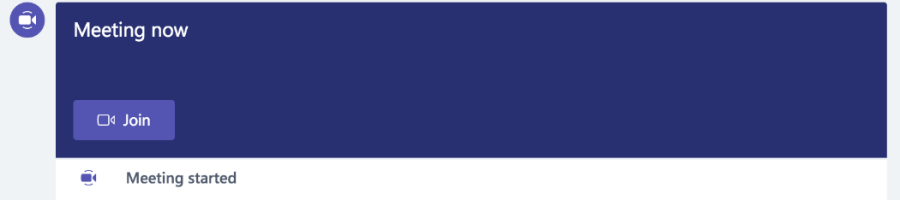
This will alert the other party with a notification. The other party has the option to accept or reject the request. The other party can send a text reply. If they accept it, they are added to the call. If they reject it, it will show to the initiator that the request was declined. You can continue to add other staff members. If you haven't joined an active video call, you will see a notification bar inside of the Team chat window that a call is occurring. You can hit the Join button to enter the video call.
Controlling a Video Call
While in an active video call, you have several different options. You can see the duration of the call in at the top. From the side pane or top corner, setting video to full screen, text chatting from within the call, adding additional people, and changing your audio and video device options.
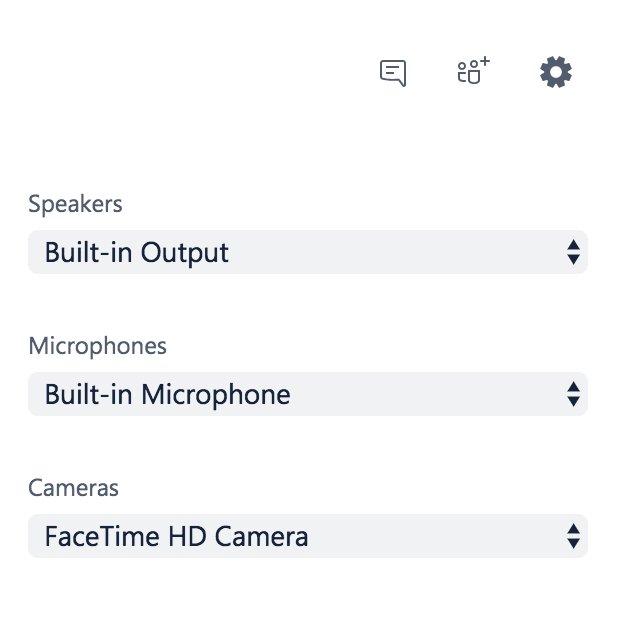
At the bottom of the call, you can active or disable your camera, microphone, share your screen, or ending the call. The call remains active until the all parties leave the video call. If you are actively in a call and go to another area of Teams, the video window is active in the top corner.

When there is four or more, only the most active video participants are shown on screen at all times. This will segment the screen to show those speakers.
Use a Background Effect for a Meeting
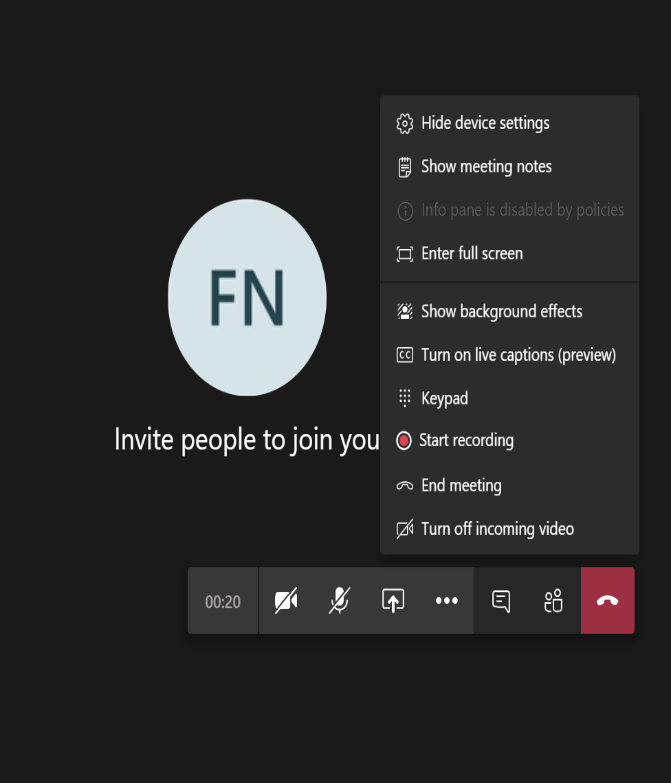
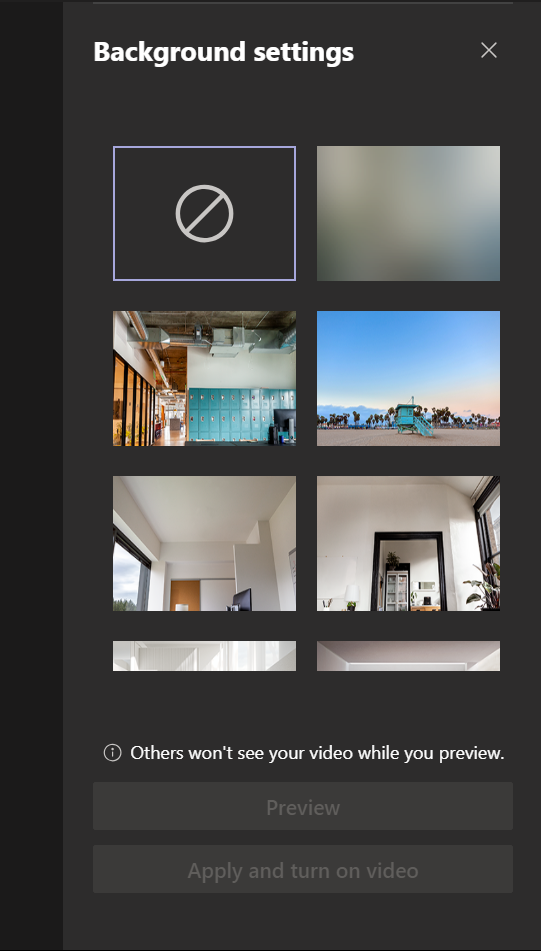
To use a Microsoft Teams Background Effect for a meeting, go to your meeting controls and select More options  > Show Background Effects. Then, you can select which background that you want to use for your meeting.
End the meeting for everyone
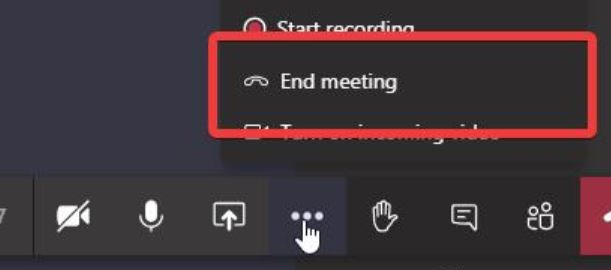
Meeting organizers, you now have the option to end your meetings for all participants. To end an in-progress meeting, go to your meeting controls and select More options > End meeting. You'll be asked to confirm. When you do, the meeting will end for everyone right away.
Chrome video calling is here
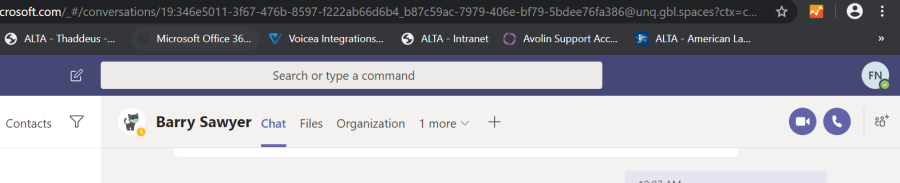
Do you use Teams on the web from a Chrome browser? You can make and receive video calls from your teammates through a Chrome browser. Select the camera icon at the top right corner of an individual or group chat and you can communicate with the people on the other end of the call.
Sharing Your Desktop from a Video Call
When selecting the Share desktop button from the video call, you will be given options to choose what to share to the other participants.
Select what you want to share:
- Desktop lets you show everything on your screen.
- Window lets you show a specific app.
- PowerPoint lets you show a presentation.
- Browse lets you find the file you want to show.
When you begin sharing, a red outline appears on the presenter's screen. This notifies the presenter that the screen is being shared. The presenter's video stream drops to the lower corner of the screen. The video call attendees will see the presenter's screen or application. To stop sharing, select the Stop Sharing icon. The icon is a monitor screen with an x on it.

Schedule a Meeting in Teams
- Select Schedule a meeting
 in a chat (below the box where you type a new message) to book a meeting with the people in the chat.

- Go to Calendar
 on the left side of the app and select New meeting in the top right corner.
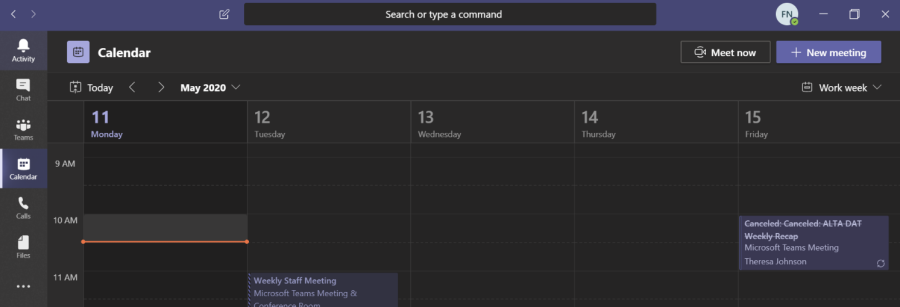
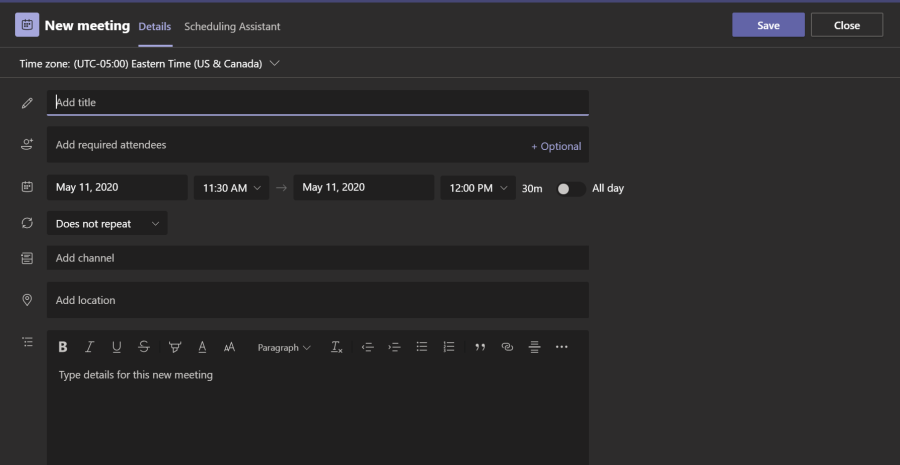
- Select a range of time in the calendar. A scheduling form will pop open. You can hit the save button when you've completed the form.