
Unlike a Document Library, where it automatically stored the last 500 versions of each document, it only stores 50 by default in a list. You can either increase it or disable it altogether. It is worth noting that you cannot totally disable version history on a document library, and 100 is the minimum version you can have there. Here is a summary of how version history works on a list:
-
Versioning enabled by default, set to last 50 versions
-
Versioning can be disabled if need be
-
No minimum number of versions, max is 50,000
-
Minor versions available as well, just like with document libraries, but only if you enable the Content Approval feature
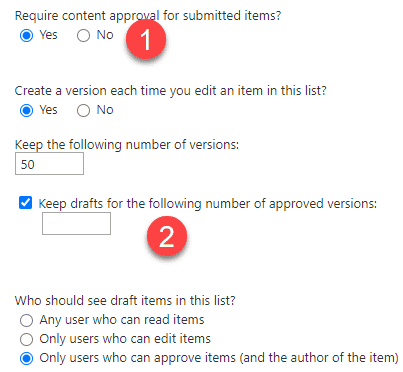
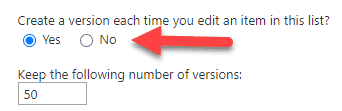
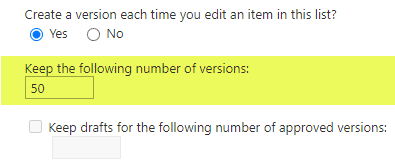
How to configure Versioning Settings on a list
-
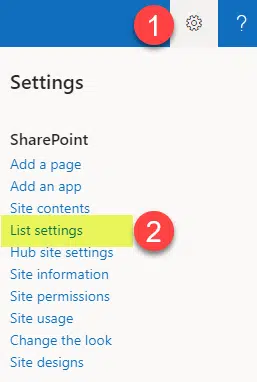
From a list, click Gear Icon > List Settings
-
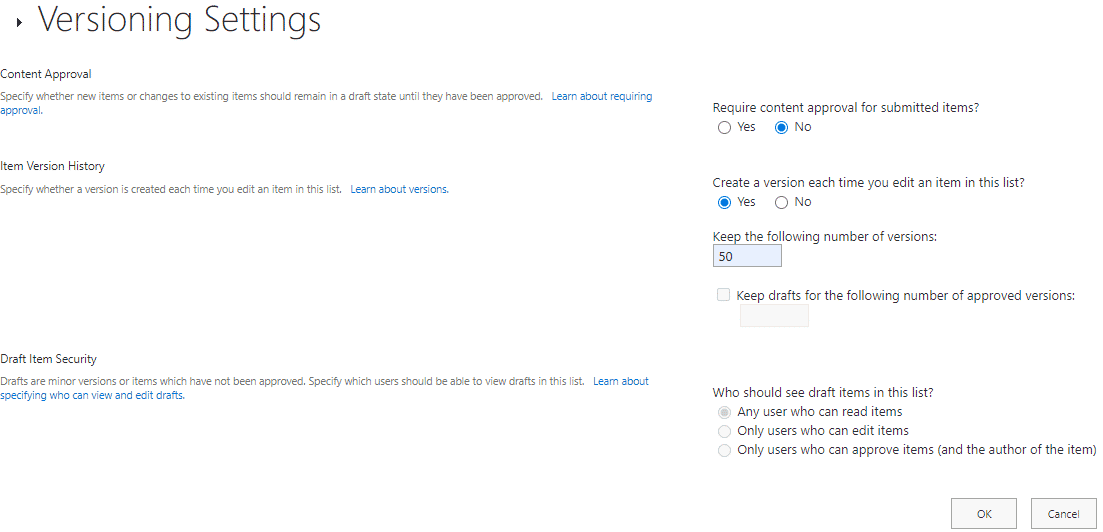
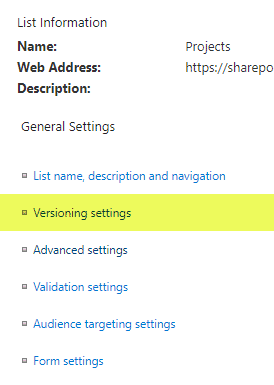
Click on Versioning settings
-
Adjust the settings as necessary, then click OK
How to access version History on a list
-
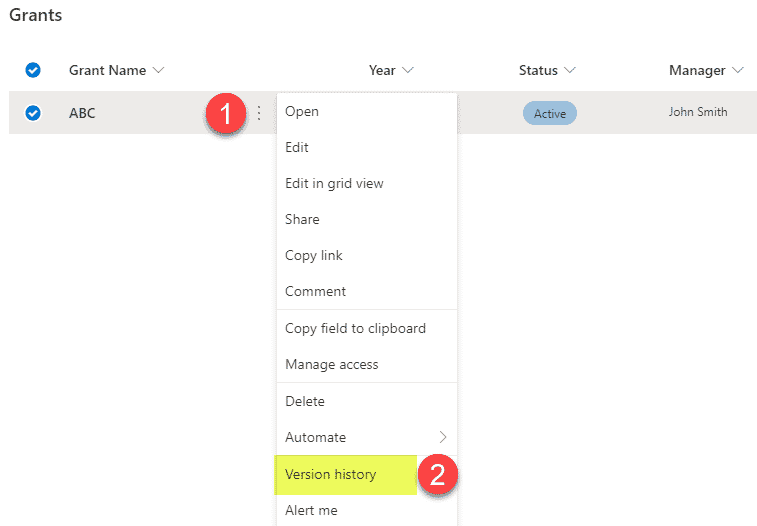
Right-click on the item whose version history you would like to view, then click Version History
-
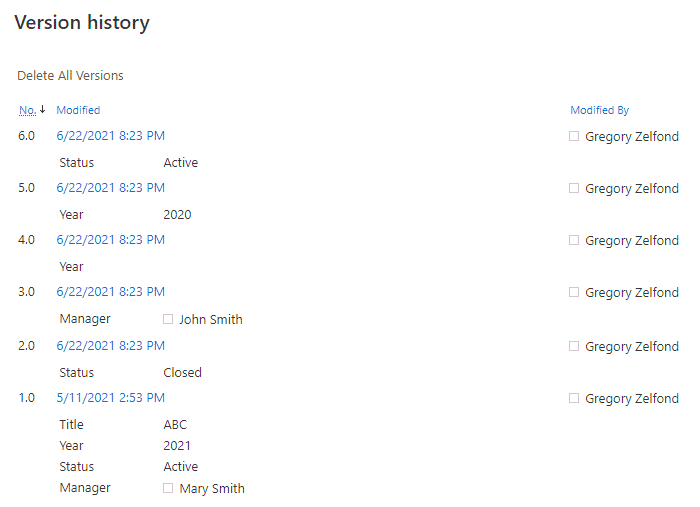
You will now see the version history log of all the changes to the item (looks very similar to Document Version History)
How to restore a previous version of an item in a list
-
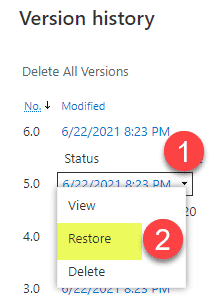
Click the drop-down next to the version you would like to restore, then choose Restore
-
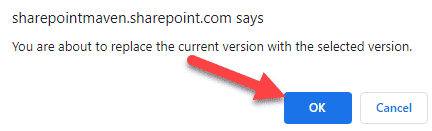
For the pop-up message, you will get, click OK
-
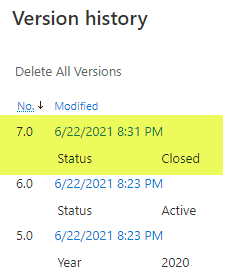
Just as with Document Version History, another version will be created, and the item’s metadata will be reset to the state it was at that particular point in time (version)
