
Changing your audio settings in Microsoft Teams can help ensure that you have the best audio experience during meetings and calls. Follow these steps to adjust your settings:
Step 1: Opening Audio Device Settings
-
Open Microsoft Teams: Launch Microsoft Teams and make sure you are signed in.
-
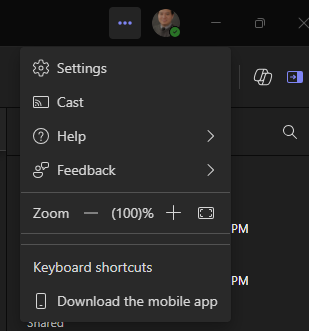
Access Settings: Click on your profile picture at the top right corner of the Teams window. A dropdown menu will appear. Select Settings.
Step 2: Adjusting Audio Settings
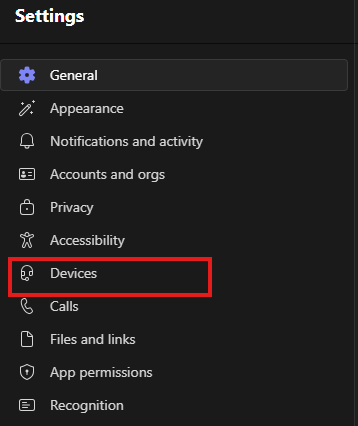
- Navigate to Devices: In the Settings menu, select Devices. Here, you'll see options to adjust your audio devices.
-
Select Speaker and Microphone: Choose your preferred audio devices from the dropdown menus:
-
Speaker: Select the connected speaker you want to use.
-
Microphone: Select the connected mic you want to use.

-
