
What is Zoom?
Zoom provides the Unified Meeting Experience (UME) platform that brings HD video conferencing, mobility and web meetings together as a free cloud service. Therefore, you can have crystal-clear video conversation and high-quality screen sharing, anytime, from anywhere, with up to 100 people or rooms. It is available for Windows, Mac, iOS, Android and works with PSTN and H.323/SIP room systems.
How do I begin?
To begin, simply go to http://zoom.us* and click on *Sign up. From there you can enter your first and last name, and your e-mail address to sign up.
Where do I find the desktop or mobile app?
 Once you have signed up or logged in, click on Host a Meeting, the desktop app will auto-download. Alternatively, you can click on the download footer link at http://zoom.us
- For iOS, visit the Apple App Store or by searching "Zoom."
- For Android, visit Google Play or by searching "Zoom HD Meetings."
What do I do after I launch the app?
After you launch the app, you have two options. You can Join a Meeting, or Sign In. If you do not wish to log in, and just want to join a meeting in progress click on Join a Meeting. If you would like to log in and start you own meeting, click on Sign In.
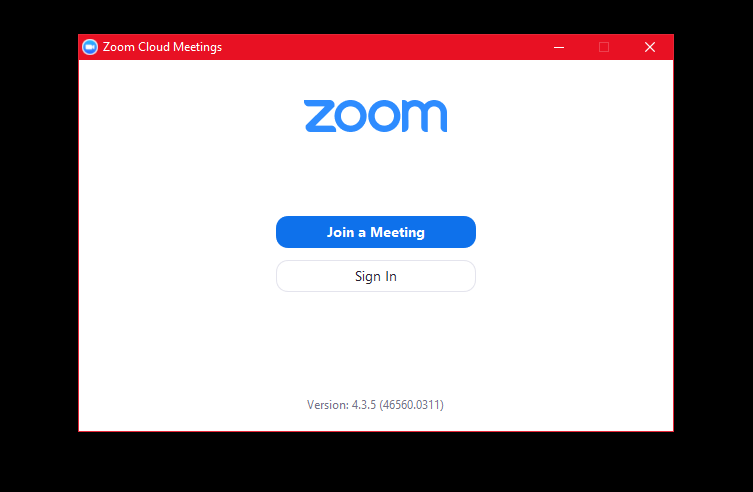
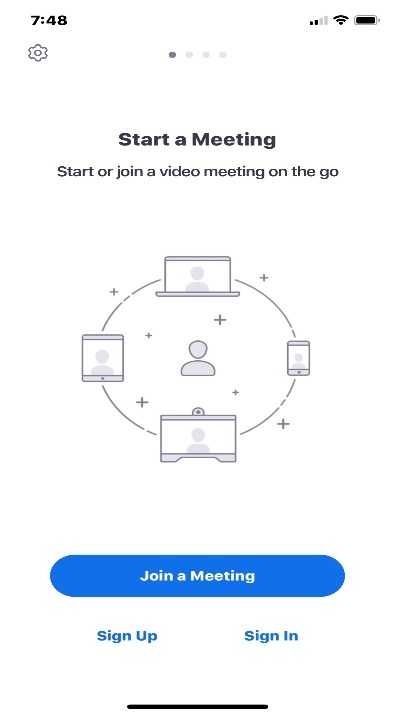 It is similar on iOS and Android App.
How do I log in?
To log in, you can use the email and password that you have created or use your Google (Gmail or Google App) or Facebook account.
Tip: If you have not created a user email and password, please click on "Sign Up" to create a zoom account.
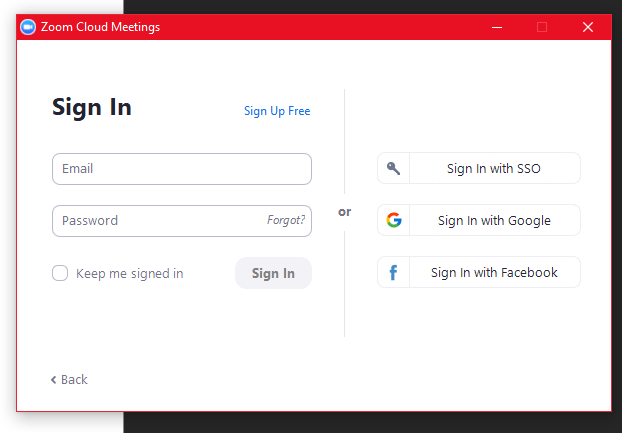
Note: If you have a zoom account but cannot remember your password. Please select "Forgot?"
How do I start a meeting?
Once you have logged in, you will see the main dialog box as shown below. The default tab is "Home".
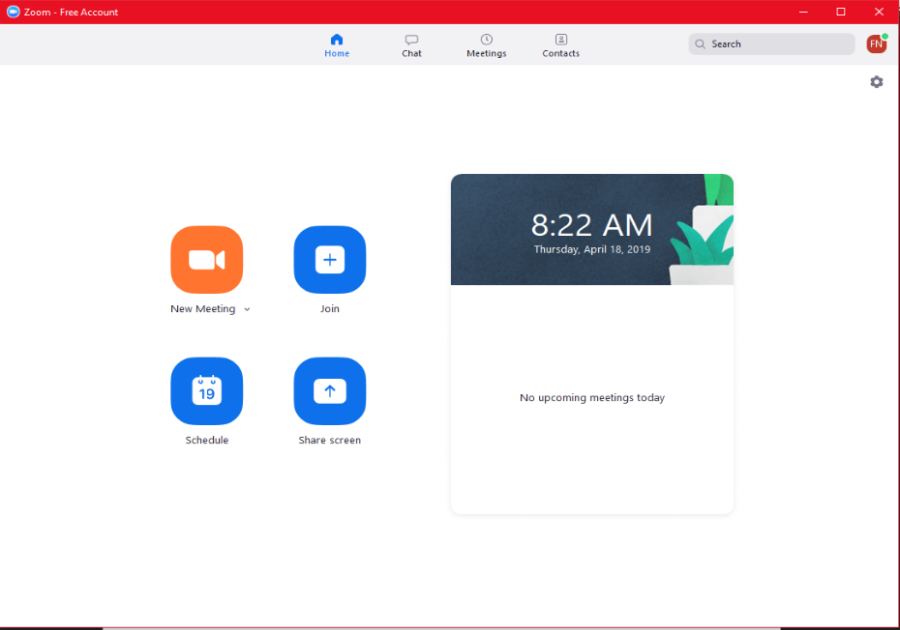
Possible Actions:
- Click on New Meeting to start an instant zoom meeting
- Click on Join to join a meeting that has already been started
- Click on Screen Share Meeting to start a meeting while sharing your "desktop" or "application"
- Click on Schedule to set up a future meeting (to learn more about scheduling meetings, click here)
Meetings
The "My Meeting" tab shows your upcoming scheduled or recurring meetings.
You can also click on the Recorded tab to view previously recorded meetings.
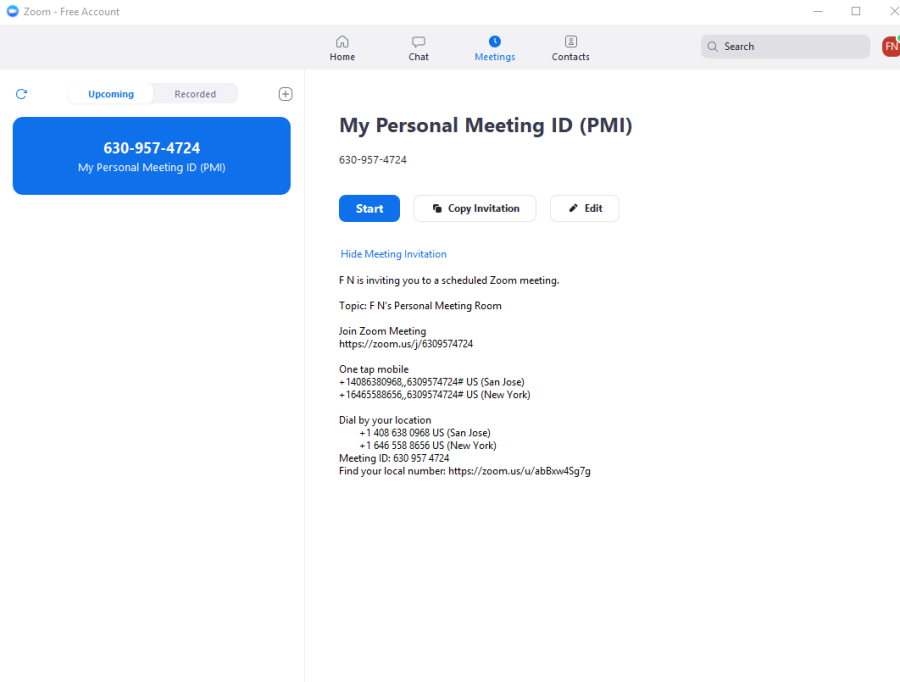
Possible actions:
- Start: Selecting start will start the pre-scheduled meeting that you have listed in your upcoming meetings.
- Edit: You can edit or update your scheduled meeting.
- Delete: Selecting delete will permanently delete your scheduled meeting.
- Copy Invitation: Here you can copy your scheduled meeting(s) URL and manually paste into an email, IM, SMS etc.
Note: If you do not see your scheduled meeting, click the refresh tab in the upper left-hand corner to update/refresh the meeting list. Additionally, make sure to schedule enough time for your meeting, meetings will end as scheduled.
How do I Configure The Settings?
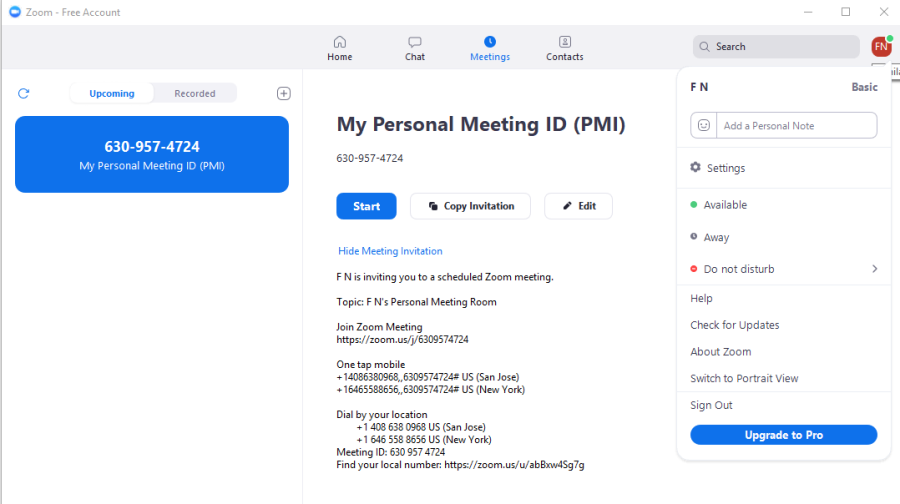
You can find the Settings tab on the upper-right hand side where there is a small icon with the initial of your full name or your profile picture. After clicking Settings, you will have the following options:
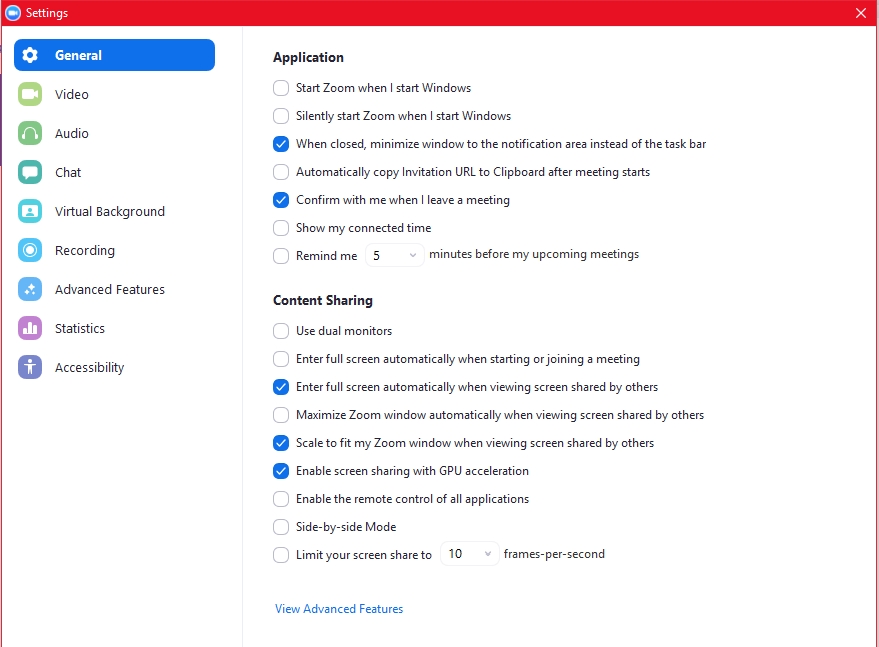
General: You can select additional preferences
Audio:
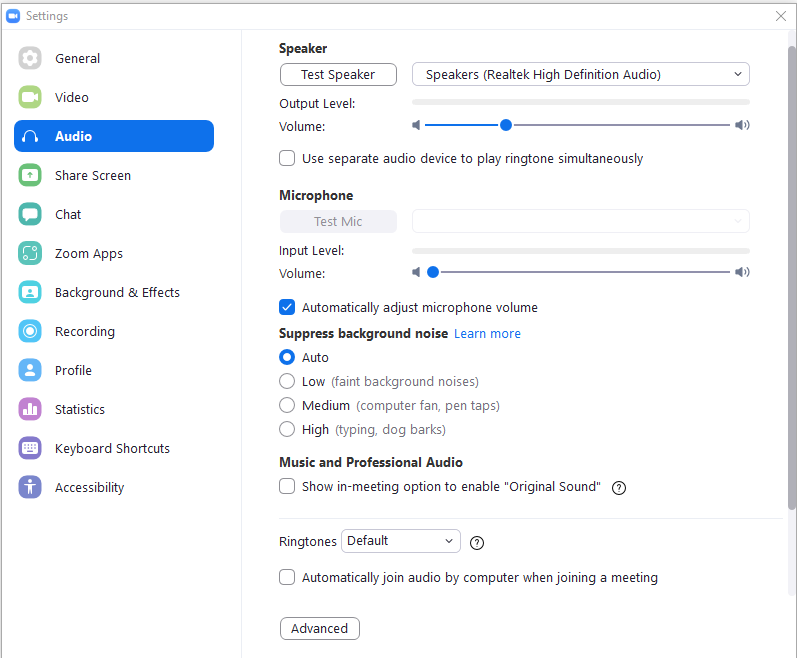
To Test Your Audio
- Select the microphone drop down and try a different audio source if the other side can't hear you
- Select the speaker drop down and try a difference speaker source if you can't hear the other side
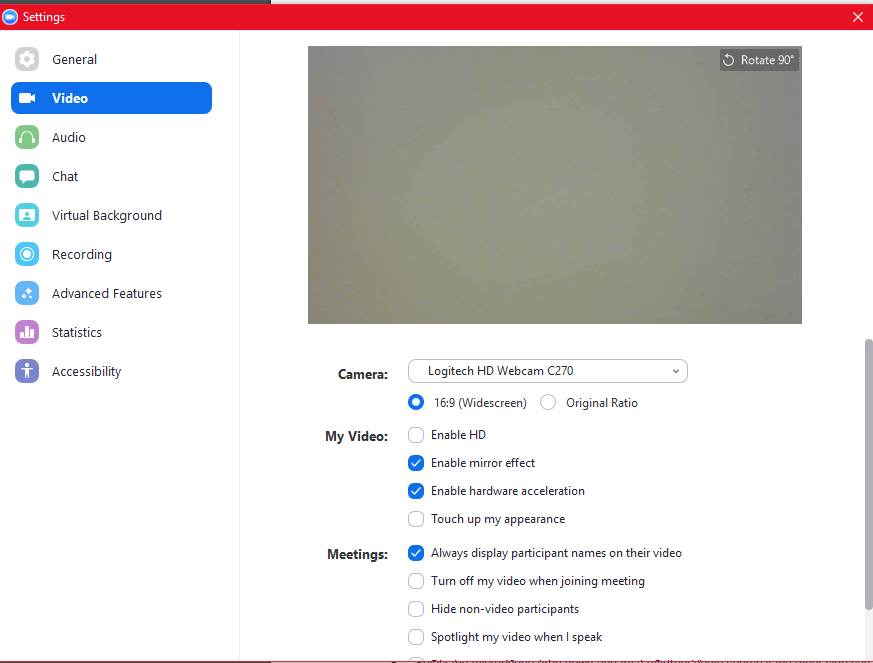
Video:
Alienware - x15 R1 15.6" FHD Gaming Laptop - Intel Core i7 - 16GB Memory - NVIDIA GeForce RTX 3070 - 512GB Solid State Drive - White, Lunar Light
Can I Do In a Meeting?
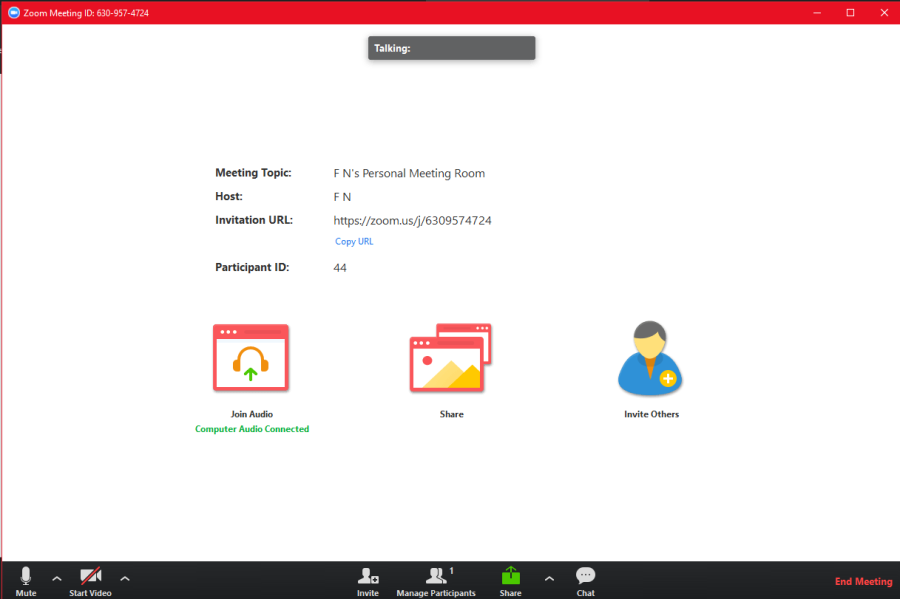
Once you have started or joined a meeting, you can perform the following actions from the menu bar located at the bottom of the meeting window (move your mouse to toggle):
Possible Actions:
Invite more people to join by email, IM, SMS (mobile users) or meeting ID (learn more)
Screen share your desktop or specific application window (learn more)
Group or private chat
Participants and Chat (learn more)
Mute/unmute audio
Stop/start video
Configure your settings (learn more)
Leave or end the video meeting
