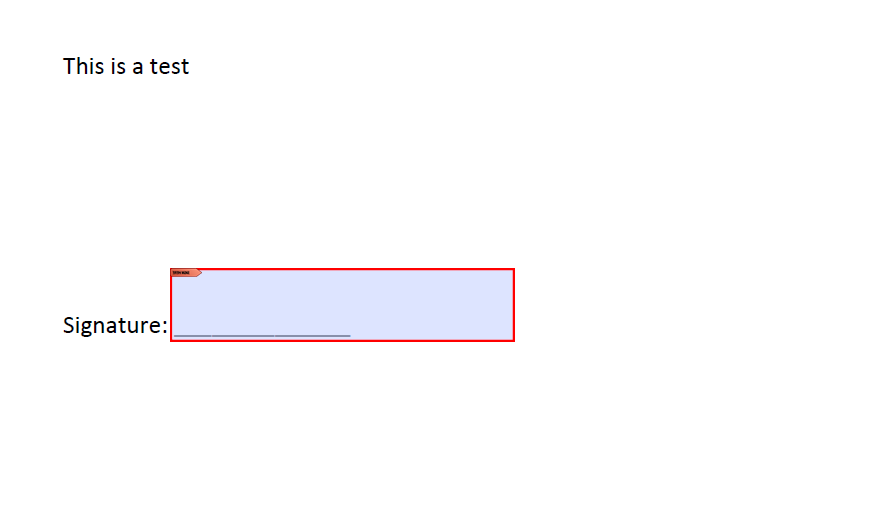
-
Open your PDF in Adobe Acrobat X Pro
-
Press Tools > Forms > Edit.
-
On the Add or Edit Forms Fields you have two options
- If you press Yes, it will automatically scan the document and place signature fields where it infers they should be.
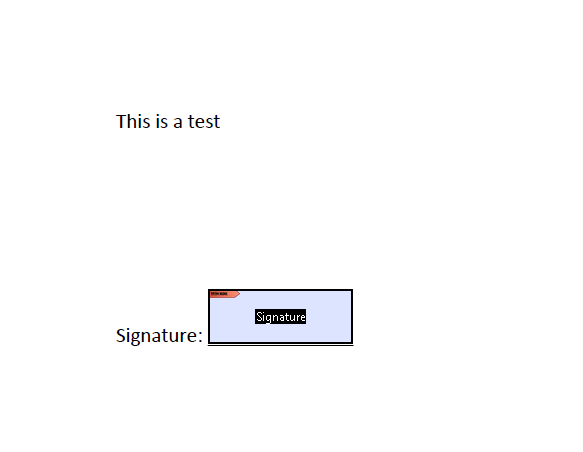
If you press No, you will have to manually set up the signature field. We will be discussing how to do this now.
Manually setting up a signature field
-
After pressing No in the previous steps, the tasks tab will appear, select Add New Field.
-
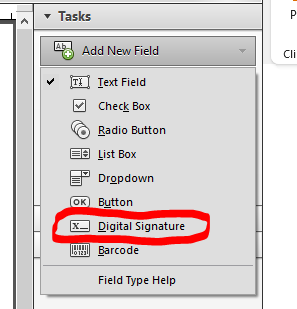
In the dropdown menu, select Digital Signature.
A blue rectangle and dashed blue lines will appear. This is for precisely placing the signature where you want it to be.
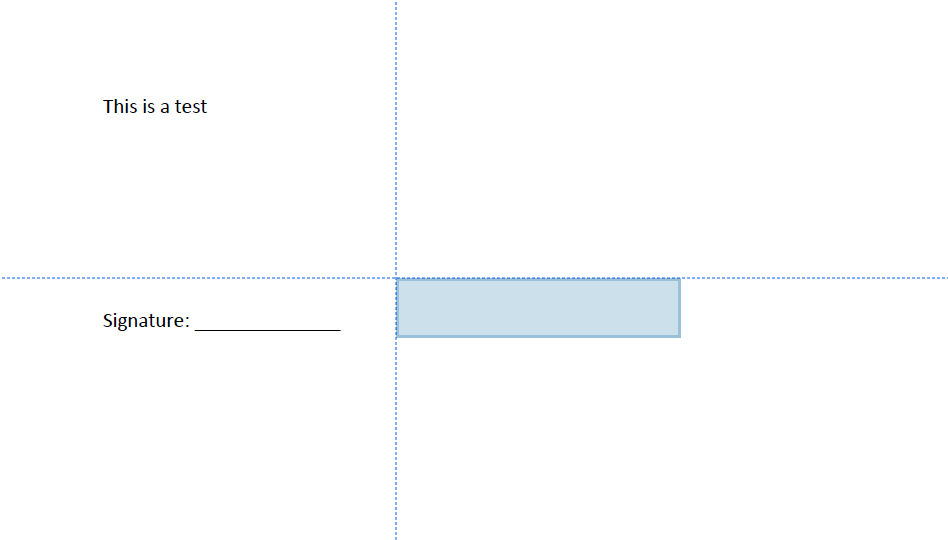
Navigate to where you want the field to be, and left click.
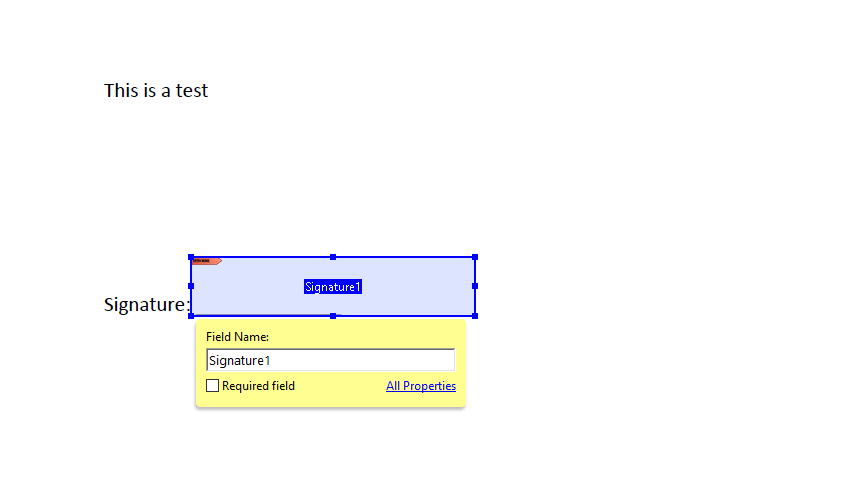
You can change the text in the signature's background by typing in the Field Name textbox. This is optional.
Making a signature a Required Field
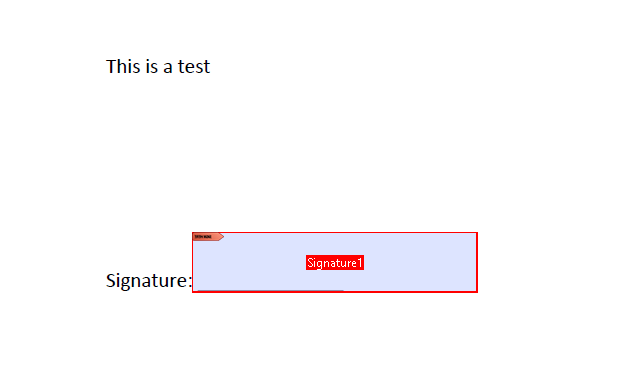
The Required Field makes it mandatory to have a signature within there. This is used in input validation with documents
submitted from the web. Toggling it on will make the square red, to show that it is a required field.
Editing a signature field
If you wish to edit the signature after its placed, you can do the following.
-
Right click the Signature Field
-
Select Properties.
It will open a window, where you have options to change if you wish.
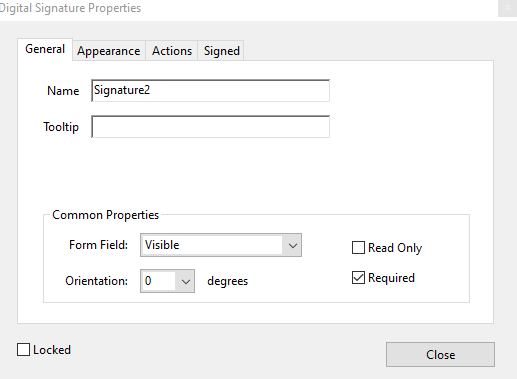
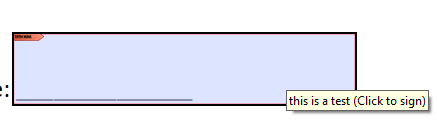
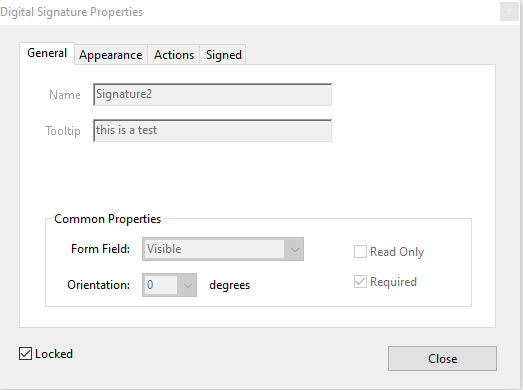
You can rename the signature, as well as add a tooltip that appears when someone hovers over the field.
-
You can also make the field invisible, change the orientation, and change it from a required field here.
-
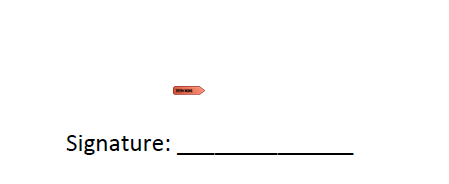
If you toggle the Read Only field, the signature field disappears, and you will not be able to sign it. This is useful for printing documents that need a signature with pen and paper.
Toggling Locked makes it so you cannot change the settings of the signature field. It is useful for preventing tampering after the form has been released.
The Appearance tab allows you to check how the signature field will appear in the document. You can change the colors, the line thickness, as well as the font properties too.
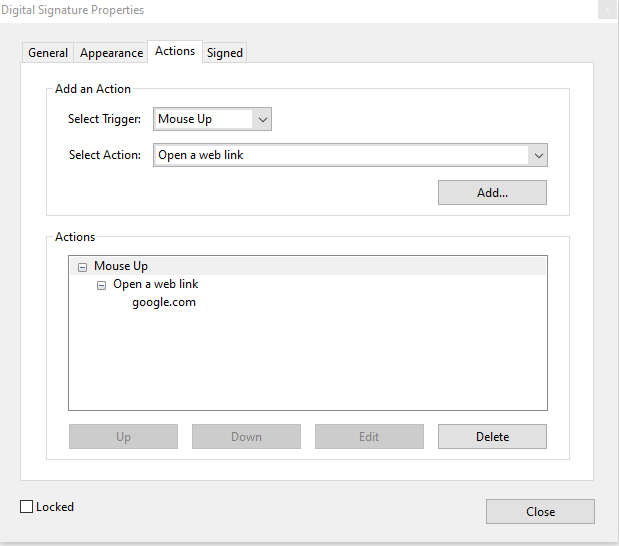
The Actions tab allows you to execute an action when a specific condition has been fulfilled. The condition being the Trigger.
You can select a Trigger from the dropdown menu, as well as the action that it will do.
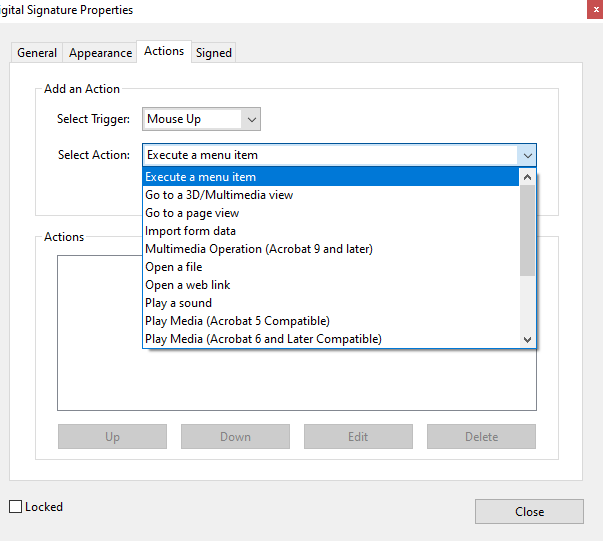
When you have both the trigger and action selected, press add to complete the additional step associated with your action. Once you are done with that, you have an action.
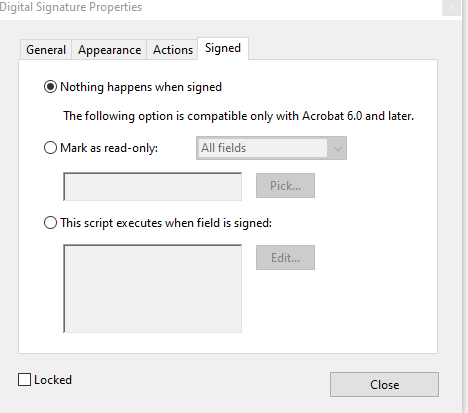
The Signed Tab provides the option to change what will happen when a signature field is signed.
-
The default is Nothing happens when signed. You do have two other options, however.
-
Mark as read-only will stop the signature fields editability once it has been signed.
-
This script executes when field is signed allows for the use of macros and scripts. It can be useful for preventing access to other signature fields unless a required one is signed. You do have to have a script, however.
Once you have finished editing, you can save the document. You now have a signature field within Adobe Acrobat.