Summary of Differences Between Classic and New Teams
-
The layout of the six main functions have slightly changed and include an added button.
-
The layout of Calling via audio or video has been condensed into one.
-
Whiteboards now can be created and swapped between.
-
Newer shortcuts to achieve the same function as a button.
Additional Resources for MS Teams
What is changing in the new Microsoft Teams - Microsoft Teams | Microsoft Learn
Microsoft Teams Classic vs New Teams: The Biggest Differences - UC Today
Summary of Differences Between Old and New Outlook
-
Automatic replies and Calendar Permissions have become more streamlined.
-
Button layouts have changed.
-
Removed access of .OTS and .PST data files on your device.
-
Offline access to emails isn’t fully available.
-
Unavailability of auto archive in Outlook.
Additional Resources for Outlook
Compare Outlook for PC, Outlook on the web, and Outlook for iOS & Android - Microsoft Support
New and classic Outlook for Windows feature comparison - Microsoft Support
Comparing the New Outlook and the classic Desktop Outlook | ICAEW
For Mac Users
The new Outlook for Mac - Microsoft Support
User Guide for Teams Changes
Microsoft Teams Users Guide
The photo of the six main sections may need to be updated since one drive replaces it.
The … and Apps buttons are for accessing apps like word, PowerPoint, and more from within Microsoft Teams.

The video and audio call buttons have been condensed together in the newer version.
To choose what type of call you want to make, press the little arrow next to the phone icon while on the recipients chat in the Chat tab.
Or alternatively, you can just use the Calls tab and achieve the same result.
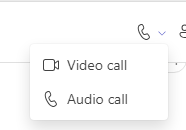
Adding other staff members to a video or audio call
There isn’t much to change, except the photograph under From the Team Section may need to be changed to avoid confusion.
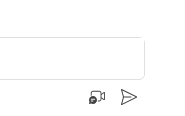
This icon isn’t the Meet Now button, but it’s in a similar area. It’s the Record a Video Clip button. This is also present in the browser version too.
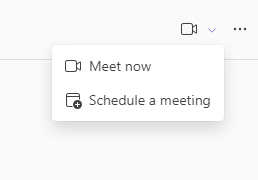
Meet now is shown in the calendar and team window still.
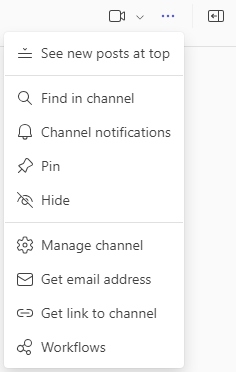
Channels in MS Teams
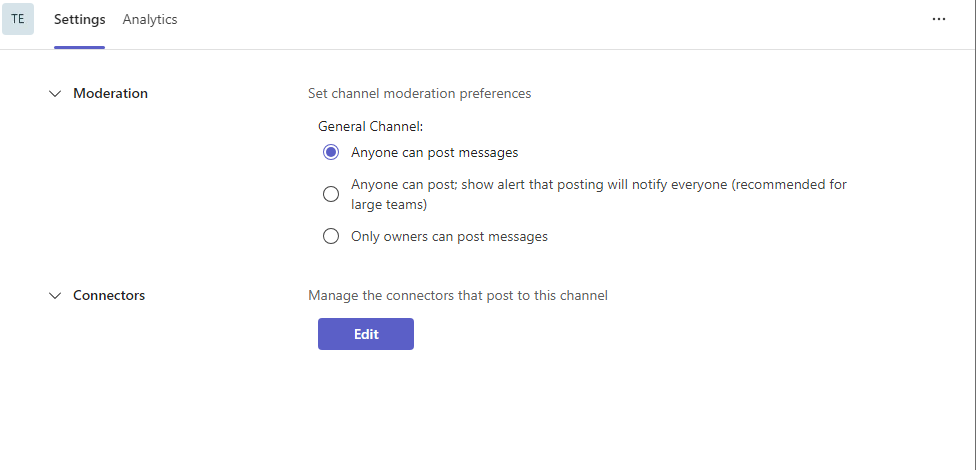
Microsoft merged the Connectors and Edit this channel button into the Manage Channel button.
Schedule a meeting in Teams
You can click the day on the calendar tab of when you want your meeting to be and have the same options as mentioned in the older documentation.
How To Use Whiteboard in Microsoft Teams
The process is the same aside from an added step, which is creating a whiteboard. This is done by pressing the New Whiteboard button. If you have already created one, you can choose that one and begin drawing on it.
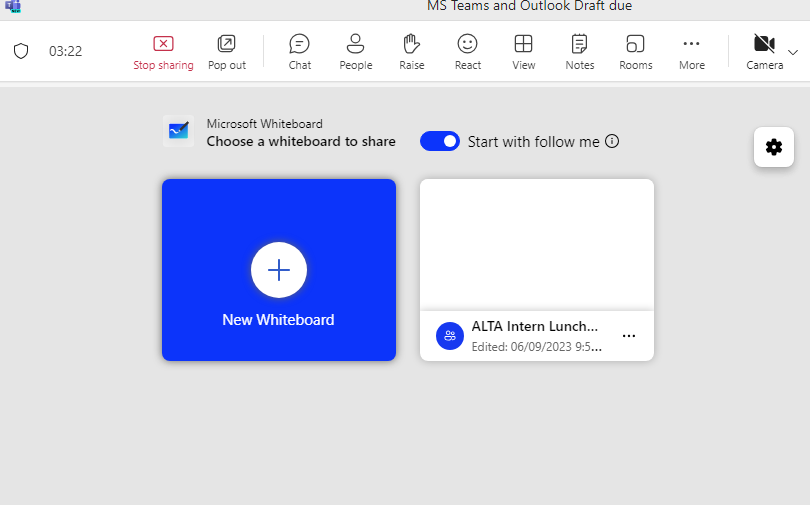
The only other difference is the toolbar’s location, being docked on the bottom. Everything else stays the same.
User Guide for Outlook Changes
How to Set Up an Automatic Reply in Outlook
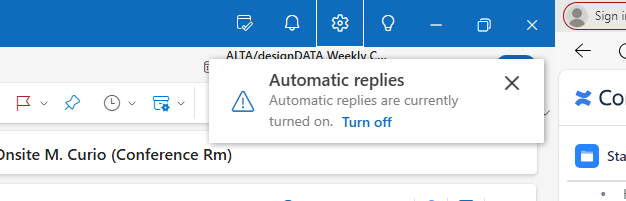
The settings icon has replaced the File tab in outlook. Now to configure automatic replies, first press the settings icon.
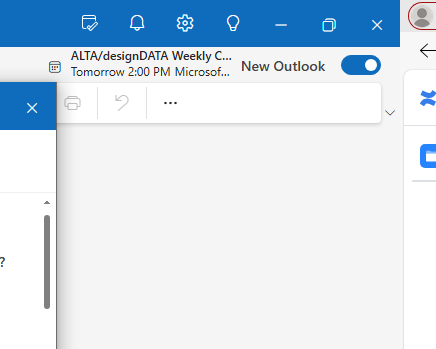
It will then open another window; from there you go to Account > Automatic Replies
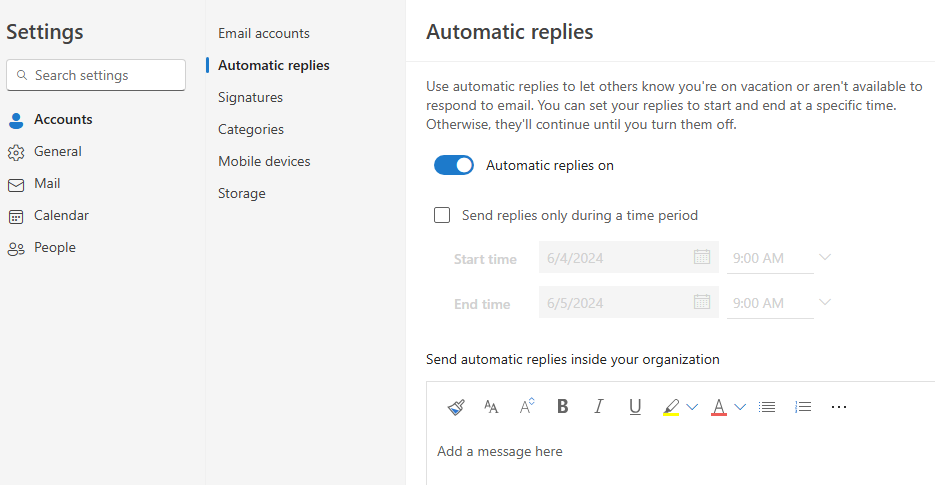
The options are the same as the old outlook.
The only other difference is the way that the automatic replies banner looks.
How to Give Someone Permission to view a Calendar
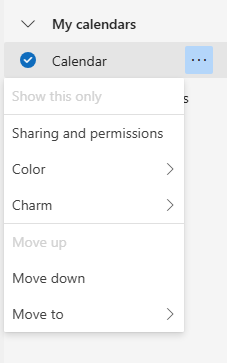
Find the calendar you want to share, press the … button next to it (or right click).
-
_Hlk168399094Press sharing and permissions.
-
From there you can add the email or contact name of the person you want to be able to see your calendar.
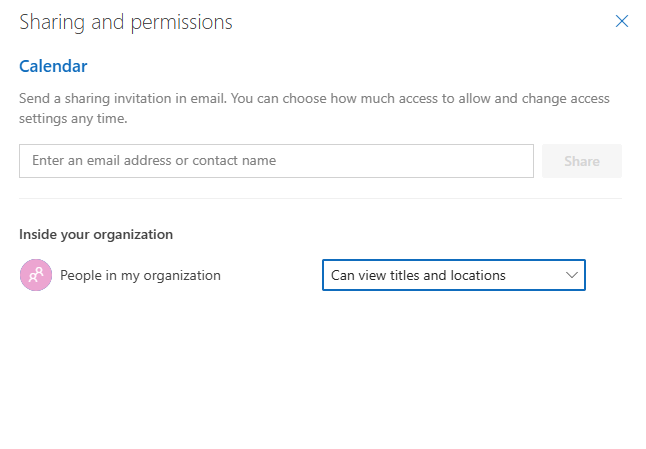
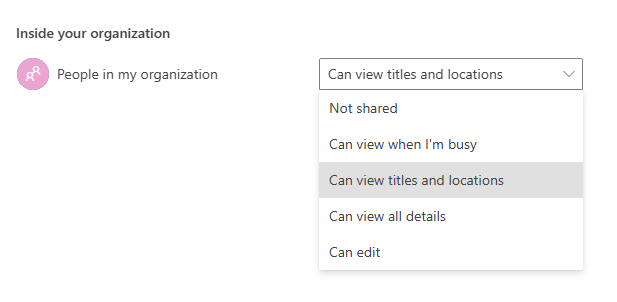
Once you share the calendar, you can change the permissions the recipient has using the dropdown menu next to their name. The default is “Can view titles and locations”.
Phish Alert
The location of the phish alert button has changed. To use it just:
-
Find the email you want to report as spam.
-
Click the email.
-
Press the Report button.

Another way to report a phishing email is as follows:
-
Find the email you want to report as spam.
-
Right click the email
-
Press Report > Report Phishing
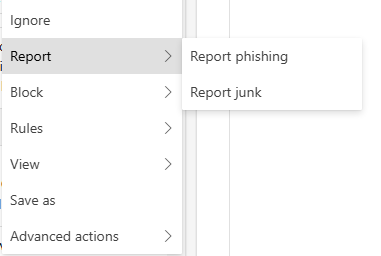
You can also report junk mail this way too.
How to Reduce the Size of the. OTS File
In the newest version of outlook, .OTS files are not currently supported. It’s now completely synced with the Microsoft cloud services.
Currently, you can switch back to old outlook to reduce your .OTS files. This won’t be possible after July of this year. They have announced plans of offline capabilities, including access to .OTS and .PST files, but it isn’t currently available.
There are options to reduce your email storage in the cloud.
-
Press the settings icon in Outlook.
-
Navigate to Account > Storage.
It will present you with a view of how much cloud storage is being used, and how it’s being allocated.
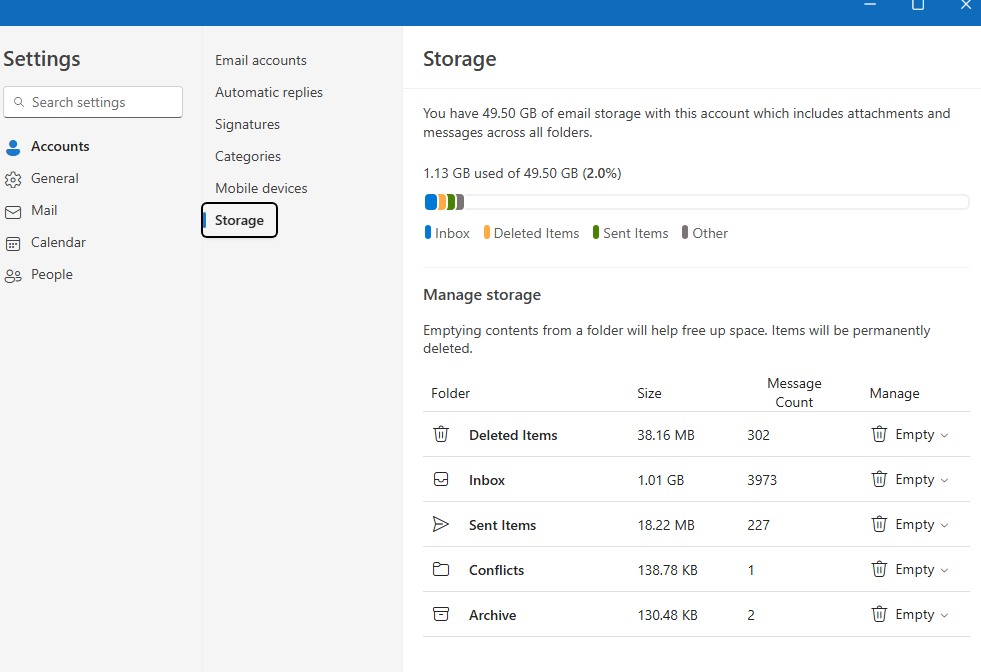
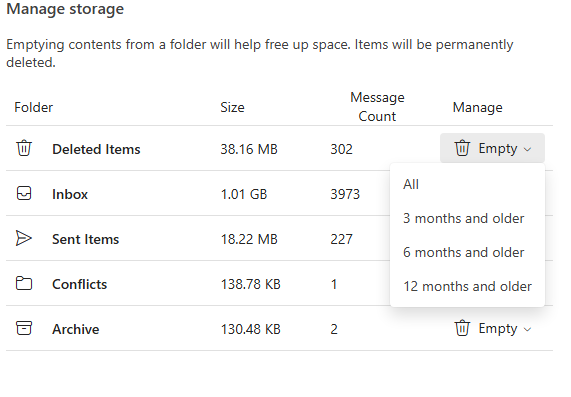
From here you can remove emails based on the folder they are in. As well as specify how old an email should be in the folder before you remove it.
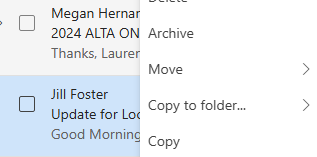
If you want to archive your emails but are unable to find the archive button in the toolbar, you can right click on the email.
Currently for Outlook emails, the retention policy can be used to remove excess emails. This is set by the administrator, so the end user can only view the policies currently in place. You can view this by:
-
Pressing the settings icon.
-
Go to Mail > Retention policies.
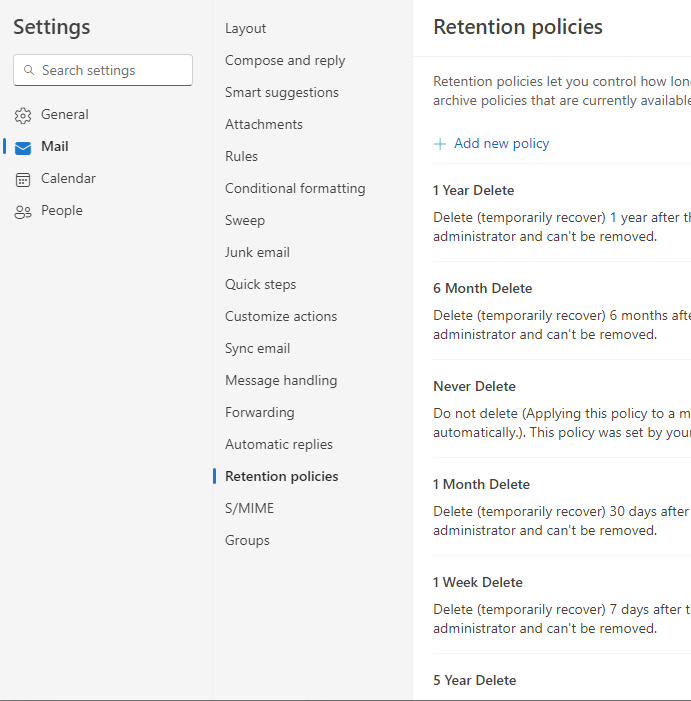
This doesn’t automatically archive your emails however, so you will still need to archive them manually.
