
Configuring Ensuring your Computer is Ready
Prior to using Teams to receive a call, make a call or attend a meeting, please ensure your audio is configured properly. If you do not have a headset, please complete the form to request one.
-
Make a test call. (What will occur is that you should hear the test in your headset.)
-
When prompted, record a test message. Wait a few second and your test message will play back to you.
-
At the end a summary will display on the screen. Your test call results should show all green. If you do not have a camera, then all will show a red alert icon. This is ok. Choose Close.
Answering a call
-
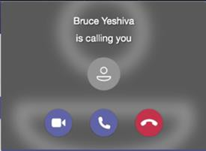
When someone calls you, you'll get a notification in the corner of your screen that lets you accept or decline the call. You can answer by clicking on the phone icon on your screen or your YU issued headset.
-
Click the Phone icon to answer with audio only.
-
Click the Video icon to accept the call and enable video as well.
Adding someone to a call
Multi-party calling is allowed. A maximum of 50 people can be added to a call.
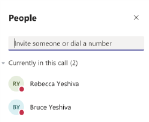
- To add someone new to a group call, select the Show participants your call controls.

2. Then type their name or phone number in the search box and hit enter. This will add them into the call.
Starting a Call using the Dial-Pad
The Dial-Pad can be used to Dial someone who is outside of the University.
-
Navigate to the call section
-
Using the DialPad, type the number that you wish to call.
-
To start call, click the

Starting a Call using the Contact
The contacts section is shared with Outlook. You can add a contact in the Teams or within Outlook.
-
Navigate to the call section
-
Click Contacts
-
Choose add contact in the Right side of screen
-
At the Add to Contacts box, begin typing the user’s first name, a list will
-
appear and select the appropriate person.
-
Click Add
-
Scroll down and locate the contact and click the phone icon to make a Teams Call.
Starting a Call using History
History shows all calls that were made. To call a person from History,
-
Navigate to the call icon section
-
Click History
-
On the person you want to call, click the

-
Choose the call back icon
Checking your Voicemail
The easiest way to check your voicemail, is from the Teams Client Calling Pane. However, you also will receive an email with the voicemail attached and transcribed to text (if possible).
You are not able to check your voicemail from a cell phone or phone without using the Teams client
-
Navigate to the call section
-
Click on Voicemail
-
Voicemails will be displayed in chronological order, click on the name or number.
-
Click the play button to play the message.
Important Notes:
-
You can change the play speed by clicking on the down arrow next to and selecting the speed.
-
The Transcription is the right-hand side of the screen.
Transfer a Call
Microsoft Teams provides the ability to transfer the call to another user. There are two types of transfers: Transfer (aka. Blind Transfer), and Consultative Transfer.
Transfer (Blind Transfer)
- To transfer a call, select More options > Transfer in your call controls.
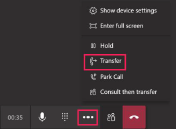
2. Type the name of the person you want to transfer the call to and select them. To finish, select Transfer.
3. Click the drop-down arrow in the
- Transfer button to see more transfer options.
5. Choose Work to transfer the call to their Teams number, or Work voicemail.
Consultative Transfer
Consultative transfer allows the person to consult with the person prior to transferring the call. This may be done via the phone or using Chat. (Physical phones do not allow chat).
- To transfer a call, select More options > Transfer in your call controls.
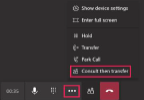
2. Type the name of the person you want to transfer the call to and select them. To finish, select
Consult.
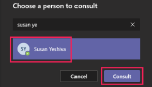
3. Two options for consultation:
a. To type a message to the person who you wish to transfer the call to and hit the send button.
4. Click the Telephone Button . Once you consult with the person,. click the Transfer.
If the person does not want to talk choose Stop Consulting.
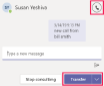
5. If they wish to send to their voice mail. Transfer the call using the Transfer instructions and in Step #4, choose Work VoiceMail.
Call Park
Microsoft Teams offers many different types of clients from mobile, desktop or web (using Chrome). Therefore, a call can be picked up from any device. You may want to transfer the call to another device. This is done by using Call Park.
By using Call Park, the call is temporarily put on hold so it can be picked up on another device by using a Pickup code.
Parking a Call
To move a call from one device to another.
-
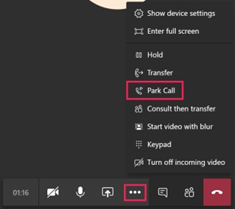
To place a call on hold, click More actions in your call window.
-
Select Park Call
Picking up a Parked Call
-
Navigate to the call section
-
Click Speed Dial
-
Click Parked calls
-
At the Pickup a parked call, enter the# and then click Pickup
Putting a call on hold
-
To place a call on hold, click More actions in your call window.

-
Then select Hold. Everyone in the call will be notified that they've been put on hold, and you can continue your call by clicking Resume.
-
People on hold(including you)won't be able to see or hear anyone else on the call. Screen sharing is suspended ,too. Everything will return to normal once you resume your call.
Understanding whether a person is available for a call
You should be aware of the person’s status before calling, because calls may not be completed because the person’s status is set to “Do Not Distrub”.
<table data-table-width="760" data-layout="default" ac:local-id="c360e749-0c5b-4211-802d-e8ae18f21ac3"><colgroup><col style="width: 226.67px;"><col style="width: 226.67px;"><col style="width: 226.67px;"></colgroup><tbody><tr><td><p> Status Example</p></td><td><p> Description</p></td><td><p>Status Marking</p></td></tr><tr><td><p> </p><img src="https://xaftxntyjxdujkhgbatj.supabase.co/storage/v1/object/public/purview-attachments/9371683/image-20220919-162758.png" alt="image-20220919-162758.png"></td><td><p>Person is actively working and is online</p></td><td><p> Green Check</p></td></tr><tr><td><p> </p><img src="https://xaftxntyjxdujkhgbatj.supabase.co/storage/v1/object/public/purview-attachments/9371683/image-20220919-162802.png" alt="image-20220919-162802.png"><p></p></td><td><p>Person is busy, but the phone will ring (They may be on the call)</p></td><td><p> Red Dot</p></td></tr><tr><td><p> </p><img src="https://xaftxntyjxdujkhgbatj.supabase.co/storage/v1/object/public/purview-attachments/9371683/image-20220919-162812.png" alt="image-20220919-162812.png"></td><td><p> Person is away</p></td><td><p> Yellow Clock</p></td></tr><tr><td><p> </p><img src="https://xaftxntyjxdujkhgbatj.supabase.co/storage/v1/object/public/purview-attachments/9371683/image-20220919-162820.png" alt="image-20220919-162820.png"><p> </p></td><td><p>Person is in Do not disturb mode. They may be in a presenting or focusing on someone else. They will no receive a call</p></td><td><p> Red with a minus in it</p></td></tr></tbody></table>Microsoft Teams Voicemail
-
How to customize your MS Teams greeting voicemail:
-
Open Microsoft Teams: Launch the Microsoft Teams application on your computer or mobile device.
-
Go to Settings: Click on your profile picture in the top right corner of the Teams window. From the dropdown menu, select "Settings."
-
Navigate to Calls: In the Settings menu, click on "Calls" on the left-hand side.
-
Configure Voicemail: Under the "Voicemail" section, click on "Configure voicemail."
-
Set Up Call Answer Rules: You can choose how you want Teams to handle your calls when you are unavailable. Options include:
-
Letting the caller leave a voicemail.
-
Playing an outgoing message without allowing the caller to leave a voicemail.
-
Disconnecting the call without playing a message.
-
-
Record a Greeting: You can record a personal greeting for your voicemail. Click on "Record a greeting" and follow the prompts to record your message.
-
Set Greeting Language: Choose the language you want for your voicemail prompts and greetings.
-
Save Changes: After configuring your settings, make sure to save your changes.
-
-
How to turn on Call Forward:
-
Open Microsoft Teams: Launch the Microsoft Teams application on your computer or mobile device.
-
Go to Settings: Click on your profile picture in the top right corner of the Teams window. From the dropdown menu, select "Settings."
-
Navigate to Calls: In the Settings menu, click on "Calls" on the left-hand side.
-
Set Up Call Forwarding: Under the "Call handling and forwarding" section, select the toggle to choose how all call forwarding should be handled. You can set up different responses for different scenarios, such as forwarding calls to voicemail, a new number, a specific contact, a call group, or your delegates
-
Enter Forwarding Details: Enter the phone number or contact to which you wish to forward calls. You can also set up call groups and choose the order in which calls are forwarded to members of your call group
-
Save Changes: After configuring your settings, make sure to save your changes.
-
