
To set up multifactor authentication for your ALTA account, please do the following:
Sign in with your work account on Microsoft 365*
Note: you also can use any Microsoft app provided by your organization, like Teams or Outlook
-
Press Sign-In
-
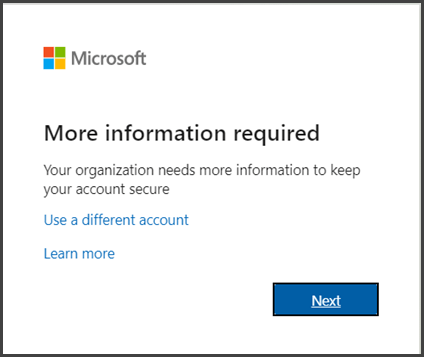
A window will pop up stating that more information is required, for this Press the Next button.
You will be prompted with a window that displays the Microsoft Authenticator; you have several options to choose from:
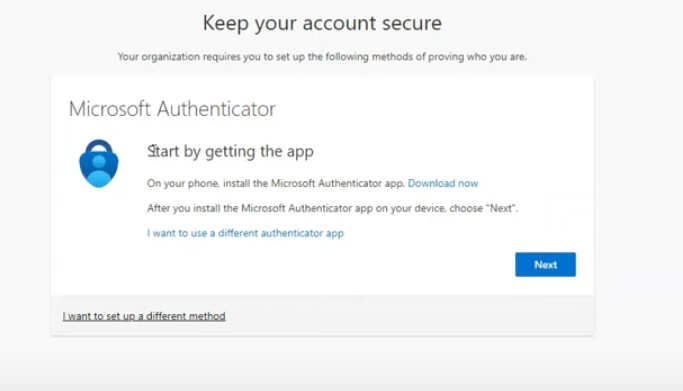
Using Microsoft Authenticator App
-
First install the Microsoft Authenticator App on your phone via the GooglePlay/ Apple App Store
-
Press Next to proceed.
-
On the Microsoft Authenticator app, add your work account with the “Add work or school account” button.
-
Alternatively, you can use the QR code option. To do that, press the “Scan a QR code” button.
-
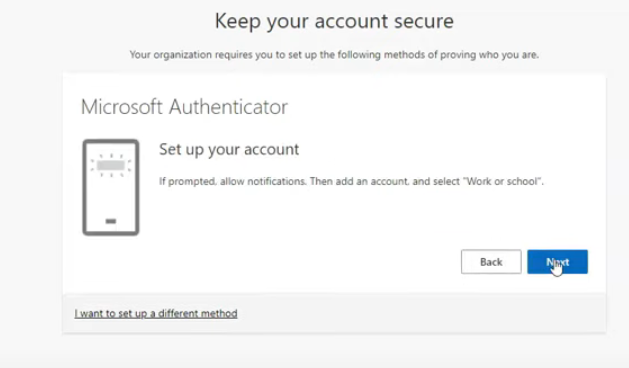
Press Next on the Set up your account window.
-
Press the scan a QR code button in the MS authenticator app.
-
Scan the QR code with the Microsoft authenticator app.
-
A notification will appear on screen requesting verification with a number.
-
Type the number from your computer on the authenticator app and press Yes.
Your Microsoft authenticator is now set up properly.
Using A Different Authenticator App
The steps are like Microsoft authenticator.
Important! Do not press next on the Microsoft authenticator option, the QR code it provides is not scannable by any other authenticator, but the Microsoft provided app
-
Press the “I want to use a different authenticator app” hyperlink.
-
Open your authenticator app and add a new entry for your work account.
-
Scan your QR code with your authenticator app.
-
Use your one-time password from your authenticator to connect to your work account.
You now have your authenticator set.
Using SMS Authentication
-
press the “I want to set up a different method” hyperlink.
-
Select “SMS” or “Authentication Phone” option and press Next
-
It will ask you if you want to receive a code by call or text message, you can pick either one.
-
Press Next, and it will text/call the number you provided with the code.
-
Enter/copy and paste the code.
You now have the SMS authenticator method set.
The next time you sign in to your work account, it will prompt you to use your chosen authentication method.
