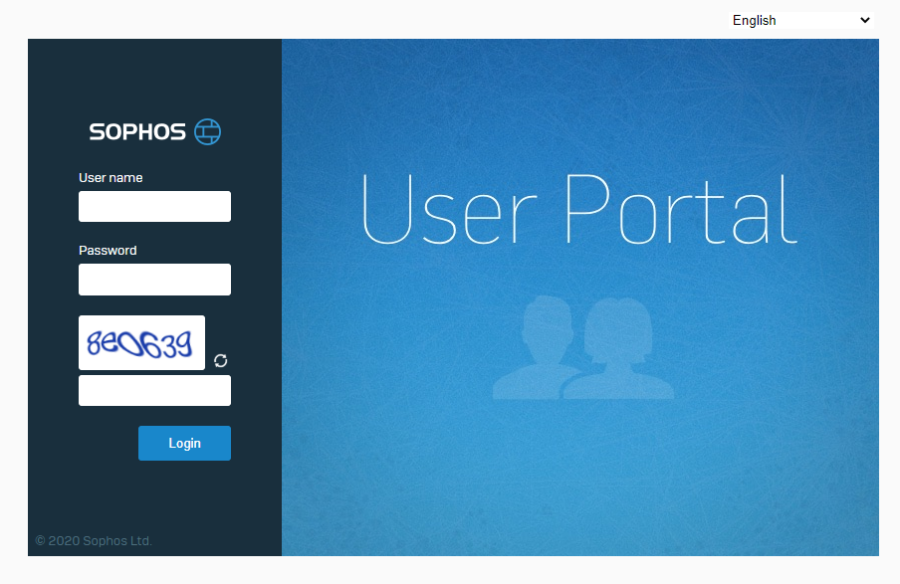
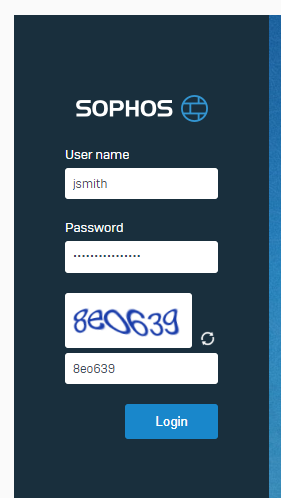
- Enter username, password and the code shown in the picture, please be aware that you should only enter your username (not your full email address) Click login to complete.
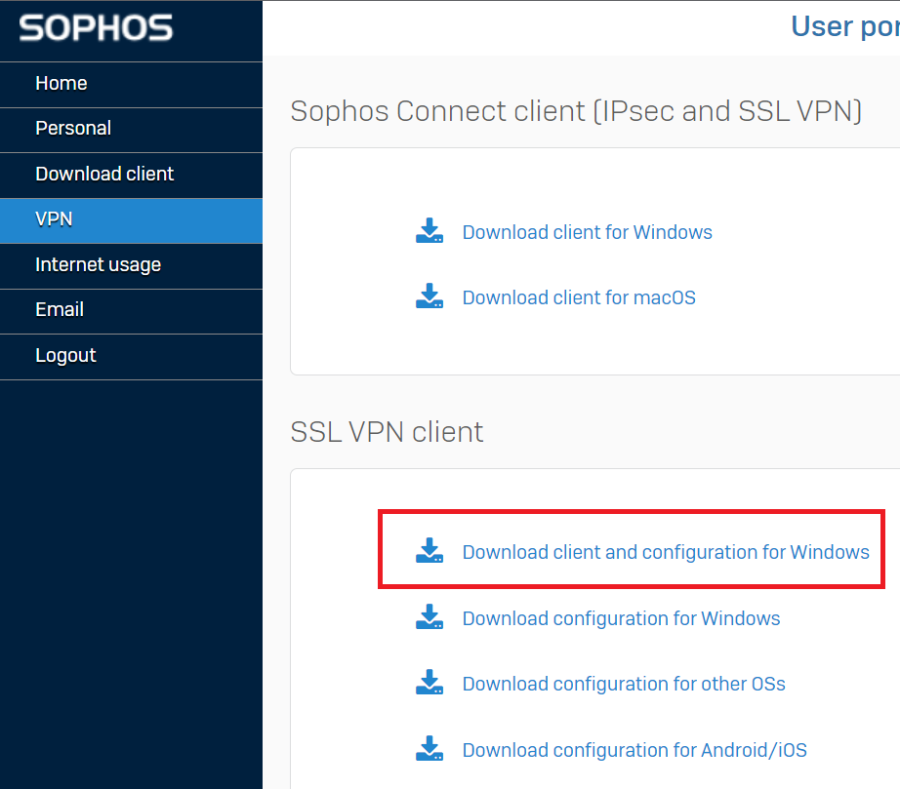
- Click the SSL VPN tab on the left and then click Download client and configuration for Windows
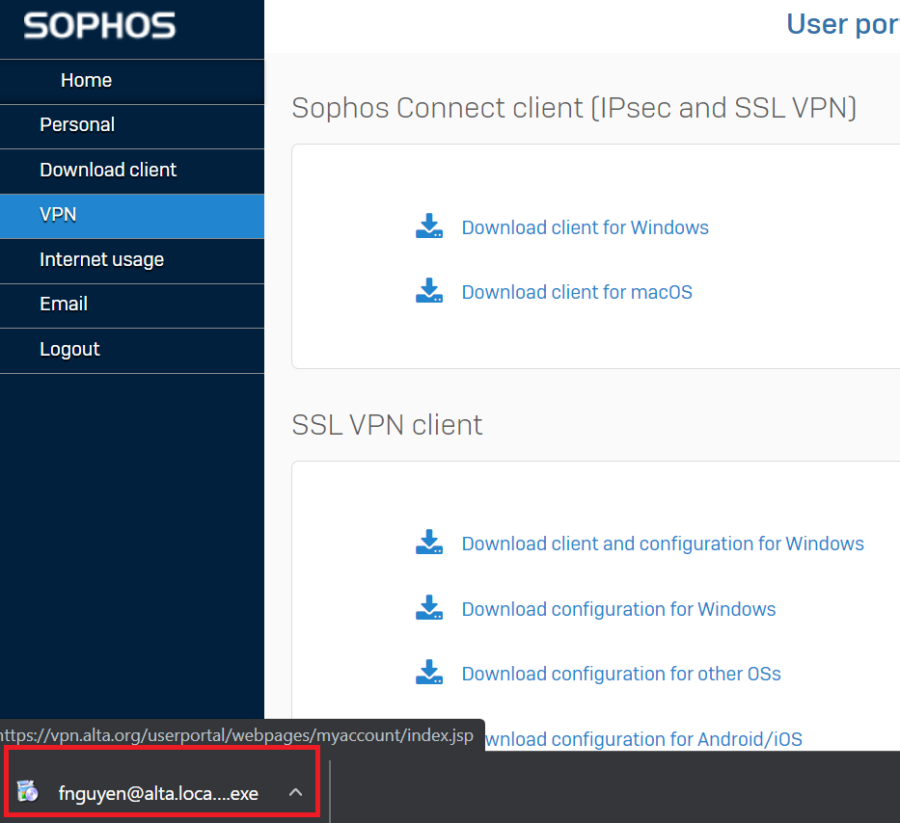
- Run the installer
-
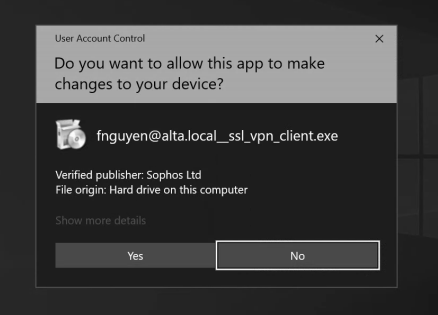
If you get the User Account Control popup, click Yes
-
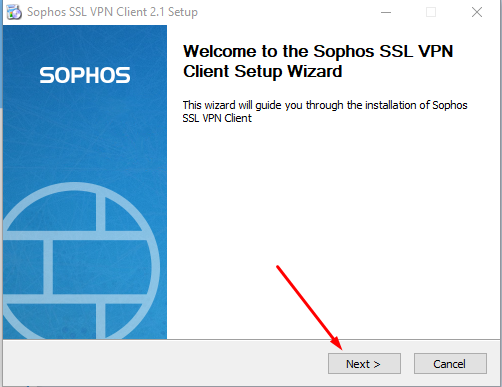
This will bring the Sophos SSL VPN Client Setup Wizard. Click Next to continue
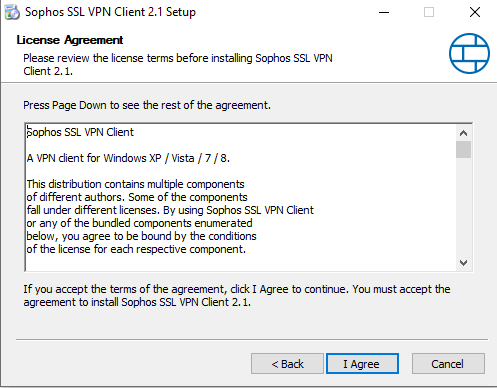
- In the next screen Click I agree.
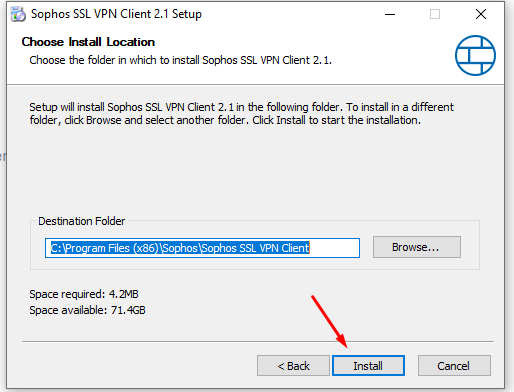
- On the following screen click Install
- In the windows security popup click Install
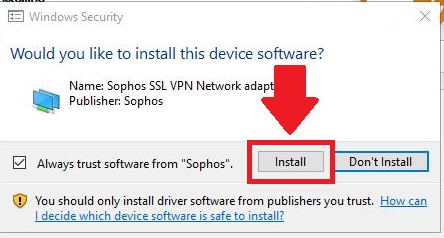
-
Once installed, click Next
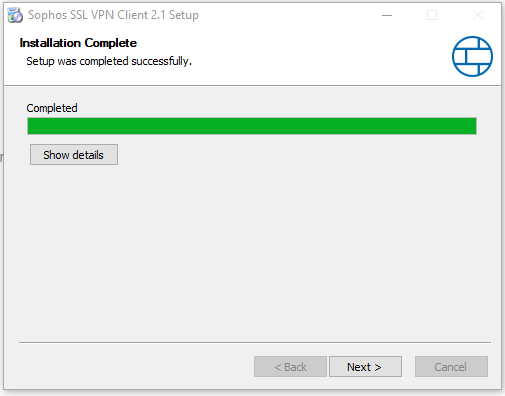
-
Then click Finish to complete.
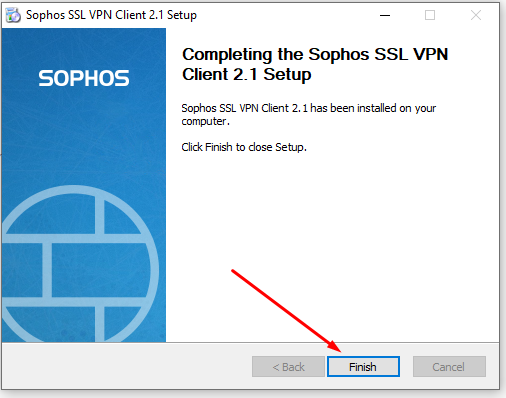
This will install the following icon in your system tray.

You have now successfully installed the VPN client on your PC.
Connecting to the VPN on Windows
- Access your hidden tray icons and find the traffic light icon

- Right click on the icon on the system tray and click Connect.
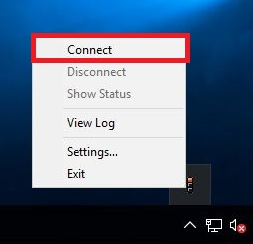
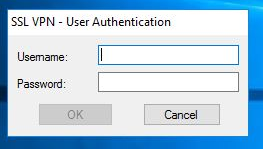
3. Then supply your username and password, please be aware that you should only enter your username (not your full email address) then press OK.
4. When connected, the traffic light signal will be green.