2. Then click search, and type in, Microsoft Teams:
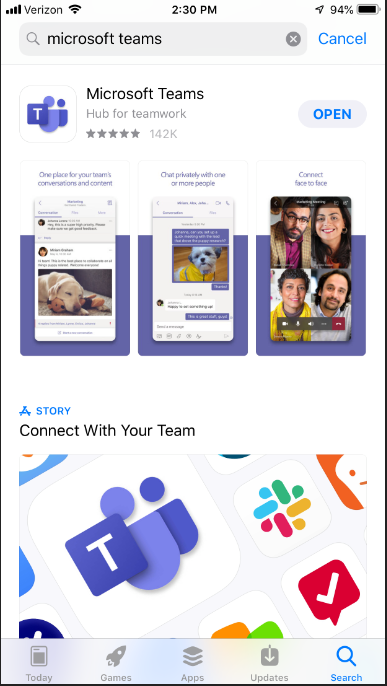
3. Once the search finds Teams and it is opened this is the screen that will allow you to download and install Teams:
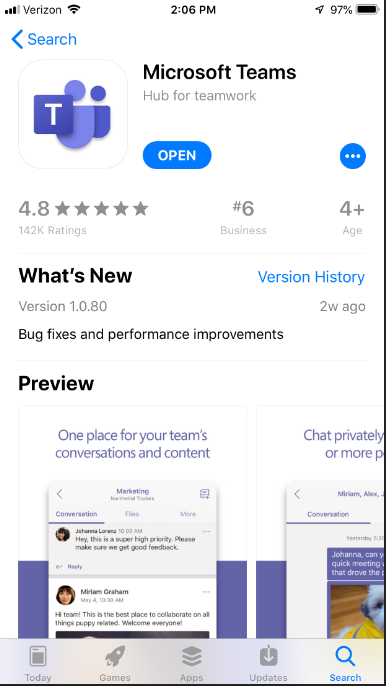
3. NOTE The screenshot displayed above already has the app installed that is why it shows "OPEN". For new downloads you will click on "GET":

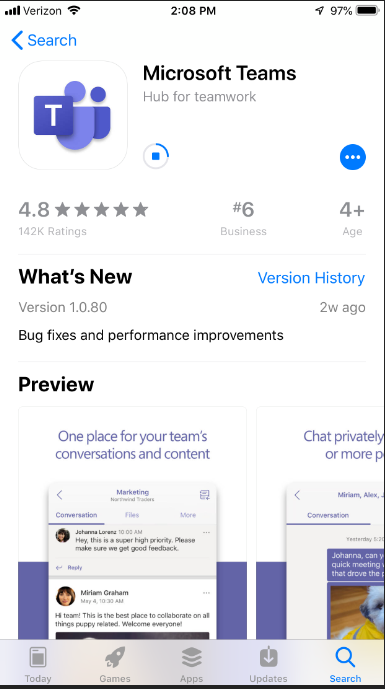
4. After you either Enter Password, or use Touch ID to Install, or use the Face ID, the app will begin downloading & installing:
5. Once it is installed, the Teams app icon will look like this:

6. Open the app, and you will be prompted to Sign in, use your email address and domain password:
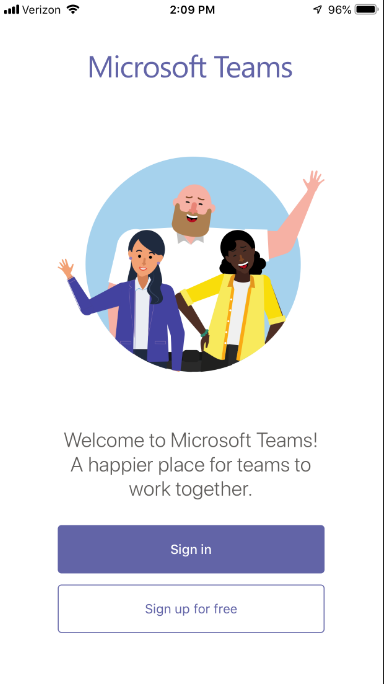
7. Once you sign in, you will be prompted to receive Notifications and to allow "Teams" to Access the Microphone. Tap OK to allow for both:
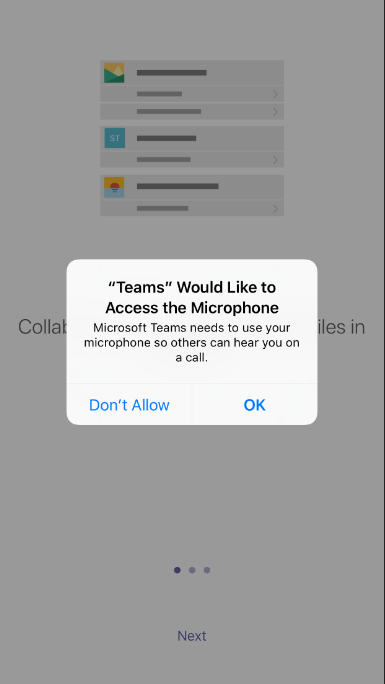
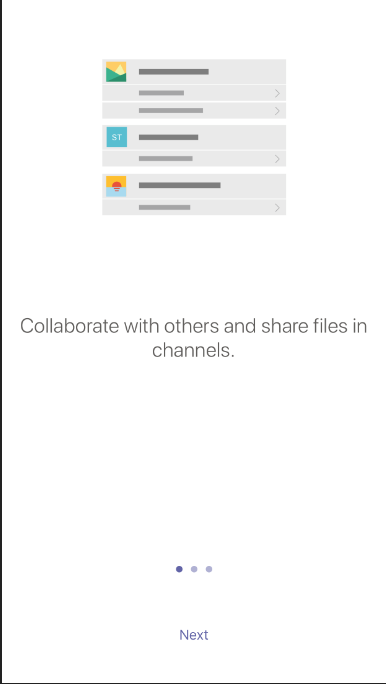
8. Click Next through the explanation screens:
9. Once you are through the explanation screens, the Teams screen will be displayed, along with access to use: Activity, Chat, Calls, and Files:
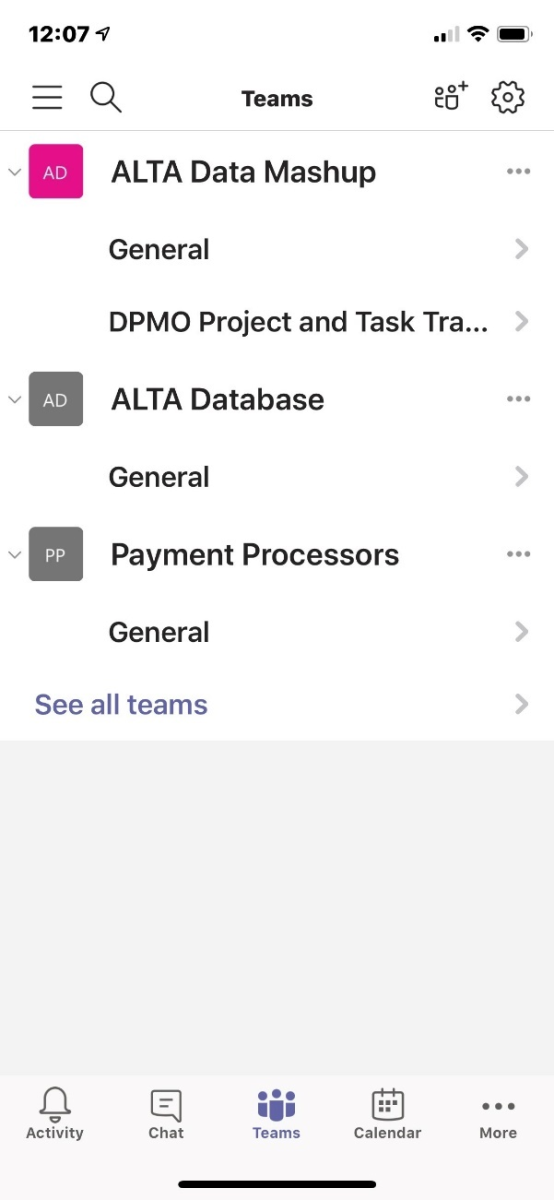
10. In the upper-left hand corner is the icon to click for user information and Settings:

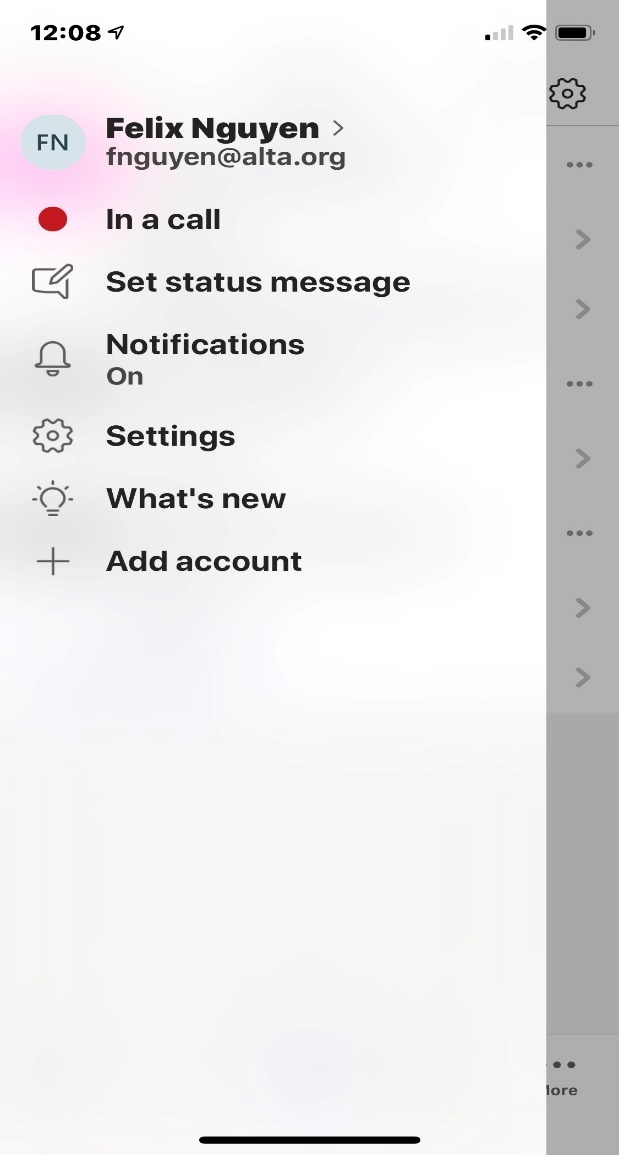
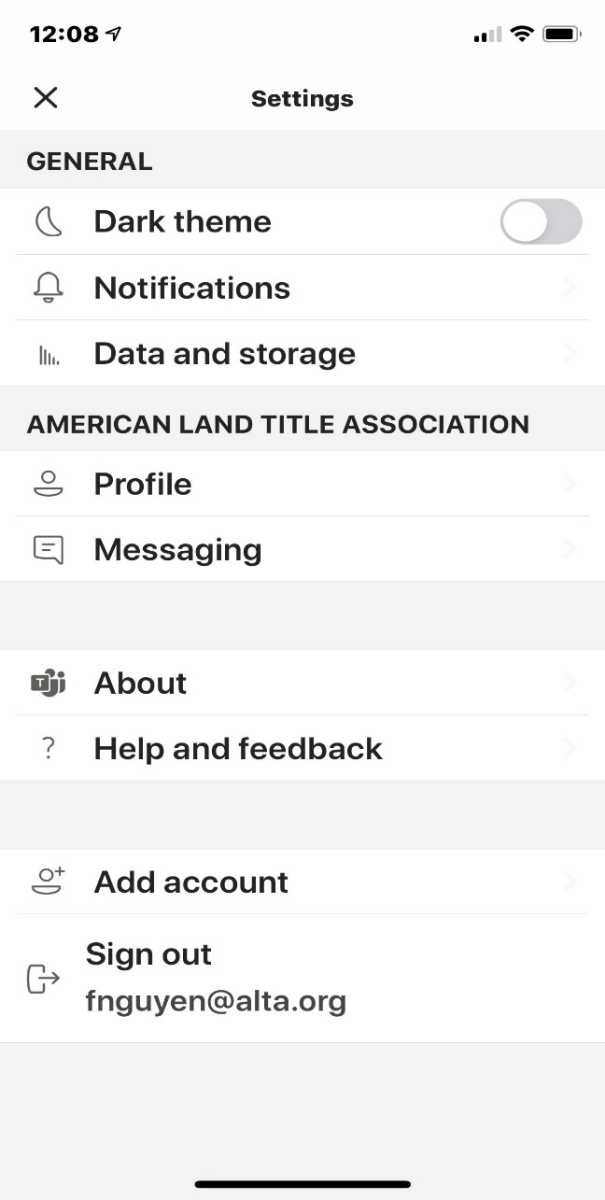
11. Within the Settings is where users can change Notifications, Dark theme, Profile, Sign out, etc.:
 Made with DASH A.i.
The process runs end-to-end through the Apple App Store and takes only a few minutes. Below is a full sequence of what happens from opening the App Store to landing on the Teams home screen.
If the button shows "OPEN" instead of "GET", Teams is already installed on the device — simply tap OPEN to launch it directly.