Q: How do How do I Allow an External User Access to A Document in SharePoint?
A: SharePoint is a cloud-based service. It is hosted by Microsoft. Organizations use Microsoft SharePoint to create websites. However, you can use it as a secure place to store, organize, share, and access information from any device. You can allow internal and external users to access the data you wanted to share with them.
The external sharing features of Microsoft SharePoint let users in your organization share content with people outside the organization (such as partners, vendors, clients, or customers). You can also use external sharing to share between licensed users on multiple Microsoft 365 subscriptions if your organization has more than one subscription.
These are the steps to follow when you want to share/give permission for an external user to access your folder in SharePoint:
- In a web browser, go to https://portal.office.com
- Log in with your Microsoft 365 credentials
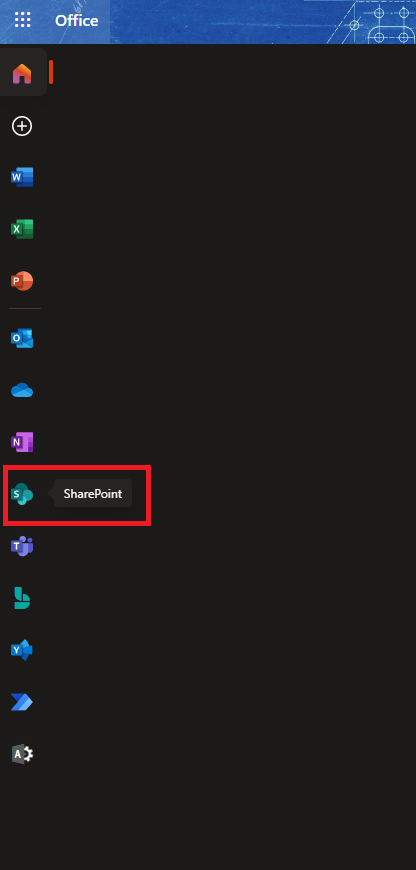
- Click on the 'SharePoint' icon
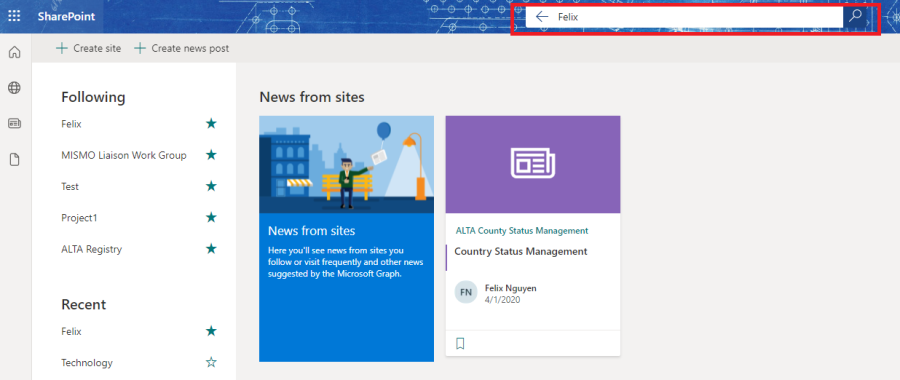
Click on the SharePoint site you wish to sync. If your site doesn't appear, you can search for it:
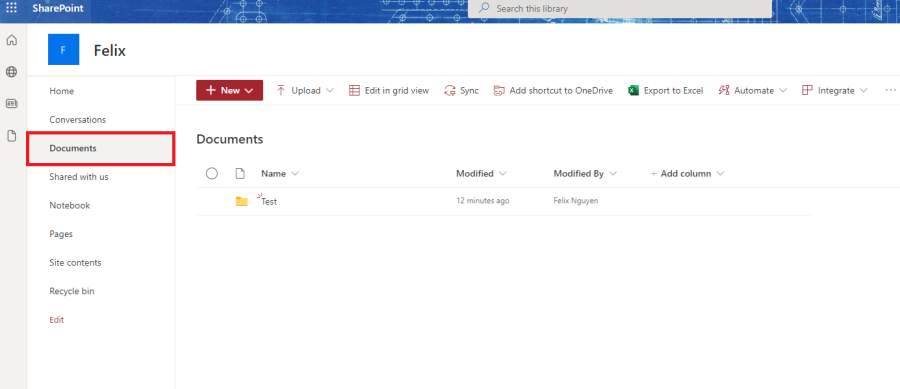
Once you are on your chosen site, click on the 'Documents' option from the left-hand site:
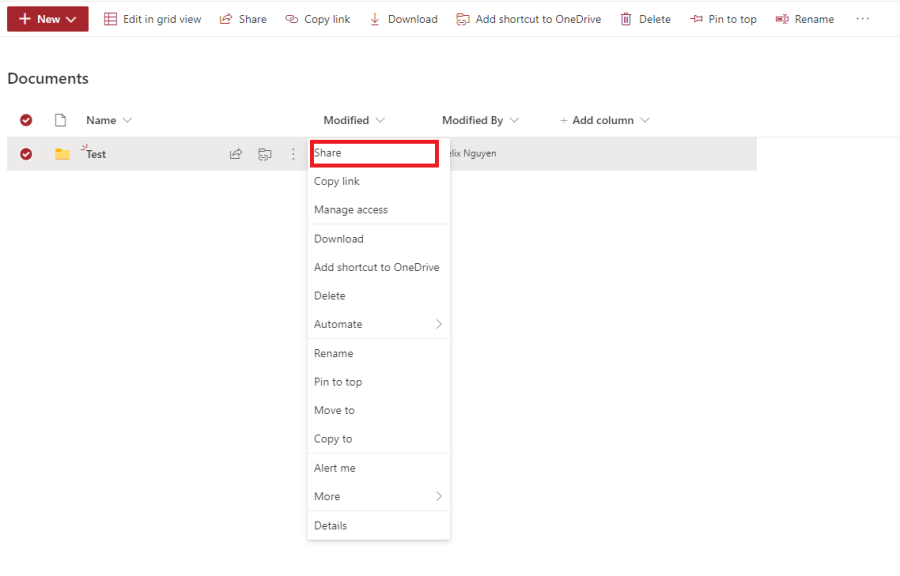
Click on the three dots icon and choose "Share"
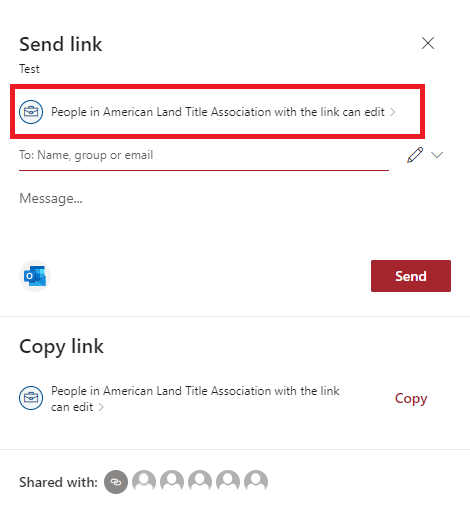
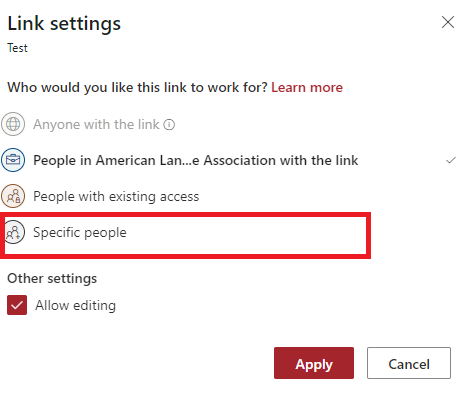
In the Share Windows, click on the "People In American Land Title Association with the link can edit" and choose "Specific People". Then, click apply.
*Note: If you want the external user to make edit to files in the folder, you can leave the "Allow editing" option checked. Otherwise, you MUST uncheck the box to disallow any editions to your folder.
You can enter the email address of the external users you want to share the folder in the box. Then, you can click "Send" when you are ready.
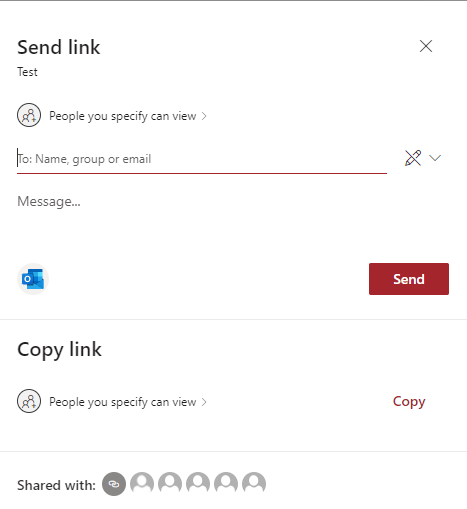
When users share with people outside the organization, an invitation is sent to the person in email, which contains a link to the shared item.
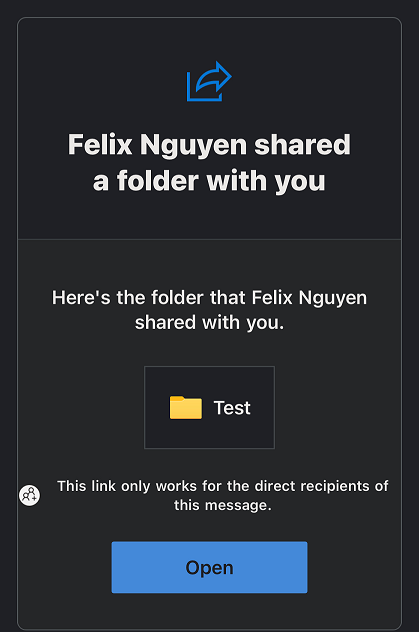
Recipients who sign in
- When users share sites, recipients will be prompted to sign in with:
- A Microsoft account
- _Hlk94681228A work or school account in Azure AD from another organization
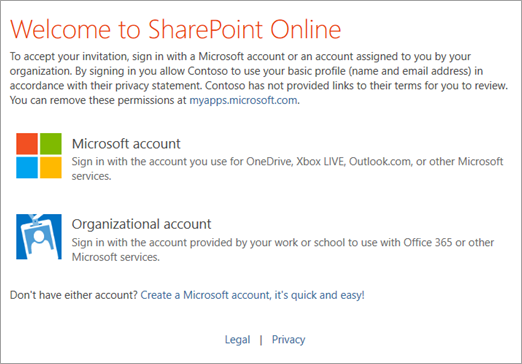
If the external user has a Microsoft Account:
- Please read out to the IT department to have the email added to ALTA guest list in Office 365.
If the external user has A work or school account in Azure AD from another organization:
- The recipient will be asked to enter a verification code if he or she has
Stopping Sharing:
If you wish to shop sharing with guests, you can do this by removing their permissions from the shared item or reach out to the IT department to have the guests removed from ALTA guest list in Office 365.
