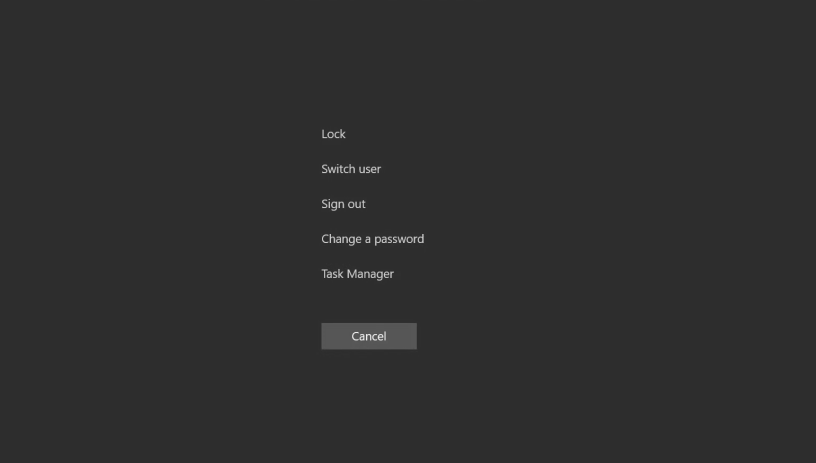
- Enter Your Old Password and New Password
 Made with DASH A.i.
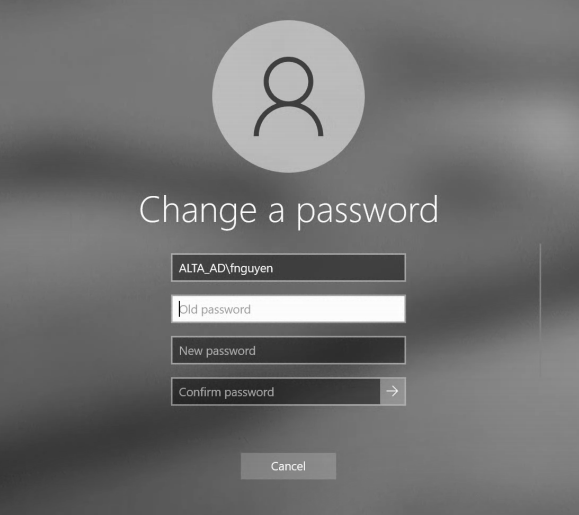
To complete a password change, you will be prompted to provide your current (old) password first, then type and confirm your new password. This two-step entry ensures only the authenticated account holder can make the change.
Key points:
- You must know your current password before you can set a new one. If you have forgotten it, use the password reset/recovery option instead.
- Type your new password carefully — most systems require you to enter it twice to confirm there are no typos.
- Your new password will not be saved until you submit/confirm the form.
In practice: Choose a strong new password that is at least 8–12 characters and includes a mix of letters, numbers, and symbols. Avoid reusing recent passwords. If the system rejects your new password, check that it meets any displayed complexity requirements.