Webinar Business Rules:
-
Webinar Configuration – GTW First.
-
Set up the Webinar in GoToWebinar and make note of the GTW ID.
-
Do Not Change the GTW Required Questions. These are critical to the connection between re:Members (formerly Impexium) & GTW.
-
-
Webinar Configuration – re:Members (formerly Impexium).
-
Go to Events > View (or Add) > Details > Additional Info.
-
Webinars should be added as “Events” with an Event Code beginning with "GTW" plus the date in YYYYMMDD format (e.g., GTW20210113).
-
The “Virtual” check box must be checked.
-
The Webinar Provider is “Go To Webinar” in the drop down.
-
The External Event Code is the numeric Webinar ID from GTW.
-
-
CE/CLE Webinar Grid Upload
-
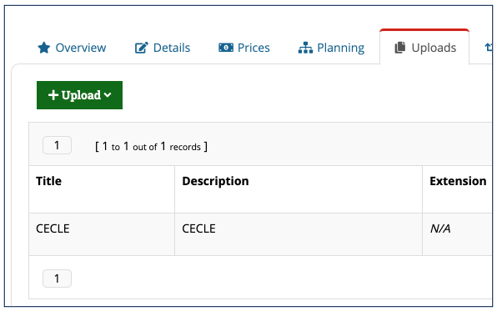
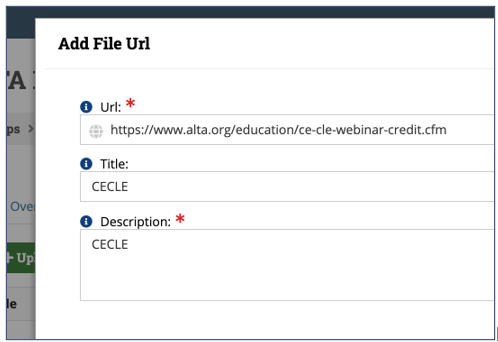
In the Event, under "Uploads" > + Upload > Enter File URL > put the full URL with "CECLE" (or "CE/CLE") as both the title and description and save.
-
https://www.alta.org/career-and-learning/webinars-and-training/ce-cle-webinar-credit
-
The grid will show up the next day in the Report Server and appear with the Webinar on the Website.
-
-
“Webinar” Category.
- Adding these Webinars to the “Webinar” category means they will get grouped correctly for website listings and output.
-
Registration in re:Members (formerly Impexium).
- Registrants will process the full checkout on the ALTA Website through the re:Members (formerly Impexium) portal (even though it's for a $0 purchase) and the confirmation will come from GoToWebinar.
-
Post-Webinar Recordings & Presentations
-
Recordings can be delivered via the External URL field in re:Members (formerly Impexium) at Events > View > Uploads Tab
-
Select the "+Upload" button and choose "Enter File URL"
-
Enter the URL to either the YouTube link or file uploaded to the ALTA web site with either "Recording/Recording" or "Presentation/Presentation" for the Title and Description
-


-
Credit Request
-
When marked for CE, will show up for credit request with the correct code added to the URL
-
https://www.alta.org/career-and-learning/credentials?code=24SpringTC
-
To output (for staff testing/verifying purposes only) you can add “&showAnyway” to the URL to have it show the requesting credit portion even outside of the 72 hour window (as long as the CE/CLE tag has been added in re:Members (formerly Impexium) and gone through overnight processing)
-
NEED TO ADD DETAILS ON THE TIMING, RULES
-
-
For Webinars, will automatically link to the grid here: https://www.alta.org/career-and-learning/webinars-and-training/ce-cle-webinar-credit
-
-
Non-Credit Certificate
-
Hours are automatically calculated based on the Start Time and End Time.
-
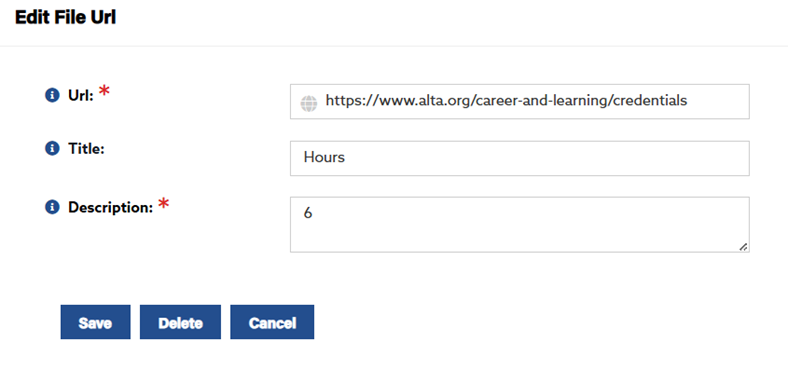
If this isn't correct, under "Uploads" > + Upload > Enter File URL > put in "https://www.alta.org/career-and-learning/credentials" for the URL (this is just an re:Members (formerly Impexium) requirement and isn't output anywhere) with "Hours" as the "Title" and the number of hours (just a number) as the "Description". See "24SpringTC" for example.
-
-
Webinars Which Completed Before 12/31/2020.
- These are stored as Merchandise and categorized (e.g., Compliance Webinars).
-
Webinars and information appear on the ALTA Website at https://www.alta.org/education/webinars.cfm
Small Meeting CE/CLE Business Rules:
-
Credit Request
-
When marked for CE, will show up for credit request with the correct code added to the URL.
-
For small meetings with WP pages and meeting specific CE/CLE charts, use the actual link (e.g., https://meetings.alta.org/commercial/program/ce-cle-credit/ )
-
-
Non-Credit Certificate
-
Hours are automatically calculated based on the Start Time and End Time.
-
If this isn't correct, under "Uploads" > + Upload > Enter File URL > put in "https://www.alta.org/career-and-learning/credentials " for the URL (this is just an re:Members (formerly Impexium) requirement and isn't output anywhere) with "Hours" as the "Title" and the number of hours (just a number) as the "Description".
-