-
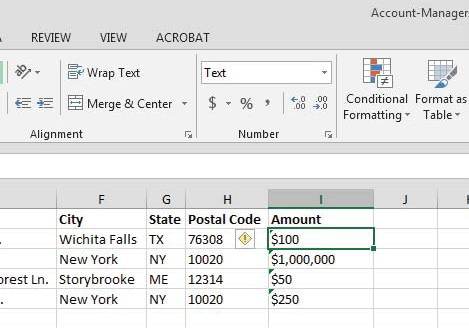
You can also add additional headers, such as a donation amount. Be sure to label it something you'll remember. If you are using dollar amounts, change the type of number it is under 'Number' at the very top to 'Text' for every dollar entry and manually type the dollar sign otherwise the dollar sign ($) will not show up in your letter.
-
A window will appear to the right of your document that says 'Select Document type.' In this instance leave it on 'Letters.'
-
At the bottom click on Next: Starting Document.
-
The next step will read 'Select Starting Document.' If you currently have the letter you created leave the selection 'Use the Current Document' selected.
-
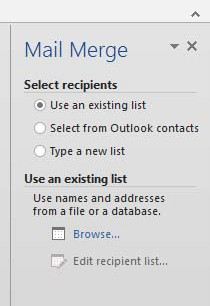
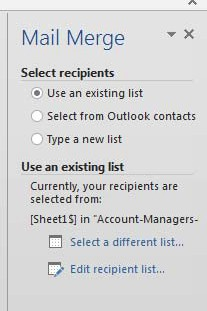
* Next, click 'Select Recipients' at the bottom. You will see 'Use an Existing List' the ability to browse for your list.
-
Click on the 'browse' button and find your list on your computer that you typed up in Excel.
-
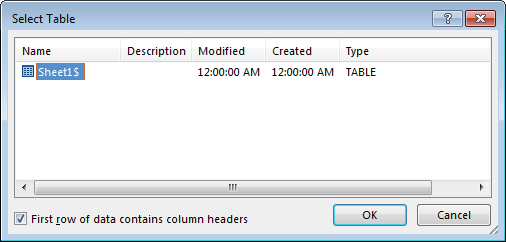
Once you find your document click open and a box will show up that says 'Select table.' If you only had one tab on your spreadsheet click okay.
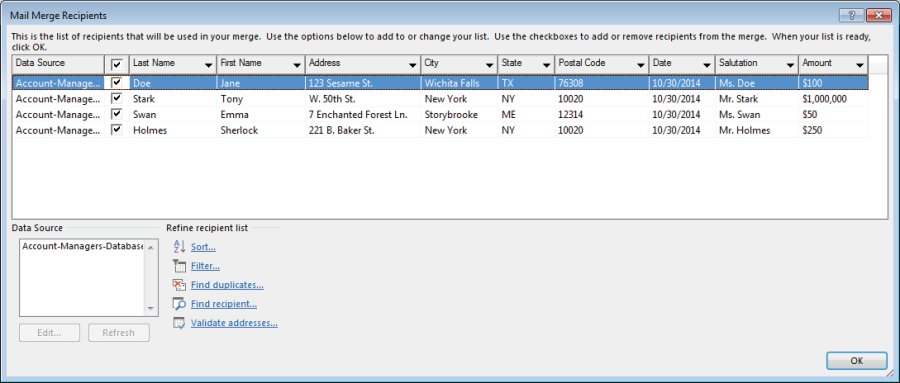
- You will then see the data you had typed. You can also choose to leave off certain names if you want to. Click okay.
-
The table will close and then the dialog box on the right will say 'Currently Your Recipients Are Selected From:' and will give the title of your excel spreadsheet document.
-
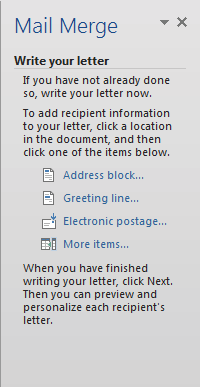
At the bottom of the dialog box click 'write your letter.'
-
* From there you can start adding your fields from your spreadsheet. Highlight the placeholder marked
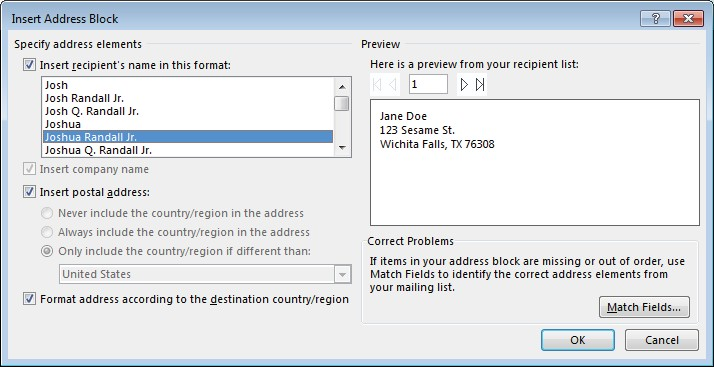
and then click on Address block. The spreadsheet will pull in your data from your spreadsheet.
- If you did not write 'postal code' and wrote 'zip code' instead you can click on 'match fields' and find the field that matches 'postal code' instead. Be sure to cycle through your address list to make sure your addresses are correct. Click okay.
-
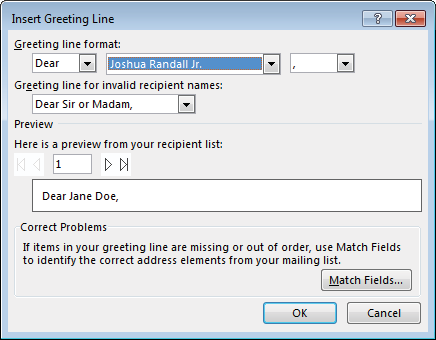
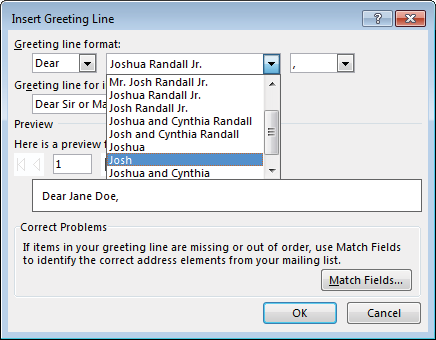
Highlight the greeting line placeholder and replace it with the 'Greeting Line' under Write Your Letter. You can also filter it to where it only lists their first name.
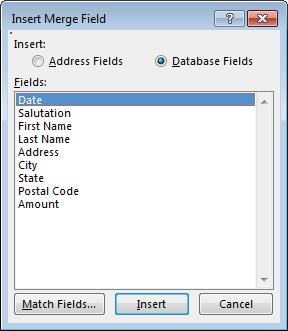
- For the other fields such as 'amount' you can highlight amount and go to 'More items.' Then, go down to 'amount' and select it.
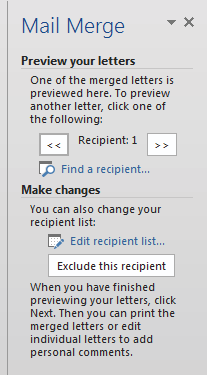
* Next go to 'preview your letters.' From there the database information will have populated your letter. You should be able to cycle through the information you typed to make sure that your addresses and amounts are correct.
-
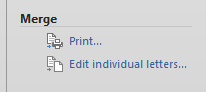
If you're satisfied, click on 'Complete the merge' and then click on 'print.'
-
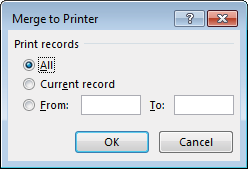
It will give you the option to click on 'print current record' or you can print all of the letters from your database.
-
It's important to thoroughly look over all your letters to make sure there aren't any typos or problems with formatting, especially on the letter itself.
You can use the mail merge to create letters, mailing labels, emails, name badges, or etc.
