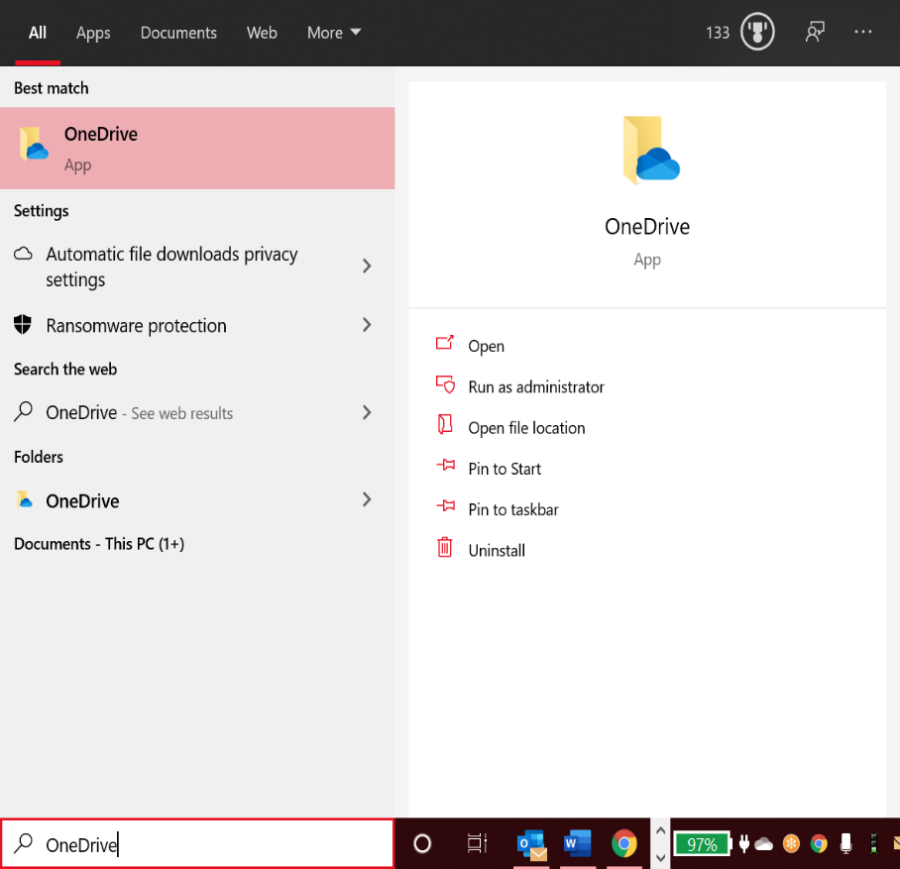
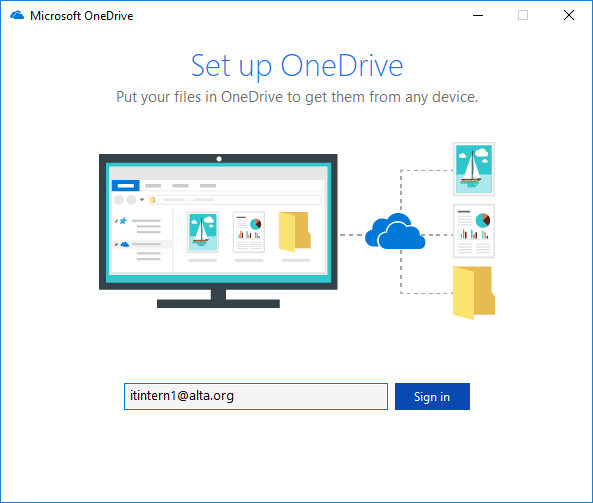
- Next, a set up screen will pop-up, if this is your first-time logging in OneDrive on the computer.
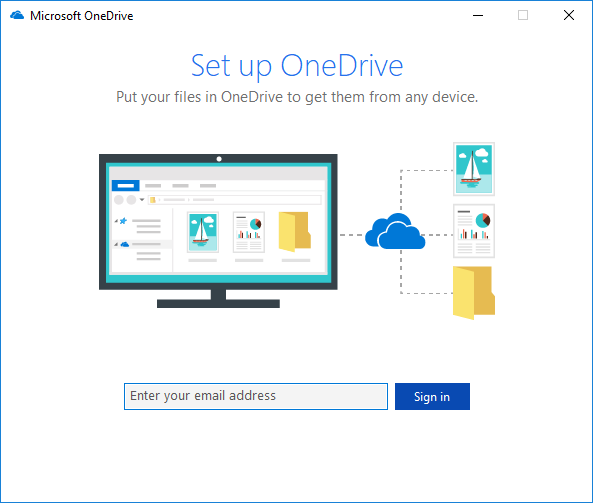
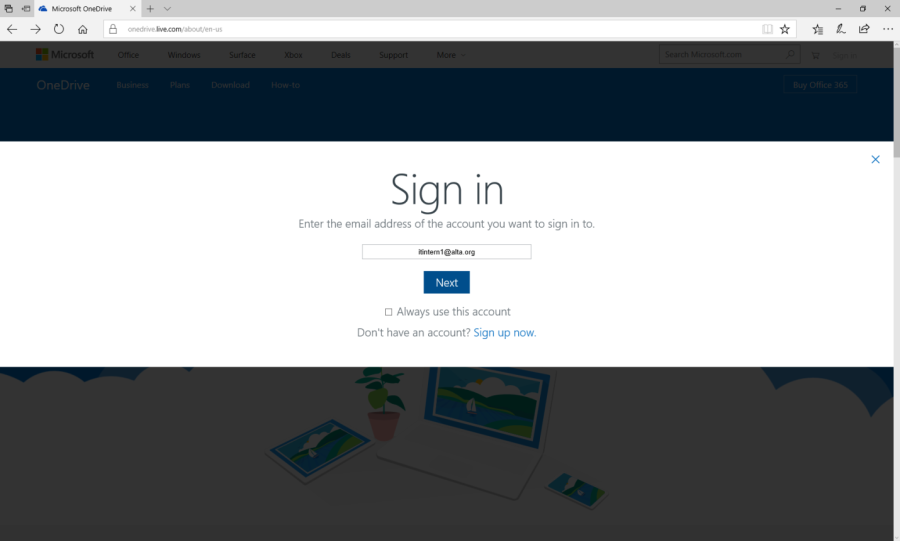
- You will need to enter your ALTA email address (Example: itintern1@alta.org)
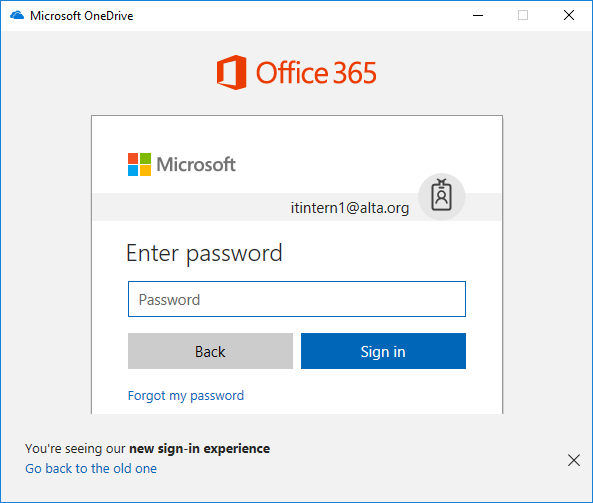
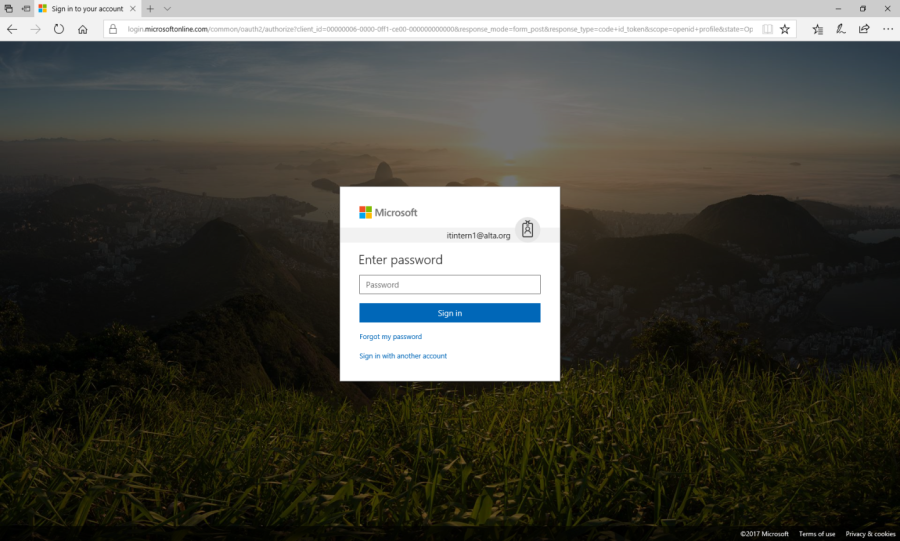
- Then you will be prompt for a password. (The password will be your Microsoft account password)
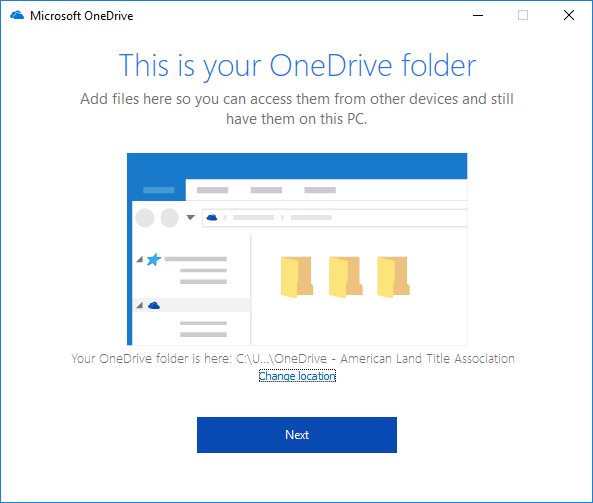
- Next, you will be taken to a folder selection screen. You can ignore everything else on this screen and click NEXT.
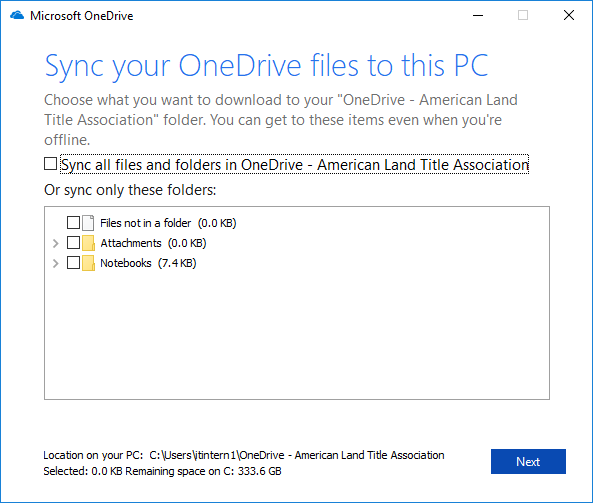
- By clicking next, you will be taken to a screen that is similar to the screenshot below. You will need to uncheck the box saying "Sync all files and folders in OneDrive…" and click NEXT.
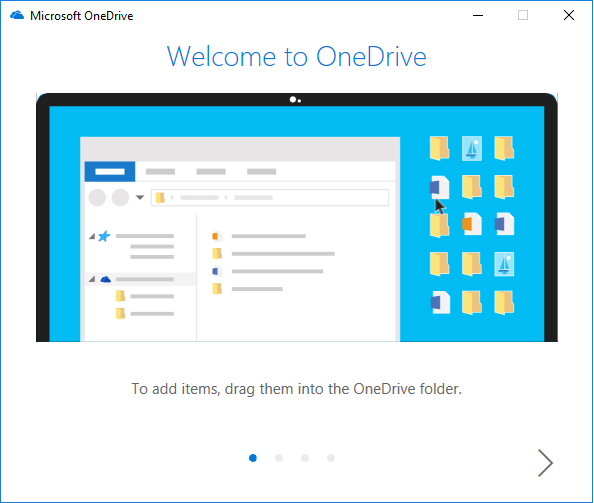
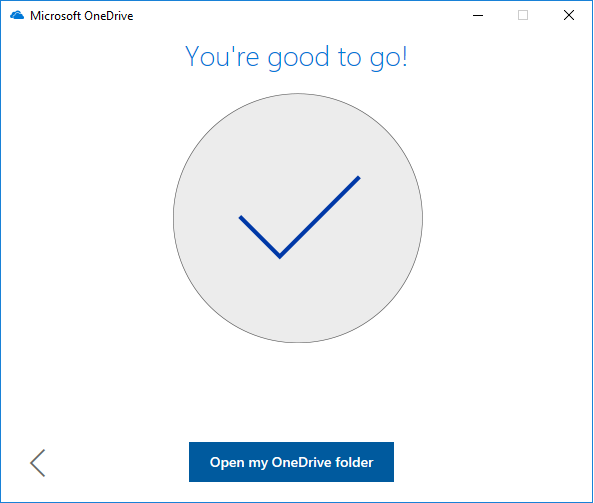
- Once you click NEXT, this following screen will pop-up and you can click the arrow three times. Then click on the button, "Open my OneDrive folder". You are good to go! Well done.
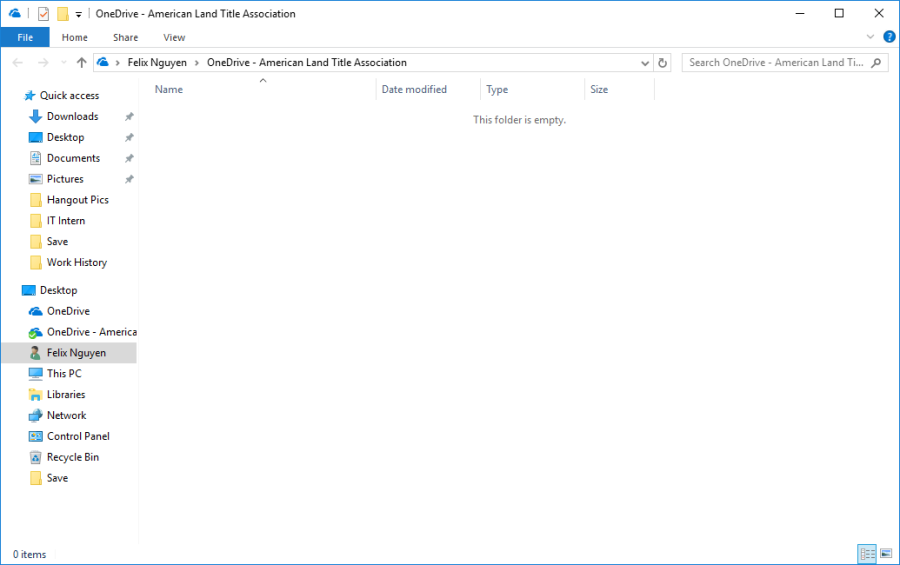
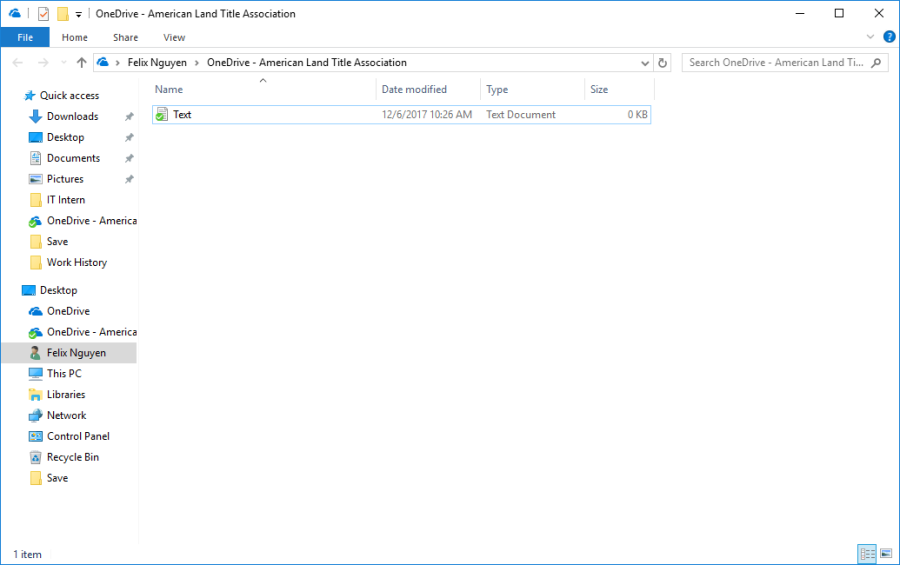
- Next, an OneDrive folder will pop-up and you can start adding or removing document files into your OneDrive folder.
- How to Access your OneDrive account through a web browser:
- Open up a web browser and enter "onedrive.live.com". This will take you to the Microsoft OneDrive website.
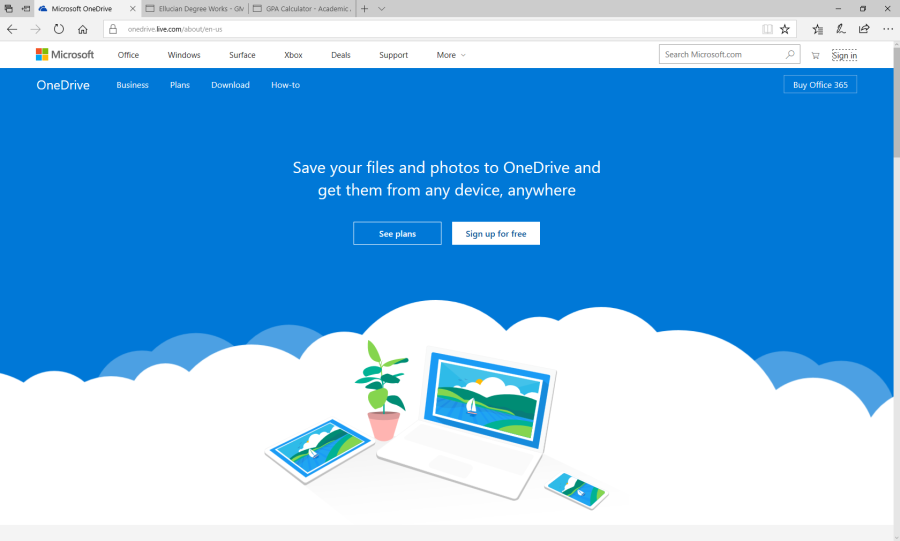
- On the OneDrive homepage, click on the "Sign in" and it will take you to the Sign in screen. You will need to enter your ALTA email, and hit the NEXT button. Then it will prompt you for your Microsoft account password.
- Here is how the main page of OneDrive looks like on a web browser:
- Search Current Location: Click in the Search box in the Navigation Pane, type search keywords, and then select a result.
- Get Help: Click the Help button in the upper right corner, select Help, then browse or search for topics.
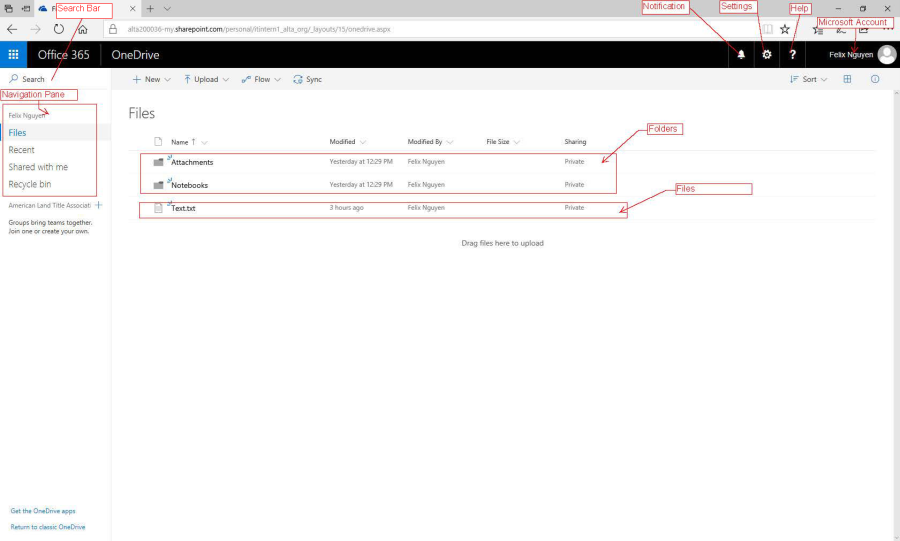
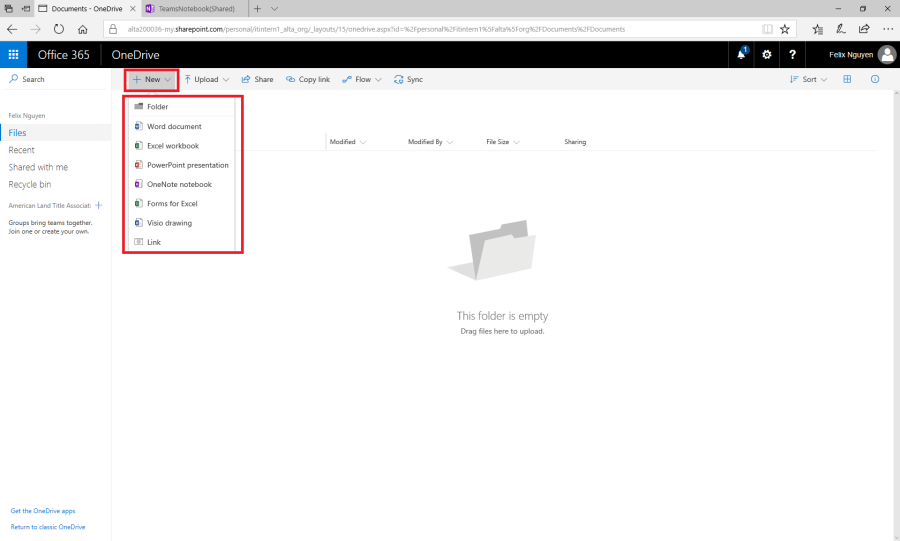
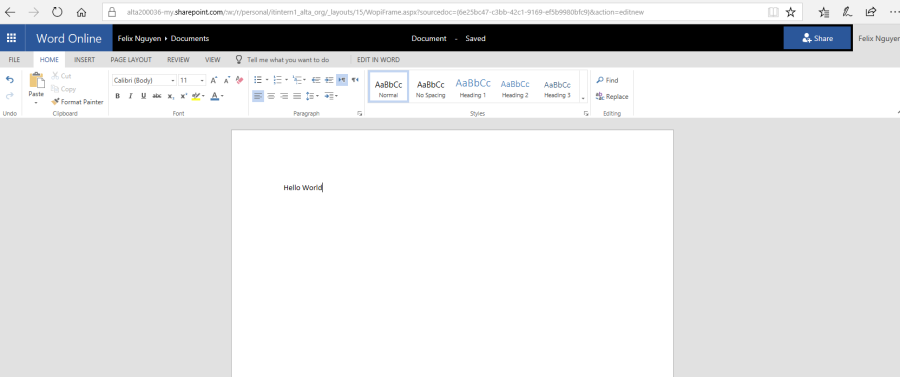
- You can create a new folder or file by clicking on the New Tab on the navigation Bar. (Highlighted in the screenshot below) From there, you can choose one of the many options that OneDrive provides to you. (Word, Excel, PowerPoint, OneNote, Visio Drawing or Link).
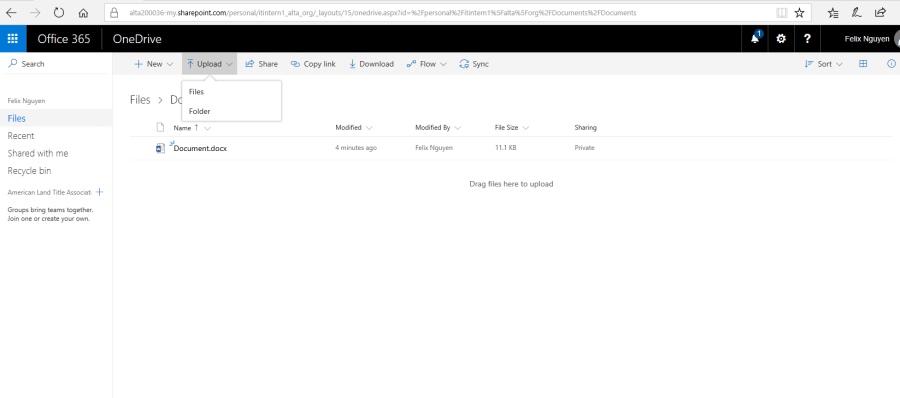
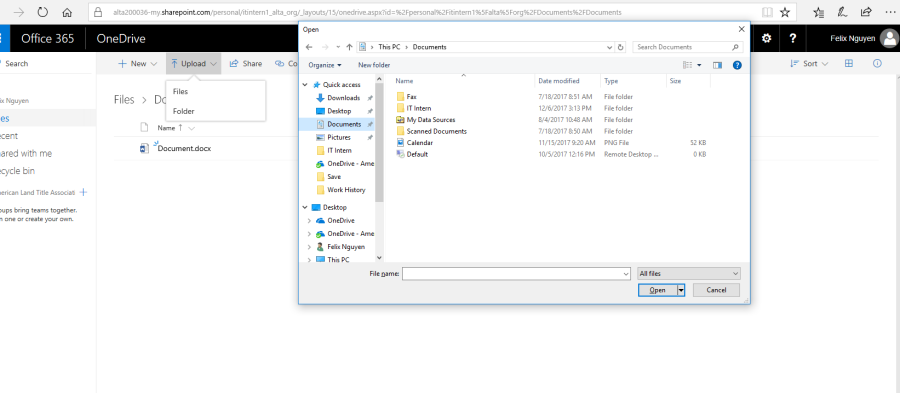
- Upload a File: Click the Upload button, navigate to and select the file(s), then click Open. Or, just drag the file(s) from the File Explorer window into the OneDrive for Business library.
-
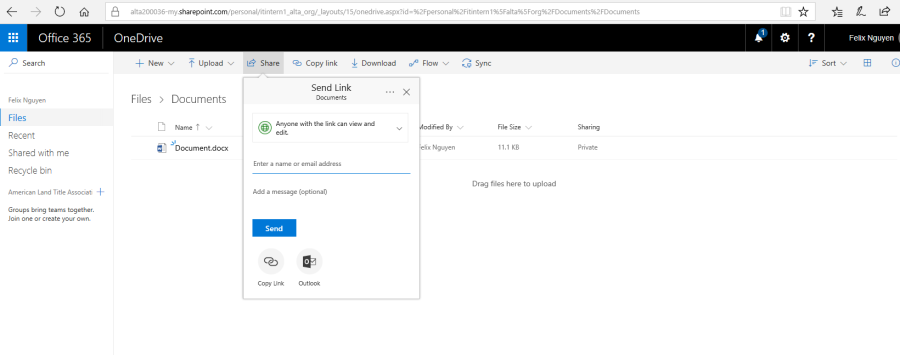
If you want to share your files to with your collages, you can use the share feature to share your files or folders. Click the file's Open Menu button, and then click Share. Enter the names or email addresses of the people you'd like to share with, add a message, then select a permissions level. When you're done, click Share.
-
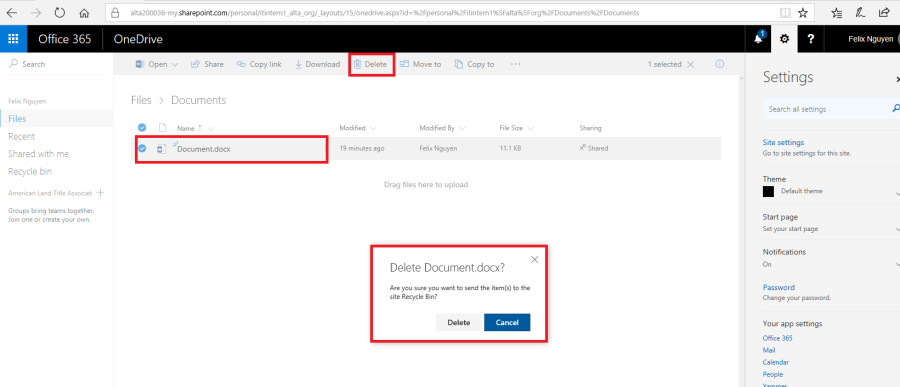
Delete a File: Select a file, click the Files tab, and then click the Delete Document button. Click OK to confirm.
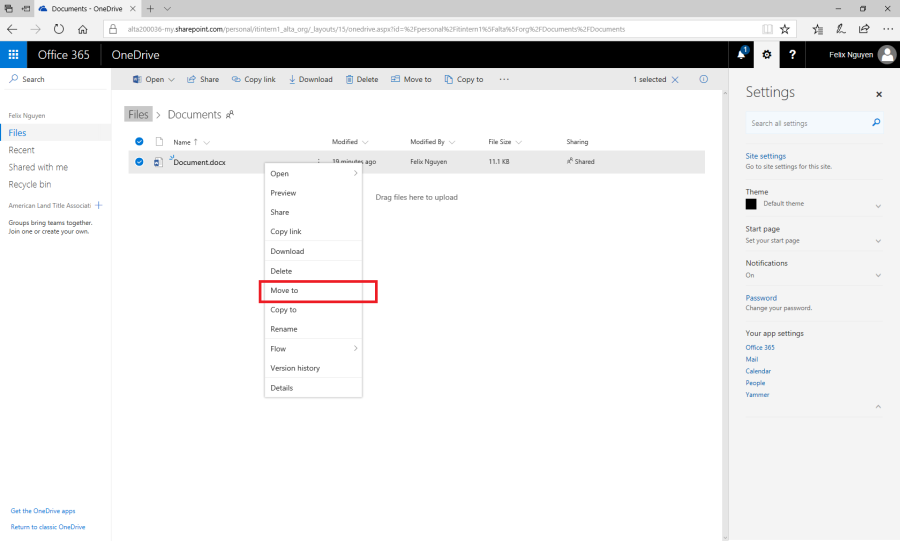
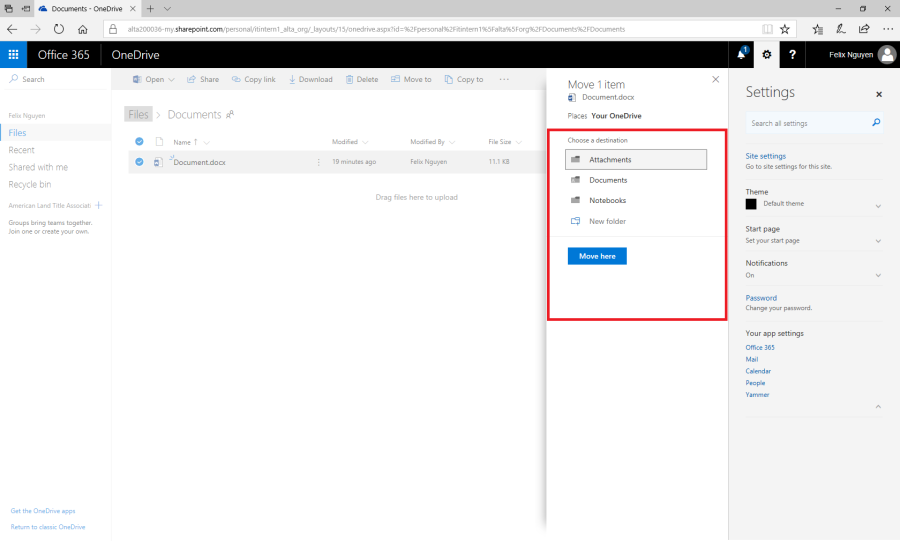
- Move Files to a Folder: Right clicking on the file, and choose the Move to option. Then choose the folder that you want to move your file to.