Full Title: Adding New Individual Records
Short Description: How to create / add a new individual record
Business Rules:
Select "Customers" in left menu and "Individuals". On the "Individual Search" landing page, select "Add New Individual". (Note: Make sure that your Internet Pop Up Blocker is disabled.)
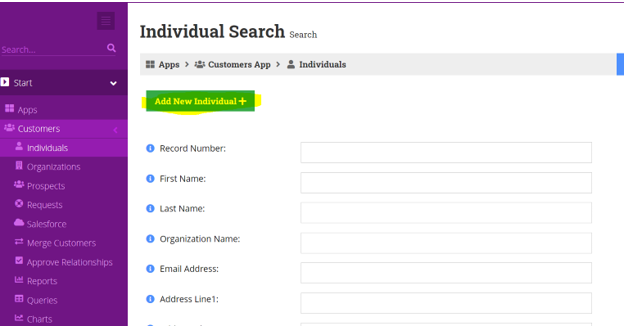
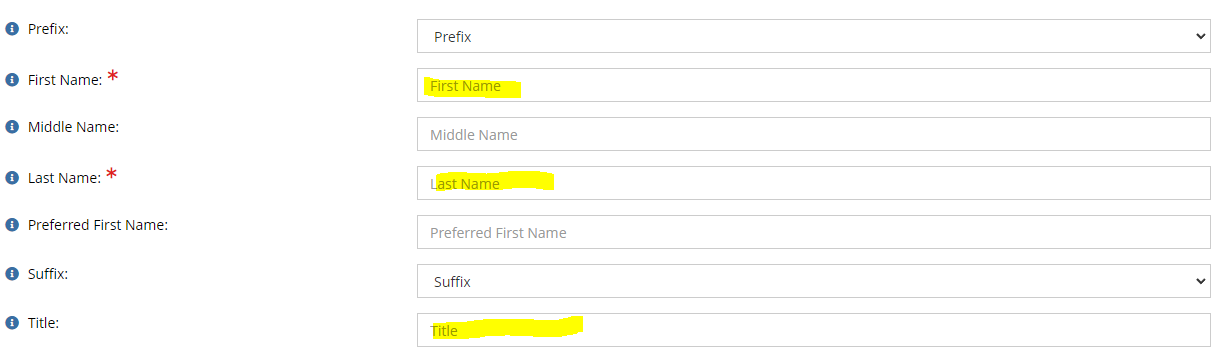
All fields marked with a red "*" are mandatory fields that should be completely filled.
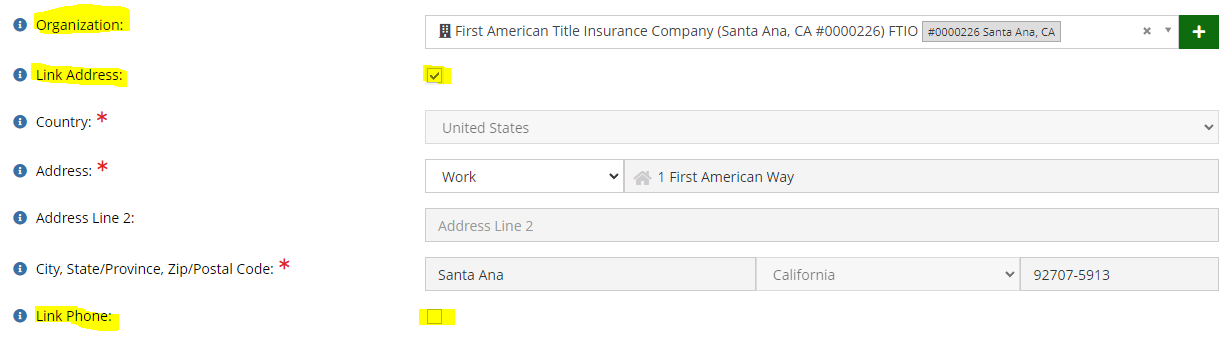
The organization field prompts the options to 1.) link the individual record to an existing organization record by performing a search by org record number in the provided search box OR 2.) create a new organization record to link to the individual by selecting the green "+" sign at the end of the search box. Once the org has been selected and populated in the Org box, check the "link address" box immediately following to link the work address listed on the Org to the Individuals new record. You can do the same for the work phone number if a separate direct number is not provided.
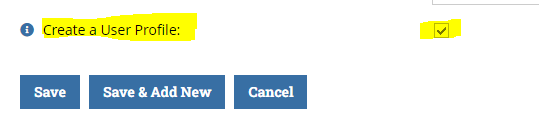
Select the "Create a User Profile" box at the bottom of the screen and select "Save". It is mandatory to select this option in order to create a login to the ALTA website for the individual. (Note: The individual must also provide an email address to activate this feature and create online access.)
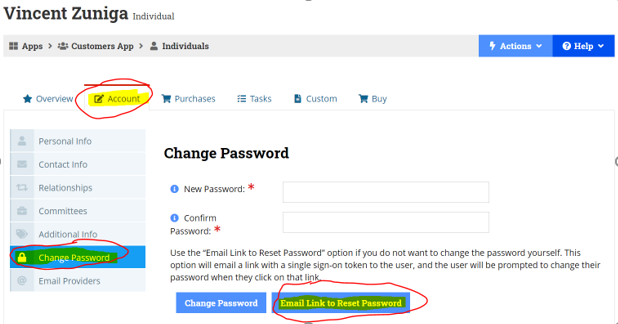
From the individuals record, you can forward their login credentials to access the ALTA Website by selecting the "Account" Tab, "Change Password" and "Email Link to Reset Password". See below: