How to Activate a Customer Account
Owner: ALTA Director of Business Development
1800 M Street, NW, Suite 300 | Washington DC | 20036
855-618-2582
Contents
_Toc152597591Overview.
This document describes the procedures for the activation of a customer account.
_Toc152597592Scope.
The scope of this document extends to the ALTA Registry website www.altaidregistry.org and the ALTA Staff assigned to its operation and management.
_Toc152597593Organization
See also ALTA Registry Standard Operating Procedures Ver 2.1.
_Toc152597594Ownership.
The ALTA Director of Business Development is responsible for the development and maintenance of this document.
_Toc152597595Functionality availability.
-
All account functions for the ALTA Registry are managed within the Registry website. Account functions are available as follows:
-
Adding a new Customer user: ALTA Admin and Customer Admin.
-
All other functions are limited to ALTA Admins.
-
_Toc152597596over view of operations.
-
Entities that are given access to the ALTA Registry data are data consumers, for the purposes of this document they are referred to as Customers (“Customers”).
-
For the purposes of this document a Data Consumer is a Company that is Customer of the Registry (“Customer”). Employees of the Company are either Company Admins “(Company Admins”) or Company Users (“Company Users”), collectively Users (“Users”).
-
Customers access to the ALTA Registry is defined and controlled in Individual Company Accounts (“ICA”). A Customer must have completed a Customer Licensing Agreement(“CLA”) and has had ICA created for it by an ALTA Admin. The creation of a Customer Account is dependent upon whether or not a request for a Registry Demonstration (“Demo”) has been made by either a new customer of an ALTA Admin on their behalf.
-
A Demo request is made from the home page and can only be made by uncredentialed users. Should an ALTA Admin wish to create a Demo request, they must first log out.
-
Once the Demo request has been made an initial record is created and the record state is set to Application Submitted.
_Toc107236156_Toc152597597How to Create a new “Customer Account’.
-
The creation of new Customer Admin accounts is systemically restricted to ALTA Admins. Once created, a Customer Admin can create additional Customer Admins within its own record. Customer Admins can create Customer Users where access rights may not exceed their own, this is systemically controlled.
-
ICAs allow for credentialed access to Listings with the following functions:
-
Individual web searches without the Recapture routine.
-
Data downloads in a manual Excel or XML export.
-
Manual JSON file.
-
A semi manual query JSON export controlled by a key managed by the Customer Admin.
-
A Data Consumer may be granted access to the ALTA Registry for assessment and development purposes where a Non-Disclosure Agreement (“NDA”) has been executed.
-
_Toc152597598Individual Company Account User Structure.
-
The hierarchy of account access is as follows:
-
Company Account. The Company Account must be established first.
-
Company Admin. Company Admins can only be created once the Company Account has been created. Company Admins can create additional Company Admins and Company Users. Company Admin can also control the level of access to data Company Users are allocated.
-
Company User. Company users can only access the Individual Company Account (“ICA”) with the access right granted them by the Company Admi. Company User cannot create other Company admins or Company Users.
-
-
_Toc152597599Company Account management Tools
-
An account can only be created where a Company either exists of has been created in the Company Table. To create a new Company in the Company Table a demonstration (“Request Demo”) must be requested through the Registry Website see figure 9
-

Note that the Request Demo Option is only available when a User is not logged in and is an Anonymous User.
-
_Toc65153347_Toc94008919Figure 1 Request a Demo Tool
-
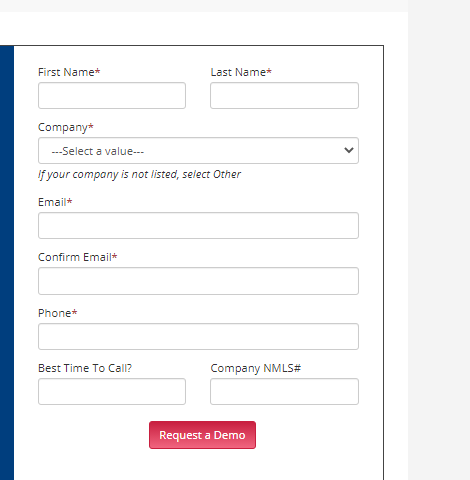
Where the desired company is not available from the Company pull down menu, the user can select “Other” from the top of the list and create the new company name (“Company”). Once the required fields have been completed in figure 10, the User may then select the Request a Demo option. Note that if the ICA is being created by an ALTA Admin, the same steps to Request a Demo must be taken.
-
Once the Request a Demo button has been selected the following systematically occurs:
-
The Company entered by the User is added to the master Company table and then becomes available for selection in the creation of an ICA.
-
An email is sent to the registry email box altaregisty@alta.org to alert ALTA Admins that a demo has been requested.
-
The Account Status of the company is defaulted to Pending and the Company will appear in the Pending list.
-
_Toc94008920Figure 2 Request a Demo Form
The next step can only be completed by an ALTA Admin while logged in. Once logged in the ALTA Admin should access the Pending list as illustrated in figure 11. The Pending Table lists all Demo Request that have been made by anonymous users.
_Toc94008921
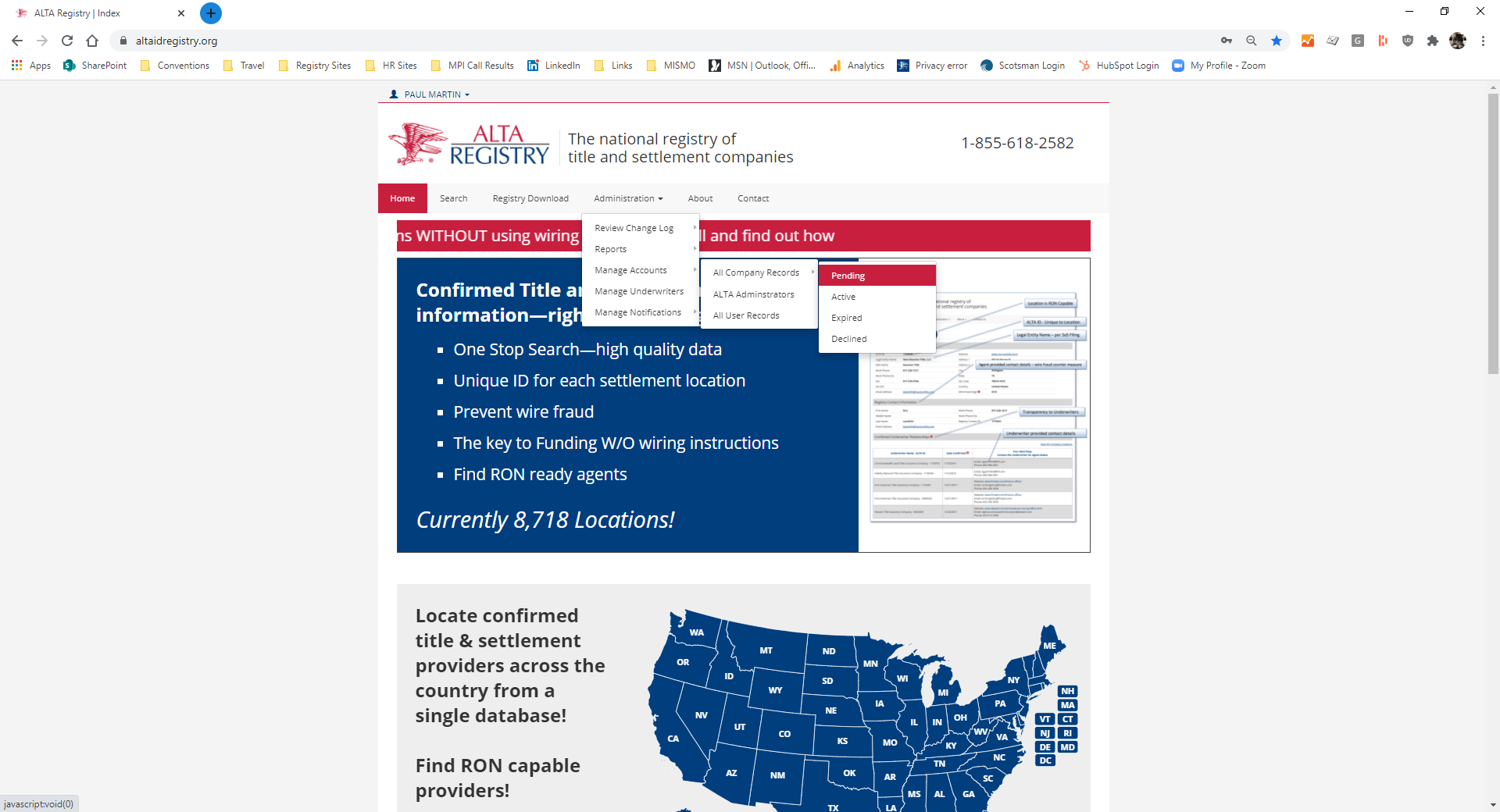
Figure 3 Accessing Pending Table
-
Individual Company Account Tools – Activating a Company Account.
- Once the Pending Table is accessed, as shown in figure 3 above, the specific company record targeted for editing or activation is access by selecting the Blue Pencil in the right-hand side of the record in the Action column as shown in figure 12 this opens the Company Profile edit tool.
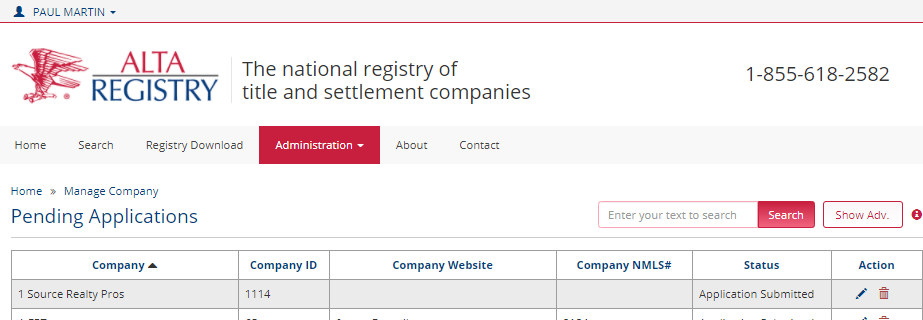
_Toc94008922Figure 4 Company Record Edit Function
-
_Toc152597600Activating the Customer Account
- Within the Company Profile edit tool there are 4 screens available for managing aspects of ICA as illustrated in figure 13. When the Company Profile edit tool is opened the words “Company Profile” will be followed by the name of the Company as illustrated below in figure 5. All field labels that are appended with a red Asterix “*” are required fields.

_Toc94008923Figure 5 Company Profile Tabs
-
The different tabs in the Company Profile edit tool that are available to the ALTA Admin are as follows and contain the fields illustrated below in the next few figures. The different screens can be accessed in any order after the Company screen. However, the Customer will not have access until the Company, User and Administration screens have been completed.
-
Company.
-
Users. In this screen the initial Company Admin is created. Once completed, the Company Admin will have the rights to create either other Company Admins or Company Users.
-
Billing.
-
Administration.
-
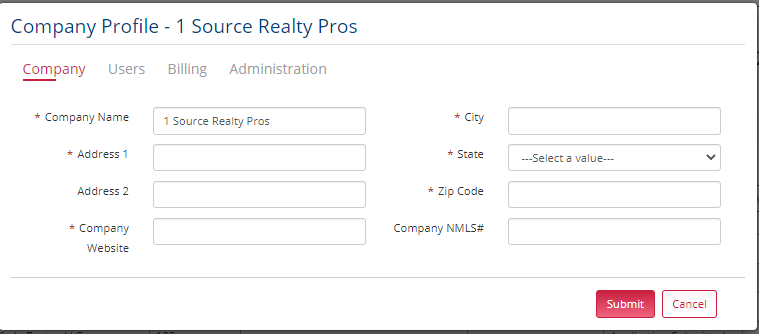
_Toc94008924Figure 6 Company Profile Tabs - Company Profile
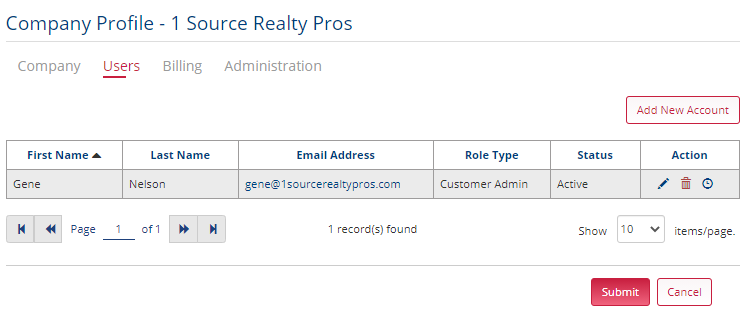
_Toc94008925Figure 7 Company Profile Tabs - Users Initial Company Admin
To create an initial Company Admin the ALTA Admin should open the Add New Account tool as shown in figure below.
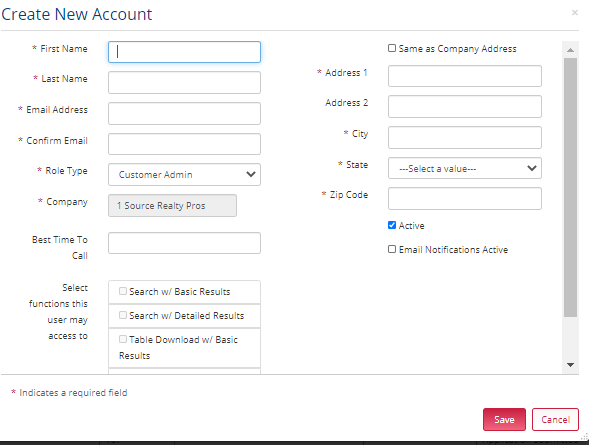
_Toc94008926Figure 8 Company Profile Tabs - Adding New User Account
Billing information is found on the Billing tab as shown below in figure 17. Billing information is not required to set up an ICA. However, these fields should be populated as soon as any invoicing or billing information has been determined. Additionally, any special pricing arrangements should be documented in the Comments section.
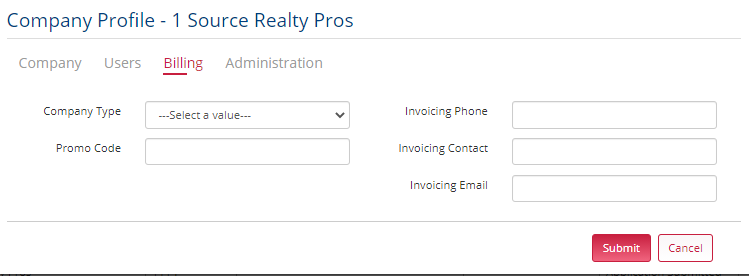
_Toc94008927Figure 9 Company Profile Tabs – Billing Information
The Administration tab contains fields key to activating an account. The fields available in the Administration tab are illustrated below in figure 18.
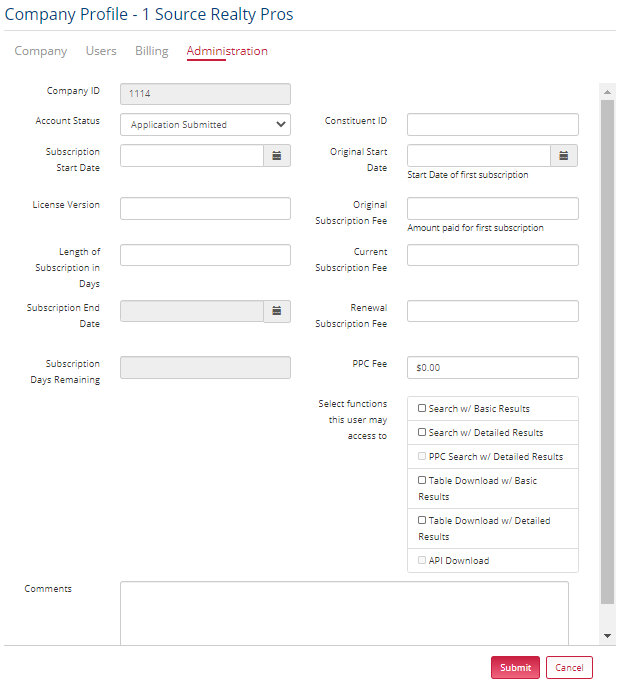
_Toc94008928Figure 10 Company Profile Tabs - Administration Options
In overview the following logic grants Company Users access to an ICA.
Account Status = Account Activated AND one or more of the User Access Functions fields have been enabled. These are illustrated below.
-
The Administration tab fields are as follows:
-
Company ID: This field is prepopulated with a systemically generated number.
-
Account Status. This is a Control Field. As mentioned earlier at the time of initial account set up this field is defaulted to Application Submitted. The options are listed below in the figure.
-
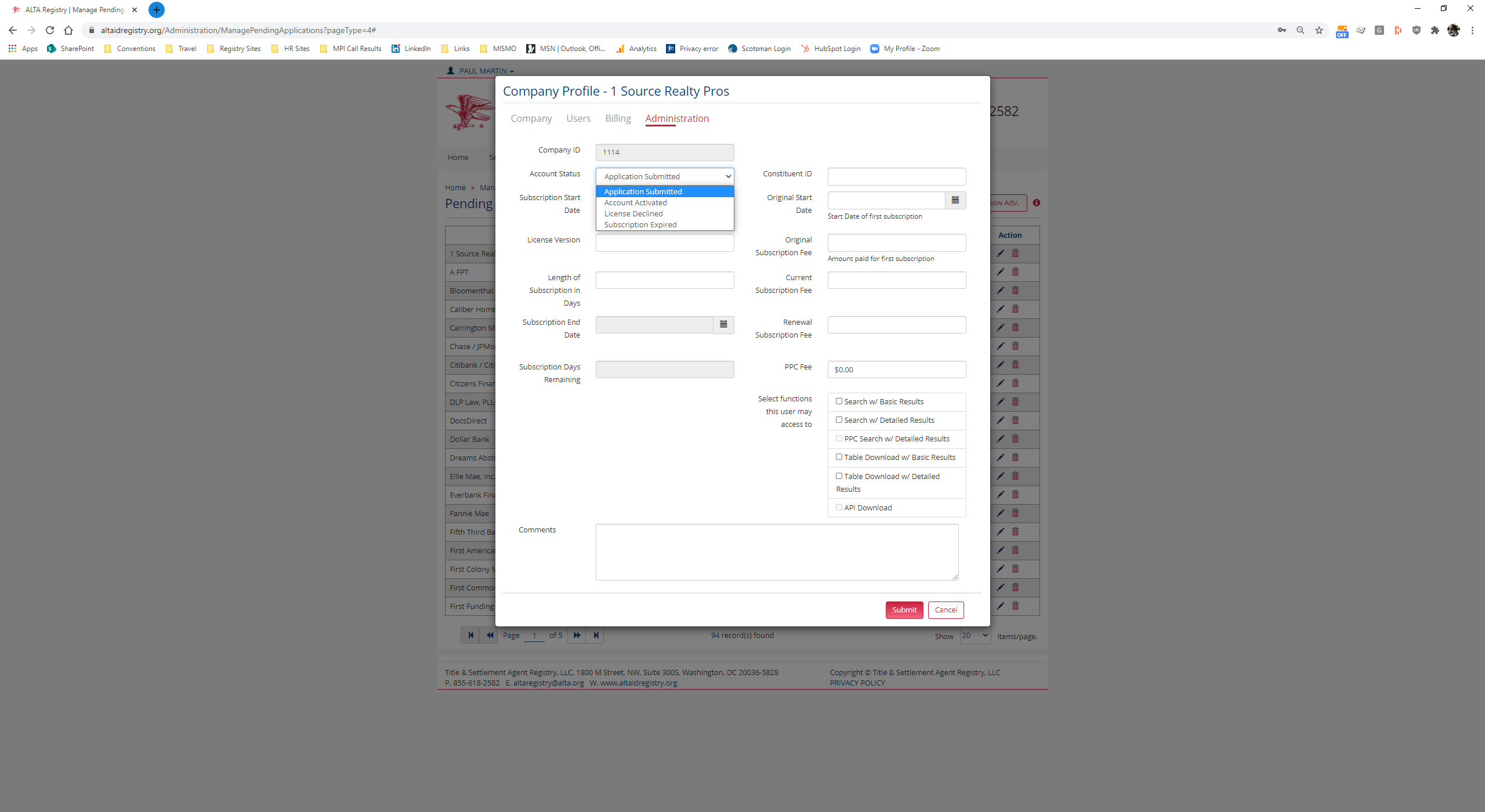
Account Activated. This is a Control Value. This option is to be selected when either an NDA or a Customer Licensing Agreement (“CLA”) has been completed. Access under an NDA allows potential customer to conduct a detail evaluation of the Registry data. Once Account Activate has been selected, access is not yet available to the customer because a user account has not yet been created. Company staff can access their account only after this field is set to Account Active and an initial Customer Admin has been created and the log on credentials share with that user. This process is controlled by ALTA Admins.
-
-
_Toc65153356_Toc94008929Figure 11 Administration – Account Status
-
Licensed Declined. Where a demonstration has been requested and as result of discussions between ALTA staff and the prospective customer, it has been determined that it is not qualified for a license this option is to be selected and the process can be halted. In this condition the rejected customer does not have an active account.
-
Subscription Expired. This is another manually set field and is set to Subscription Expired when an existing Custom does not renew their CLA at the end of its term the CLA has been terminated for a CLA infraction.
-
Subscription Start Date. The Subscription State Date is the day each subscription period begins. It is reset each year if a customer renews their subscription by paying another annual subscription or is granted free access for a period.
-
License Version. The License Version field is manually completed with the file name of the CLA signed by the Customer.
-
Length of Subscription in Days. The Length of Subscription in Days field is manually entered and is typically set to 365 unless a short period has been agreed with the Customer.
-
Subscription End. This field is calculated field. It is calculated from the Subscription start date and the Length of Subscription Date in Days.
-
Subscription Days Remain. The Subscription Days Remain is a calculated field. Is calculated from the Subscription End data and the current date upon log in.
-
Constituent ID. This is a manually entered and is the Constit ID of the Customer from ALTAs main membership database.
-
Original Start Date. This is a manually completed field where the data of the first subscription date is entered.
-
Original Subscription Fee. This is a manually completed field where the original subscription fee paid at the time of the first subscription period.
-
Current Subscription Fee. This is a manually completed field where the most current subscription fee is entered.
-
Renewal Subscription Fee. This is a manually completed field where the amount of the next subscription fee is entered.
-
PPC Fee. This is a manually completed field where the amount of any Pay Per Click or transaction related fee is entered. Typically, if a customer has a PPC fee the annual subscription may be zero.
-
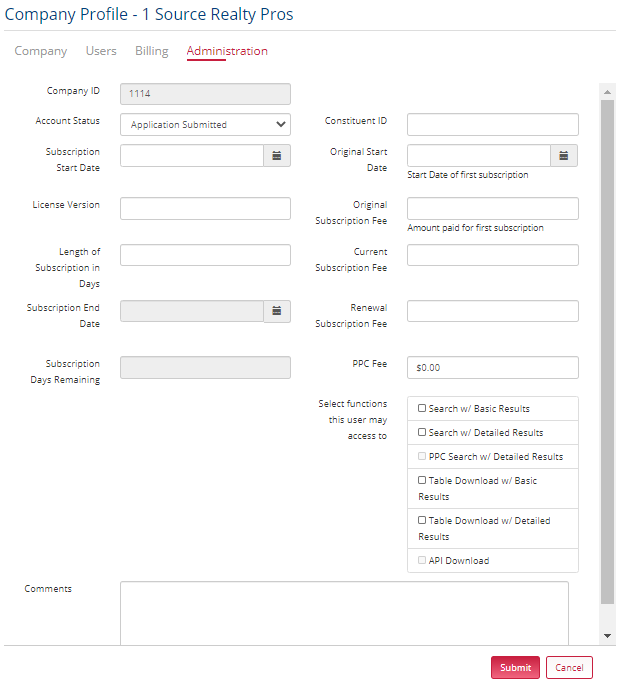
User Access Functions. User Access Functions determine the types of access Users may have to the Registry Data, these are illustrated in the figure. The data fields available with each level of access are defined in Appendix A.
- Search w/ Basic Results. This function allows Users to perform individual searches of the Registry and return Basic data fields without interruption by the Recapture tool.
_Toc65153357_Toc94008930Figure 12 Administration – Data Access options
-
Search / Detailed Results. This function allows Users to perform individual searches of the Registry and return Detailed data fields, without interruption by the Recapture tool.
-
PPC Search w/ Detailed Results. This function allows PPC Users to perform individual searches of the Registry and return Detailed data fields.
-
Table Download w/ Basic Results. This function allows users to download the Registry Basic data in any of the Standard File Formats (“SFF”).
-
Table Download w/ Detailed Results This function allows Users to perform individual searches of the Registry Detailed data in any of the SFF.
-
API Downloads. The API Download option allows the Users to set up an automatic query on the data using a systemically generated API key. The data available in the query is determined by the options selected above. The API Download will download the Registry Data in a JSON file format only.
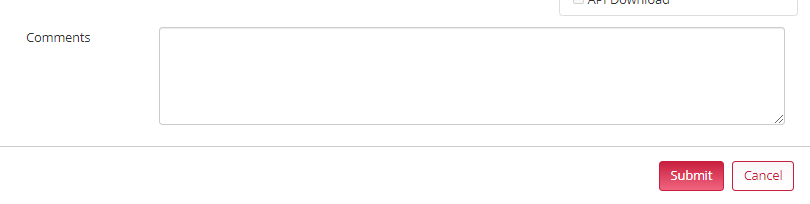
Comments. The Comments field (“Comments”) is a free text field that can be used for account level comments and notes see figure 21 below. It should be noted that two special characters “<” and “>” are not permitted to be used in Comments to prevent these special characters being used for XSS cyberattacks. The following characters should be used “[”], “]” instead of “<”, “>”.
_Toc65153358_Toc94008931Figure 13 Administration – Comments
_Toc152597601ALTA Registry Listing Data Fields and access levels.
<table data-table-width="760" data-layout="default" ac:local-id="2c5c921f-8e6e-462f-8115-24bb4366dfaf"><colgroup><col style="width: 136.0px;"><col style="width: 136.0px;"><col style="width: 136.0px;"><col style="width: 136.0px;"><col style="width: 136.0px;"></colgroup><tbody><tr><td data-highlight-colour="#auto"><p>Field Name</p></td><td data-highlight-colour="#auto"><p>Description</p></td><td><p>Source</p></td><td><p>NPI/CI/HIPPA</p></td><td><p>Data available to users/User type</p></td></tr><tr><td data-highlight-colour="#auto"><p>ALTA_ID*</p></td><td data-highlight-colour="#auto"><p>ALTA ID</p></td><td><p>System</p></td><td><p>No</p></td><td><p>Anonymous, Basic & Detailed Access</p></td></tr><tr><td data-highlight-colour="#auto"><p>Rec_Type</p></td><td data-highlight-colour="#auto"><p>CO (company) or CI (individual)</p></td><td><p>Data Provider</p></td><td><p>No</p></td><td><p>Anonymous, Basic & Detailed Access</p></td></tr><tr><td data-highlight-colour="#auto"><p>Addr_ID</p></td><td data-highlight-colour="#auto"><p>ID for row in address table</p></td><td><p>System</p></td><td><p>No</p></td><td><p>Anonymous, Basic & Detailed Access</p></td></tr><tr><td data-highlight-colour="#auto"><p>DBA_Name</p></td><td data-highlight-colour="#auto"><p><span style="color: rgb(0,0,0);">Company DBA name</span></p></td><td><p>Data Provider</p></td><td><p>No</p></td><td><p>Anonymous, Basic & Detailed Access</p></td></tr><tr><td data-highlight-colour="#auto"><p>Legal_Entity_Name</p></td><td data-highlight-colour="#auto"><p><span style="color: rgb(0,0,0);">Company legal name</span></p></td><td><p>Data Provider</p></td><td><p>No</p></td><td><p>Anonymous, Basic & Detailed Access</p></td></tr><tr><td data-highlight-colour="#auto"><p>Ind_F_Name</p></td><td data-highlight-colour="#auto"><p><span style="color: rgb(0,0,0);">individual first name</span></p></td><td><p>Data Provider</p></td><td><p>No</p></td><td><p>Anonymous, Basic & Detailed Access</p></td></tr><tr><td data-highlight-colour="#auto"><p>Ind_M_Name</p></td><td data-highlight-colour="#auto"><p><span style="color: rgb(0,0,0);">Individual middle name</span></p></td><td><p>Data Provider</p></td><td><p>No</p></td><td><p>Anonymous, Basic & Detailed Access</p></td></tr><tr><td data-highlight-colour="#auto"><p>Ind_L_Name</p></td><td data-highlight-colour="#auto"><p><span style="color: rgb(0,0,0);">Individual last name</span></p></td><td><p>Data Provider</p></td><td><p>No</p></td><td><p>Anonymous, Basic & Detailed Access</p></td></tr><tr><td data-highlight-colour="#auto"><p>Ind_Suffix</p></td><td data-highlight-colour="#auto"><p><span style="color: rgb(0,0,0);">Individual suffix</span></p></td><td><p>Data Provider</p></td><td><p>No</p></td><td><p>Anonymous, Basic & Detailed Access</p></td></tr><tr><td data-highlight-colour="#auto"><p>Ind_Title</p></td><td data-highlight-colour="#auto"><p><span style="color: rgb(0,0,0);">Individual job title</span></p></td><td><p>Data Provider</p></td><td><p>No</p></td><td><p>Anonymous, Basic & Detailed Access</p></td></tr><tr><td data-highlight-colour="#auto"><p>Work_Phone</p></td><td data-highlight-colour="#auto"><p><span style="color: rgb(0,0,0);">work phone number</span></p></td><td><p>Data Provider</p></td><td><p>No</p></td><td><p>Anonymous, Basic & Detailed Access</p></td></tr><tr><td data-highlight-colour="#auto"><p>Work_Ext</p></td><td data-highlight-colour="#auto"><p><span style="color: rgb(0,0,0);">work phone extension</span></p></td><td><p>Data Provider</p></td><td><p>No</p></td><td><p>Anonymous, Basic & Detailed Access</p></td></tr><tr><td data-highlight-colour="#auto"><p>Fax_Number</p></td><td data-highlight-colour="#auto"><p><span style="color: rgb(0,0,0);">fax number</span></p></td><td><p>Data Provider</p></td><td><p>No</p></td><td><p>Anonymous, Basic & Detailed Access</p></td></tr><tr><td data-highlight-colour="#auto"><p>Fax_Ext</p></td><td data-highlight-colour="#auto"><p><span style="color: rgb(0,0,0);">fax number extension</span></p></td><td><p>Data Provider</p></td><td><p>No</p></td><td><p>Anonymous, Basic & Detailed Access</p></td></tr><tr><td data-highlight-colour="#auto"><p>Self_Confirm_Date</p></td><td data-highlight-colour="#auto"><p><span style="color: rgb(0,0,0);">last update by organization or individual</span></p></td><td><p><span style="color: rgb(0,0,0);">System</span></p></td><td><p>No</p></td><td><p>Nil</p></td></tr><tr><td data-highlight-colour="#auto"><p>Email_Addr</p></td><td data-highlight-colour="#auto"><p><span style="color: rgb(0,0,0);">email address</span></p></td><td><p>Data Provider</p></td><td><p>No</p></td><td><p>Basic & Detailed Access</p></td></tr><tr><td data-highlight-colour="#auto"><p>Web_URL</p></td><td data-highlight-colour="#auto"><p><span style="color: rgb(0,0,0);">website</span></p></td><td><p>Data Provider</p></td><td><p>No</p></td><td><p>Anonymous, Basic & Detailed Access</p></td></tr><tr><td data-highlight-colour="#auto"><p>Registry_Grouping_ID*</p></td><td data-highlight-colour="#auto"><p>ALTA_ID of the ALTA business structure single parent company. Shared by related companies and individuals (attorneys)</p></td><td><p>System</p></td><td><p>No</p></td><td><p>Basic & Detailed Access</p></td></tr><tr><td data-highlight-colour="#auto"><p>UW_Abbreviation</p></td><td data-highlight-colour="#auto"><p><span style="color: rgb(0,0,0);">UW short name</span></p></td><td><p><span style="color: rgb(0,0,0);">System</span></p></td><td><p>No</p></td><td><p>Detailed Access</p></td></tr><tr><td data-highlight-colour="#auto"><p>Ent_Type_ID</p></td><td data-highlight-colour="#auto"><p>Potential value of 0-5 (0-Not an UW, 1-UW not participating, 2-UW in on-boarding 3-UW confirming PBL only, 4-UW confirming all locations, 5-UW no longer confirming)</p></td><td><p>System</p></td><td><p>No</p></td><td><p>Detailed Access</p></td></tr><tr><td data-highlight-colour="#auto"><p>Number_of_Confirmations*</p></td><td data-highlight-colour="#auto"><p><span style="color: rgb(0,0,0);">The number of existing underwriter confirmations for a record.</span></p></td><td><p><span style="color: rgb(0,0,0);">System</span></p></td><td><p>No</p></td><td><p>Basic & Detailed Access</p></td></tr><tr><td data-highlight-colour="#auto"><p>RON</p></td><td data-highlight-colour="#auto"><p>Remote Online Notarization (RON) capable.<br>Y= Agent has confirmed they are RON capable<br>Blank = Agent has NOT confirmed they are RON capable</p></td><td><p>Data Provider</p></td><td><p>No</p></td><td><p>Basic & Detailed Access</p></td></tr><tr><td data-highlight-colour="#auto"><p>Addr_ID</p></td><td data-highlight-colour="#auto"><p>address ID (cross reference from entity table)</p></td><td><p>System</p></td><td><p>No</p></td><td><p>Basic & Detailed Access</p></td></tr><tr><td data-highlight-colour="#auto"><p>Addr_Line1</p></td><td data-highlight-colour="#auto"><p>address line 1</p></td><td><p>Data Provider</p></td><td><p>No</p></td><td><p>Basic & Detailed Access</p></td></tr><tr><td data-highlight-colour="#auto"><p>Addr_Line2</p></td><td data-highlight-colour="#auto"><p>address line 2</p></td><td><p>Data Provider</p></td><td><p>No</p></td><td><p>Basic & Detailed Access</p></td></tr><tr><td data-highlight-colour="#auto"><p>City</p></td><td data-highlight-colour="#auto"><p>city</p></td><td><p>Data Provider</p></td><td><p>No</p></td><td><p>Basic & Detailed Access</p></td></tr><tr><td data-highlight-colour="#auto"><p>State</p></td><td data-highlight-colour="#auto"><p>state or province</p></td><td><p>Data Provider</p></td><td><p>No</p></td><td><p>Basic & Detailed Access</p></td></tr><tr><td data-highlight-colour="#auto"><p>Zip</p></td><td data-highlight-colour="#auto"><p>zip plus 4</p></td><td><p>Data Provider</p></td><td><p>No</p></td><td><p>Basic & Detailed Access</p></td></tr><tr><td data-highlight-colour="#auto"><p>Country</p></td><td data-highlight-colour="#auto"><p>country (ISO 3661-3 codes)</p></td><td><p>Data Provider</p></td><td><p>No</p></td><td><p>Basic & Detailed Access</p></td></tr><tr><td data-highlight-colour="#auto"><p>Deliv_Point_Var</p></td><td data-highlight-colour="#auto"><p>delivery point variable (2 digit - from USPS address verification. Source is Melissa Data)</p></td><td><p>Melissa Data</p></td><td><p>No</p></td><td><p>Basic & Detailed Access</p></td></tr><tr><td data-highlight-colour="#auto"><p>Check_Digit</p></td><td data-highlight-colour="#auto"><p>delivery point variable check digit (1 digit - from USPS address verification. Source is Melissa Data)</p></td><td><p>Melissa Data</p></td><td><p>No</p></td><td><p>Basic & Detailed Access</p></td></tr><tr><td data-highlight-colour="#auto"><p>ALTA_ID*</p></td><td data-highlight-colour="#auto"><p>ALTA ID - Individual</p></td><td><p>System</p></td><td><p>No</p></td><td><p>Basic & Detailed Access</p></td></tr><tr><td data-highlight-colour="#auto"><p>Role_Type</p></td><td data-highlight-colour="#auto"><p>Individual Role. Examples:<br>1. 'REAXX' (XX=State) for Real Estate Attorney (REA)<br>2. 'RegContact' for Registry listing contact person</p></td><td><p>Data Provider</p></td><td><p>No</p></td><td><p>Basic & Detailed Access</p></td></tr><tr><td data-highlight-colour="#auto"><p>Role_ID*</p></td><td data-highlight-colour="#auto"><p>"License number", example:<br>1. Bar number for REA<br>2. Blank for Registry listing contact person</p></td><td><p>Data Provider</p></td><td><p>No</p></td><td><p>Basic & Detailed Access</p></td></tr><tr><td data-highlight-colour="#auto"><p>Role_Company</p></td><td data-highlight-colour="#auto"><p>Company ALTA ID* related to role, Examples:<br>1. ALTA ID - Agent for Registry listing contact person<br>2. ALTA ID - REA Firm</p></td><td><p>Data Provider</p></td><td><p>No</p></td><td><p>Basic & Detailed Access</p></td></tr><tr><td data-highlight-colour="#auto"><p>Role_Date</p></td><td data-highlight-colour="#auto"><p>date of status/confirmation</p></td><td><p>System</p></td><td><p>No</p></td><td><p>Basic & Detailed Access</p></td></tr><tr><td data-highlight-colour="#auto"><p>Agent_ID*</p></td><td data-highlight-colour="#auto"><p>ALTA ID - Title Agent (Company)</p></td><td><p>System</p></td><td><p>No</p></td><td><p>Basic & Detailed Access</p></td></tr><tr><td data-highlight-colour="#auto"><p>Prin_ID*</p></td><td data-highlight-colour="#auto"><p>ALTA ID - Title Agent Principal Business Location (Company)</p></td><td><p>System</p></td><td><p>No</p></td><td><p>Basic & Detailed Access</p></td></tr><tr><td data-highlight-colour="#auto"><p>UW_ID*</p></td><td data-highlight-colour="#auto"><p>ALTA ID - Confirming Underwriter (may be multiple per company)</p></td><td><p>System</p></td><td><p>No</p></td><td><p>Detailed Access</p></td></tr><tr><td data-highlight-colour="#auto"><p>Confirm_Status</p></td><td data-highlight-colour="#auto"><p>Confirmation Status (Y/N) : only “Y” status records appear in the registry</p></td><td><p>Confirming Underwriter</p></td><td><p>No</p></td><td><p>Detailed Access</p></td></tr><tr><td data-highlight-colour="#auto"><p>Status_Date</p></td><td data-highlight-colour="#auto"><p>date of status</p></td><td><p>System</p></td><td><p>No</p></td><td><p>Detailed Access</p></td></tr></tbody></table>1
I
