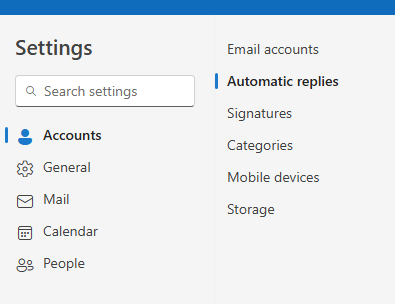
Select the Settings cog > Accounts > Automatic Replies.
-
In the Automatic Replies box, select Send automatic replies.
-
Optionally, enable Send replies only during a time period to set a date range for your automatic replies. This will turn off automatic replies at the date and time you enter for the end time. Otherwise, you'll need to turn off automatic replies manually.
Note: If you don't see Automatic Replies, use Rules to set up your out-of-office message. -
In the Send automatic replies inside your organization text box, type the response that you want to send to teammates or colleagues while you are out of the office.
-
** Note: Sending automatic replies to anyone outside my organization will send your automatic reply to every email, including newsletters, advertisements, and potentially, junk email. If you want to send automatic replies to those outside your organization, we recommend choosing Send replies only to contacts.
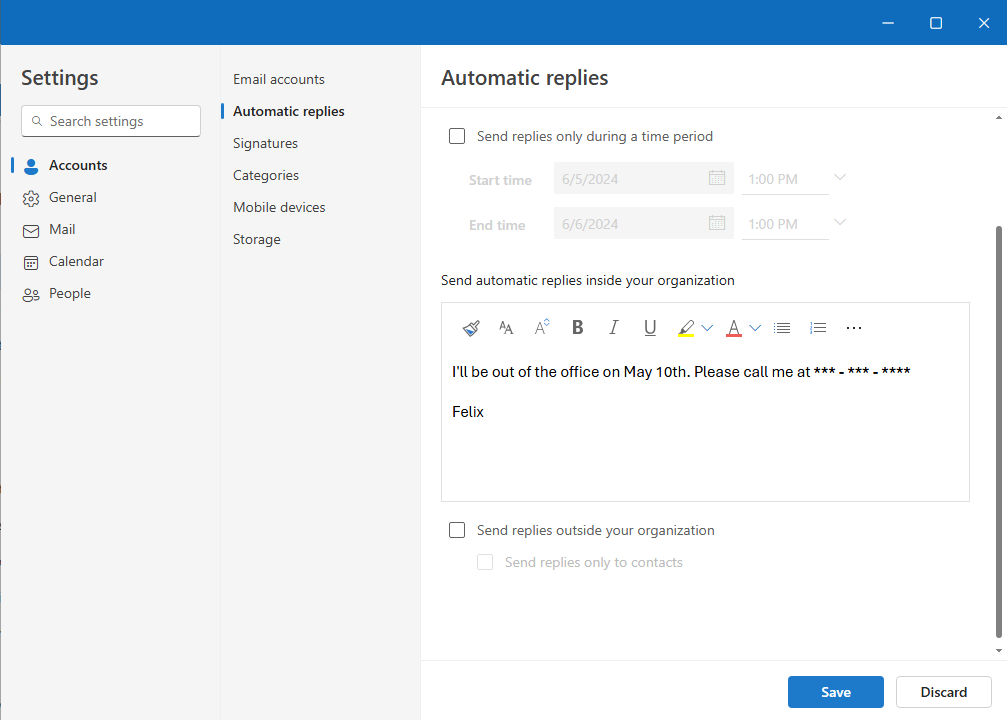
Select Save to save your settings.
** Turn off automatic out-of-office replies
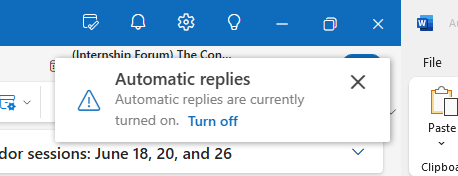
When Outlook is setup to send automatic replies, you'll see a message under the ribbon with this information. Select Turn off to disable automatic out-of-office replies. If you want to modify the dates for your automatic reply or the message sent, use the steps above to modify your settings.