What is Teams?
Microsoft Teams is ALTA's replacement for Office Communicator and Google Hangouts, and other collaboration tools. Microsoft Teams allows you to chat with one person, a group of people, or an entire department. Teams also allow you to send offline messages. The staff members will see them once they sign in. Additionally, the staff member will get an email notification about the message if they haven't viewed it within a specific time. You can like messages or save them for offline use. You can also favorite certain staff members, so they appear higher in your list. Teams also allow you to do video chats, audio chat, share your screen, and edit documents together online through other Microsoft services. Teams is available for Windows, Mac, Android, iOS, and through a web browser. Lastly, Teams supports collaborating as a team. Teams allows you to create targeted topical discussions in "Channels."
Microsoft Teams is divided into six main sections.
.

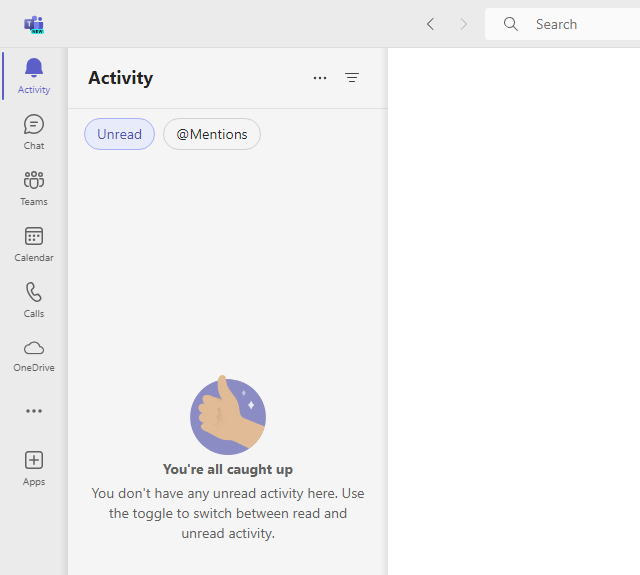
Activity is where you will see notifications, replies, and mentions.
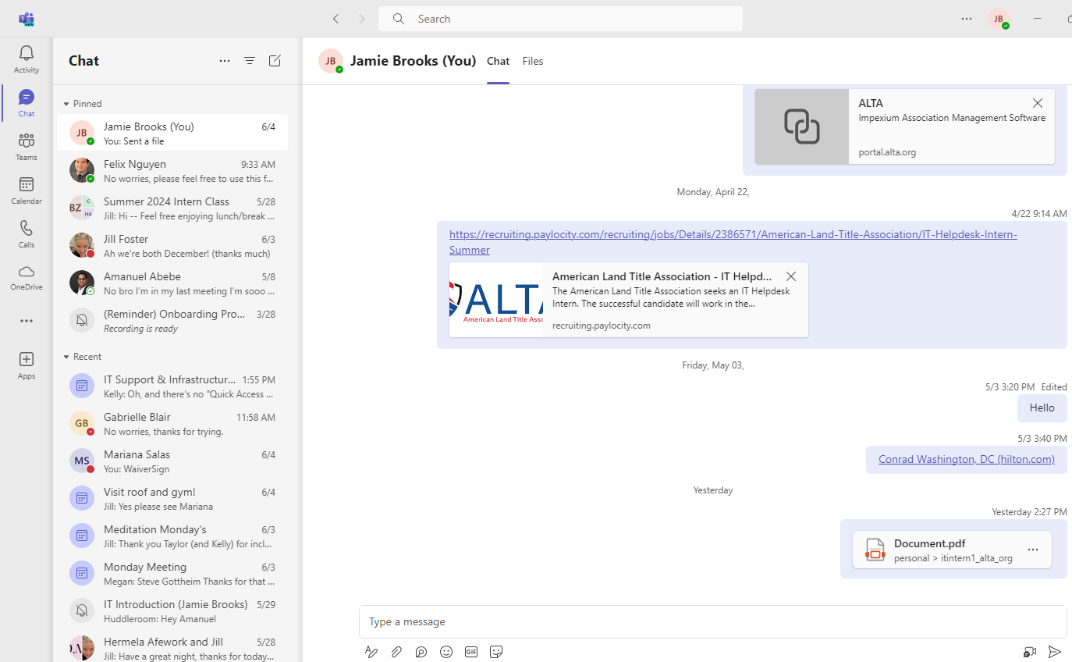
Chat is where you can chat with one person or multiple people.
-
Teams are topic-based discussions. In this section, you can chat with a group. For example, if you wanted to send a message to your entire department on a specific topic, you can do that in this section.
-
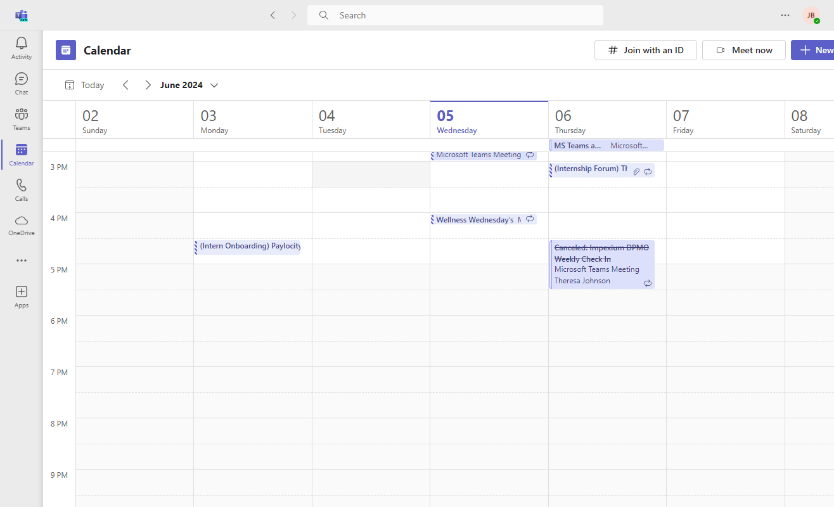
Calendar can look into your Outlook calendar and provides a view into your calendar. Additionally, you can also create new meeting or join a meeting from your Microsoft Teams calendar.
-
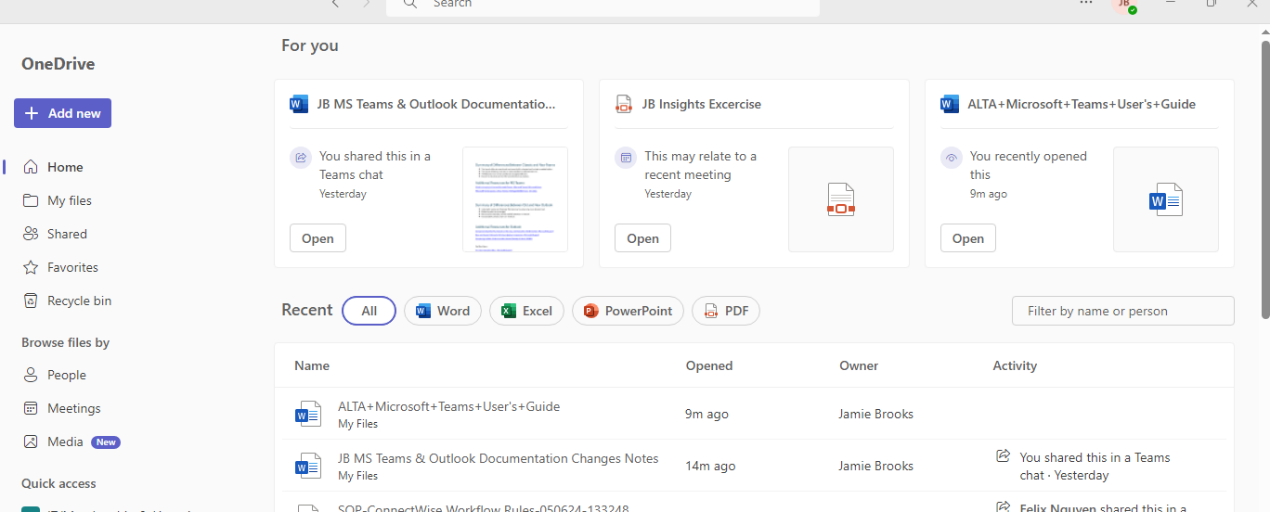
OneDrive is where any documents that have been shared with you can be accessed. If you share a Word document with another staff member, that document will appear in both individuals. It also offers the ability to view files in your OneDrive and other approved cloud storage services.
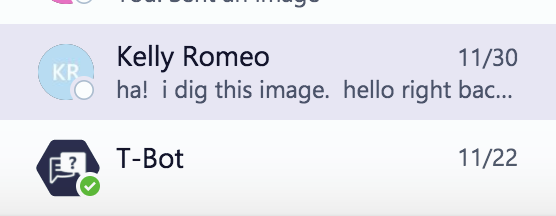
In the Chat section is where you can send a private message directly to a staff member. You can also send messages to multiple staff members. You can see a staff member's status. In the Search field, you can search through chat messages, team messages, files, and find a staff member or team by typing their name.

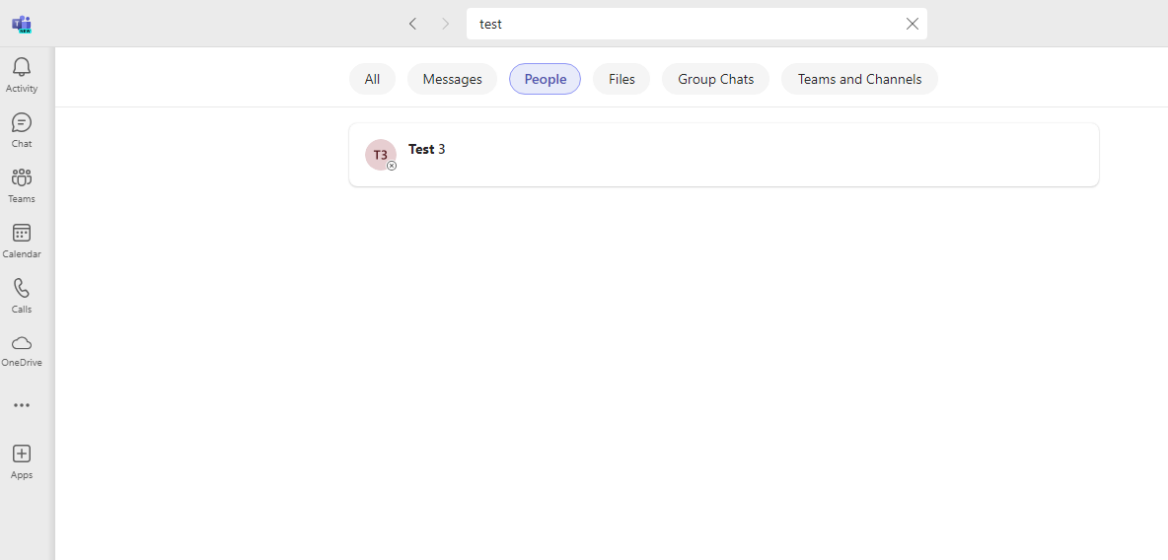
When you search, the filtered results show will in either the Messages, People, or Files tab. This depends on the criteria. If you search for a staff member's name that you haven't communicated with yet through Microsoft Teams, make sure you select the "People" tab.
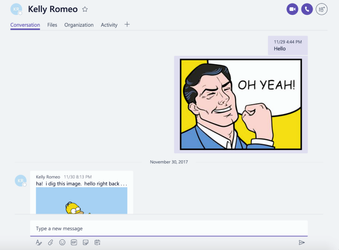
Next to the Search field, there is a New Chat icon. This is where you can message people directly or message a group of people. In the To field, you can search for a staff member's name. When finished searching, select the name and hit Enter. You can continue searching or typing more names. Make sure you hit Enter after each individual. When chatting with a person or group, the main chat window is divided into several sections.
The Chat window is also where the message history is found for the person or group you are communicating with.
-
The Files tab is where any files you have shared with the person or group can be found. This uses Microsoft OneDrive or any approved cloud-based storage service. You can also drag and drop files into the message composition window. Once a file is uploaded, you can co-edit a document either through Teams, Word/ Excel Online, download the document, or send the link to document.
-
Organization will be an ALTA organization chart for the person or group you are communicating with. Currently, you will see an error "Organization view does not exist for this user". This feature is currently disabled. It will work as intended in January 2018.
-
The + symbol allows for specific tabs to be added within the chat window.
At the bottom of the chat window and in the message composition field, you can type in a new message. When you hit Enter, the message is sent. If you need to enter a hard return or paragraph break, hit SHIFT+ Enter. At the bottom of the message composition field, you have options to:
-
Add formatting to the text you are entering.
-
Set the delivery options to ensure that your message is noticed. (Note: Marking a message as Urgent is not available in channels or in group chats with more than 20 participants).
-
Add Files to the messages. This uses OneDrive, any approved cloud storage.
-
Add collaborative loop components (polls, Q&A’s, etc.) that allow others to make and save changes to it.
-
Add an emoji to the message.
-
Add a work-safe animated GIF from the website Giphy.
-
Add a sticker. The sticker has editable fields check the text attached to it.
-
Ability to schedule a meeting. This meeting will link to your Outlook calendar and will show up as a standard meeting or appointment.
-
Send video files through Microsoft Stream
-
Send a customizable praise message.
-
Share and respond to approvals

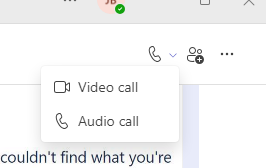
In the top right-hand corner of the chat window, you will see a phone icon. Pressing the Phone button will start an audio call. The arrow dropdown menu next to it will have the choice to do a video call if your device has a camera. You can also do an audio only call from this dropdown menu as well. Pressing the ‘Add People’ button next to the phone allows you to add another staff member to the chat. Lastly, you can share your screen by pressing the (…) button next to the ‘Add People’ button and selecting screen sharing.
The Teams section is a targeted discussion and use for communicating with a specific group. Teams can be open or private. A public team will appear to all staff members and will be visible in the Teams pane. A private team is not visible to the entire staff and will not appear in the Teams pane. A staff member must be invited to a private team by the Team's owner. The owner can manage aspects of the team. After they are added, it will be visible to them. Any staff member can create a team and can add people to it. Some basic Teams have been added based on the department. Within a team are Channels. Channels are discussion topics. When chatting with a Team, the main team window is divided into several sections.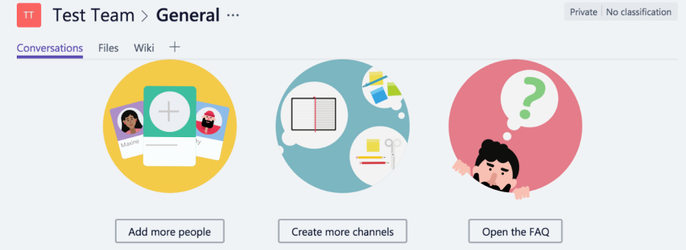
-
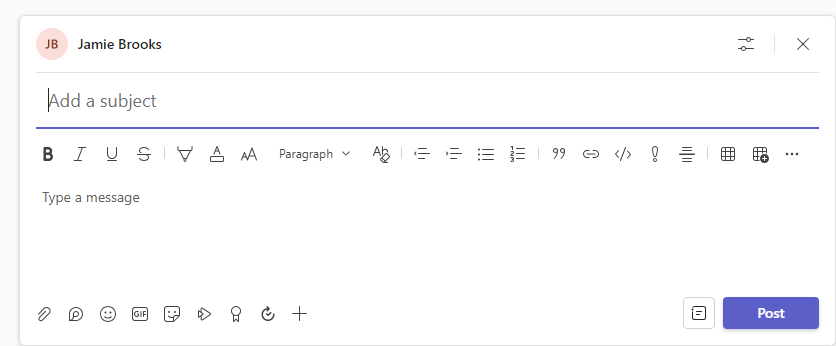
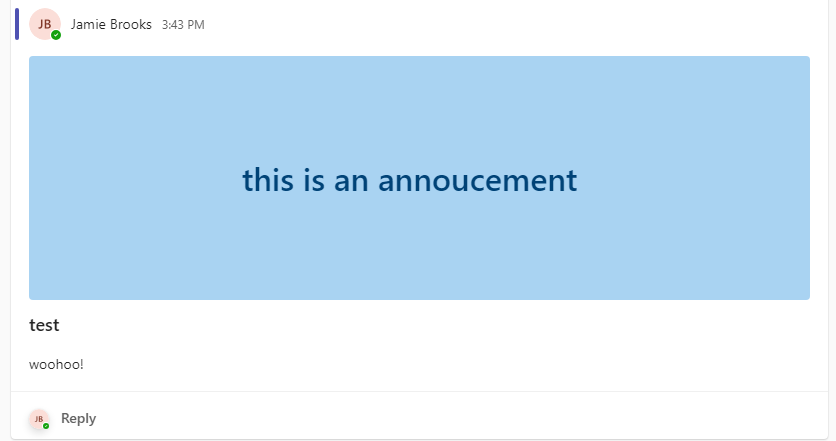
Start a post is where the main text-based chat appears. This chat window allows you to create a message that others in the group can view and reply to. As with the basic chat window, you have options to format text, add files, send emojis, send GIFs, add stickers. You also have the choice to add a subject before you write the full post. Pressing the square button next to Post will allow you to choose between the message being an announcement or a regular post. Announcements allow for greater customization, giving you the choice to select a custom background, create a headline and subhead.
The Files section is any files that have been shared within the Team. Once a file is uploaded, you can co-edit a document either through Teams, the app or browser version of Word, download the document, or send the link to document.
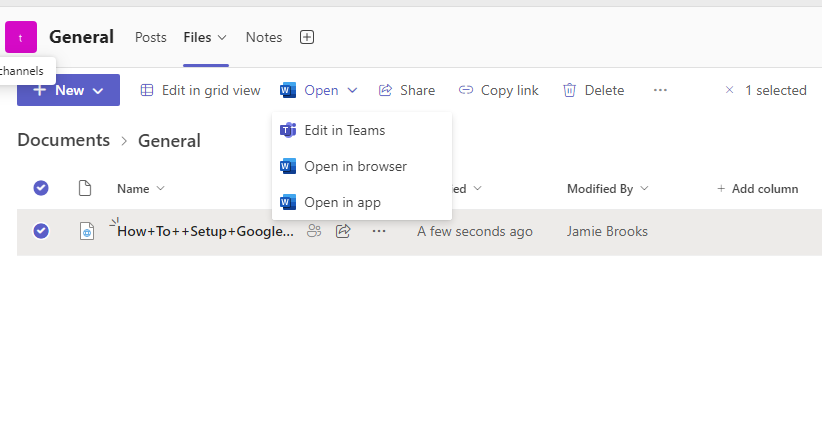
-
Notes allows you to use OneNote from within MS Teams.
-
The + symbol allows you create a tab that connects to Microsoft or other third-party services. For example, you can do group project tracking with Microsoft Planner, or a third-party service called Wrike. Some of the third-party services require an added signup or login. Some services are free, and others are paid.
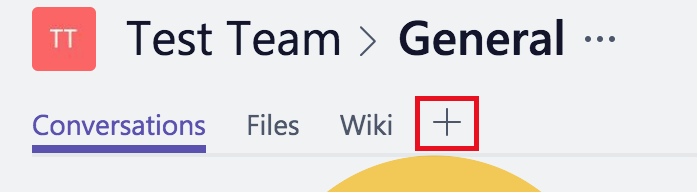
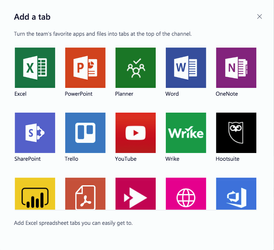
If you are the Owner, you can manage the Team by opening the hamburger menu (…). The options available are:
-
Manage Team. This will allow you to change the Team's name, description, and privacy. Changing the privacy will allow you to make it public or private to ALTA staff. It also allows you to add or remove members from your Team.
-
Add member. This allows you to quickly add new members to a team, just like Manage Team.
-
Add Channel. This allows you to create a new channel.
-
Get Link to Team. You can send a link to join the team to another staff member.
-
Leave the Team. If you wish to no longer take part in the team, you can remove yourself from the team. If you are the only owner of a team and wish to leave, you must promote another staff member to owner.
-
Manage Tags. Tags let you quickly reach a group of people all at once. You can categorize people based on attributes, such as role, project, skill, training, or location. These tags can then be used with the @mention command in the Teams chat channels to alert the members with the specified tag.
-
Delete Team. You can disband your Team.
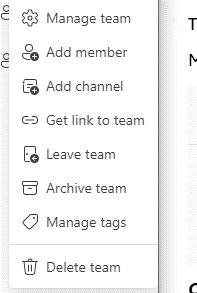
Channels have a limited number of manageable options. You can access these options by opening the hamburger menu (…). Some of these options will vary by channel. You can:
-
Channel Notifications. This should be reserved for the most important channels. You can choose if you want all new posts and if someone mentions you in the channel to notify you. If you do not want to be inundated with message notification, leave the options as it.
-
Pin. You can pin a channel, which makes it stay at the top of the channel list.
-
Get Email Address. This will provide you with an email address to send comments to a Team Channel.
-
Get Link to This Channel. You can send a link to join the team to another staff member.
-
Workflows. Offers the ability to automate repetitive tasks and processes, connecting one or more apps to Teams.
Video and Audio Calling
Teams has video and audio calling built on the Skype foundation. Audio calling is essentially the same as video calling, but with the camera disabled. You can do either one through the Chat section or the Teams section. The Chat section can manage multiple video and/or audio participants. It will only send a video request to those you have started the video chat with. The Teams section will send the video request to those only in the team.
Adding Other Staff Members to a Video or Audio Calling
From the Chat Section
You can launch a video or audio call from a private chat by clicking the dropdown arrow next to the Phone icon in the top corner of the chat window. This will allow you to choose between starting a video or audio call on your end and alert the other party that a call has started. The other party has the choice to accept or reject the request. They can also send a text reply. If they accept it, they are added to the call. If they reject it, it will show to the initiator that the request was declined.
Note: If you have already started a 1 to 1 video chat through Teams from the Chat section, you cannot add another person to the call. Therefore, you cannot add a third person to the video call. If you have at least three people total, you can add a fourth. This is a design decision by Microsoft to prevent a user from unwittingly adding another party. If you have already started a 1 to 1 video chat and want to add a third person, you must end the call, add the other person from the "Add People" button, and restart the video call.
From the Team Section
You can launch a video or audio call from the Teams section by clicking the camera icon at the Top Right of the Teams window. The icon is called Meet Now.
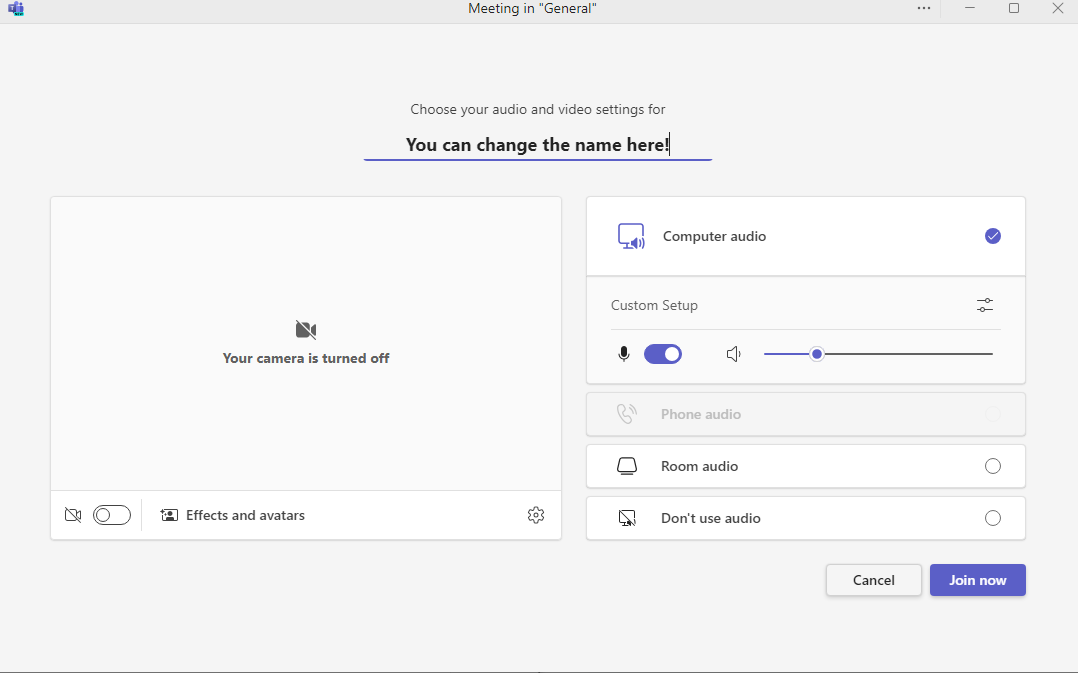
When you click the Meet Now icon, you have the option of naming the call, and are shown your devices video and audio settings. When you are ready to start the video call, click the Meet Now button. This will automatically start the video or audio call on your end only. It does not alert anyone to the video call until you add participants.
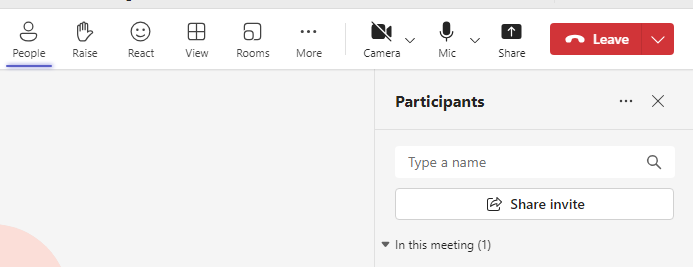
In the top panel, you can invite someone by pressing People. It will show you and the other participants currently in the meeting. You can type another staff member's name and hit enter to invite them.
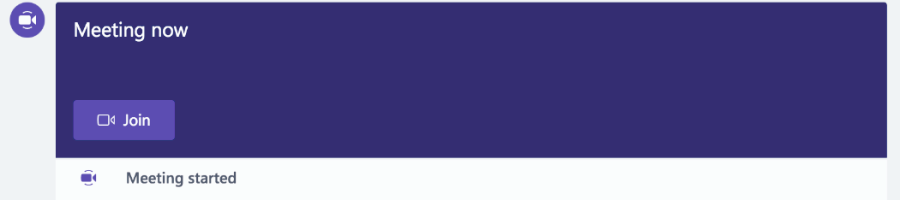
This will alert the other party with a notification. The other party has the choice to accept or reject the request. The other party can send a text reply. If they accept it, they are added to the call. If they reject it, it will show to the initiator that the request was declined. You can continue to add other staff members. If you haven't joined an active video call, you will see a notification bar inside of the Team chat window that a call is occurring. You can hit the Join button to enter the video call.
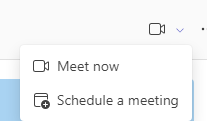
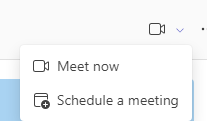
You can schedule a meeting by pressing the dropdown arrow next to the Meet Now button and selecting Schedule a meeting.
Controlling a Video Call
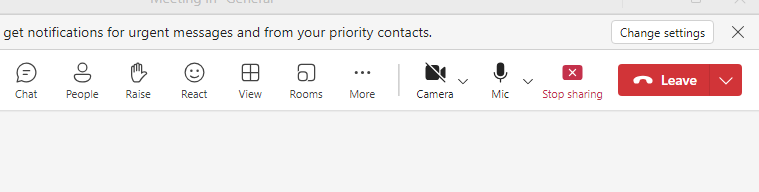
While in an active video call, you have several different options. You can see the duration of the call at the top left.
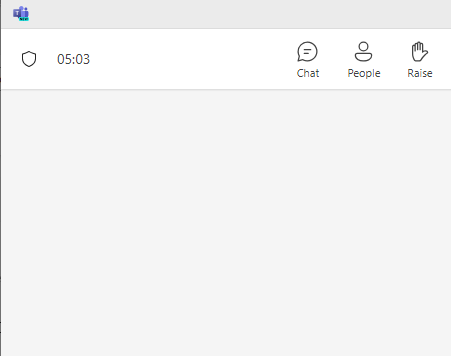
You also have the following buttons for use:
-
Chat. Opens the meetings text chat pane and allows for you to send and receive messages within the meeting.
-
People. Allows for adding & removing users from a meeting.
-
Raise. Provides users with the ability to request to talk during a meeting.
-
View. Allows for the changing of displaying active participants on the screen. Also allows for the user to enable Fullscreen mode for MS Teams.
-
Rooms. Creates and assign users to breakout rooms. You can choose the number of rooms, and how people will be assigned to the rooms.
-
Apps. Opens a pane that provides meeting hosts with the ability to add applications to streamline or enrich the meeting.
At the top right of the call, you can activate or disable your camera, microphone, share your screen, or ending the call. The Camera and Microphone buttons also offer the ability to configure your devices settings via the dropdown arrows.
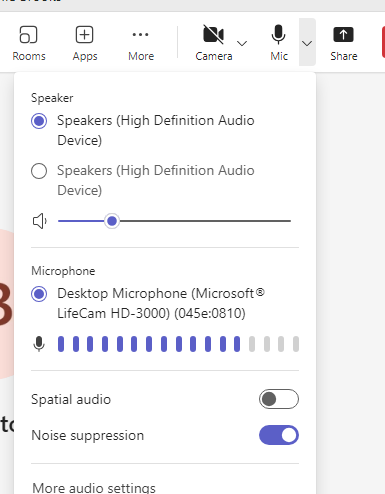
The call stays active until all parties leave the video call. If you are actively in a call and go to another area of Teams, the video window is active in the top corner.

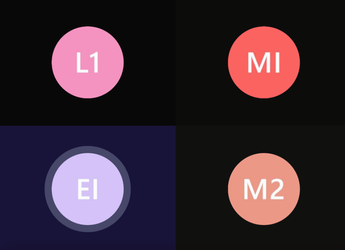
When there are four or more, only the most active video participants are always shown on screen. This will segment the screen to show those speakers.
Use a Background Effect for a Meeting
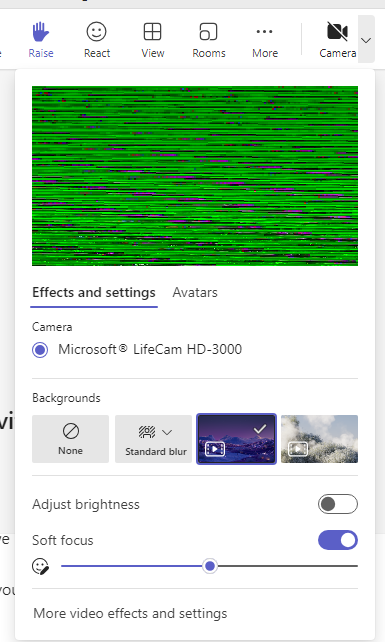
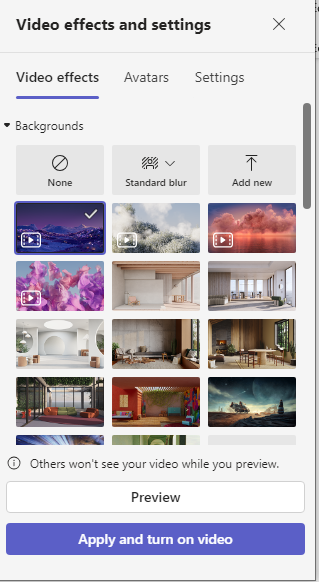
To use a Microsoft Teams Background Effect for a meeting, you have two options:
Press the dropdown arrow next to the Camera button in the top left.
or
Press the (…) in the top panel and select video effects and settings.
Both methods allow you to change your background effects and offer the ability to preview them before it’s used in the meeting.
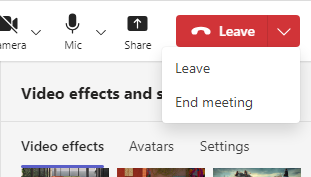
End the meeting for everyone
Meeting organizers, you can end your meetings for all participants. To end an in-progress meeting, go to the top panel and look for the red Leave button. Press the down arrow next to the Leave button > End meeting.
Chrome video calling is here
Do you use Teams on the web from a Chrome browser? You can make and receive video calls from your teammates through a Chrome browser. Select the camera icon at the top right corner of an individual or group chat and you can communicate with the people on the other end of the call.
Sharing Your Desktop from a Video Call
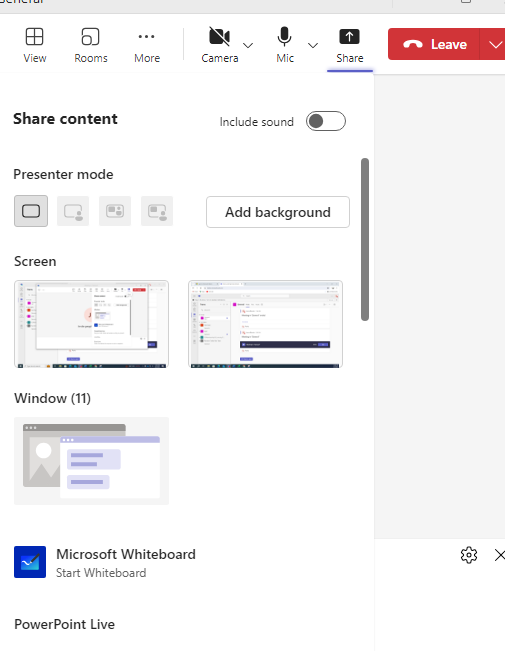
When selecting the Share desktop button from the video call, you are greeted with the Share Content window.
You can choose what to share with the other participants. These options are the following:
-
Include Sound toggles whether you want to share sounds from your desktop or shared content.
-
Screen lets you show everything on your screen.
-
Window lets you show a specific app.
-
Microsoft Whiteboard offers the ability to create and use a virtual whiteboard. In the newer version of Teams, you need to create or already have an existing whiteboard to share. Creating a whiteboard is done by pressing the New Whiteboard button within the Microsoft Whiteboard window.
-
PowerPoint Live allows you to share PowerPoint presentations uploaded to OneDrive. You can also view any notes you added to your PowerPoint, which participants will not be able to see.
-
Excel Live allows you to share excel spreadsheets uploaded to OneDrive.
-
Browse OneDrive lets you find the file you want to show from OneDrive.
-
Browse My Computer lets you find the file you want to show on your device.
When you begin sharing, a red outline appears on the presenter's screen. This notifies the presenter that the screen is being shared. The presenter's video stream drops to the lower corner of the screen. The video call attendees will see the presenter's screen or application. To stop sharing, select the Stop Sharing button at the Top-Middle part of the shared window. You can also stop sharing by pressing the icon that has a monitor screen with an x on it.
Schedule a Meeting in Teams
There are multiple ways to schedule a meeting with Microsoft Teams, they are as follows:
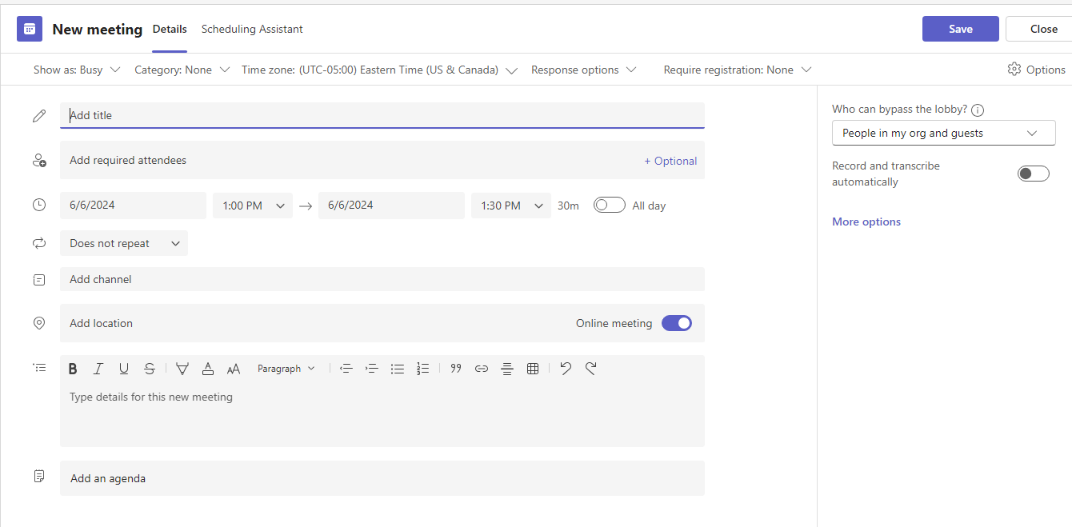
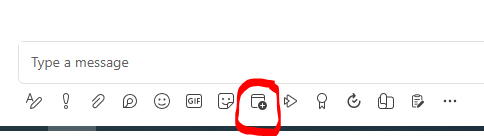
In the Chat panel (The panel with your contacts), select the person, and press the Calendar with a Plus sign in front of it to schedule a meeting. This opens the scheduling window where you can add more participants, change the date and time of the meeting, and more.
In a Team or a Teams Channel, press the dropdown arrow next to the Meet Now button and select Schedule a meeting.
Go to Calendar

on the left side of the app and select New Meeting in the top right corner.
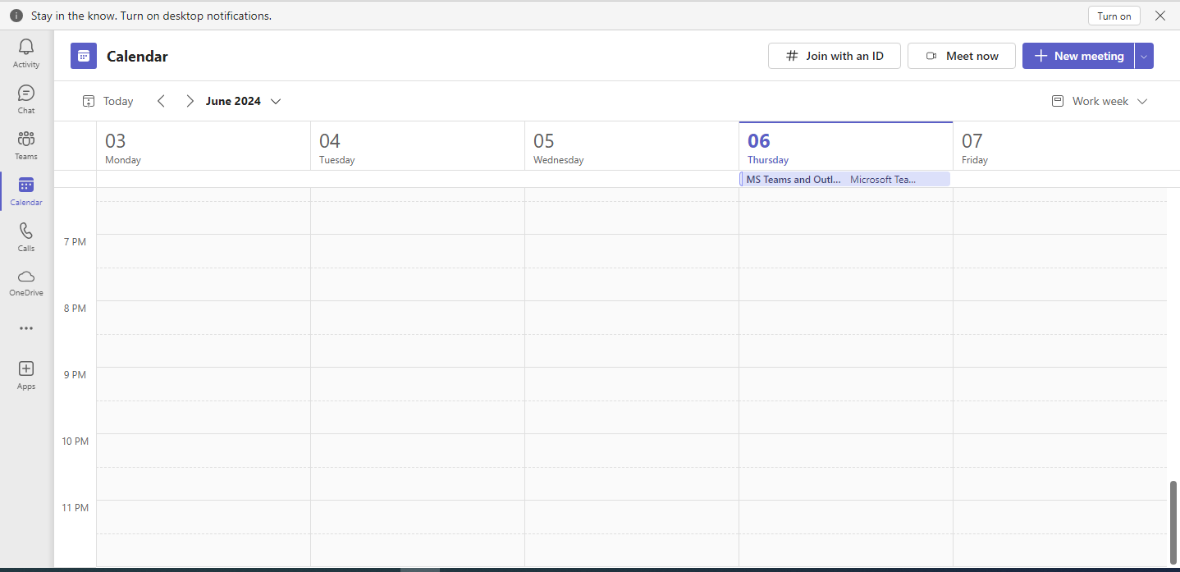
A scheduling form will pop open. You can hit the save button when you've completed the form.