For each of these links, adjusting the values in the URL will work on any meeting. So “one2023” to “springboard2024” will be that program/schedule instead. Depending on which days, those would work. Depending on track and type slugs, those can be replaced as well.
All Days
Includes the day name inline, which wasn’t necessary with each day.
Individual Days
These are just what’s in the URL bar when running the day filters.
-
https://meetings.alta.org/one2023/program/schedule/#Wednesday
-
https://meetings.alta.org/one2023/program/schedule/#Thursday
Track Links
These are the format for a “secret link” for marketing purposes for each of the tracks to see “all” of one specific track are as follows. You can see that we have a “track=slug” in there, but then the “#All” does have to be at the end as well.
-
https://meetings.alta.org/one2023/program/schedule/?track=commercial#All
-
https://meetings.alta.org/one2023/program/schedule/?track=legal-regulatory#All
-
https://meetings.alta.org/one2023/program/schedule/?track=operations#All
-
https://meetings.alta.org/one2023/program/schedule/?track=talent#All
-
https://meetings.alta.org/one2023/program/schedule/?track=credits-available#All
Type Links
And then similarly for types, similar setup with “type=slug”.
-
https://meetings.alta.org/one2023/program/schedule/?type=engagement-groups#All
-
https://meetings.alta.org/one2023/program/schedule/?type=engagement-lab#All
-
https://meetings.alta.org/one2023/program/schedule/?type=networking#All
-
https://meetings.alta.org/one2023/program/schedule/?type=notable#All
-
https://meetings.alta.org/one2023/program/schedule/?type=omni-session#All
-
https://meetings.alta.org/one2023/program/schedule/?type=professional-development#All
-
https://meetings.alta.org/one2023/program/schedule/?type=registration#All
-
https://meetings.alta.org/one2023/program/schedule/?type=tipac#All
Schedule for Email
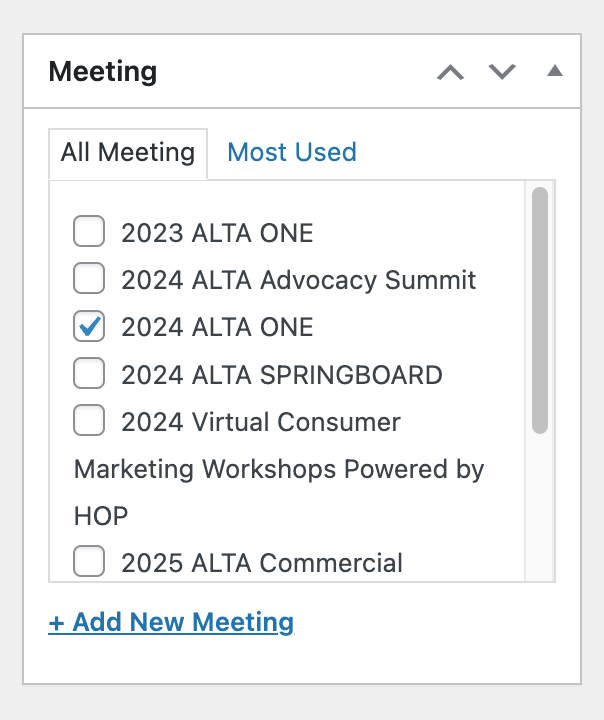
Always this same URL, just needs to have the PAGE (end of list) edited to change the “Meeting” to the one you want. To do that:
-
Log into WordPress Admin here: https://meetings.alta.org/wp-admin
-
Go to the page: https://meetings.alta.org/schedule-for-email/
-
In the black bar at the top, click to “Edit Page” (just easier than looking for the page in WordPress Pages list, this is just one page, not one page in each meeting)
-
Uncheck and re-check the meeting that you want, and Update the page.
-
Reload the page, and it’ll be that meeting’s schedule.