Full Title: Steps for adding RON selections to your Registry listing
Short Description: This template is used to provide instruction on how to add RON selections to an existing ALTA Registry listing (using the Registry Management System).
Template:
Thank you for your inquiry about adding a RON Icon to your Registry listing.
In order to add the RON Icon use the link below to access the ALTA Registry Management System and follow the steps outlined below.
Please let us know if we can assist further.
Accessing the Registry Management System and adding the RON Icon to your Registry listing.
- Go to www.alta.org/registry/rms.cfm and enter your ALTA login and password.
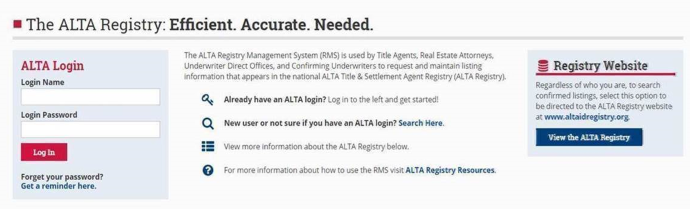
- Select 'Manage My Offices and Underwriters'
- Go to the RON status tab (screen shot below)
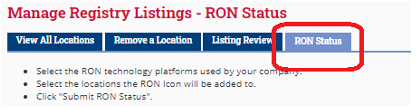
- Select the technology platforms used to perform RON closings
- Select the location(s) that use the platforms and should have the RON Icon
- Select the GREEN 'Submit RON Status' button at the bottom of the page
Thank you!
ALTA Registry Team
