Full Title: Steps for : Adding a new branch using the RMS
Short Description: This template is used to provide instruction for how to add a BRAND NEW branch using the Registry Management System.
Template:
Hello Insert Name:
To add an entirely new location to the ALTA database and request a Registry listing, follow the steps below, using the ALTA Registry Management System.
Using the Registry Management System to add and request a Registry listing for a new location.
- Go to www.alta.org/registry/rms.cfm and enter your ALTA login and password. NOTE:[Insert PC Name] is the Primary Contact with access to request a listing.
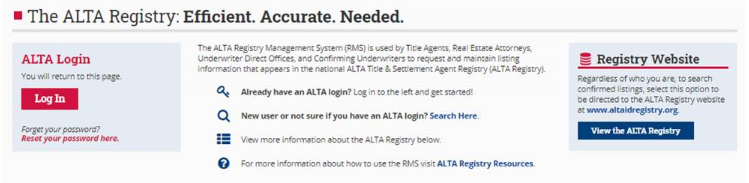
- Select Manage My Office and Underwriters.
- Select the Green ‘Add a Branch Location’ button.
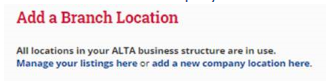
- Select the link to ‘add a new company location here’.
-
Follow the on-screen prompts to first search for the location (a requirement) and then add the location.
-
Once this process is complete, you will return to select the location in the ‘Step 1’ dropdown menu.
-
At this point, follow the on-screen prompts to complete the listing request.
-
Once you have selected your underwriters and set the Registry Contact, don’t forget to hit the ‘SUBMIT’ button to send the request to your selected underwriters.
If you have any questions, please us know. Thank you!
