Overview
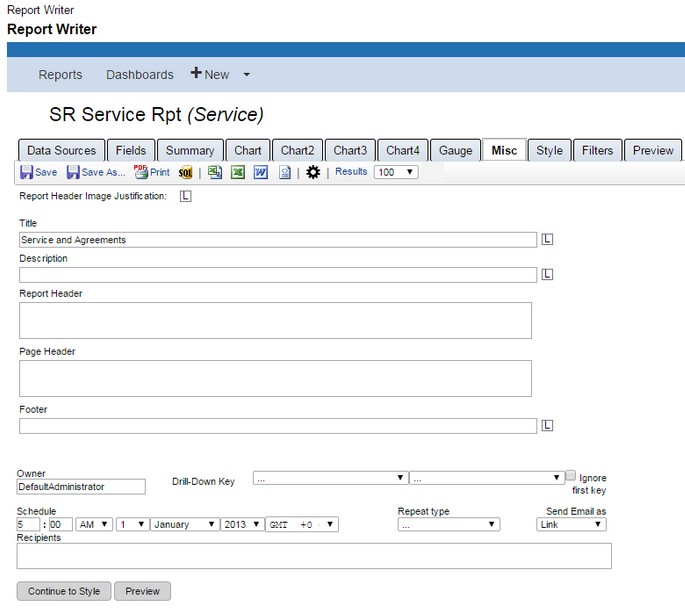
The Miscellaneous (Misc) tab allows you to add a title, description, header, and footer to the report. It also allows justification to be used on each of these items. This is also where the sharing and Scheduling controls are located as well as tools to create a drill-down.
To locate this screen navigate to System > Report Writer.
Field Descriptions
The table below describes the options available on the Misc tab and how they control your reports.
Note: If you use a HTML image tag, and reference a publicly available image, you can add a logo to your report. For example, <img src="**[**http://www.mycompany.com/logo.jpg**](http://www.mycompany.com/logo.jpg)**" alt="My Company">
<table data-table-width="760" data-layout="default" ac:local-id="76fb17c4-c61f-4068-bd5e-e241167a2b6d"><colgroup><col style="width: 340.0px;"><col style="width: 340.0px;"></colgroup><tbody><tr><td><p>Footer</p></td><td><p>Enables a user to set a report footer.</p></td></tr><tr><td><p>Owner</p></td><td><p>Enter the owner of the report.</p></td></tr><tr><td><p>Drill-Down Key</p></td><td><p>Enables a report to be used as a subreport.</p></td></tr><tr><td><p></p><p></p><p></p><p></p><p>Ignore first key</p></td><td><p>Select to ignore the first key. Selecting this check box enables you to click the summary of the main report and have it pass the ticket number to the subreport. The main report will still require both keys to be passed. For example, a Location and Group is sent to the subreport, but instead of displaying just the records for that Location and Group, it shows all records with the specified Location, regardless of Group. Ignoring the first drill-down key also enables you to pass a proxy value.</p></td></tr><tr><td><p>Schedule</p></td><td><p>Sets the schedule date and time.</p></td></tr><tr><td><p></p><p></p><p></p><p>Repeat Type</p></td><td><p><span style="color: rgb(84,84,84);">Sets the repeat frequency starting from the scheduled date and time from a list of possibilities.</span></p><p></p><p><strong>Note: </strong>Alert Hourly and Alert Daily sends an Email if any records exist. For example, if the Repeat Type is set to Alert Daily, the scheduler will send out an Email daily only if there are records matching the criteria specified in the report.</p></td></tr><tr><td><p></p><p></p><p>Send Email As</p></td><td><p>Sets the format in which the Email is sent. Formats include PDF, Word, Excel, HTML, Link, Embedded, RTF, and CSV. The Email sender's address is pulled from the default address on the My Company screen.</p></td></tr><tr><td><p></p><p>Recipients</p></td><td><p>Enables you to add multiple recipients by entering a comma between Email addresses.</p></td></tr></tbody></table>Include Subreport Data in a Main Report Include Subreport Data in a Main Report
Use an existing report and a drill-down key to include the data on the subreport in the main report. Any filters applied to the subreport will also be applied to the main report.
To include subreport data:
-
Open the subreport.
-
On the Misc tab, select one or two drill-down keys.
- Click Save.
-
Create main report as usual. On the Fields or Summary tab, you must select the fields corresponding to the drill-down key fields. You may hide the field corresponding to the second key value and the value will still be respected.
- Click Advanced Field Settings for the fields you designated as the drill-down keys in your subreport.
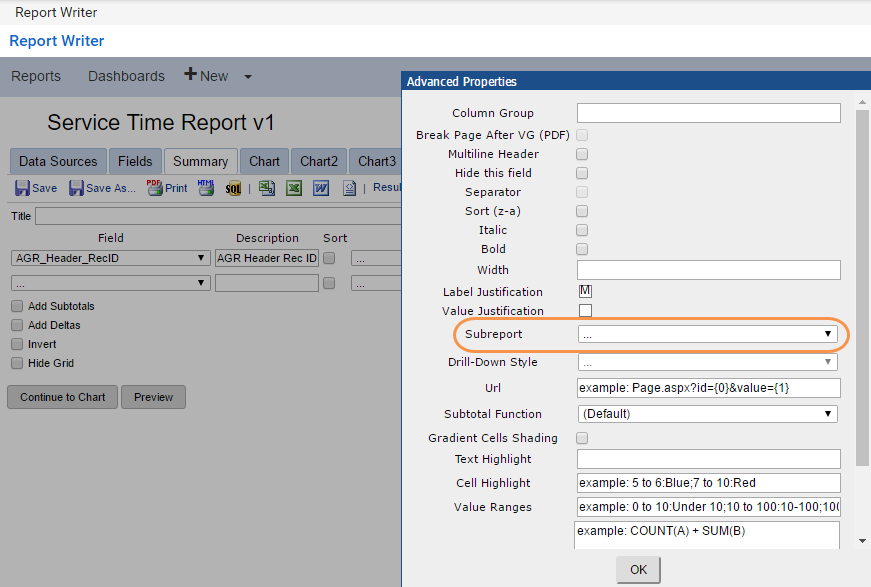
Click OK.
Add a Data Field Description_bookmark0Add a Data Field Description
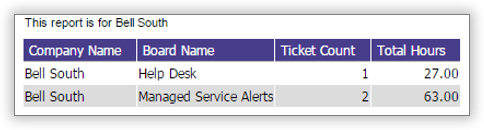
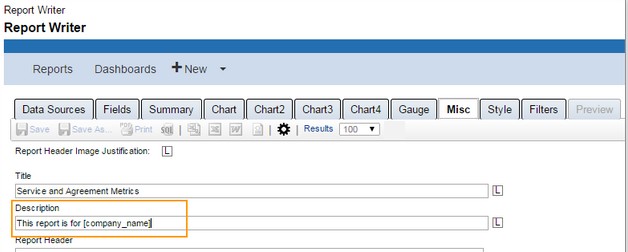
A data field can be used in the description text box of the Misc tab for reports with filters. For example, if you are going to filter for one particular Company, enter [Company_name] in the description and the Company name will appear.
To add a data field description:
Enter [Company_name] in the description
.
-
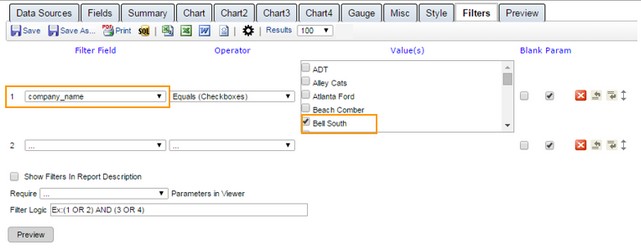
Click the Filters tab. Filter by company_name.
- Select the company you want to filter by in the Value(s).
Print the report. The data fields description will print above the report.