
Overview
In the Filters tab, the fields on the table or view chosen in the Data Sources tab can be filtered so that only pertinent entries appear in the table.
To locate this screen navigate to System > Report Writer.
Feature
Filters are cascading. This means that once you select the first filter, all subsequent filters are limited based on the first one. Here are some examples of filter cascading.
Example 1
Here are two filters:
-
Invoice Date Range
-
Company
If you select an invoice date range of 01/01/2019 - 01/31/2019, only companies that have been invoiced during that date range appear in the options for filter 2.
Example 2
Here are three filters:
-
Invoice Date Range
-
Invoice Type
-
Company
If you select an invoice date range of 01/01/2019 - 01/31/2019 and an invoice type of Credit Memo, only companies that have credit memos during that date range appear in the options for filter 3.
Example 3
Here are three filters:
-
Invoice Date Range
-
Company
-
Invoice Type
If you select an invoice date range of 01/01/2019 - 01/31/2019 and Chris Craft Boats as the company, if Chris Craft Boats only has agreement invoices during the date range, only the agreement invoice type appears as the
option for filter 3.
Business Case
Chris, the Service Manager, wants to look for all invoices that were created or completed in the month of June. He sets the following filters:
-
Date_Invoice = June 2015
-
Date_Paid = June 2015
With the default logic, the filters display invoices that are only created and paid in the month of June. However, with filter logic, he can do "1 or 2" and return invoices that were created this month or paid this month.
Field Descriptions
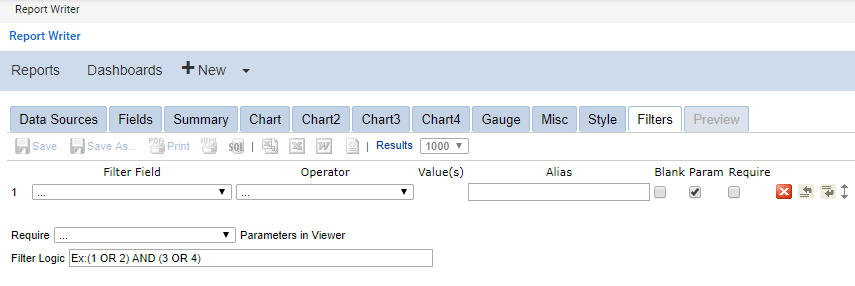


Operator
The table below lists the operator types, the operator filters, and the operator type descriptions.
<table data-table-width="760" data-layout="default" ac:local-id="de4609c6-ef11-4152-9fd9-5feb90c25efa"><colgroup><col style="width: 226.67px;"><col style="width: 226.67px;"><col style="width: 226.67px;"></colgroup><tbody><tr><td data-highlight-colour="#333333"><p><strong><span style="color: rgb(255,255,255);">Type</span></strong></p></td><td data-highlight-colour="#333333"><p><strong><span style="color: rgb(255,255,255);">Filter</span></strong></p></td><td data-highlight-colour="#333333"><p><strong><span style="color: rgb(255,255,255);">Description</span></strong></p></td></tr><tr><td><p>Available for all</p></td><td><p></p><p>...</p></td><td><p><span style="color: rgb(84,84,84);">Select when no filter is used.</span></p></td></tr><tr><td><p>Available for all</p></td><td><p></p><p>Blank</p></td><td><p></p><p>Determines if the field is blank.</p></td></tr></tbody></table> <table data-table-width="760" data-layout="default" ac:local-id="b1218bf8-6aeb-44dd-bdf3-326c43e5c796"><colgroup><col style="width: 226.67px;"><col style="width: 226.67px;"><col style="width: 226.67px;"></colgroup><tbody><tr><td><p>Available for all</p></td><td><p></p><p>Isn't Blank</p></td><td><p></p><p>Determines if the field is not blank.</p></td></tr><tr><td><p>Available for all</p></td><td><p>Use Previous OR</p></td><td><p></p><p>Uses the previous field's filter as its own filter.</p></td></tr><tr><td><p></p><p>Boolean</p></td><td><p></p><p>True</p></td><td><p>Determines if the value in the field is true. The number 1 and the text "(T|t)rue" are interpreted as true.</p></td></tr><tr><td><p></p><p>Boolean</p></td><td><p></p><p>False</p></td><td><p>Determines if the value in the field is false. Values other than the number 1 and the text "(T|t)rue" are interpreted as false.</p></td></tr><tr><td><p>Comparison</p></td><td><p>Is Less Than</p></td><td><p>Displays items whose values are less than the input values.</p></td></tr><tr><td><p></p><p>Comparison</p></td><td><p>Is Greater Than</p></td><td><p></p><p>Displays items whose values are greater than the input values.</p></td></tr><tr><td><p>Comparison</p></td><td><p>Between</p></td><td><p>Displays items whose values lie between the input values.</p></td></tr><tr><td><p>Comparison</p></td><td><p>Isn't Less Than</p></td><td><p>Displays items whose values are not less than the input value.</p></td></tr><tr><td><p></p><p>Comparison</p></td><td><p>Isn't Greater Than</p></td><td><p></p><p>Displays items whose values are not greater than the input value.</p></td></tr><tr><td><p>Comparison</p></td><td><p>Isn't Between</p></td><td><p>Displays items whose values are not between the input values.</p></td></tr><tr><td><p>Date & Time</p></td><td><p>Equals (Calendar)</p></td><td><p>Enables you to select a date from a calendar pop-up to filter on. This filters items from the selected date.</p></td></tr><tr><td><p>Date & Time</p></td><td><p>Doesn't Equal (Calendar)</p></td><td><p>Enables you to select a date from a calendar pop-up to filter on. This filters items from any date other than the selected date.</p></td></tr><tr><td><p></p><p>Date & Time</p></td><td><p></p><p>Between (Calendar)</p></td><td><p><span style="color: rgb(84,84,84);">Enables you to select two dates from a calendar pop-up to filter on. This filters items between the two selected dates.</span></p></td></tr><tr><td><p>Date & Time</p></td><td><p>Isn't Between (Calendar)</p></td><td><p>Enables you to select two dates from a calendar pop-up to filter on. This filters items from any date other than those between the two selected dates.</p></td></tr><tr><td><p>Date & Time</p></td><td><p></p><p>In Time Period</p></td><td><p></p><p>Enables you to select from a list of time periods to filter on.</p></td></tr><tr><td><p></p><p>Date & Time</p></td><td><p></p><p>Less Than Days Old</p></td><td><p><span style="color: rgb(84,84,84);">Enables a single numeric entry to represent the days and uses that as a filter. This filters items that are less than the number you specified..</span></p></td></tr><tr><td><p></p><p>Date & Time</p></td><td><p></p><p>Greater Than Days Old</p></td><td><p><span style="color: rgb(84,84,84);">Enables you to enter a single numeric entry to represent the days and uses that as a filter. This filters items that are greater than the number you specified.</span></p></td></tr><tr><td><p></p><p>Date & Time</p></td><td><p></p><p>Equals Days Old</p></td><td><p><span style="color: rgb(84,84,84);">Enables you to enter a single numeric entry to represent the days and uses that as a filter. This filters items that are only as many days old as you specified.</span></p></td></tr><tr><td><p></p><p>Equivalence</p></td><td><p></p><p>Equals</p></td><td><p><span style="color: rgb(84,84,84);">Filters items based on the manual text entry of comparison value(s) separated with commas for easy copy and paste from CSV.</span></p></td></tr></tbody></table> <table data-table-width="760" data-layout="default" ac:local-id="596aa305-d8cd-4f4e-a615-91a11c67cb07"><colgroup><col style="width: 226.67px;"><col style="width: 226.67px;"><col style="width: 226.67px;"></colgroup><tbody><tr><td><p></p><p></p><p>Equivalence</p></td><td><p></p><p></p><p>Equals (List)</p></td><td><p><span style="color: rgb(84,84,84);">Filters items based on the manual text entry of the comparison value(s) separated by intelligently parsed delimiters. User delimiter use must be consistent; for example: 1, 2, 3, 4 or 1-2-3-4 or 1 2 3 4</span></p></td></tr><tr><td><p></p><p>Equivalence</p></td><td><p>Equals (Autocomplete)</p></td><td><p>Filters items based on the manual text entry of the comparison value(s) that displays a list of options as you type. Separate each value with a comma.</p></td></tr><tr><td><p></p><p></p><p></p><p>Equivalence</p></td><td><p></p><p></p><p></p><p>Equals (Select)</p></td><td><p><span style="color: rgb(84,84,84);">Enables you to select a single value from a drop-down list.</span></p><p></p><p><strong><span style="color: rgb(84,84,84);">Note</span></strong><span style="color: rgb(84,84,84);">: There is a limit to the returned results when using this filter. This is not a set limit, however, and can vary between partners. We suggest using Equals (Autocomplete) or using a Date & Time filter first to narrow your results.</span></p></td></tr><tr><td><p></p><p></p><p></p><p>Equivalence</p></td><td><p></p><p></p><p></p><p>Equals (Multiple)</p></td><td><p><span style="color: rgb(84,84,84);">Enables you to select multiple values from a scrollable list. Use Ctrl + click (or Cmd + click) to highlight multiple values.</span></p><p></p><p><strong><span style="color: rgb(84,84,84);">Note</span></strong><span style="color: rgb(84,84,84);">: There is a limit to the returned results when using this filter. This is not a set limit, however, and can vary between partners. We suggest using Equals (Autocomplete) or using a Date & Time filter first to narrow your results.</span></p></td></tr><tr><td><p></p><p></p><p></p><p>Equivalence</p></td><td><p></p><p></p><p>Equals (Popup)</p></td><td><p><span style="color: rgb(84,84,84);">Enables you to select multiple values from a pop-up list of check boxes.</span></p><p></p><p><strong><span style="color: rgb(84,84,84);">Note</span></strong><span style="color: rgb(84,84,84);">: There is a limit to the returned results when using this filter. This is not a set limit, however, and can vary between partners. We suggest using Equals (Autocomplete) or using a Date & Time filter first to narrow your results.</span></p></td></tr><tr><td><p></p><p></p><p></p><p>Equivalence</p></td><td><p></p><p></p><p>Equals (Checkboxes)</p></td><td><p><span style="color: rgb(84,84,84);">Enables you to select multiple values from a scrollable list of check boxes.</span></p><p></p><p><strong><span style="color: rgb(84,84,84);">Note</span></strong><span style="color: rgb(84,84,84);">: There is a limit to the returned results when using this filter. This is not a set limit, however, and can vary between partners. We suggest using Equals (Autocomplete) or using a Date & Time filter first to narrow your results.</span></p></td></tr><tr><td><p></p><p>Equivalence</p></td><td><p></p><p>Doesn't Equal</p></td><td><p>Filters items based on the manual text entry of comparison value(s) separated with commas for easy copy and paste from CSV. This returns items that do not equal the specified text.</p></td></tr><tr><td><p></p><p>Equivalence</p></td><td><p>Doesn't Equal (Select)</p></td><td><p>Enables you to select a single value from a drop-down list. This returns items that do not equal the selected value.</p></td></tr><tr><td><p></p><p>Equivalence</p></td><td><p></p><p>Doesn't Equal (Multiple)</p></td><td><p>Enables you to select multiple values from a scrollable list. Use Ctrl + click (or Cmd + click) to highlight multiple values. This returns items that do not equal the selected values.</p></td></tr><tr><td><p></p><p>Equivalence</p></td><td><p>Doesn't Equal (Popup)</p></td><td><p>Enables you to select multiple values from a pop-up list of check boxes. This returns items that do not equal the selected values.</p></td></tr><tr><td><p>Field Comparison</p></td><td><p>Is Less Than (Field)</p></td><td><p>Enables you to compare one field to another. Determines if the first field is less than the second field.</p></td></tr><tr><td><p>Field</p></td><td><p>Is Greater</p></td><td><p>Enables you to compare one field to another. Determines if the first field is greater than</p></td></tr></tbody></table> <table data-table-width="760" data-layout="default" ac:local-id="9e85490c-e040-4111-95dd-ef7951ec0100"><colgroup><col style="width: 226.67px;"><col style="width: 226.67px;"><col style="width: 226.67px;"></colgroup><tbody><tr><td><p>Comparison</p></td><td><p>Than (Field)</p></td><td><p>the second field.</p></td></tr><tr><td><p>Field Comparison</p></td><td><p></p><p>Equals (Field)</p></td><td><p>Enables you to compare one field to another. Determines if one field value equals another. This is useful for joining tables on multiple fields.</p></td></tr><tr><td><p>Field Comparison</p></td><td><p>Not Equals (Field)</p></td><td><p>Enables you to compare one field to another. Determines if one field value does not equal another.</p></td></tr><tr><td><p>String</p></td><td><p>Like</p></td><td><p>Determines if the value of the field contains the given text.</p></td></tr><tr><td><p>String</p></td><td><p>Isn't Like</p></td><td><p>Determines if the value of the field does not contain the given text.</p></td></tr><tr><td><p>String</p></td><td><p>Begins With</p></td><td><p>Determines if the value of the field begins with the given text.</p></td></tr><tr><td><p>String</p></td><td><p>Ends With</p></td><td><p>Determines if the value of the field ends with the given text.</p></td></tr></tbody></table>