
ConnectWise Manage: Member Deactivation Process
When an employee leaves the company
-
On the member overview page
-
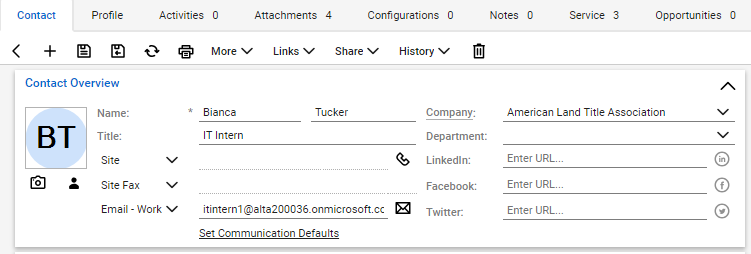
Select the trash can icon
The contact deactivation flyout will appear
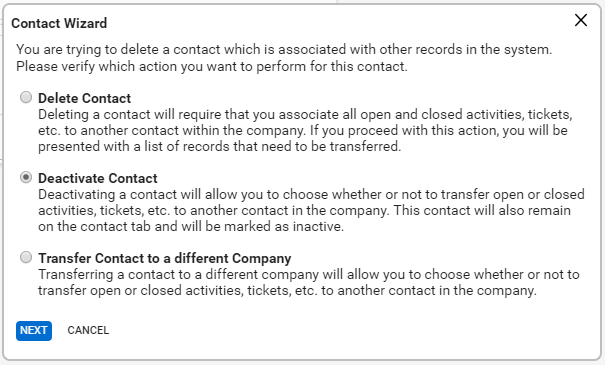
-
If the member DOES have open time sheets
-
First, choose a member to transfer the open assignments to
-
Once a member is selected in the drop-down, select “Done” to finish deactivating the member.
-
-
If the member DOES NOT have any open timesheets,
-
If they do NOT have any open time sheets assigned
-
Click Okay and Reassign will automatically deactivate them and the screen refreshes.
-