Full Title: Using “Buy For,” “Impersonate,” and “Login As” to Help Customers
Short Description:
Staff users can assist customers in re:Members (formerly Impexium) by accessing tools that allow them to complete purchases on a customer’s behalf, view the customer portal experience, or access member-only website content for troubleshooting purposes. These tools also help staff replicate and investigate issues that customers may report, such as problems renewing memberships, registering for events, or accessing online content.
Business Rules:
-
Buy For in the Admin Portal. Used in the Admin Production Portal to process purchases on behalf of an individual.
-
Impersonate to see the Customer Portal. Used to access and troubleshoot the re:Members (formerly Impexium) customer portal experience from the individual’s perspective.
-
Login As for ALTA Website Features. Used to access ALTA.org consumer-facing features and member-exclusive resources that exist outside of the re:Members (formerly Impexium) portal, such as TIRS or Policy Forms Online.
Important:
Login As and Impersonate should not be used to process payments or transactions. Use Buy For instead.
Buy For Process:
-
Search for the individual's Record in re:Members (formerly Impexium)
-
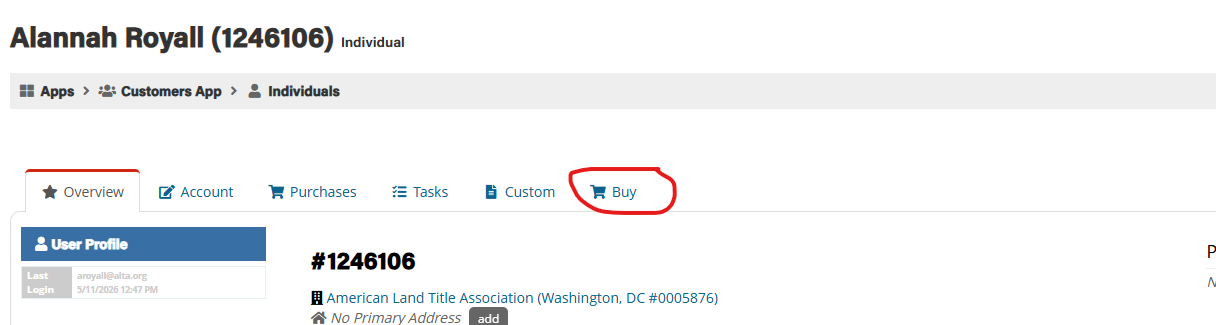
Once you’re on the individuals record select the “Buy” tab in their record;
-
From the “Buy” tab, select the item you need to purchase on behalf of the individual, such as:
-
Merchandise
-
Publications
-
Certifications
-
Events
-
Membership renewals
-
Other products or services
-
-
After selecting the item(s), proceed to checkout.
-
Before completing the transaction, double-check that the shopping cart displays “Purchasing For” with the correct individual’s name to ensure the purchase is being processed for the intended customer.
Impersonation Process (Viewing the Customer Portal):
The Impersonate feature allows Staff Users to access the re:Members (formerly Impexium) customer portal as the individual to troubleshoot account, registration, or portal-related issues.
-
Search for the individual's record in re:Members (formerly Impexium)
-
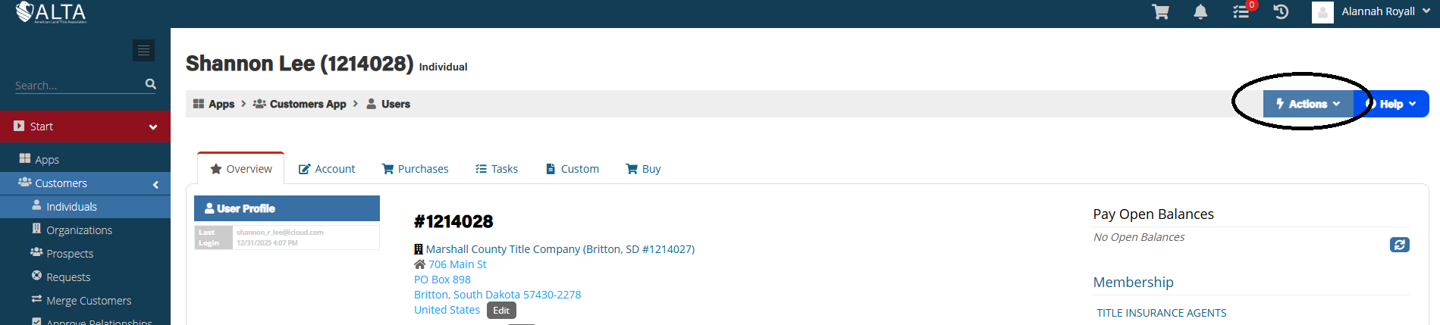
Once you are on the individual’s record, select the Actions icon and choose “Login As [Individual’s Name]” from the dropdown menu.
-
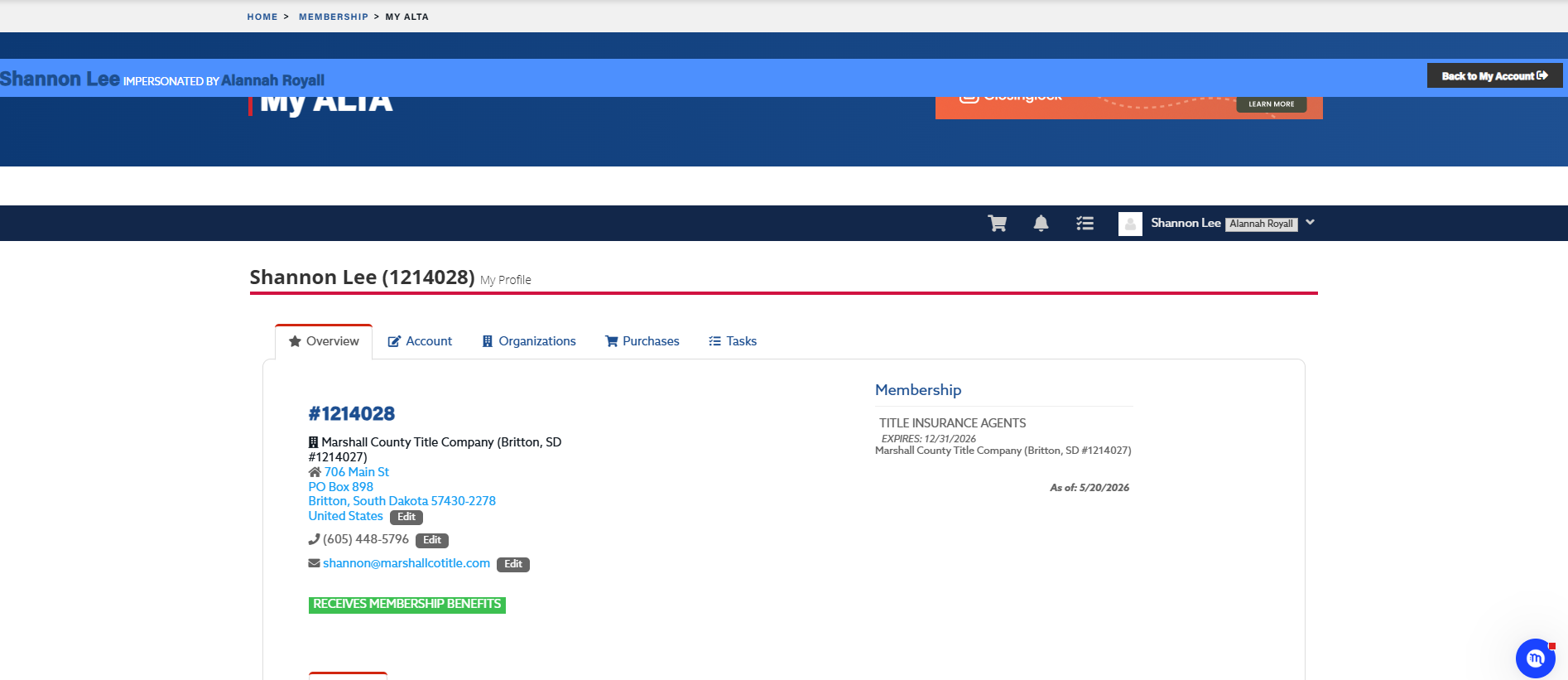
Once you select “Login As [Individual’s Name],” a new browser tab or session will open displaying the customer portal from the individual’s perspective.
-
While impersonating the individual, Staff Users can:
-
Verify what the customer sees within their portal
-
Replicate reported access issues in individuals portal
-
Troubleshoot membership renewal or event registration issues
-
Confirm whether purchases, registrations, or account information appear correctly
-
-
When finished troubleshooting, exit the impersonated session or close the browser tab to return to your Staff account.
Login As Process (Accessing Member-Exclusive Content):
The Login As feature allows Staff Users to access ALTA.org consumer-facing features and member-exclusive resources associated with an individual’s account.
-
Log in to your Staff account on ALTA.org
-
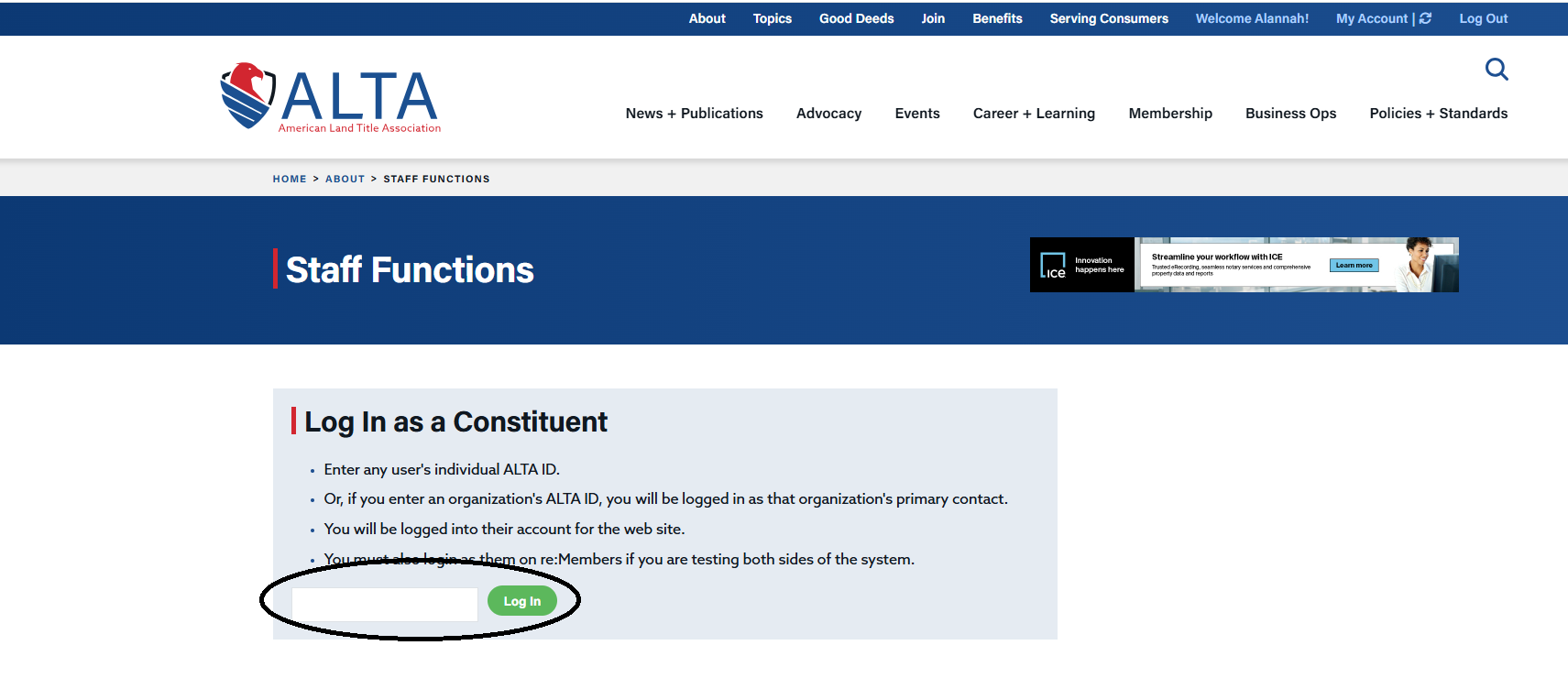
Navigate to the About tab and select Staff Functions.
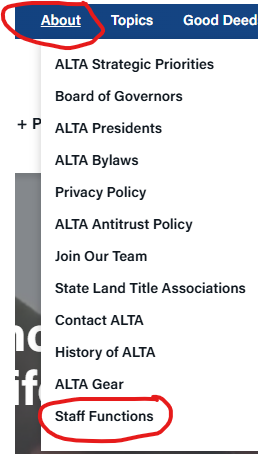
In the Login as Constituent section, enter the Record ID of the individual whose ALTA.org experience you need to access.
-
-
While logged in as the individual, you can:
-
Verify what the customer sees on ALTA.org
-
Replicate reported access issues related to resources such as TIRS, Policy Forms Online, and other member-exclusive content
-
Troubleshoot access or registration issues
-
Assist customers with navigating their account and online resources
-
