Full Title: re:Members (formerly Impexium) Terminology and Navigation
Short Description:
Inside the re:Members (formerly Impexium) Production Portal, there are a several consistent navigation components and tool bars. In this SOP, we share the terms most commonly used.
Business Rules:
Tips | Tricks | Hints:
Text | Images | Step-By-Step:
To Open re:Members (formerly Impexium): https://portal.alta.org/administration/
If you've been in re:Members (formerly Impexium) before, it will remember the page you most recently visited.
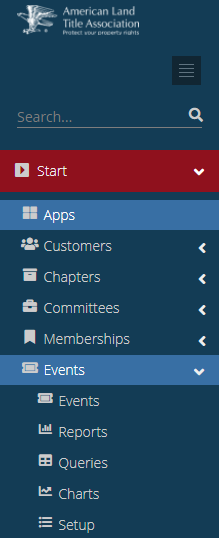
To begin fresh, you can use the left-side navigation column (click on Start or Apps).
Alternatively, you can use the "Search . . " feature at the top of the navigation column to find a Record by ALTA ID, First Last Name, or Company Name.
After login, you may begin on the Landing Page:
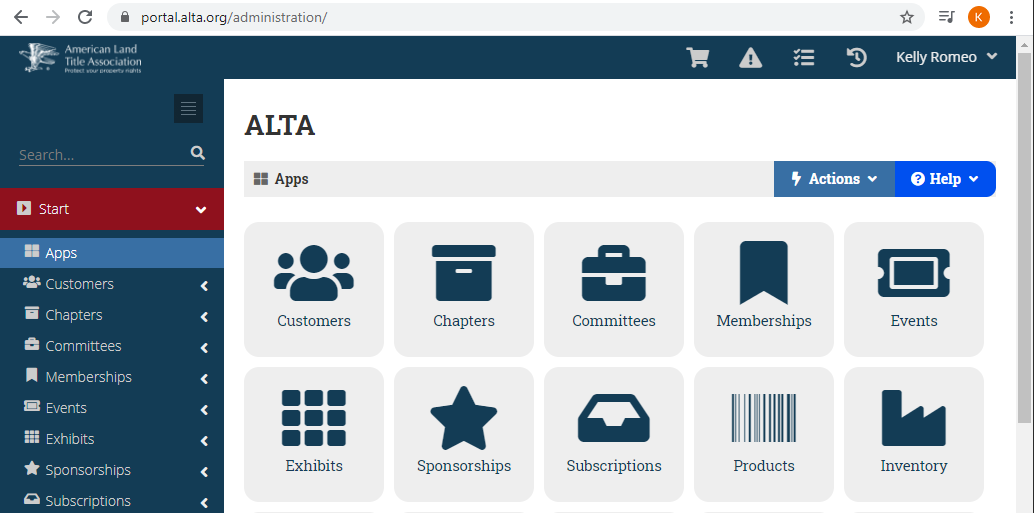
The Blue Overview Bar travels with you as the logged-in User:

The Grey Application Bar changes as you move around re:Members (formerly Impexium) and is where you’ll find access to specific “Help” resources based on where you are in the software:

Along the left side, in dark blue, you’ll find full Left Navigation with a Search bar at the top, followed by links to each of the re:Members (formerly Impexium) “Apps” (a.k.a. Modules). Under each App, there are additional Sections which help you navigate to the place where you want to start.
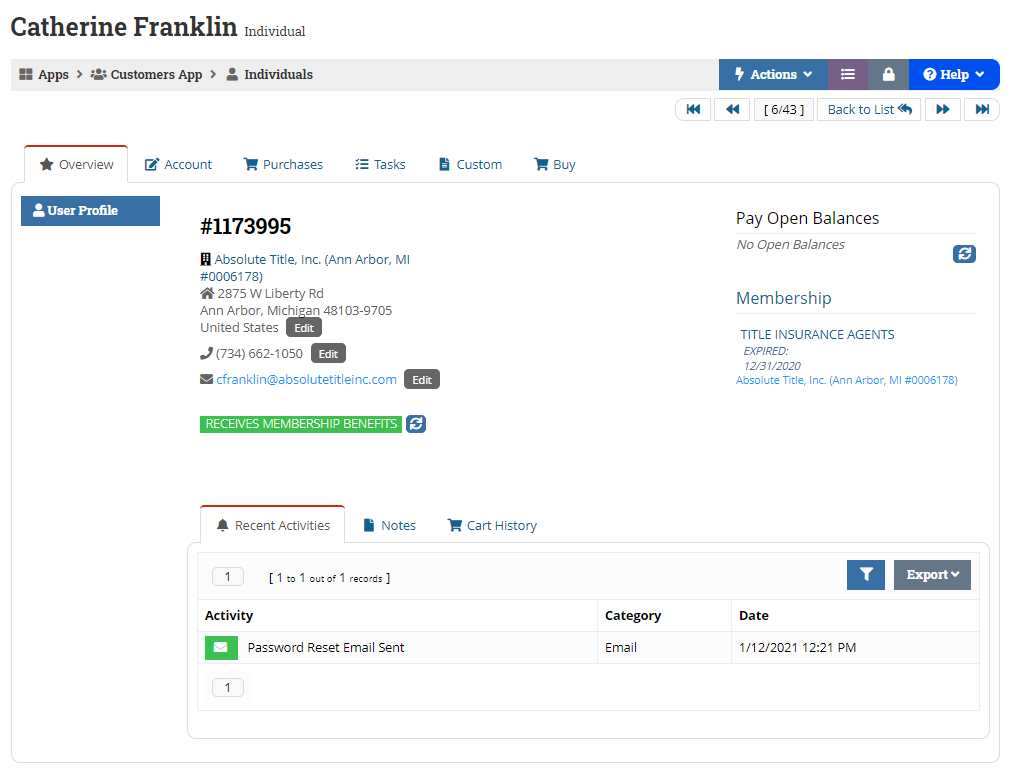
Once you have accessed a record or process, there are more internal tabs and options. See the view of the Overview Tab, below. The terms are Top Tabs (See Overview, Account, Purchases, Tasks, Custom, and Buy), Left Tabs (See Personal Info, Contact Info, Relationships, Committees, Additional Info, Mailing Lists, and Emails Providers), and Sub Tabs (See Active Committees and Inactive Committees):