Full Title: How to Merge Duplicate Records
Short Description: How to Merge & Proof Duplicate Records in re:Members (formerly Impexium)
Business Rules:
-
Merges. Only users with administrator access and the Membership & Licensing department will be able to perform merges.
-
Registry Listings. If an individual or organization record has a Registry Listing and needs to be merged, please notify the ALTA Registry Department and wait for instructions BEFORE proceeding.
-
Course Purchase. If an individual has purchased a course on the ID merged out of (so the deleted ID), Elevate has to be manually updated with their new ID so that their SSO will see that purchase. Contact Deirdre, Gabrielle, or Chad to check/update. If the course purchase is on the ID merged into (so the kept ID), nothing is necessary.
-
Merge Note. When a Record has been Merged, there will be a Note at Overview > Notes with the Category of “Merges” along with a Title and Note which indicates the reason for the Merge.
-
Contact the ALTA Database Administrator for questions and additional assistance with merging records.
Merging Process:
-
-
IF EITHER RECORD IS IN REGISTRY, please notify the ALTA Registry department (altaregistry@alta.org). They will review and determine the appropriate Registry steps, which may include removing the record from the Registry FIRST. After the Registry steps are complete you will be notified. If a record removal is completed, you will be advised that you may continue with the next steps following an overnight process. (Note: It can take 24-48 hours for a record to be removed from the Registry. The ALTA Registry department will notify you when it is clear to be removed.)
-
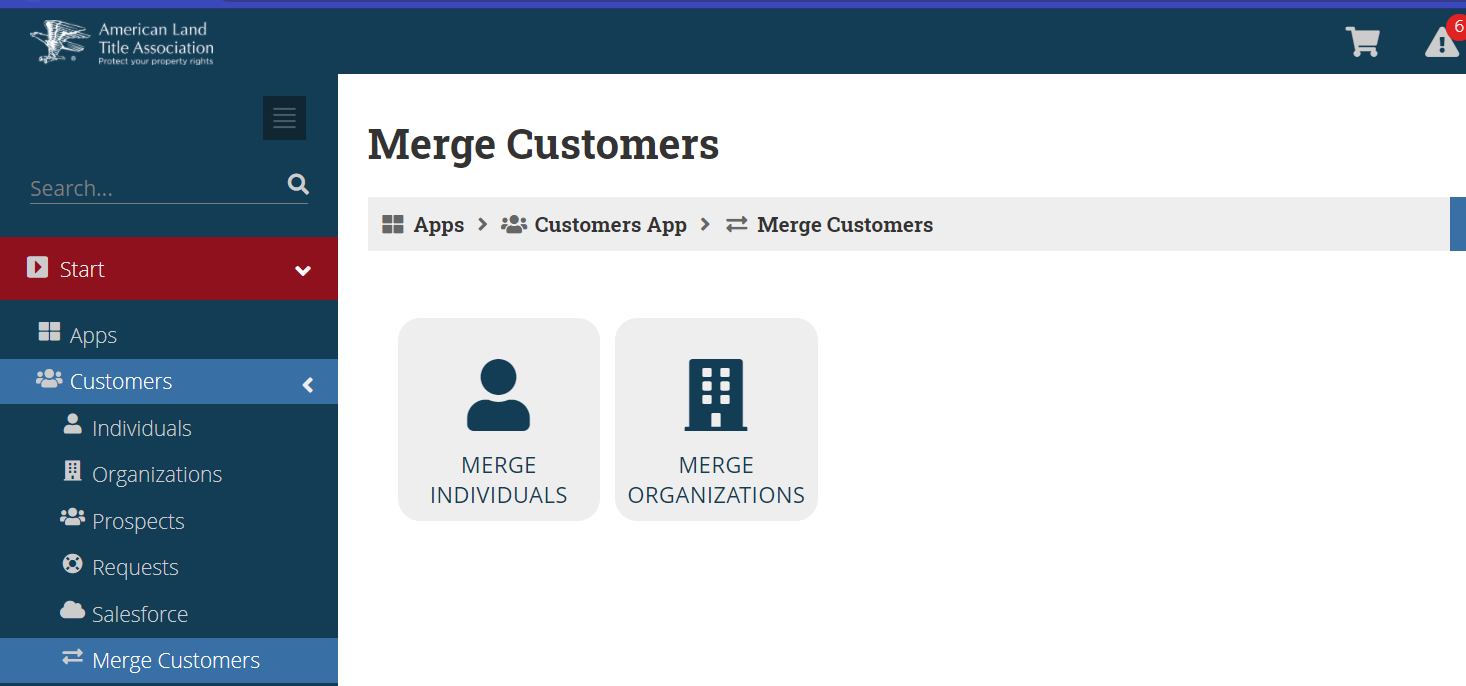
Select the "Merge Customers" tab from the left menu under the "Customers" tab. Select the type of record that you are merging on the following screen (Individuals or Organizations).
-
-
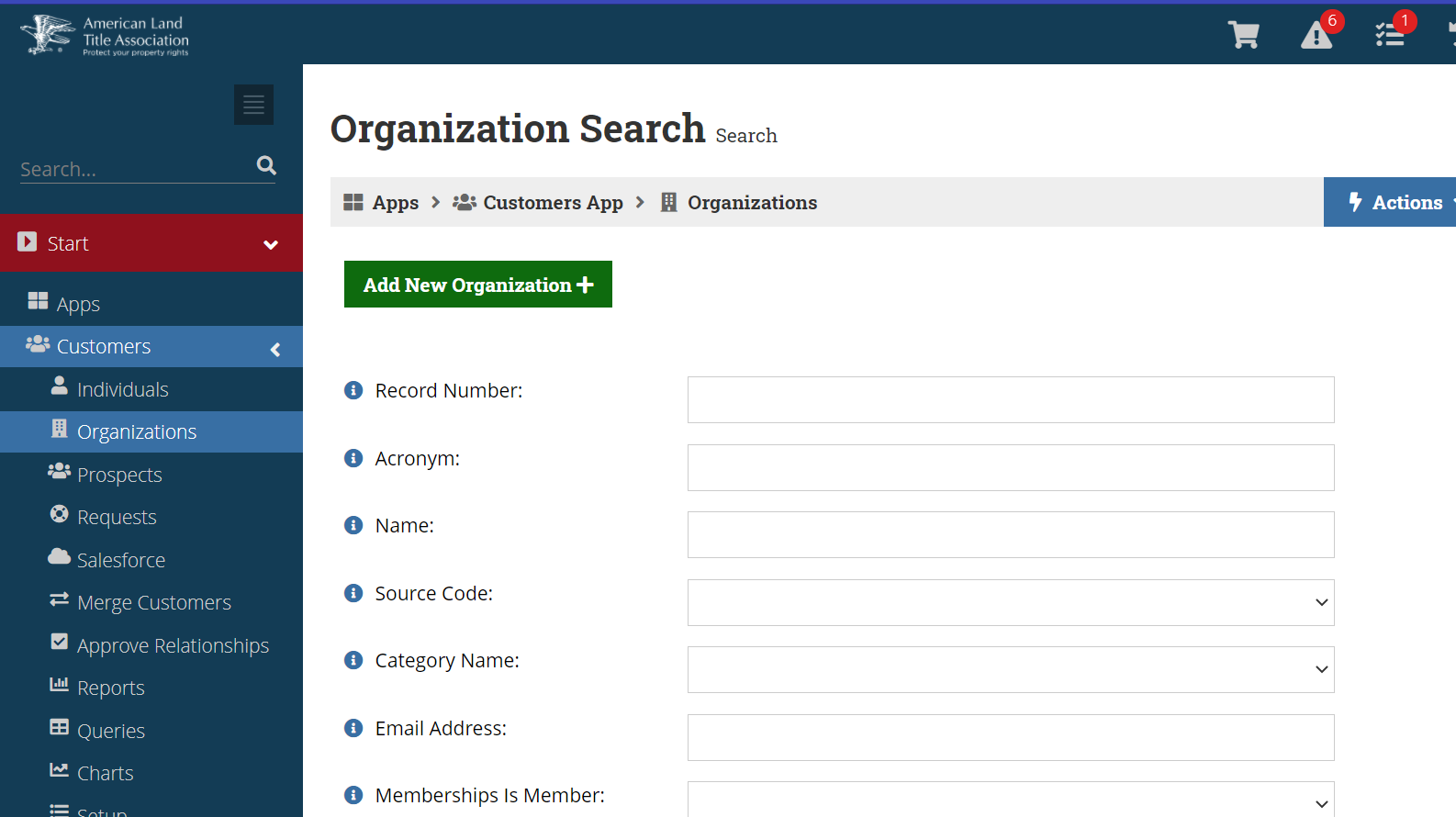
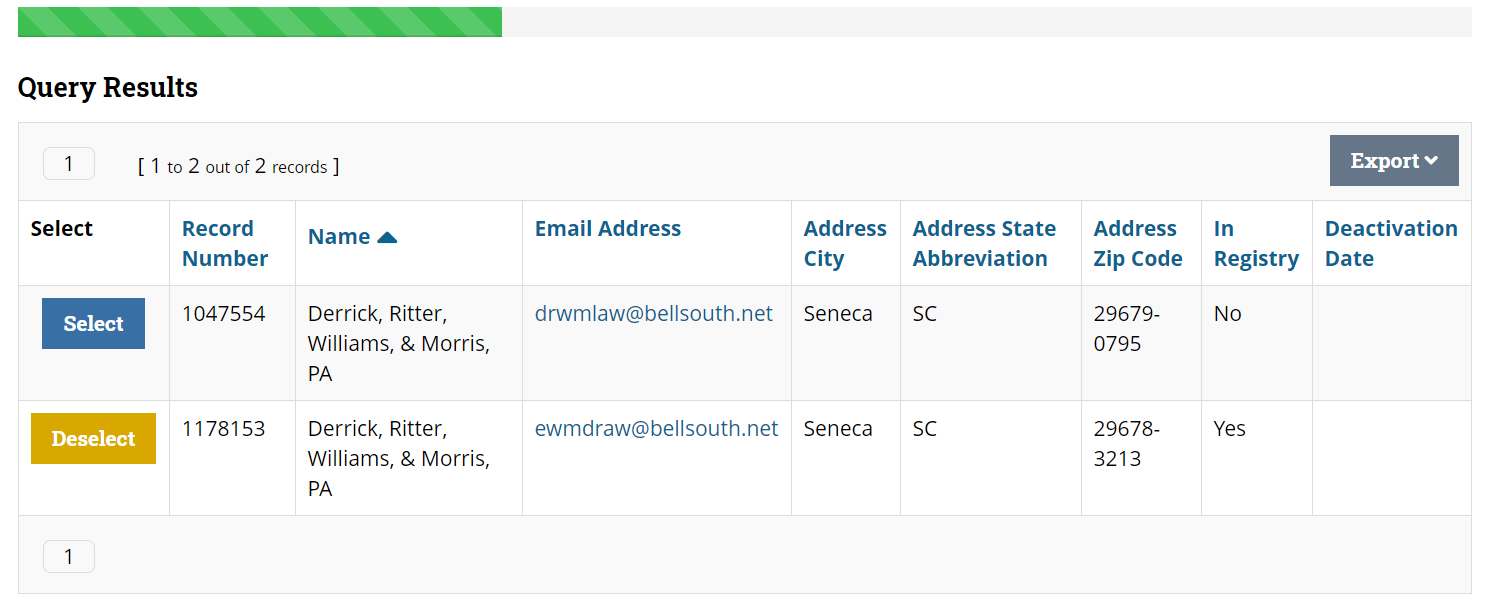
Search for the records on the following Organization or Individual Search screen. A list of record results will appear on the following screen prompting the option to "select" for merge.
-
-
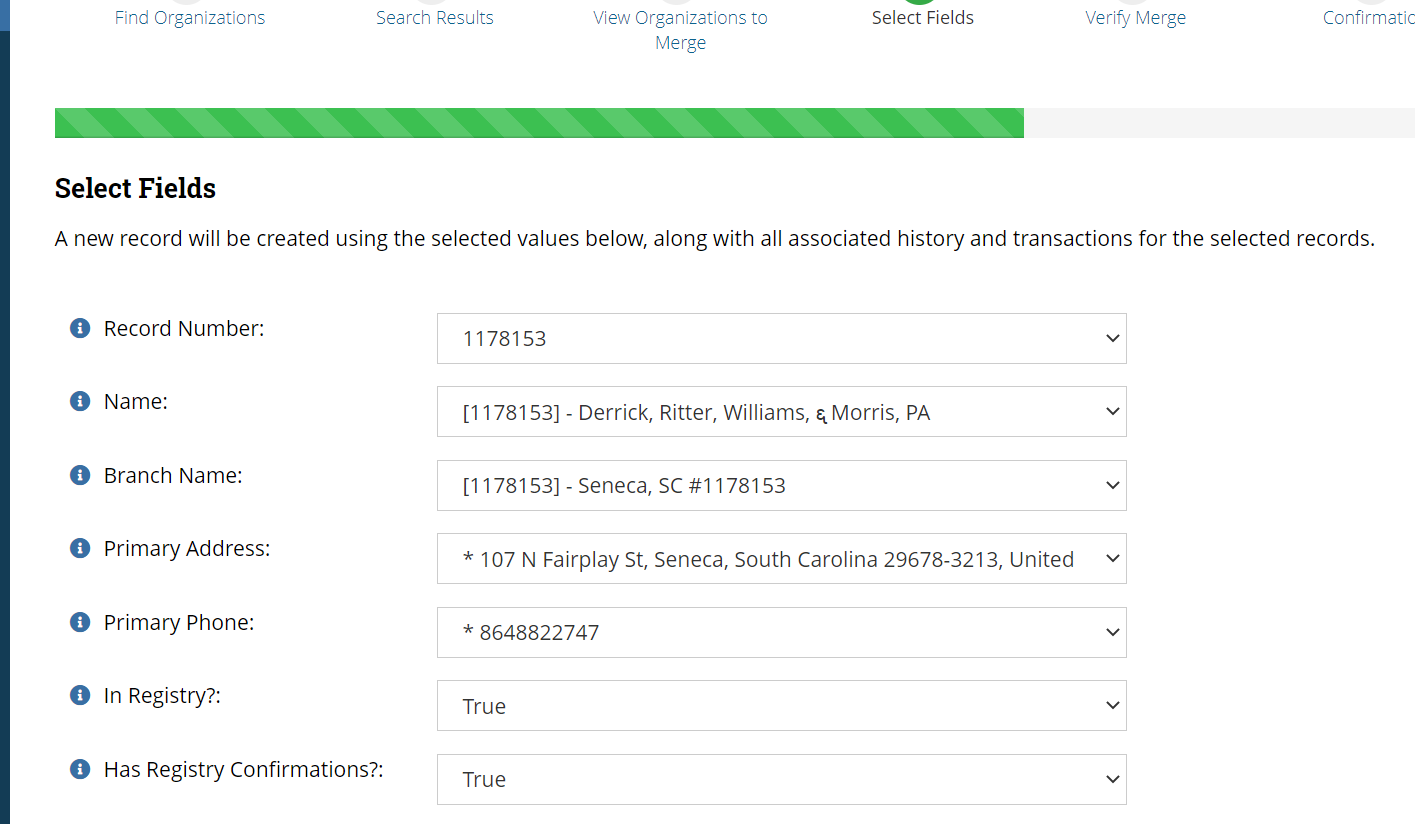
Select the records that will be merged. On the following screen, you will be prompted to select the surviving constit ID's demographic fields that should remain on the new merged record. (Note: Spot check to confirm the surviving constit ID is selected for each field as well as the Registry status.) See below:
-
-
-
Once this section is completed, select "next" for final verification and then select "Schedule Merge Process". The merge process usually takes a few seconds to a minute depending on the amount of content on each record.
-
Proofing:
-
Spot check the existing record to confirm that the merge is complete. A "merge" will be created from the system indicating the record that was merged.
-
Check the contact info to remove any possible duplicate information that may have carried over from the merge (Address, email, website, phone/fax#).
-
If either record was a Registry record, notify ALTA Registry Department post merge so that any Registry specific fields can be reviewed prior to the overnight Registry push.
-
For ORGs, check the newly merged ORG record to be sure that there’s no indication of Deactivation. Visit Account > Additional Info > Custom Info > Miscellaneous > Deactivation Date. View the information and remove any Deactivation Date on the record.
-
