Processing Waivers (Courtesy of Chantelle McPherson)
Some quick notes:
The 'Writes For" relationships with the underwriters need renewing each year on Waivers. The UND's need to have an expiration date of 12/31 for the current year. For all UND info that we converted over, those relationships created in re:Members (formerly Impexium) were set to end 12/31/2020 so you will need to set expiration date of 12/31/2021.
When adding an underwriter, you must set the start and end date for each.
Waivers need to be put in a batch – any batch it does not matter in order to complete the check out process. The "Writes For" relationship expiration is for waivers only (this will probably change) and is not required on Paid PFL's or PFL's included with membership. Any that are in the Registry would have theirs coming from the actual data in the Registry.
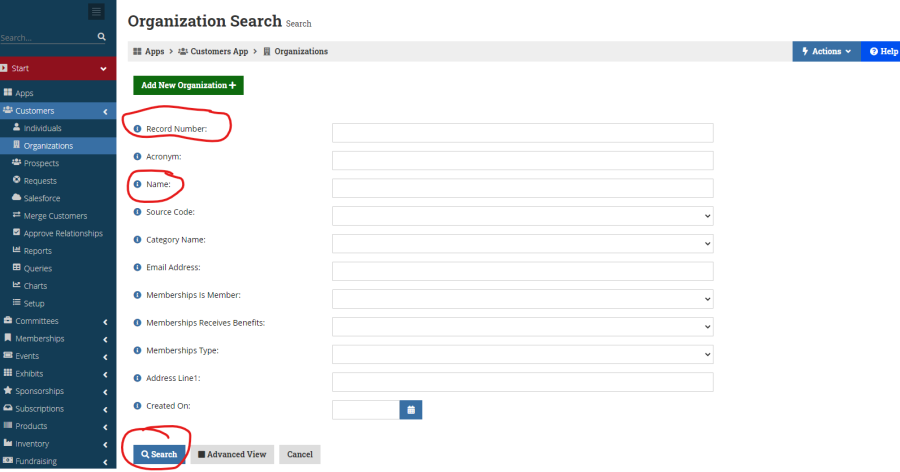
Go Organizations. You need to enter either the ALTA Id# (in re:Members (formerly Impexium) the ALTA Id# is called the 'Record Number) or type in PART of the company name in the "Name" field and click on Search at the bottom.
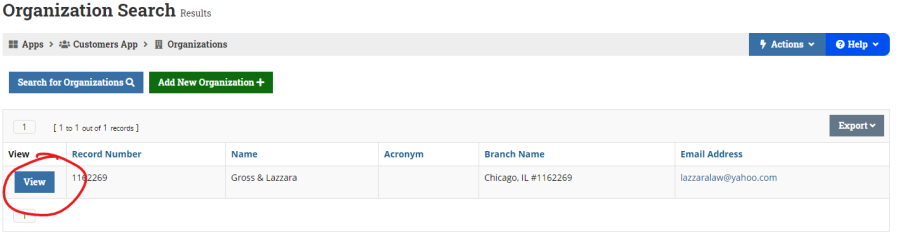
When the search is done click on 'View' beside the correct account.
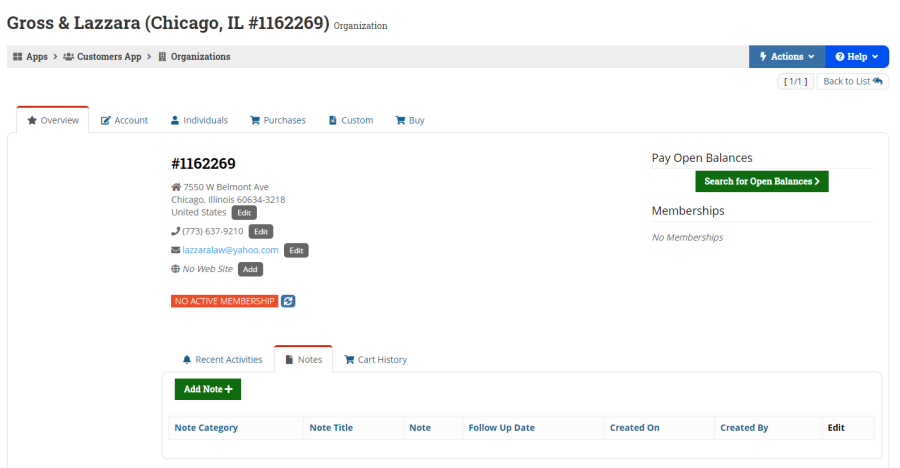
In re:Members (formerly Impexium) – whatever screen you were on last in a record is where you will be in the next Record you view. Make sure you go to the Overview tab and review the information. If any information needs to be updated, you can click on the Edit button next to that info or go to the Account tab.
***** If the account is in the Registry, all address updates must go to Kelly Langdon klangdon@alta.org to be updated.
Organization InfoOn the Account tab you can update the company name, phone, email, website etc. To update the Company name you will need to under Organization Info.
Contact Info To update address, phone/fax, email and website links you will need to click on the
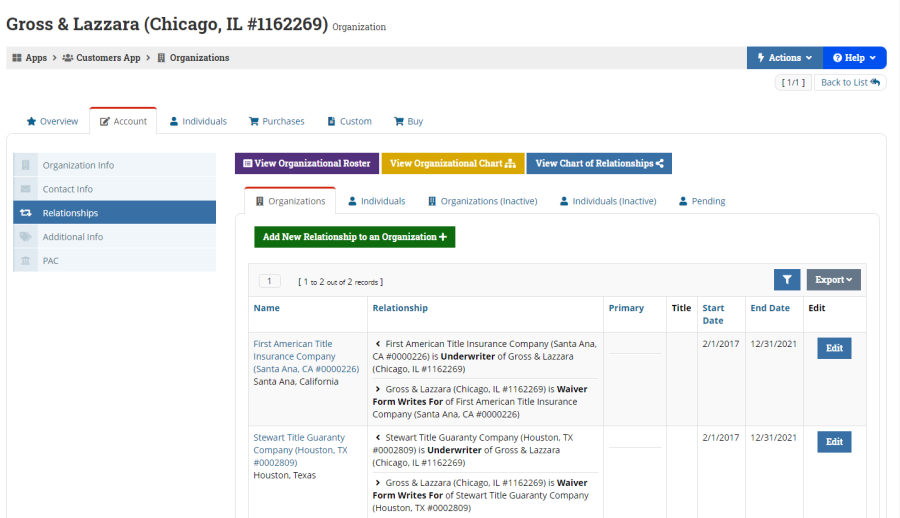
RelationshipsThis is also where you will create or updated the UND or "Writes For" relationship with underwriters. Go to the
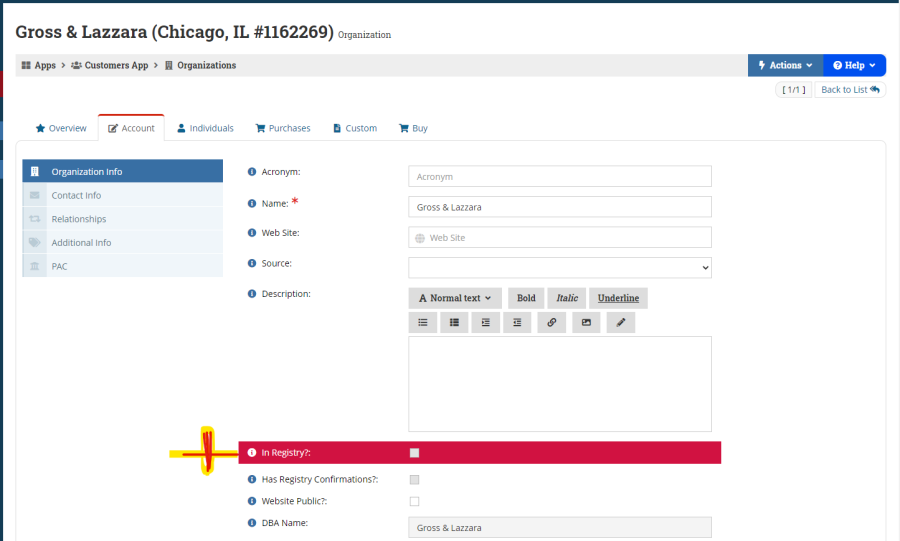
If the box is checked in the red bar for Registry check with your Supervisor to make sure you change change/updated Organization and contact info.
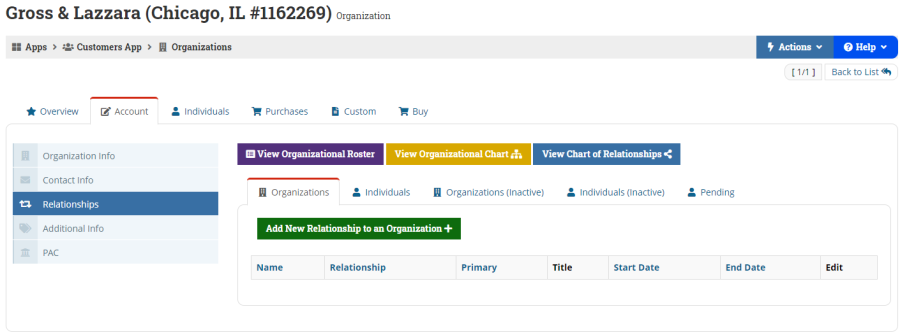
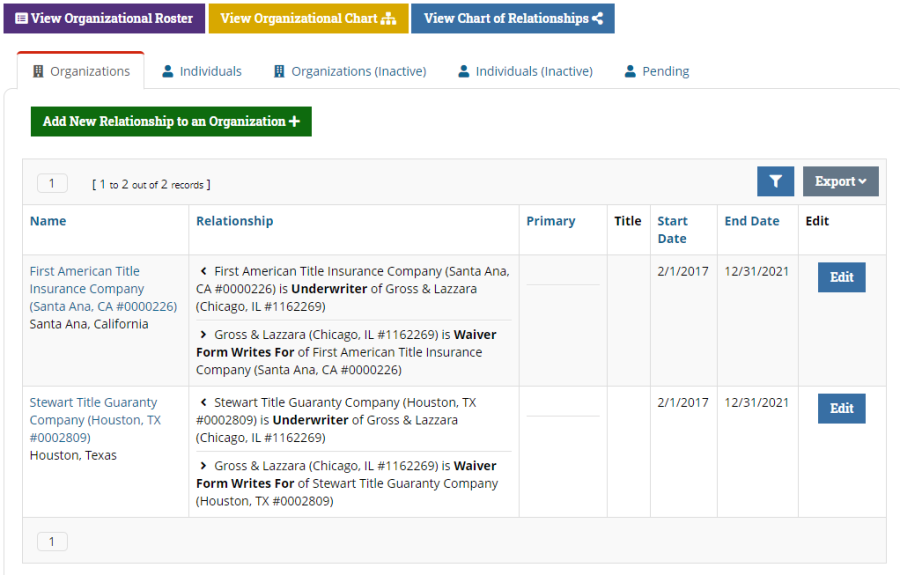
Relationships – here is where you will be able to view active and inactive relationships for Individuals and Organizations. For this task we are only looking at the Organizations tab and the Organizations (Inactive) tabs.
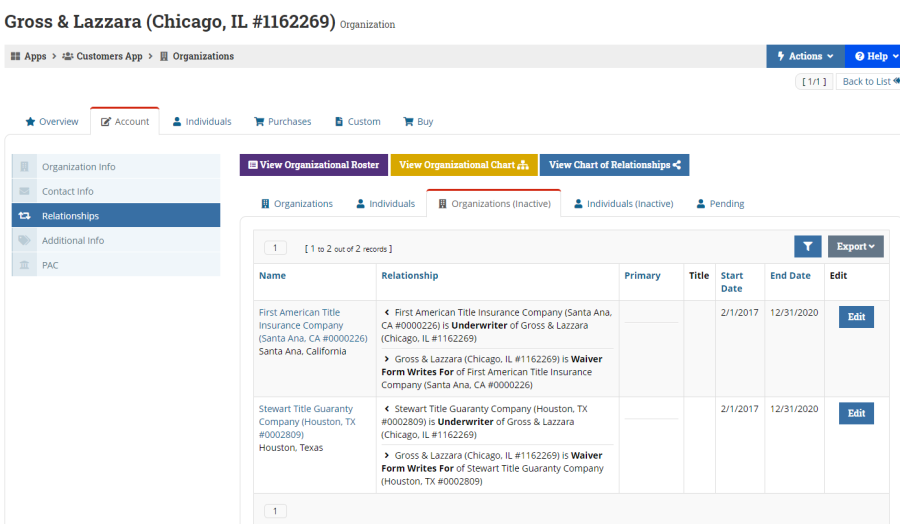
EditCheck Organizations (Inactive) to see if the UND relationship already exists. If the UND on the waiver form is listed here you just need to add the expiration date 12/31 for the current year. Click on
by the UND
SaveYou don't have to edit the Start Date only the End Date. Click
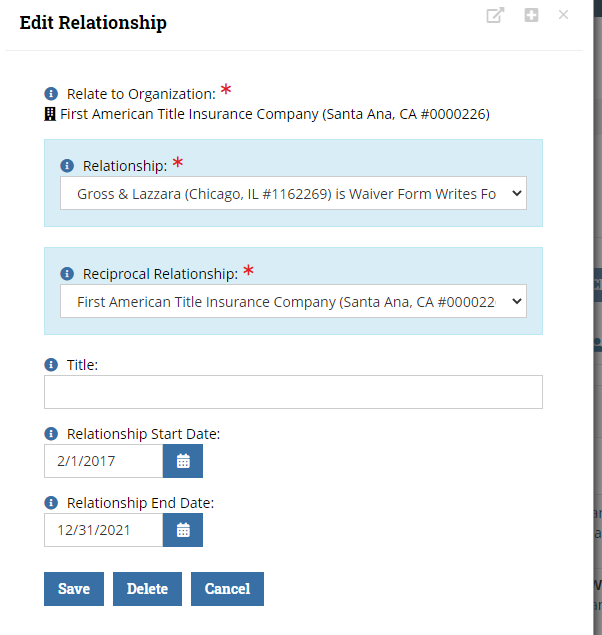
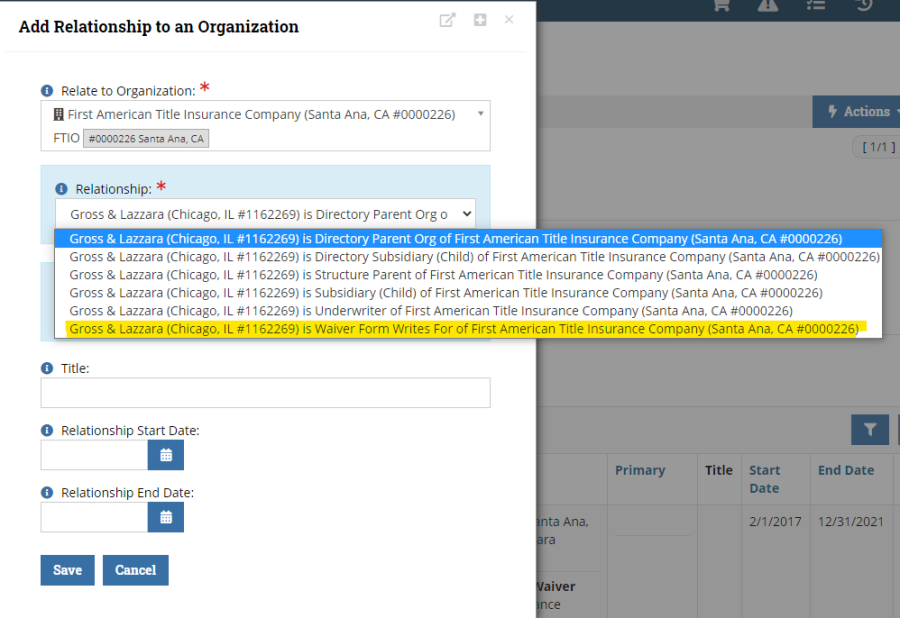
The Relationship should have the word "Waiver Form Writes…" and the Reciprocal Relationship should have the UND listed. As you save these they will disappear from the Inactive tab and be moved to Organizations tab.
To add new UND relationships you must be in the Organizations tab. Click on Add New Relationship to an Organization +
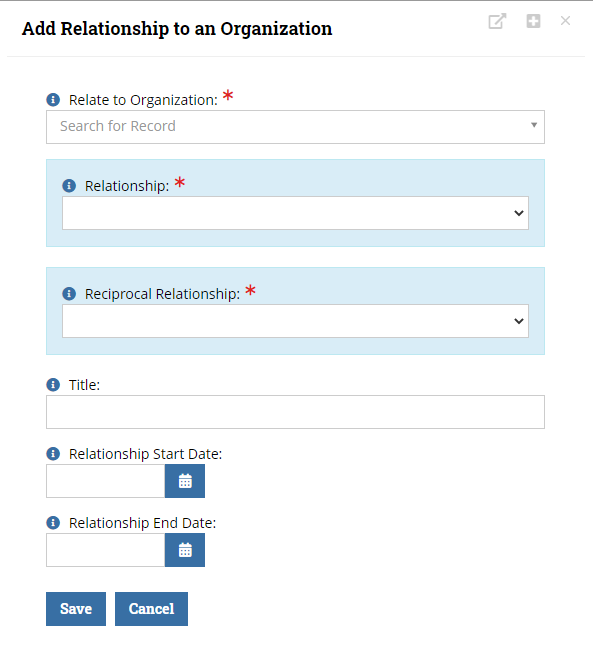
The next window will allow you to enter the Id# for the UND and set the relationship, start date and expiration date.
Enter the Id# for the UND off the Underwriters ALTA Id#'s excel sheet. The system will search and once it populates click on it and move to the Relationship drop down.
Make sure the you select the relationship that states "…Waiver Form Writes For…"
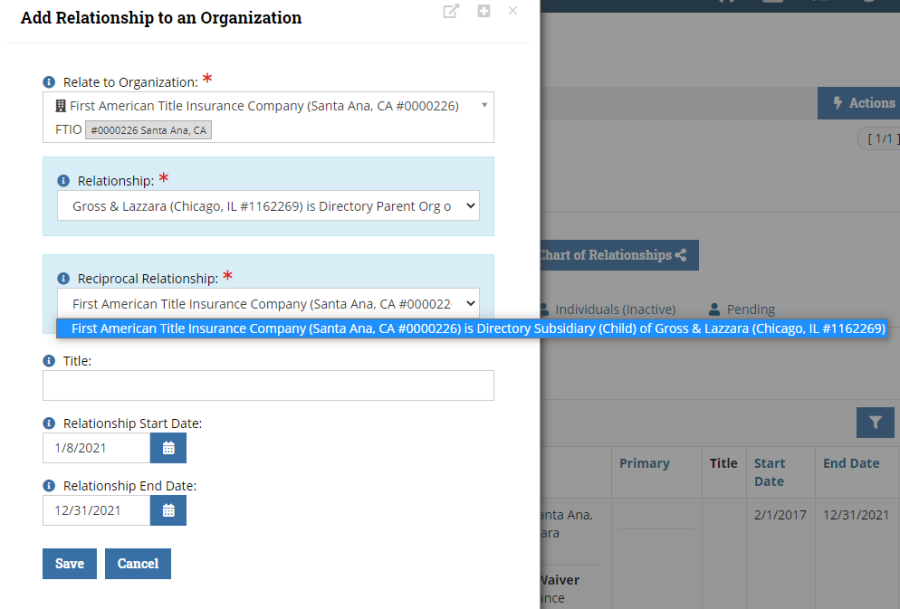
SaveThe Reciprocal Relationship should self-populate with the UND in the Relate to Organization box. The Start and End Dates should be entered and now click
You should see the UND relationships you entered with an End Date of 12/31/2021
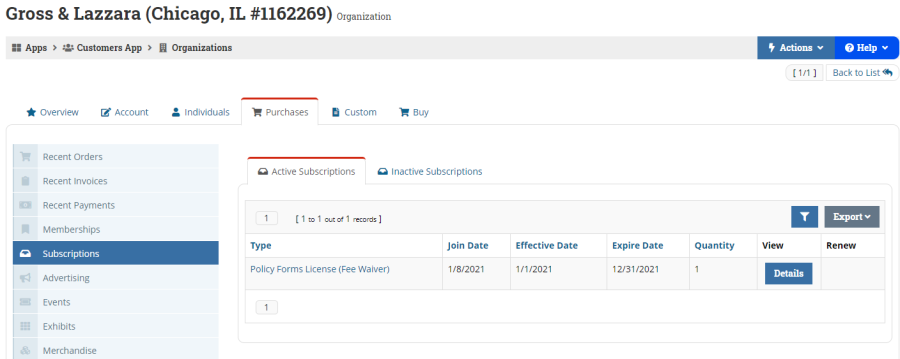
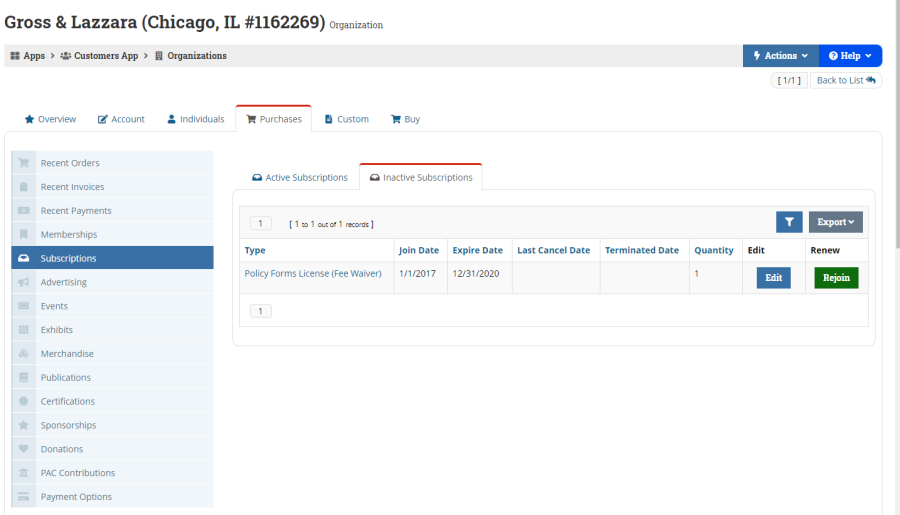
RejoinNow the waiver needs to be renewed/secured. Go to the Purchases tab and Subscriptions. If they have an active Policy Forms License for the current year do not process the waiver. Go to the Inactive Subscriptions tab. If there was a previous waiver you can click on
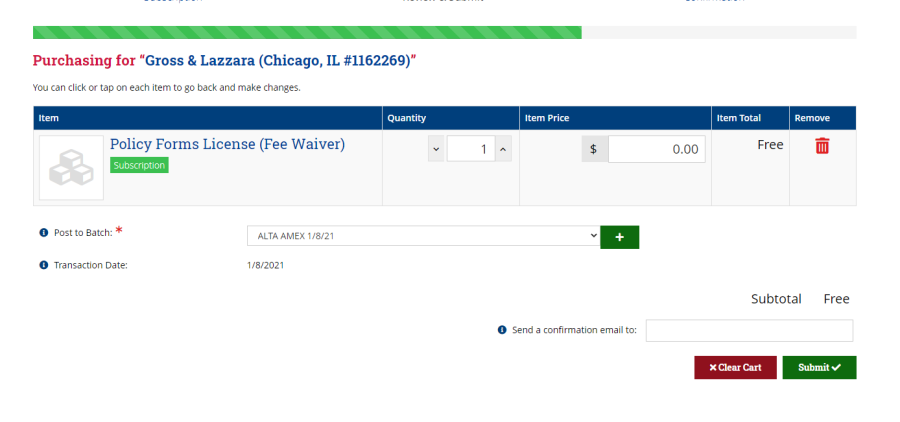
Submit √Confirm it is the waiver at $0.00. Go to Post to Batch and select any batch. It does not matter which batch because there is no money on this transaction. If a confirmation email was requested, enter the email address and click
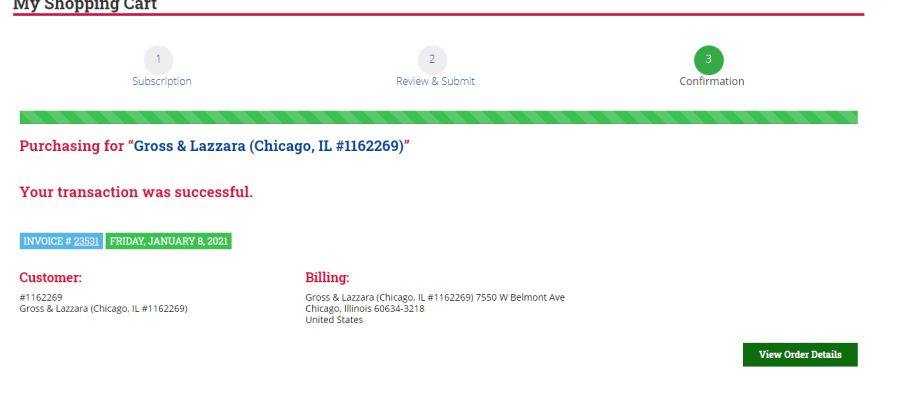
This is the screen you should see once the waiver has been processed. If you notice the light blue box with INVOICE# you can click on this and it will take you to the invoice where you can also send a confirmation email in case you did not when posting the waiver.
Go back to the account and verify they have an active waiver for current year.