re:Members (formerly Impexium)
-
Adding someone to the database
- First, search for the individual either in Search bar or Customers > Individuals Tab
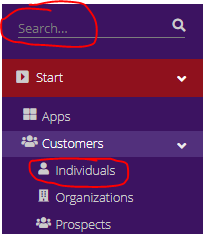
-
After confirming the individual is not already in the database, search for their company in the search bar or Customers > Organizations tab
-
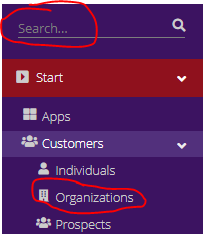
-
Locate correct company and Add New Individual
-
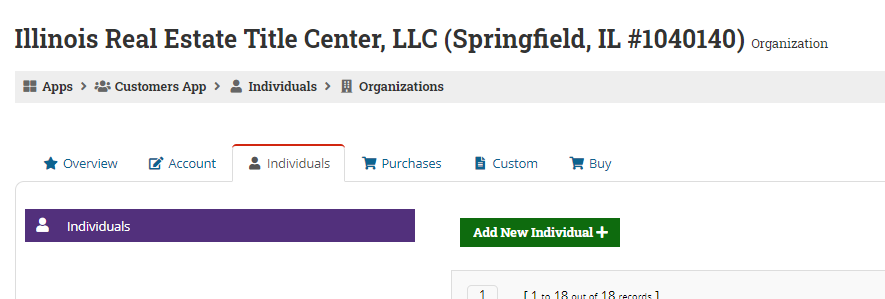
-
Add Individual (First Name, Last Name, Email Link Address and Create User Profile should be checked/filled out. Include Title and Phone Number if available).
-
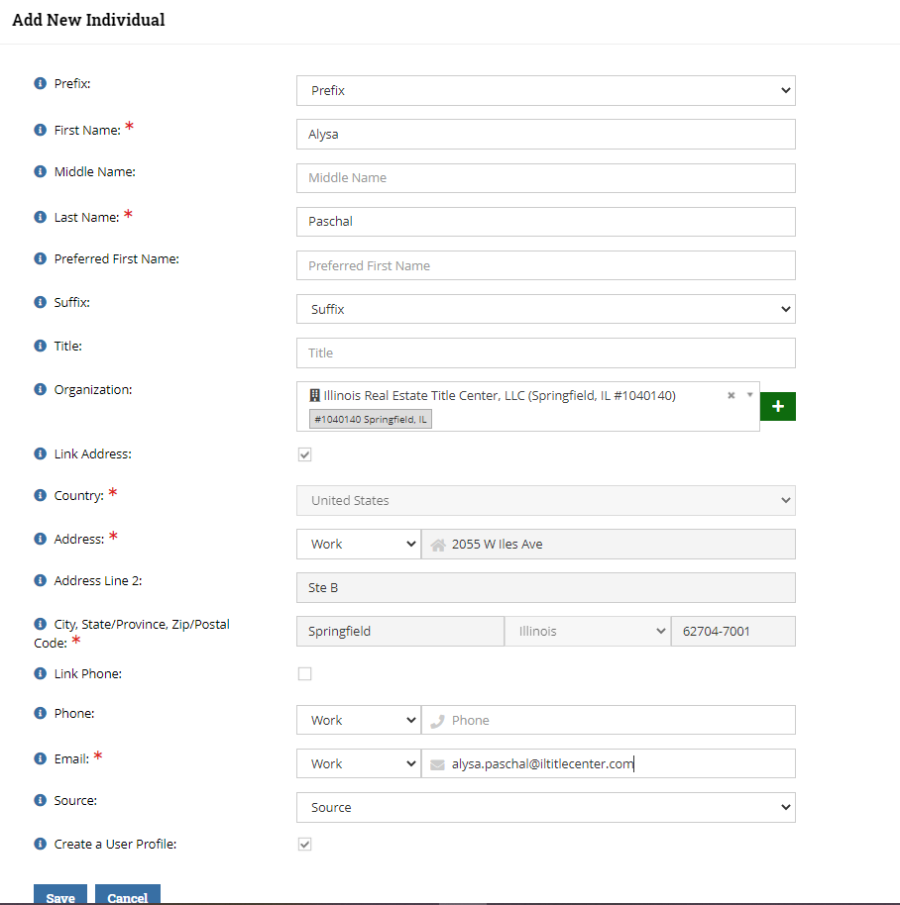
-
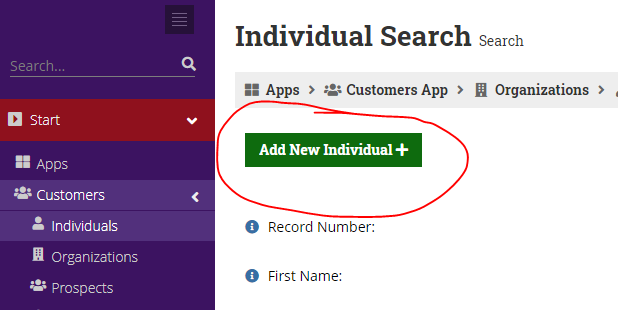
If you're adding an individual to the database and not linking them to an Org, you can add them from the Individual Search page
-
-
Purchasing a Course in re:Members (formerly Impexium)
-
Locate individual's profile
-
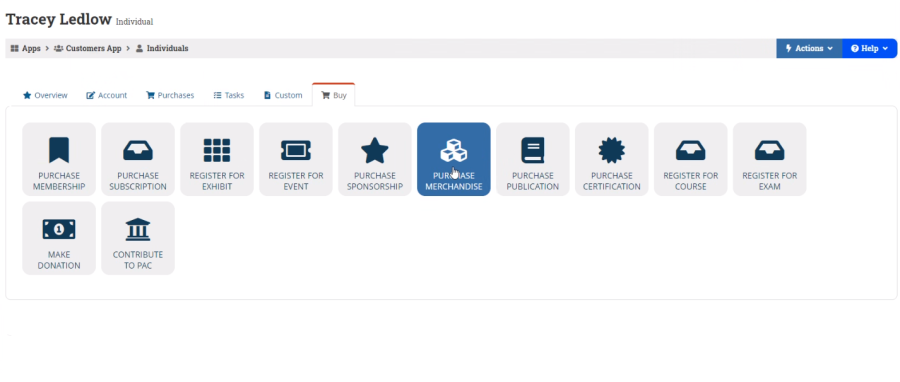
Click on Buy Tab
-
Click on Purchase Merchadise
-
-
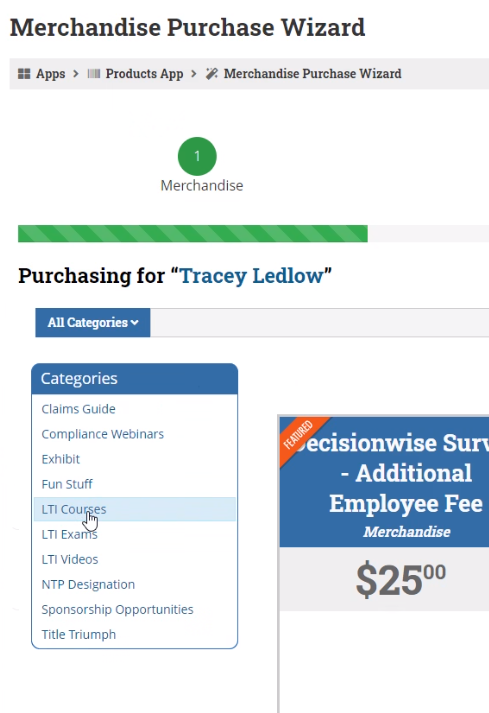
Choose LTI Courses from the menu on the left
-
-
Find particular course and click Add to Cart
-
Add other courses, as necessary
-
When ready to proceed, click Review & Checkout
-
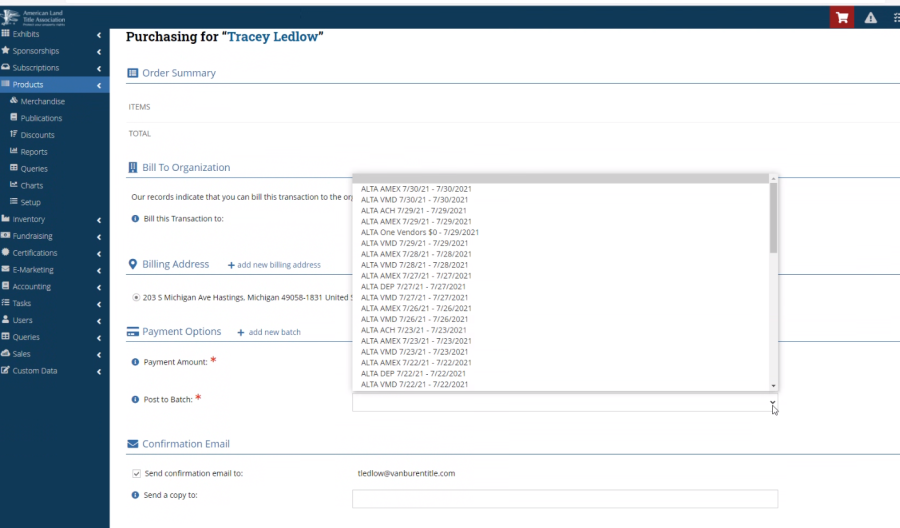
Choose batch (date and right type of credit card batch)
-
-
Complete highlighted items
-
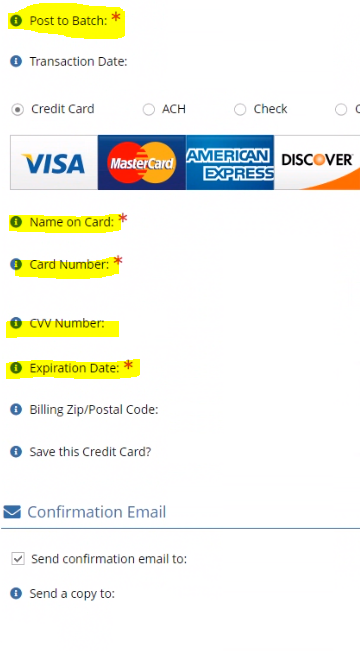
-
Adjust the email to receive the receipt, if necessary (a Welcome email from Elevate will go to the student, no matter what)
-
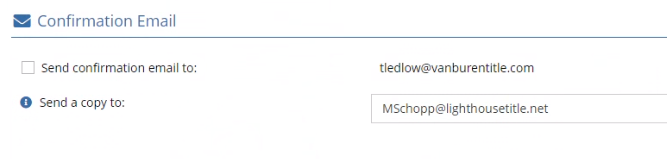
-
If there was a payment, screen shot the Order Details and save it in a Word Document at G:\MEMBERSHIP\Remote Inbox\Processed
-
Find appropriate month/date folder
-
Create a Word Doc and save the screen shot (I usually save it with the date and my initials (ex: 7.13.21 Charges DG)
-
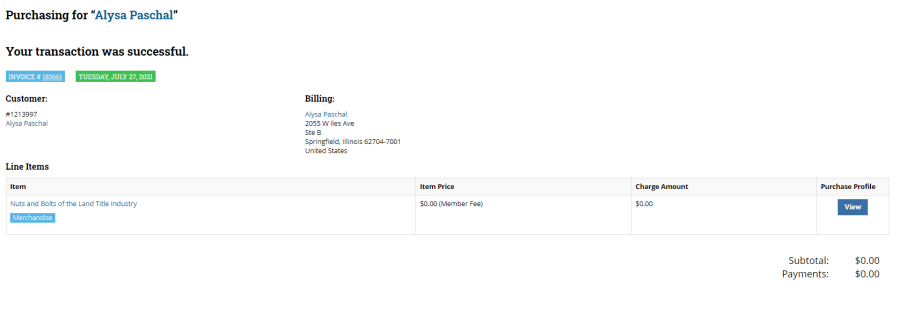
-
