All Staff Users have access and permission to do this.
This process can be completed in less than one minute and requires just 9 mouse clicks after you find the Record.
-
Scenario:
-
Sometimes, a Policy Forms License needs to be canceled - this is called "Termination" in re:Members (formerly Impexium).
-
This may happen when the PFL is mistakenly added to an Individual Record, placed on the wrong Organization record, or is a duplicate PFL.
-
-
Start by finding the record with the PFL that needs to be terminated.
-
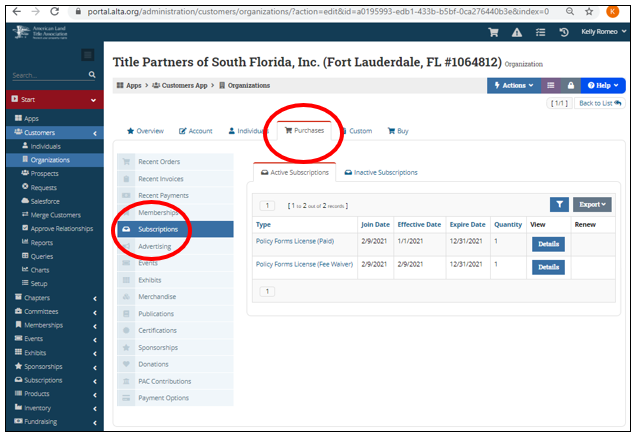
Once you have opened the record, be sure you are on the "Purchases" Tab and have selected "Subscriptions" from the choices on the left.
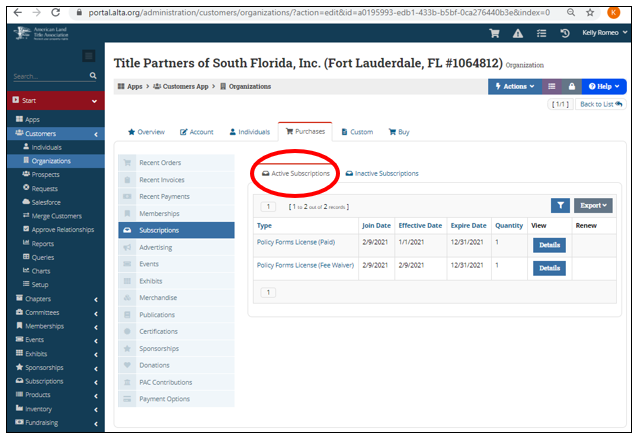
- In the Subscriptions area, look at the Active Subscriptions Tab to see the Active Subscriptions.
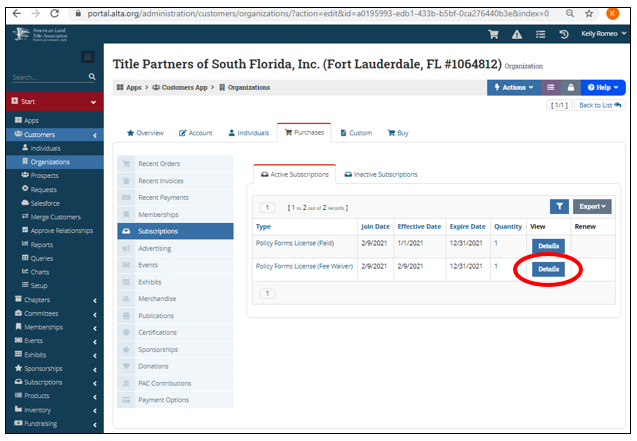
- Find the Subscription Record that needs to be canceled and click "Details" to open that Subscription.
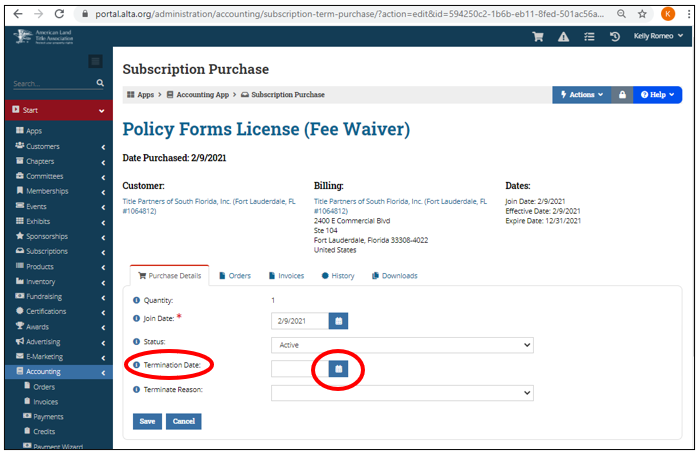
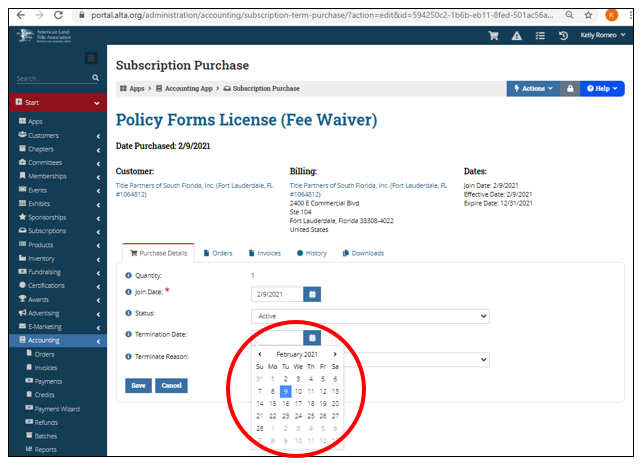
- Select the Termination Date by clicking on the Calendar Icon.
-
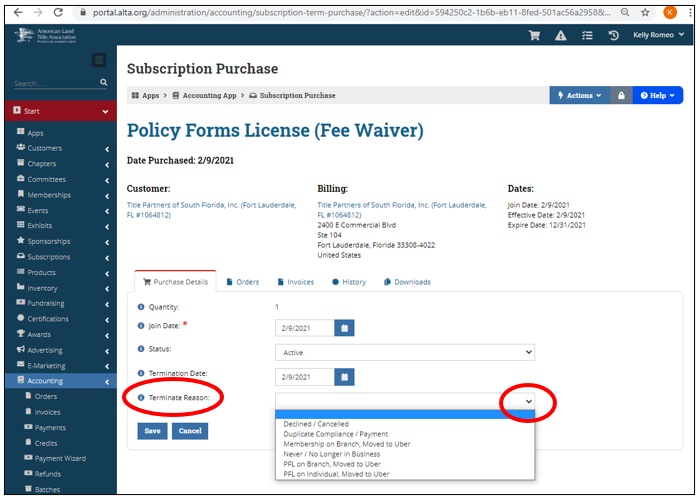
To add a Terminate Reason, click on the dropdown menu of Reasons and choose one that fits.
-
This Terminate Reason is not required, but is helpful for reporting purposes.
-
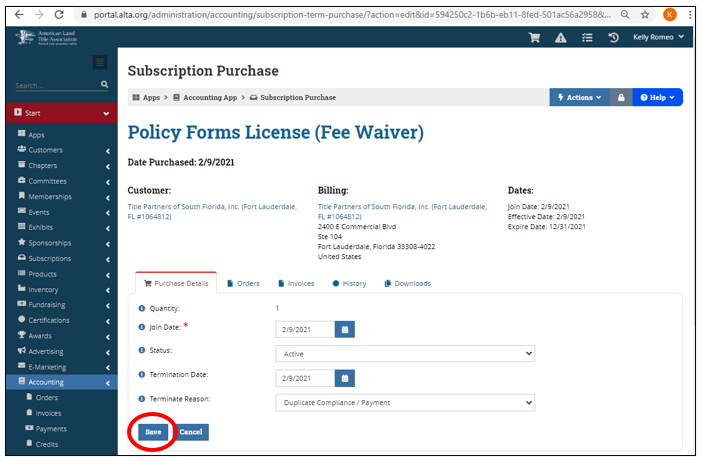
Now, take a moment, pause, and look at the display to make sure you are canceling the right PFL on the right Record.
-
Now is the time to update the Termination Date or Termination Reason.
-
Now is the time to click on the "Cancel" button if you are not on the right Record.
-
All good? Proceed . . .
-
Click on the "Save" button to complete the cancellation/termination of the PFL.
-
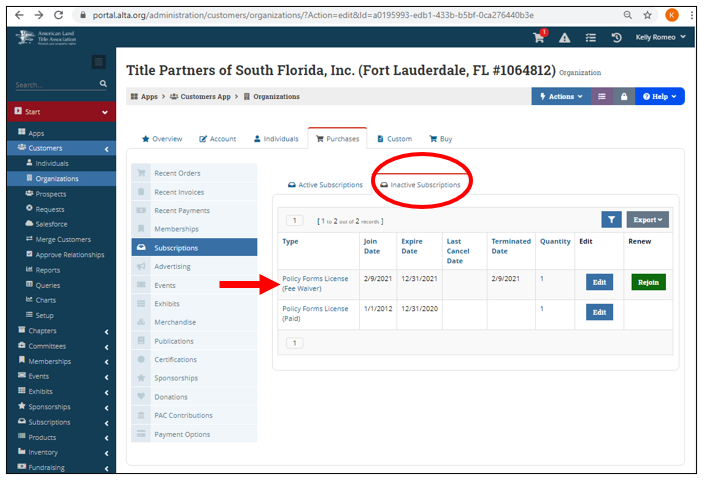
If you'd like to double-check your work, visit the Organization Record (live link to the Organization appears under the "Customer" heading on the screen shot, above).
-
Look at the Inactive Subscriptions Tab to see the Terminated PFL Subscription.