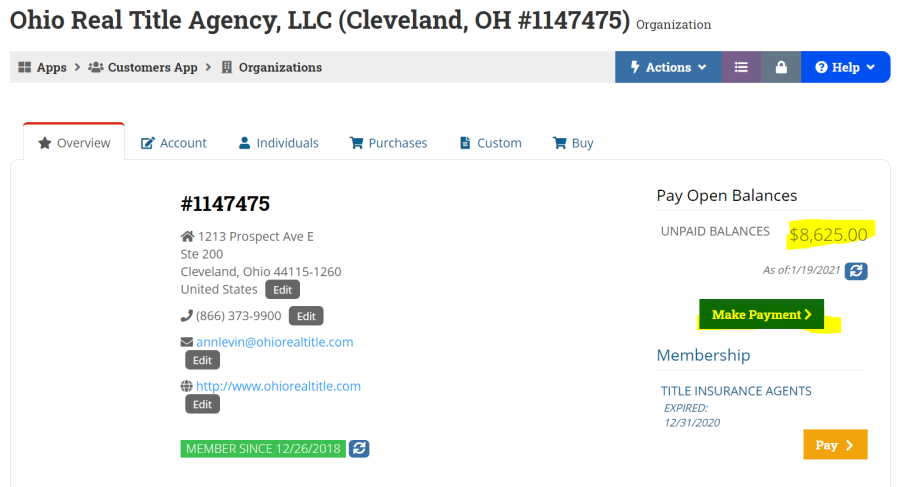
Credit: Chantelle McPherson - this is a direct import of the existing Word file.
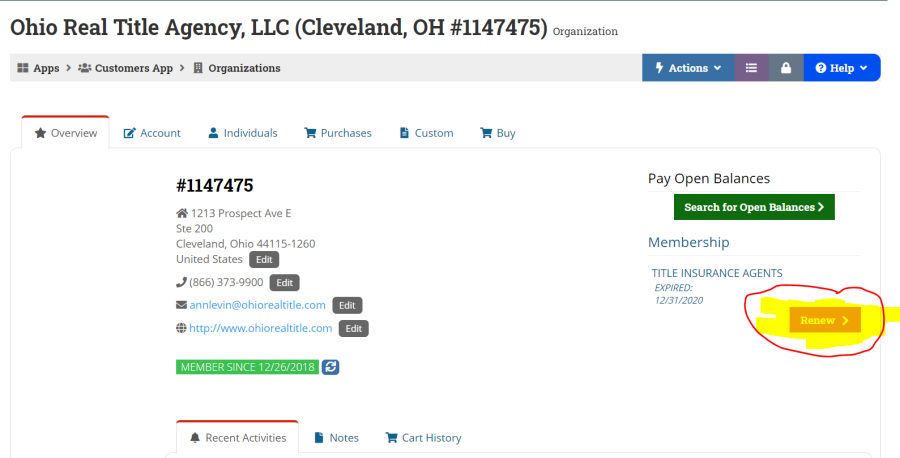
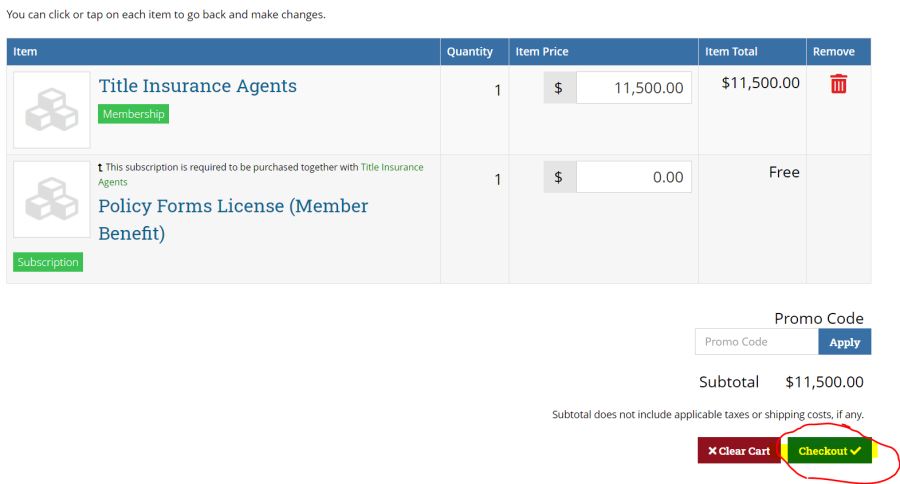
Go to the organization ID, on the overview tab press renew on the right side.
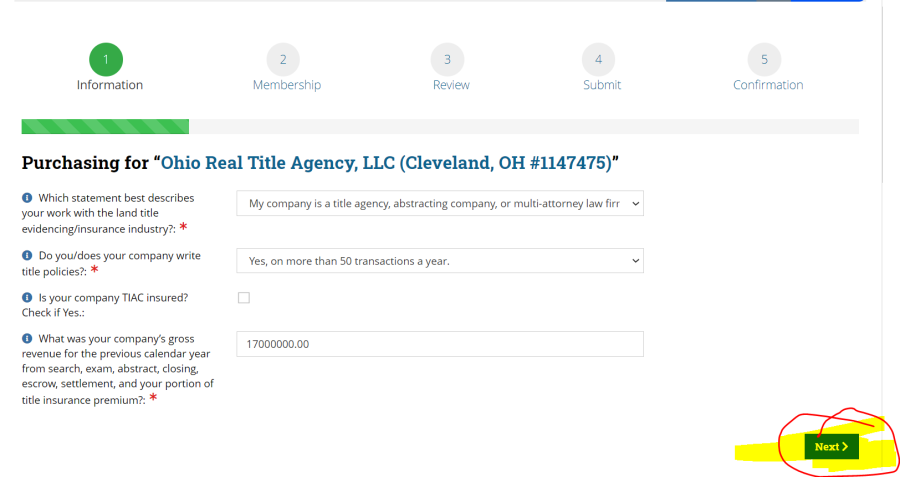
Answer the four questions and make sure the revenue matches the total payment for the year and not the partial payment.
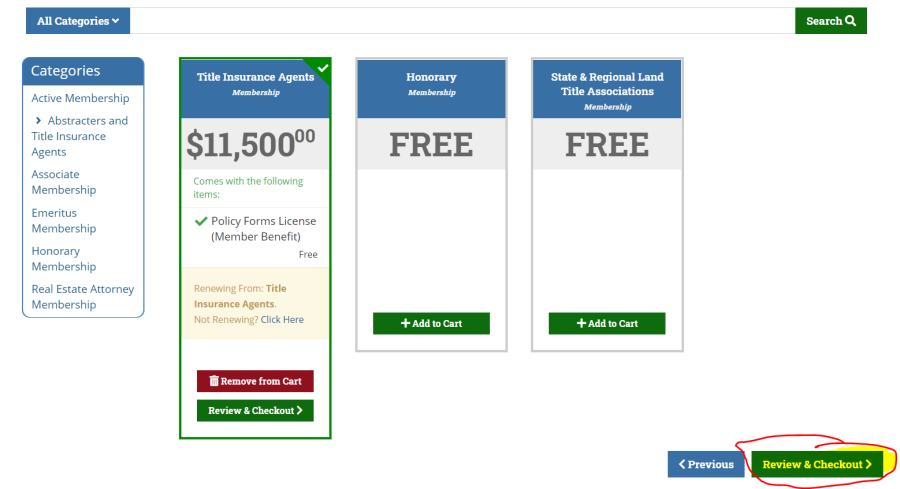
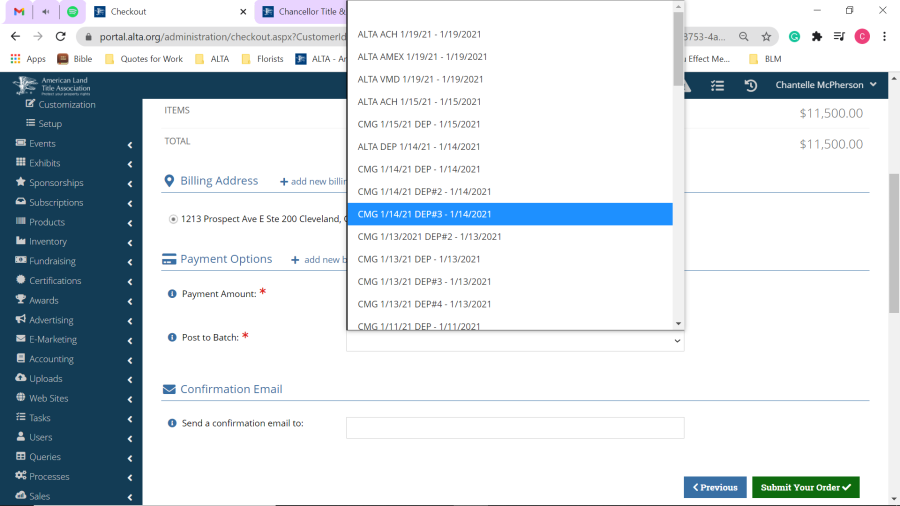
From here you can choose any batch
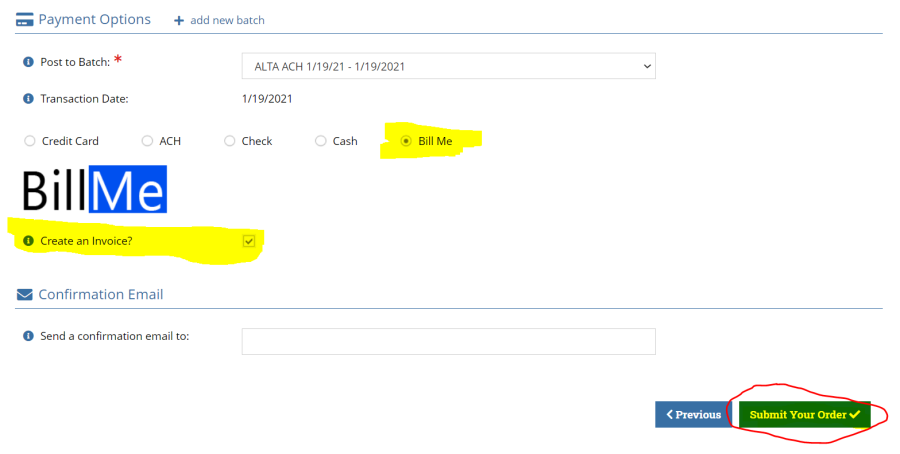
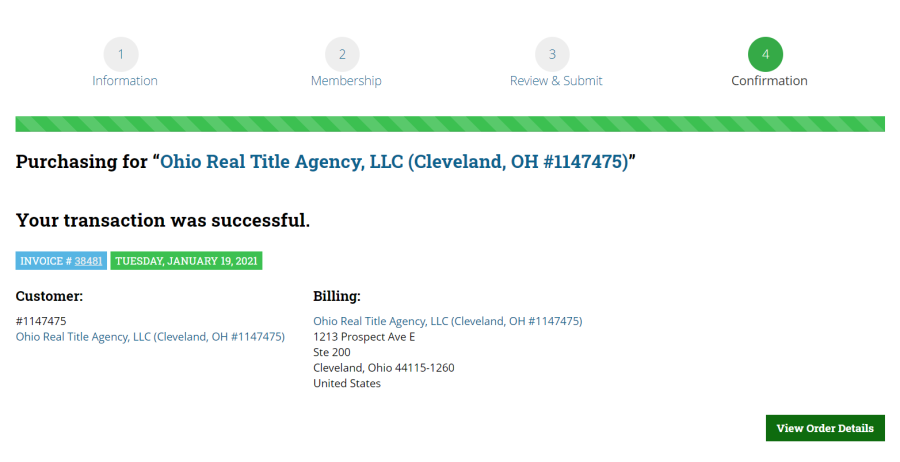
Once you have selected a batch, press Bill Me & Create an Invoice. If you just need to create an invoice, you will press submit your order & the invoice will be created & this is where you would go and stop.
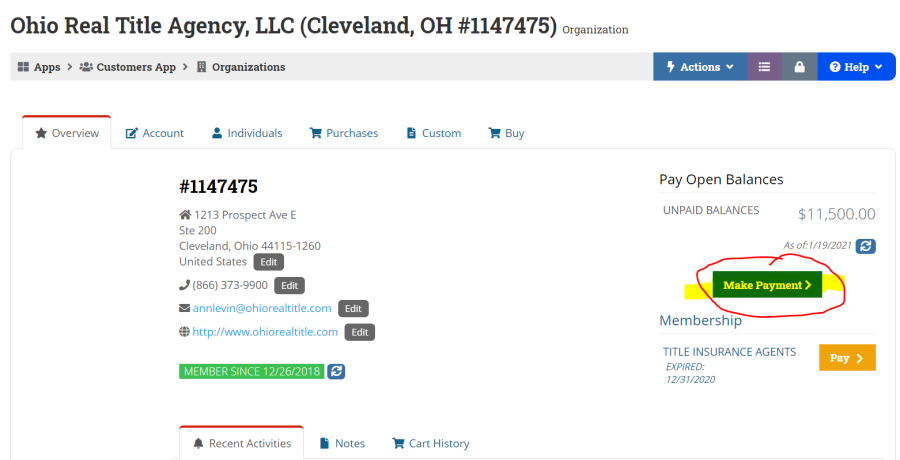
To make a partial payment, go to the organization page and overview tab, press Make Payment. You will also see unpaid balance which shows you what hasn't been paid.
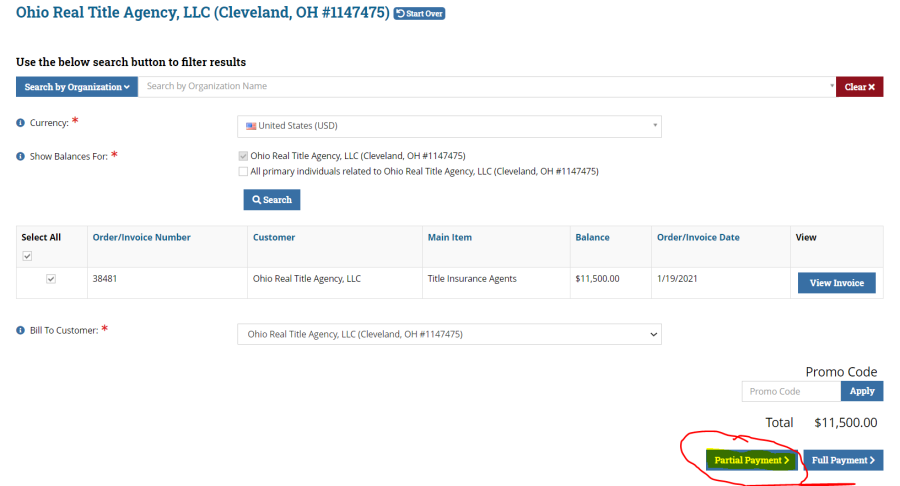
From here, press Partial Payment at the bottom right.
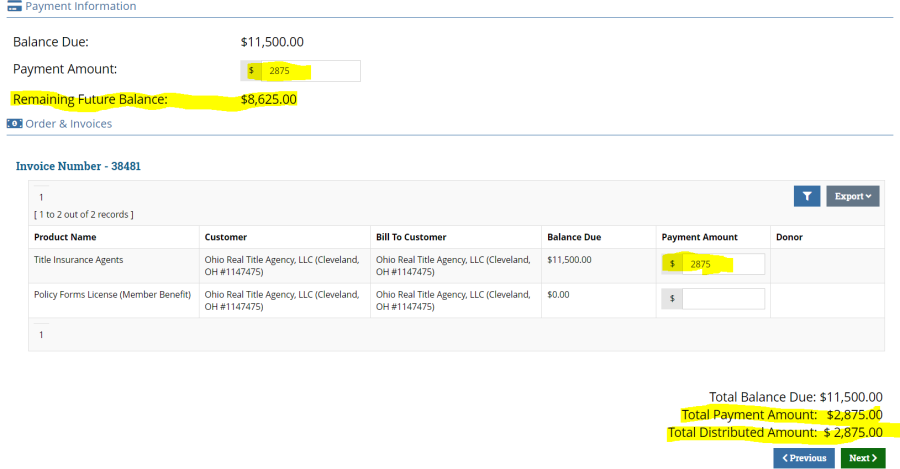
You will now need to enter the amount in which is being paid where it states Payment Amount (in two places). After you enter the Payment Amounts, you will see the Remaining Future Balance, Total Payment Amount and Total Distributed Amount all change.
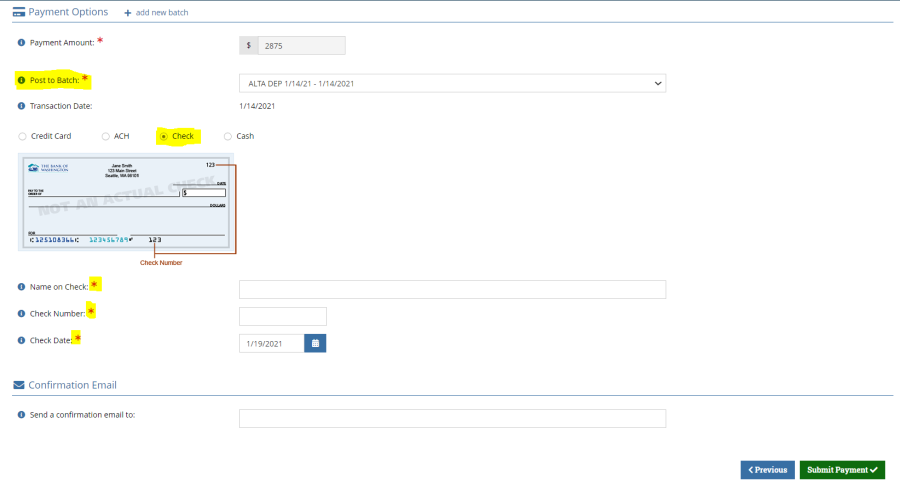
After you press Next, please select the correct batch, press on check and enter what is needed.
Post to the appropriate batch
As you see on the overview page, you will see the unpaid balance, to refresh this, please press the refresh button.
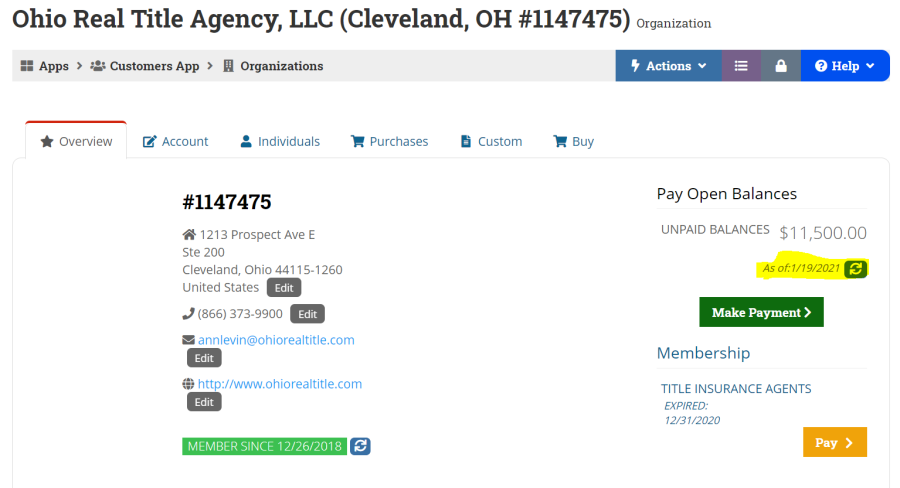
Whenever you need to make another payment, you would go to the organization page and click make payment on the right and follow the previous steps.