How to Create Refunds for Full Cancellation Refunds
Go to the Purchases tab > Recent Payments to confirm we have received the payment(s). Carefully review payment detail to confirm that it is a payment issue.
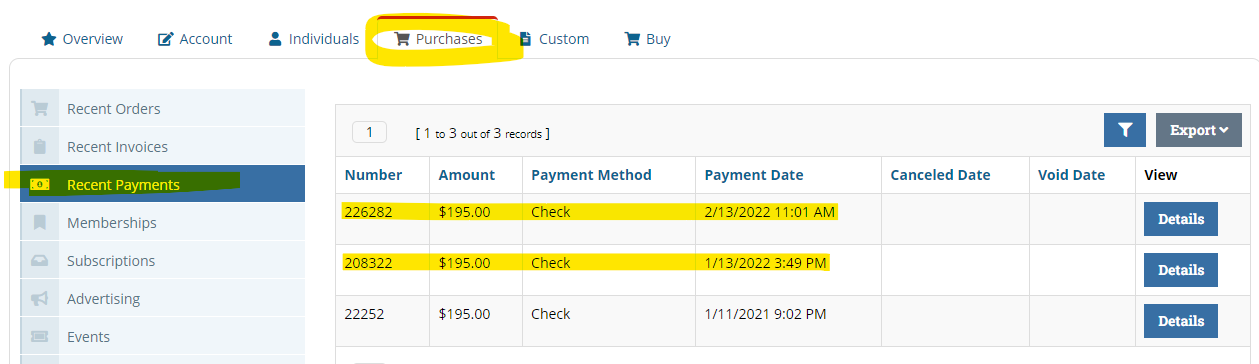
Once you have established the company/person is due a refund you must do the following steps to submit for _Hlk95732376processing and refunding:
-
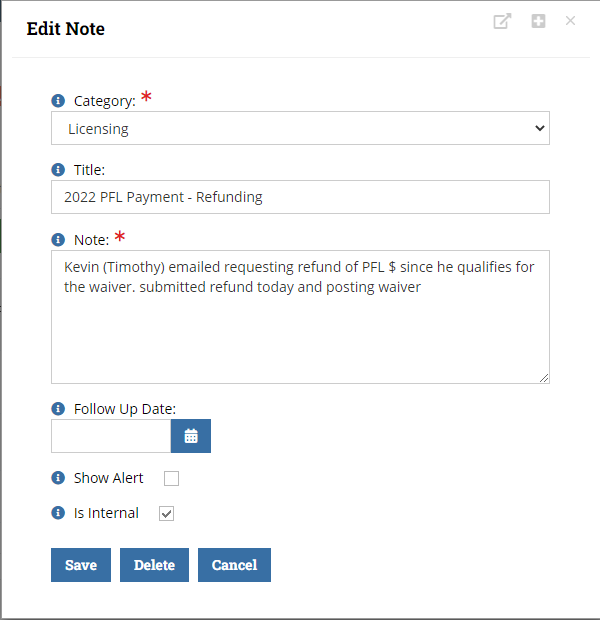
Create a Note on the account explaining the refund – (Please include this detail on the Refund form and Master Refund excel sheet)
-
Cancel/terminate the Product or Service (Invoice).
Go to the Purchases tab > Recent Invoices to select the correct invoice(s).
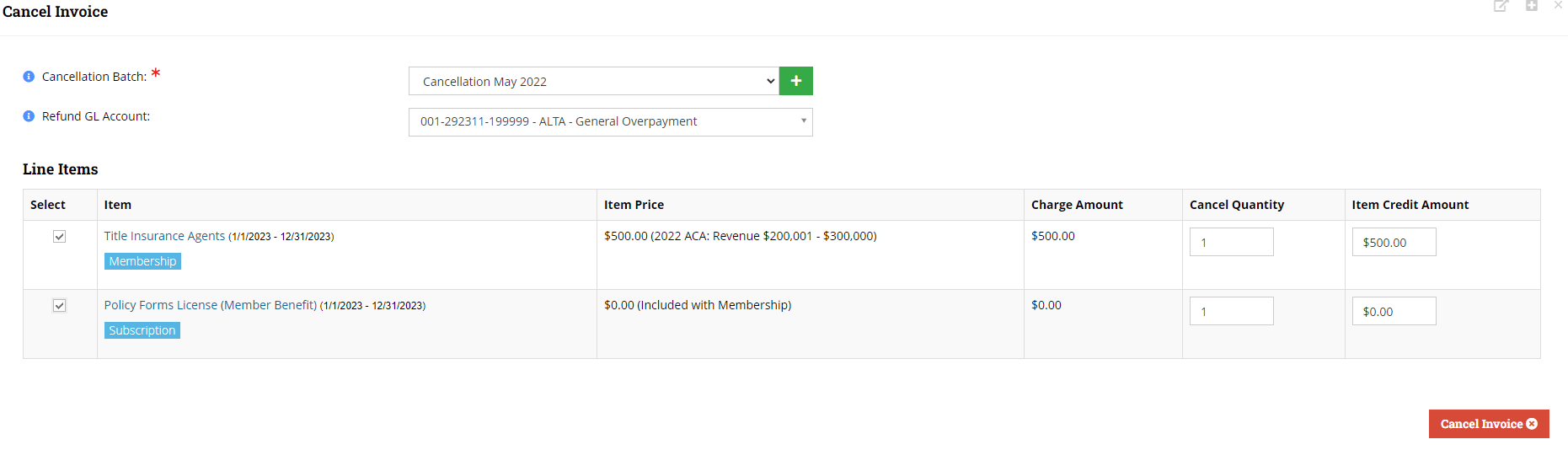
Select the correct cancellation batch (Example: Cancellation March 2022) – This may require directions from the Accounting Dept. if you need to enter the payment in a different batch.
-
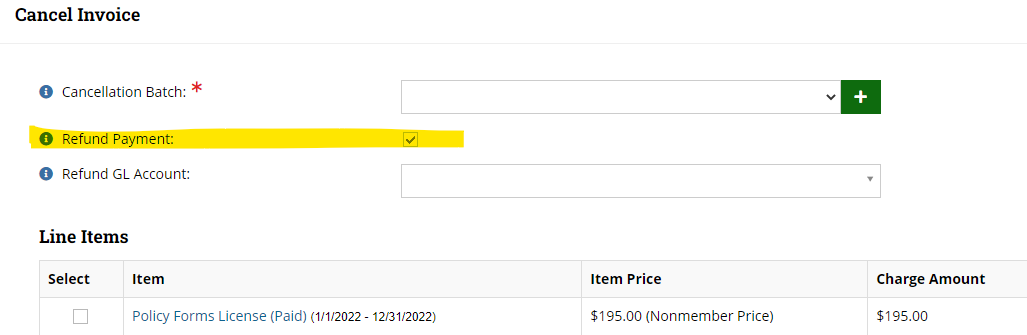
Be sure to always UNCHECK Refund Payment (only for credit card payments, this option will not show for check payments). Reminder: Refunds are processed by the Accounting Dept Only.
-
Refund GL Account will populate by default to the correct account
-
Select the line item that you are requesting for a refund. Make sure that you enter the amount of the payment that needs to be refunded. If a partial or discount was included with this payment, please enter the amount that you would like to refund.
CC Example:
Check Example:
1. Create a note on the account as below – include who you communicated with and the detailed information regarding the payment issue.
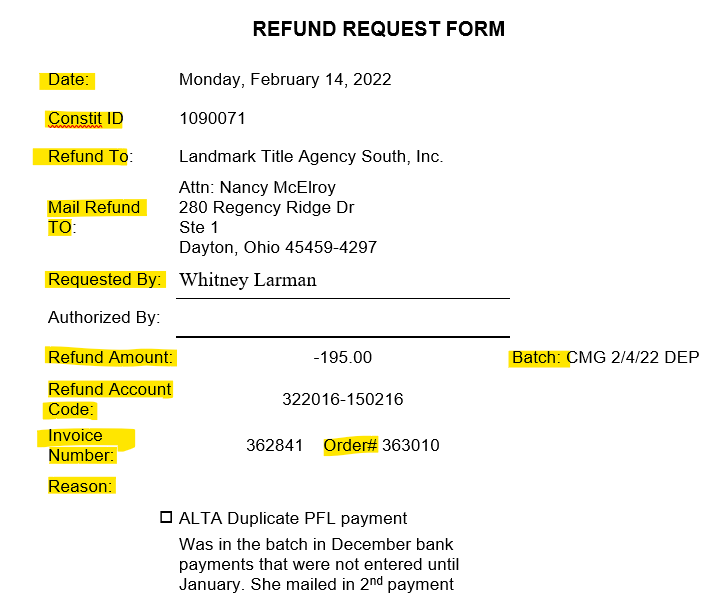
Complete the Refund template and provide supporting documentation
Include refund amount, Batch information, Invoice/Order Number and Reason for refund and any additional information that will be helpful in processing the refund. Located on the G:\Refunds\re:Members (formerly Impexium) Refunds 2022.
Use Snip & Sketch to take screen shot of payments – go to Purchases tab > Recent Payments > Details
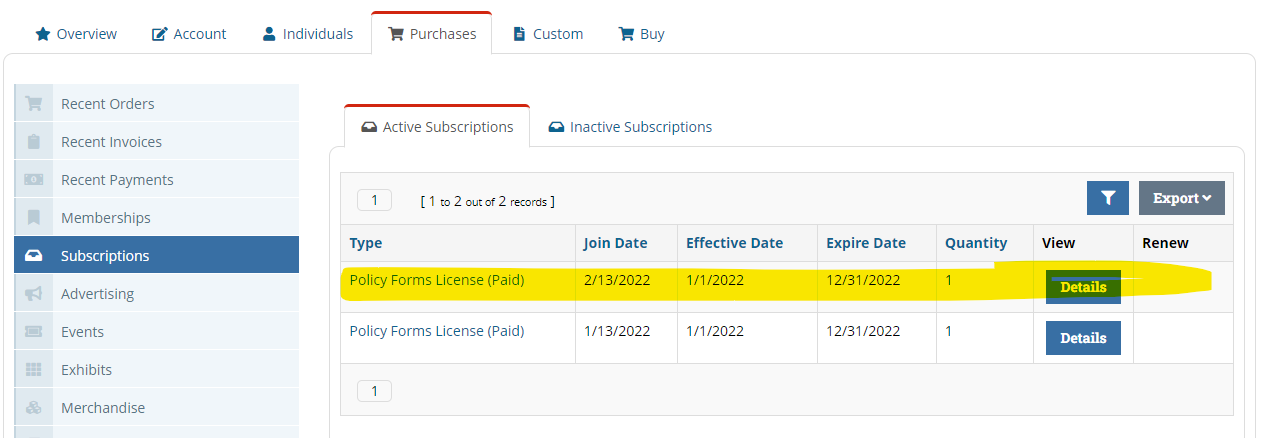
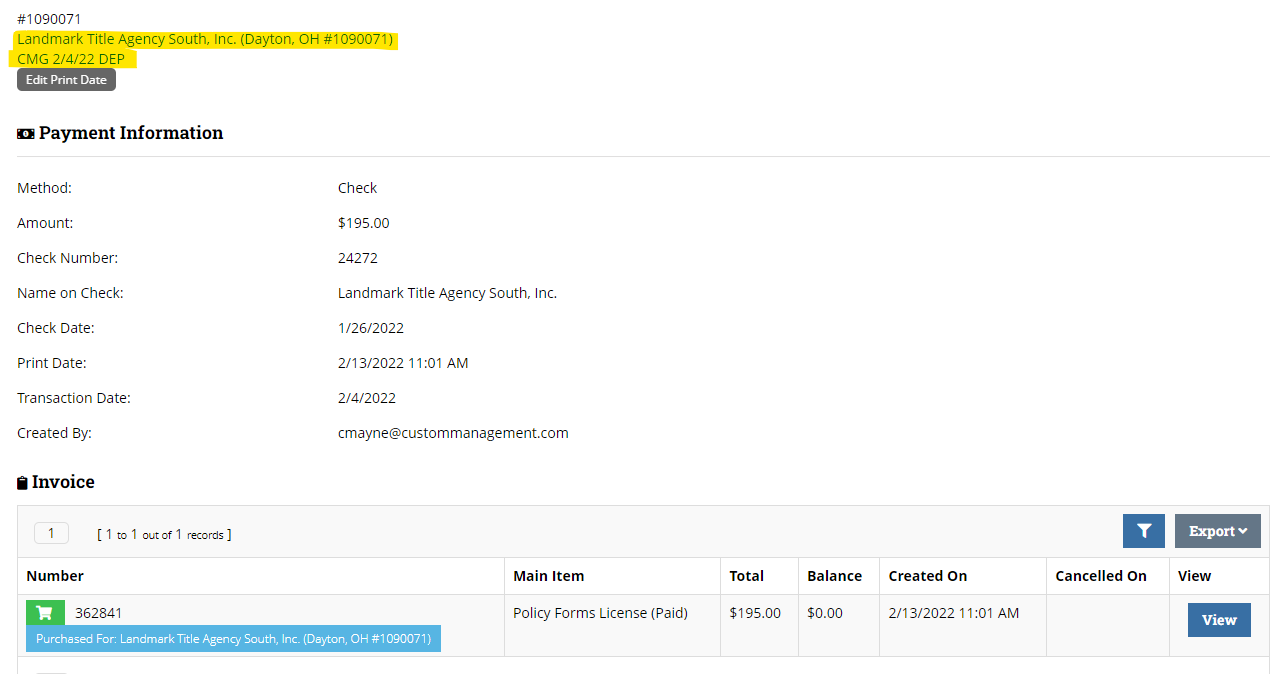
Now you are ready to save as a PDF. Company Name ALTA Id# and Date. For example: Landmark Title Agency South Inc 1090071 Feb142022
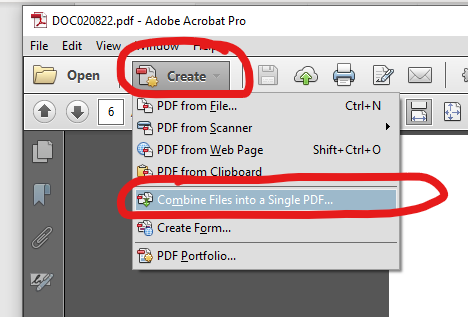
While you have the new pdf open – go to Create > Combine Files into a Single PDF. Add any additional email communications you have and save email as a pdf.
Add Refund Information to the Master Refund excel sheet – G:/Refunds > Master Refund Report > Master Refund List (2010-2021).
Upload/Submit for approval
-
Submit all check and ACH refund request to Bill.com and save a copy to G:/Refunds/Refunds -re:Members (formerly Impexium) 2022
-
Credit card refunds are submitted via email to your Supervisor for approval. Once approved you will need to include email approval in your pdf and save to G:/Refunds/Refunds – re:Members (formerly Impexium) 2022 **Do not upload credit cards to Bill.com. (credit card refunds are refunded in re:Members (formerly Impexium) through Bluepay by the Accounting Department).
-
Note account code the refund information that you will have to enter in Bill.com for check and ACH Refund request. You and your supervisor will also approve again in Bill.com.
-
PFL – 322016-150216
-
MEM – 301000-125000
-
-
