Full Title: Recurring Payments for Pledged Donations
Short Description: Instructions for how to set up the Ecommerce.RecurringDonation process in re:Members (formerly Impexium) to support the processing of monthly recurring TIPAC donations. When an individual requests recurring TIPAC donations in re:Members (formerly Impexium), the act of requesting the recurring donation does not trigger an re:Members (formerly Impexium) payment each month, but rather sets the next payment date to be included in the Ecommerce.RecurringDonation schedule.
Business Rules:
Each month, he Director of Grassroots & Political Affairs, will set the TIPAC recurring payments schedule in re:Members (formerly Impexium). The 21st of the month is the target date.
Processes: Process Center: Ecommerce.RecurringDonation
When scheduling the month's payments Director of Grassroots & Political Affairs should review the list of payments to be made and ensure it is accurate prior to the processing day/time.
There are no recurring payments for the month of January because TIPAC contributions start over each calendar year.
At the end of the calendar year, you must cancel the recurring payments for that year in each monthly donor's individual record. (Individual Record: Purchases: PAC Contributions). Cancel initial payment where recurring payments was selected.
Tips | Tricks | Hints:
-
If there is a need to change the date/time the process is set to run once scheduled, it is best to CANCEL the existing schedule and use the option to 'Add New Schedule'
-
When a user sets up their recurring donation, the first payment is made at the time the recurring donation is set and the 'Next Payment Date' will be on the same date the following month. However, these payments will ONLY BE PROCESSED AFTER YOU SET UP THE MONTHLY PROCESS IN re:MEMBERS (FORMERLY IMPEXIUM) ON THE DATE OF YOUR CHOOSING.
-
It is CRITICAL that at the end of the year all recurring payments are terminated on January 1st and a NEW recurring donation is set by the Individual user.
-
If a payment shows in the 'Review List' that you do not wish to process, in order to remove the payment the recurring donation would need to be canceled.
Text | Images | Step-By-Step:
-
Using the left navigation bar in re:Members (formerly Impexium), go to Processes < Process Center
-
Select Details on the process named Ecommerce.RecurringDonation

-
From Schedules<Active Schedules, select the green Add New Schedule+ button and a new box will open
-
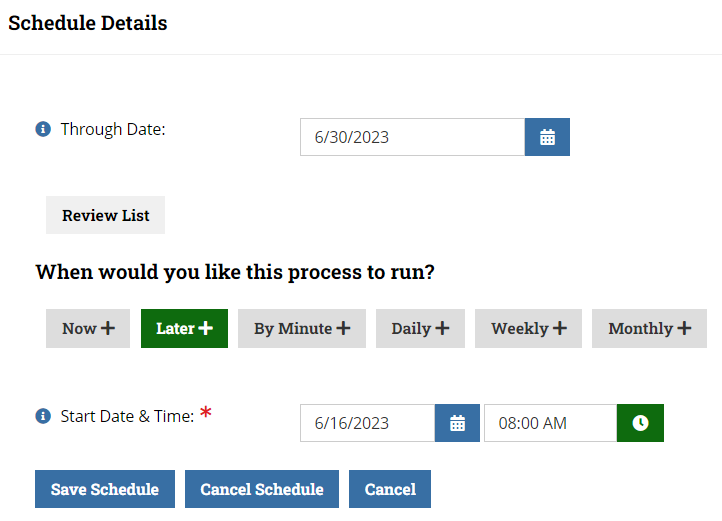
Select the Through Date for the process. The Through Date represents the last Next Payment Date that will be included in the schedule. For example, if the Through Date is set for June 30th, the schedule will capture all individuals with a Next Payment Date between June 1 and June 30. If the Next Payment Date is July 2nd, it would not be included. NOTE: Once a payment is processed using the recurring donation process, the next payment date advances by one month.
-
Where is asks When would you like this process to run?, select Later+ and then enter the date and time you would like the process to run. (Recommend the 21st of the month)
-
Select Schedule Process.
-
To review the process details, select Future Schedules and select Details for the scheduled process you would like to review. NOTE: You may need to refresh the page in order to see the recently added jobs.
-
To review all payments that will be included in that next schedule, select Review List.
-
Schedule this process EACH MONTH. Do not schedule months in advance, per re:Members (formerly Impexium) team. The Through Date will be set to the last day of the month and the Start Date will be the date of processing, preferably the 21st.
