Internal Knowledge BaseWorking to capture ALTA's core Standard Operating Procedures (SOPs), how-to documentation, and historical data. Help
ALTA PurviewExhibit Discount Code Creation & Management
Summary
Standard Operating Procedures Meetings & Events
Exhibit Discount Code Creation & Management
Author Confluence SyncLast edited by Format Sweep (+2)Updated Jul 6, 2026
This page covers how to create, configure, and manage Exhibit Discount Codes (also called Promo Codes) in REM — including naming conventions, meeting assignment, and year-to-year upkeep. It is intended for Vendor Relations (VR) staff who issue discount codes to sponsors and exhibitors as part of sponsorship or booth purchases.
In effect since Jun 18, 2026 · next review Dec 15, 2026 (in 128 days).
Reading tools
Discount Codes (DC) aka Promo Codes are issued to sponsors and vendors as part of sponsorship or booth purchases. Additionally Discount Codes can be evergreen or attached to a specific venue in time.
This Guide applies to Vendor Relations Discount Codes.
There are two types of DC for Sponsors:
Evergreen - the exact DC can be used for the same event over multiple years - however, each year the user must access the Discount Code and reassign it to a new Meeting (See DC Meeting Assignment below)
Event Specific/New - the DC can only be used for a specific event for a specific year - these DCs are created from scratch each year as a new DC.
<table data-table-width="760" data-layout="default" ac:local-id="a10d36d5-a5ab-45ac-94c1-bb8b68776b97"><colgroup><col style="width: 108.0px;"><col style="width: 651.0px;"></colgroup><tbody><tr ac:local-id="adc8e648-aff2-4e1e-9e86-ba4e62a59cf6"><td ac:local-id="80914ea0-8c1d-43ca-a3eb-7b0e8bf2afe8"><img src="https://xaftxntyjxdujkhgbatj.supabase.co/storage/v1/object/public/purview-attachments/573997057/image-20260116-180531.png" alt="image-20260116-180531.png"><p local-id="0b00034c-43ea-46b9-abaf-868a0f06fcad"></p></td><td ac:local-id="5ce32a09-47ee-4452-a9ae-cf209bba0eb5"><p local-id="46307b32-e15c-47e2-80be-b5919c55671e">Naming conventions: It is best practice to adhere to standardized naming conventions for: Codes and Names:</p><ul local-id="3ab89fd8-22f5-46dc-8a71-364ca1598643"><li local-id="939e0a53-631f-42f7-9fde-4882476ce3f3"><p local-id="aad4ad4a-8a84-42b6-bdb6-c7c1de0daa4b">Discount Code: The actual code should begin as follows:</p></li><li local-id="b6e8e2b1-76aa-4c31-a671-a8a74ef8f21a"><p local-id="e087f1af-975a-4b18-ba73-8caabc2f5fec">EDge: EDge</p></li><li local-id="05acf6d1-5716-4ba3-954a-a12c480b5ac3"><p local-id="b7d79c2b-f69e-43d8-8db7-5b00ed41754a">Advocacy Summit: AASS</p></li><li local-id="c58e0136-e11b-4588-9152-8d7420b48afa"><p local-id="7fd93ffa-60b5-4eac-9b94-3081034f3110">ALTA ONE: A1</p></li><li local-id="863135a7-2562-4853-8bbc-5c06155389ac"><p local-id="31ffde4f-16ca-4884-b4ff-6d8d529d0f7e">Discount Name: Expand on the code but keep the format the same for each one</p></li></ul></td></tr></tbody></table>
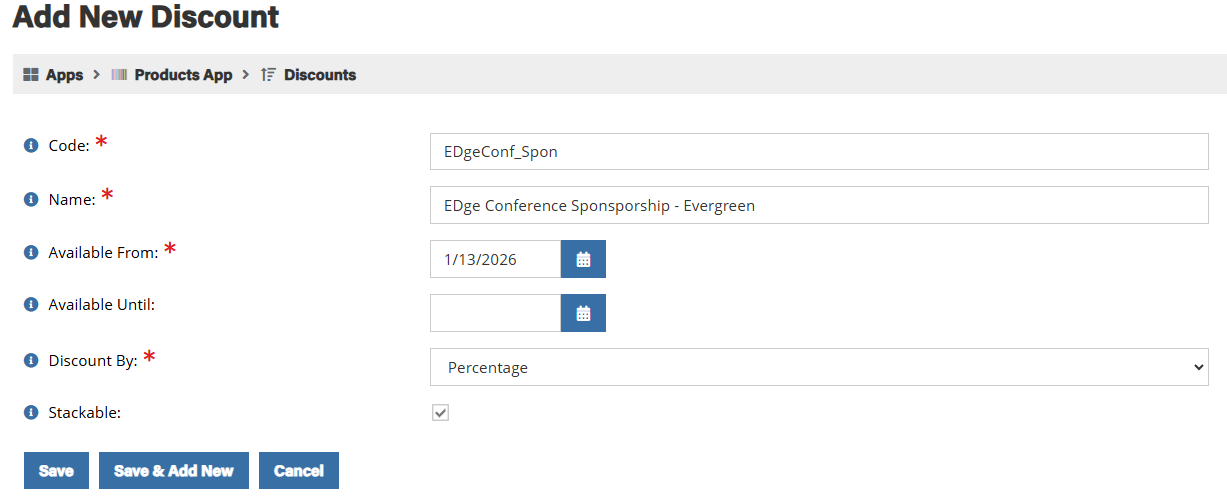
<table data-table-width="760" data-layout="default" ac:local-id="ca8bded2-ff5e-42b2-aec1-a74403676688"><colgroup><col style="width: 652.0px;"></colgroup><tbody><tr ac:local-id="02780f15-8485-4836-9da5-d0dbb15a5751"><td ac:local-id="af427deb-0645-411b-8f06-4770cf195e51"><p local-id="4c473c28-5b12-4d1b-b446-5ad4e5b775fe">Example: How to create a discount code for ALTA EDge for Conference Sponsorships.</p><p local-id="a3d8be71-a4d4-49ec-9136-09b5b45a8897">Criteria: EDge, Conference Sponsor, Evergreen, limit 1 use per company, 100% discount</p></td></tr></tbody></table>
Products>Discounts>Add New Discount
Click to enlarge
Before moving to the next step ensure the changes have been saved
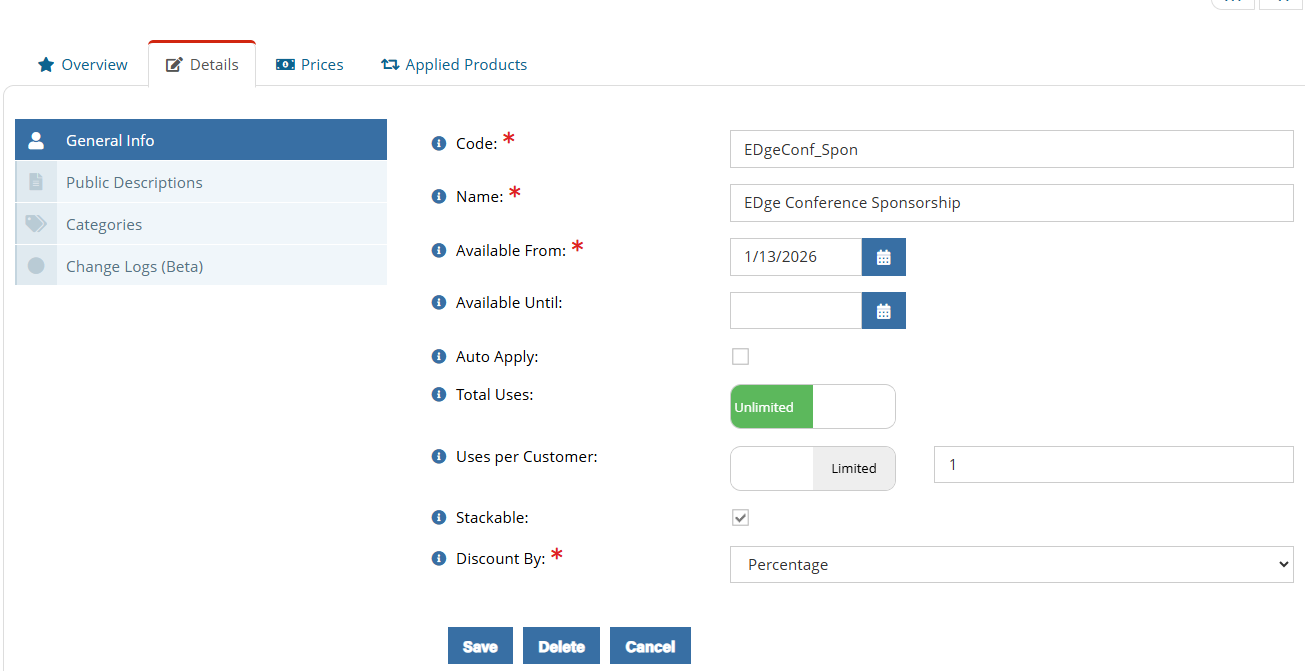
Details>
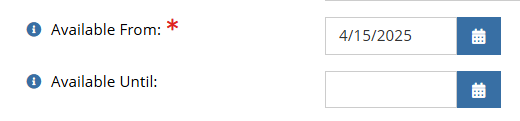
<table data-table-width="760" data-layout="default" ac:local-id="03be7438-4814-4445-b998-d0c0f74f6e71"><colgroup><col style="width: 136.0px;"><col style="width: 623.0px;"></colgroup><tbody><tr ac:local-id="8d2b899f-57d6-4049-b1e4-77e2812cc06d"><td ac:local-id="deccb403-ae03-4fe2-ad82-b4aa3712dad0"><img src="https://xaftxntyjxdujkhgbatj.supabase.co/storage/v1/object/public/purview-attachments/573997057/image-20260128-153907.png" alt="image-20260128-153907.png"><p local-id="b57a864f-bb49-4199-a92a-3df3aa29bf84"></p></td><td ac:local-id="b983b4e0-678a-4914-b479-8db2c5e753ca"><p local-id="2b959b24-4719-46cc-b0f9-668287a53c56">Be sure to set the <strong>Available From</strong>: to a date when the DC should be available</p><p local-id="cc6878de-aa22-4904-a9cb-310c63907109">Where the DC is Evergreen leave the <strong>Available Until </strong>field blank.</p><p local-id="16fc525a-f190-4a14-af48-fcacb1ee106a"><strong>Uses Per Customer</strong>: This should be set to a specific number if there is a limit</p><p local-id="0af17723-e5b1-4ec4-b740-2eb717d1d5d7"><strong>Discount By</strong>: This is generally 100% but can be set to a lower value if needed</p></td></tr></tbody></table>
Click to enlarge
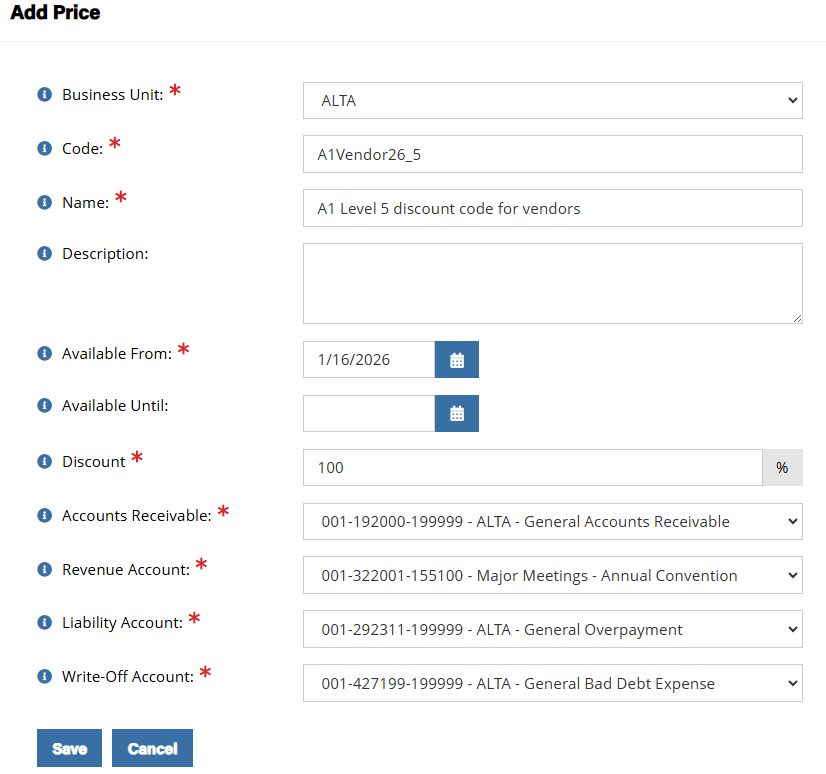
Prices>Add New Price (Note this is screen shot for an A1 Booth discount)
Click to enlarge
<table data-table-width="760" data-layout="default" ac:local-id="2740791f-b70f-42c7-93d8-f3f8cd342952"><colgroup><col style="width: 107.0px;"><col style="width: 652.0px;"></colgroup><tbody><tr ac:local-id="0033f2f8-c9c8-4c20-a570-822769285b43"><td ac:local-id="6e070b7d-1acd-4df0-8885-fb0cfa28b031"><img src="https://xaftxntyjxdujkhgbatj.supabase.co/storage/v1/object/public/purview-attachments/573997057/image-20260128-153920.png" alt="image-20260128-153920.png"><p local-id="a5f9e6e3-9afd-4163-bc66-f650d7df2d79"></p></td><td ac:local-id="76f73bfb-4035-435d-8205-43804ef090a9"><p local-id="0704da79-a0e6-41c0-94e9-8340e37d97c9">Please note that in general terms all accounting fields in the Add Price screen remain the same meeting to meeting with the exception of the <strong>Revenue Account</strong> field</p></td></tr></tbody></table>
Click to enlarge
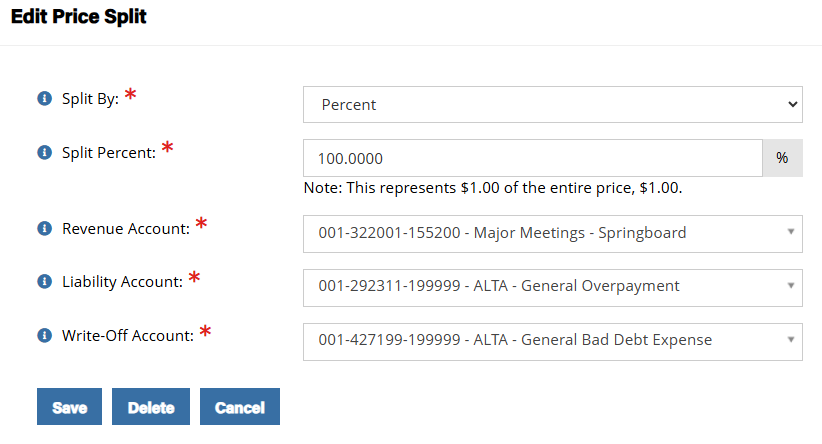
Prices>Active Prices>Edit>Setup>Edit
Click to enlarge
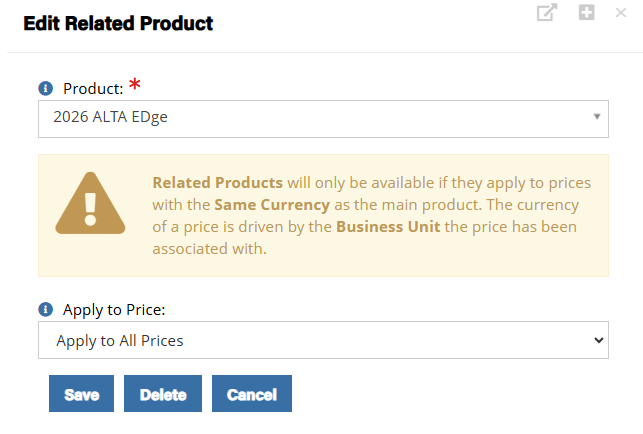
DC Meeting Assignment: To assign the DC to a specific Meeting (Product) users must access Applied Products:
Products>Discounts>[Specific product]>Applied Products>Apply to Product> Product (Event/Type)> YYYY [MEETING NAME] Exhibitors>Apply to All Prices
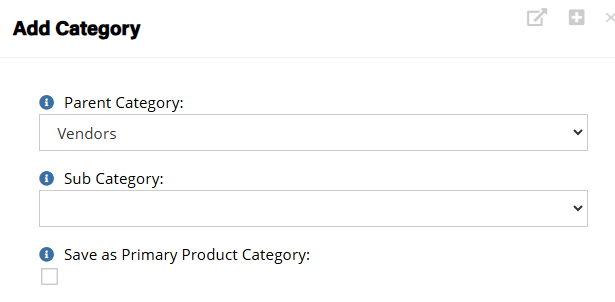
Adding a Vendor DC to the consolidated Vendor list in REM
Products>Discounts>View>Details>Categories>Add New Category>
Click to enlarge
Vendor DC Year to Year Management
When a new event is created for ALTA ONE, i.e. ALTA ONE for the coming year, so long as the existing DC is attached to that Product, “ALTA ONE”, the new Event will automatically have attached to it the “old” DCs. After an Event has ended but before the end of the current year, VR staff should access the DC, as shown above:
Products>Discounts>Search by Discount Product Code Name to bring all Vendor DCs to the top: REM quirk: The sort arrow on this column should be clicked twice to bring the vendor codes to the top.
Click to enlarge
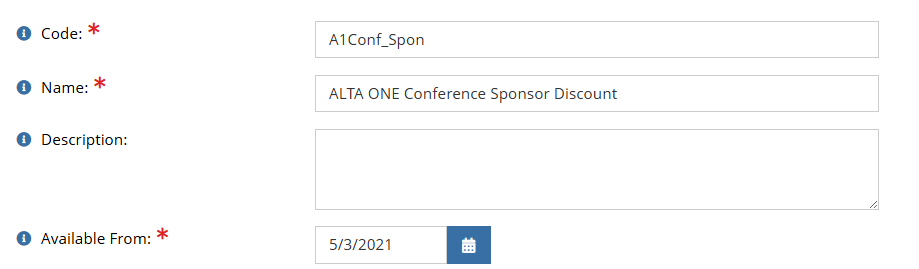
Then the user should update the Codes and Names for the coming year, in a manner that indicates which year the DC is valid for
View>Details>General Info>
Click to enlarge
Then the Available From and or Available Until setting this should be updated accordingly:
Click to enlarge
Next the same fields in the Prices section should be updated also:
View>Details>Prices>Edit
Click to enlarge
<table data-table-width="760" data-layout="default" ac:local-id="5e3b0cae-5f3d-4efa-9fd5-d7d4ef3f6dff"><colgroup><col style="width: 110.0px;"><col style="width: 649.0px;"></colgroup><tbody><tr ac:local-id="206f4c12-f317-427b-a5f2-afece95a24fb"><td ac:local-id="5c17ef9b-1847-4396-9f31-dbe4fe412cf9"><p local-id="9a586b2ca931"> </p><img src="https://xaftxntyjxdujkhgbatj.supabase.co/storage/v1/object/public/purview-attachments/573997057/969c922c-4834-4256-b9fc-cb01a22cbb29.png" alt="969c922c-4834-4256-b9fc-cb01a22cbb29.png"></td><td ac:local-id="7c959ff6-8e4f-4ba9-a6ed-95706be32553"><p local-id="b6784e500c6c">Note it is best practice to ensure the Codes and Names in General Info and Prices are of the same format</p></td></tr></tbody></table>
Made with DASH A.i.
There are two distinct DC types for sponsors. Understanding which type applies determines whether you build from scratch each year or simply update an existing code.
Type
Description
Annual Action Required
Evergreen
Same code reused across multiple years for the same event
Reassign to the new Meeting each year (see DC Meeting Assignment)
Event Specific / New
Tied to one event in one year only
Create a brand-new DC from scratch each year
Tip: If a sponsor or vendor holds a multi-year sponsorship, an Evergreen code reduces admin overhead — you update dates and reassign rather than rebuilding the code entirely.
Made with DASH A.i.
Consistent naming keeps codes easy to search and audit across events and years. Apply the prefix standards below to both the Discount Code (the actual code field) and the Discount Name.
Discount Code Prefixes by Event:
Event
Code Prefix
ALTA EDge
EDge
Advocacy Summit
AASS
ALTA ONE
A1
Discount Code: Begin with the prefix above, then append identifying detail (e.g., sponsor tier, year).
Discount Name: Expand on the code but maintain the same format consistently across all codes for that event.
In practice: When updating codes year-to-year (see Vendor DC Year to Year Management), include the year in both the Code and Name so it is immediately clear which event cycle the DC is valid for.
Made with DASH A.i.
The example below walks through creating an EDge Conference Sponsorship DC: Evergreen, 1 use per company, 100% discount.
Navigate to: Products > Discounts > Add New Discount
Then save before proceeding to the Details tab.
Details tab — key fields to configure:
Field
Guidance
Available From
Set to the date the DC should become active
Available Until
Leave blank for Evergreen codes; set an end date for Event Specific codes
Uses Per Customer
Set to 1 (or the agreed limit) to cap usage per company
Discount By
Typically 100%; adjust if a partial discount applies
Tip: Save after completing the Details tab before moving to Prices — the system requires the record to exist before a price can be attached.
Made with DASH A.i.
After saving the Details, navigate to Prices > Add New Price to attach the pricing configuration.
Important note on accounting fields:
All accounting fields in the Add Price screen remain the same from meeting to meeting — with the exception of the Revenue Account field, which must be updated for each event.
After adding the price, complete the setup via:
Prices > Active Prices > Edit > Setup > Edit
In practice: Double-check the Revenue Account field every time you create or update a DC. Leaving a prior year's account in place is a common error that creates accounting discrepancies.
Made with DASH A.i.
For a DC to function at a specific event, it must be explicitly assigned to that Meeting (Product) in REM — this applies to both Evergreen reassignments and newly created Event Specific codes.
Navigate via:
Products > Discounts > [Specific Discount] > Applied Products > Apply to Product > Product (Event/Type) > YYYY [MEETING NAME] Exhibitors > Apply to All Prices
Tip: For Evergreen codes, this reassignment step must be completed each year — the code itself doesn't change, but it must be linked to the incoming year's Meeting record.
Made with DASH A.i.
A consolidated list of all active Vendor Relations Discount Codes is maintained in the VR Discount Code Roster (SharePoint). This is the central reference for tracking which codes exist, their status, and their event assignments.
In practice: After creating or updating any DC, update the Roster to keep the consolidated record current. This helps the whole VR team quickly confirm which codes are valid for an upcoming event without having to search REM individually.
Made with DASH A.i.
After a DC is created, it should be categorized in REM so it appears in the consolidated Vendor list. This makes it searchable and manageable across the team.
Navigate to:
Products > Discounts > View > Details > Categories > Add New Category
Tip: Categorizing a new DC immediately after creation — before moving on to the next task — prevents codes from being "orphaned" outside the consolidated list, where they become harder to find and audit later.
Made with DASH A.i.
At the close of each event cycle (after the event has ended but before the end of the current calendar year), VR staff should update existing Vendor DCs to reflect the coming year. Because ALTA ONE DCs auto-attach to newly created events tied to that product, the update is an edit — not a rebuild.
Step-by-step annual process:
Search: Products > Discounts > Search by Discount Product Code Name to surface all Vendor DCs.
REM quirk: Click the sort arrow on the Code Name column twice to bring vendor codes to the top.
Update Code & Name: View > Details > General Info — revise the Code and Name to reflect the new year, in a consistent format.
Update Dates: Adjust Available From and/or Available Until in the Details tab to cover the new event window.
Update Prices dates: View > Details > Prices > Edit — apply the same date updates in the Prices section.
Best practice: Ensure the Code and Name values in General Info and Prices use the same format. Mismatches between these two sections can cause confusion when auditing codes.